Modifying a background layer seems to affect the subject as well.

I have an image of a dancer with a cloth background. I want to get rid of the background. Using C1 16.3, I use AI to select the background. No issues there. But when I apply modifications to the background layer, such as lowering the brightness right down, some of the subjects skin ends up with black blotches in it. It's not just at the join between subject and background, but some way in.
I don't want to post the picture here, but I am willing to send it privately to someone from C1 who can look at the issue.
Are you happy to be contacted further about this suggestion or request?
Yes
-
Check if there are no spills (mask covering the dancer as well). A new feature, I did not see it yet even, so it's not excluded it has problems with separating similar objects.
0 -
No, that's the only mask. This is new for 16.3. And so far, it doesn't inspire me to upgrade (I purchased 16.1)
Alan
0 -
When you have used the AI feature to select the background, can you inspect the greyscale mask (Alt-M on Windows I think) and check whether there are any masked bits in the dancer? Maybe the AI hasn't quite got it right and it needs to be cleaned up a bit.
Ian
1 -
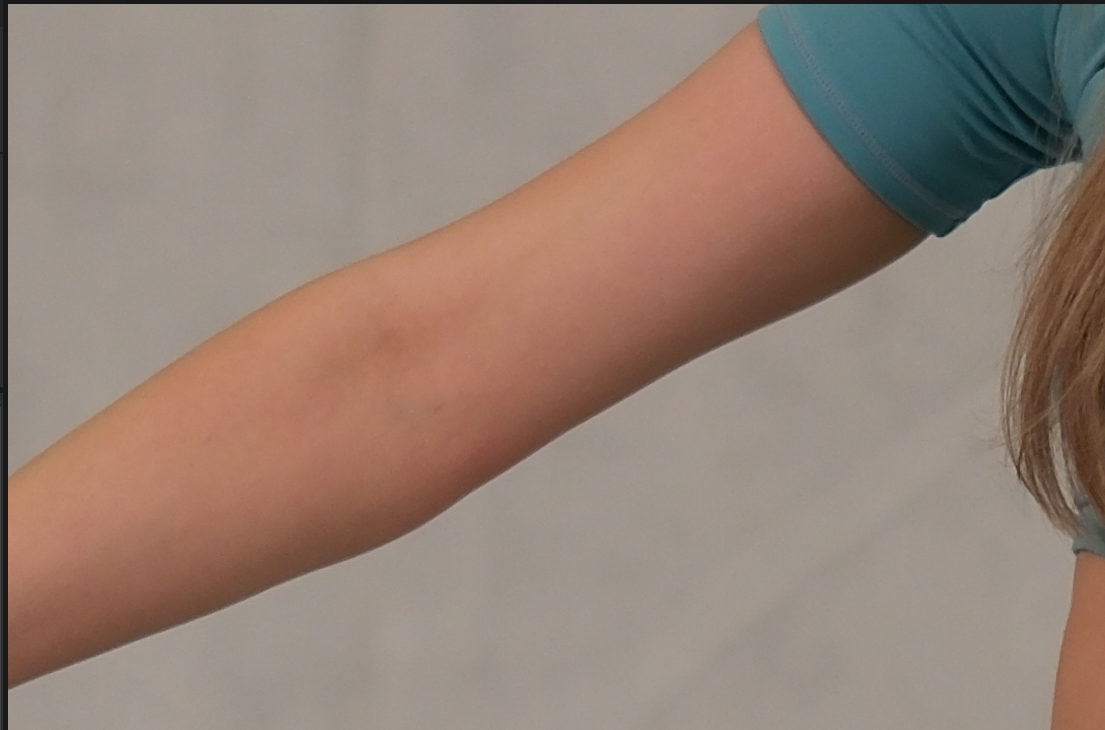
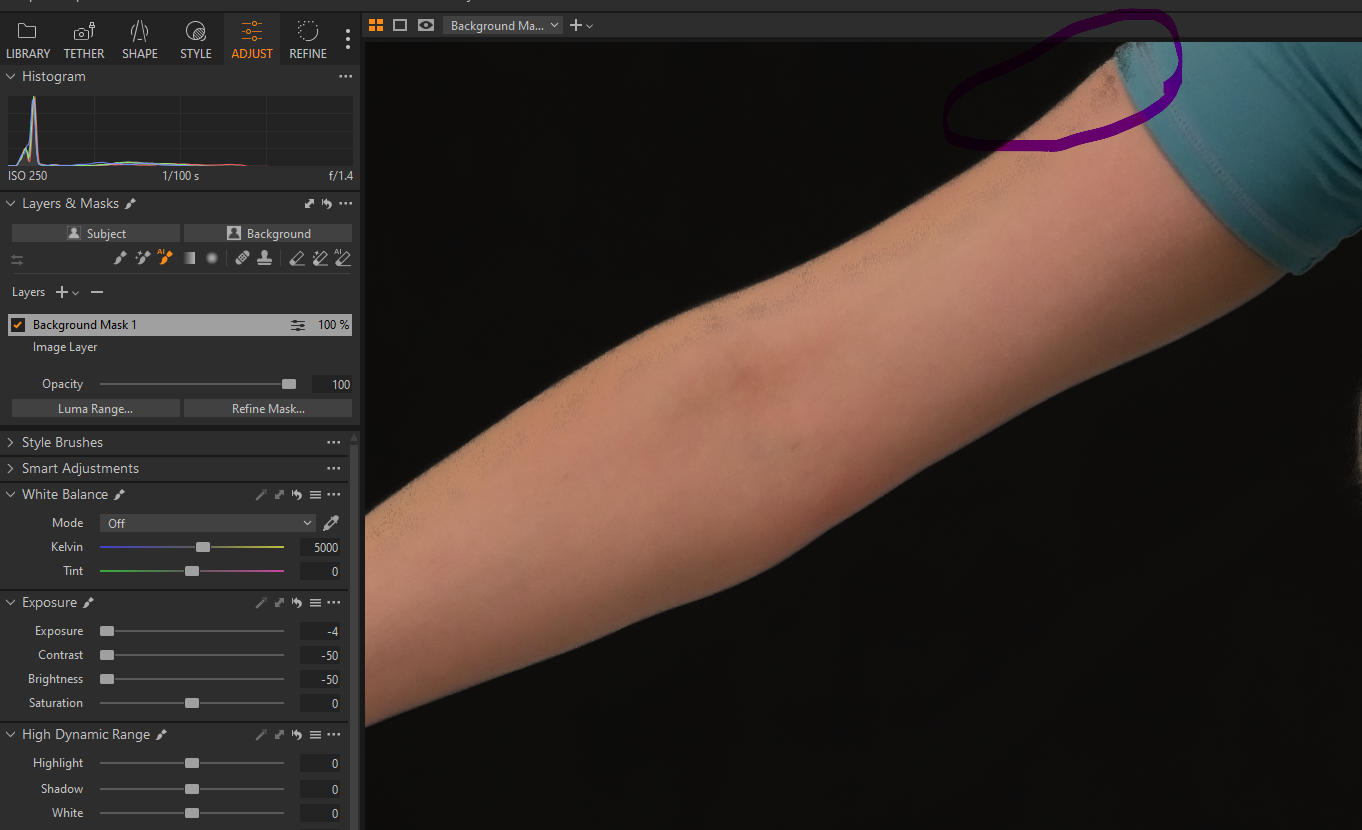
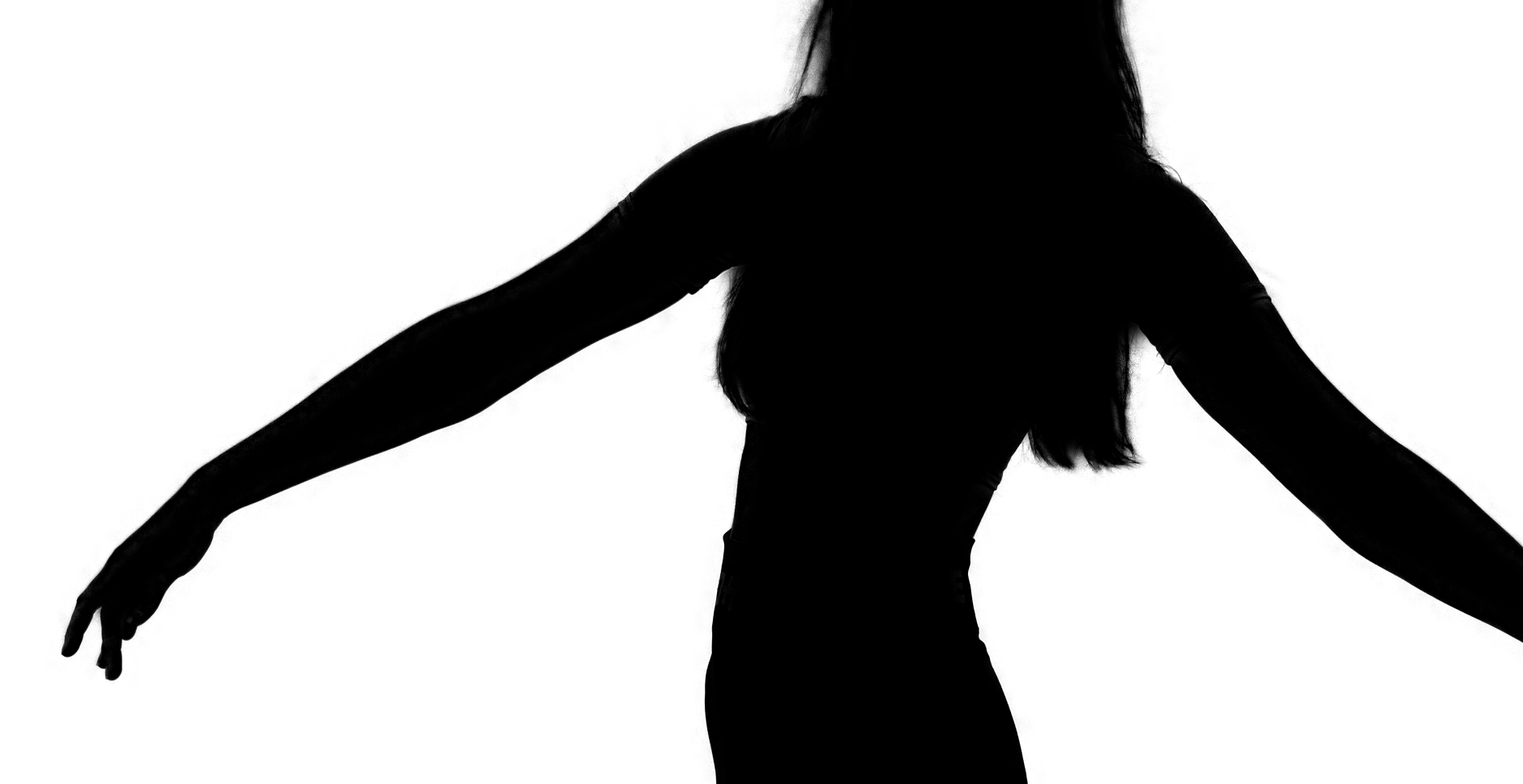
I checked with alt-M and all looks OK. See the B/W third image below. I then reduced the contrast, exposure and brightness of the background and it affected the subject. See the second image - I've highlighted where it seems to be bad. If I turn off the adjustments, you can see the original (first image) - which looks fine.
 0
0 -
A quick thought. The black blotches. Are they very distinct squares or rectangles or just blobs?
They seem to be blotches.
Alan
0 -
Comparing second and third image I can see a minor patch of gray close to the sleeve, so there is a spill. Zoom in an check all suspicious areas.
0 -
This is a blow up of 400% - there's really only a very small amount of grey/white in there and nowhere near matches what I see above. How do I remove it anyway. Sorry it's a link, but I seem to have exceeded some upload limit.
0 -
OK - I now know how to remove the extra stuff. But I don't understand why it's there at all. AI needs a bit more education, I think.
1 -
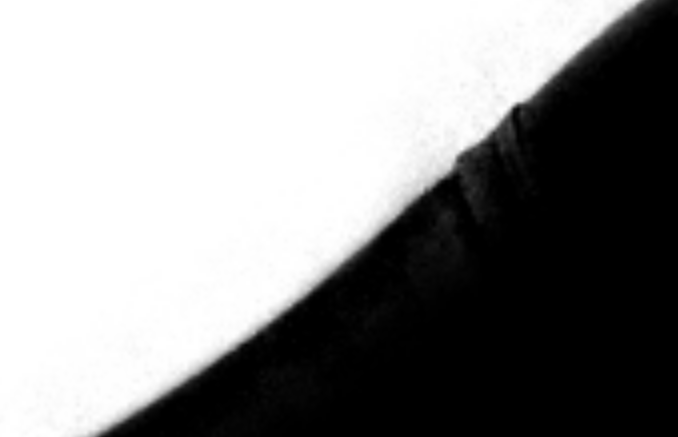
Yes, faint grey on her black arm and sleeve, and faint grey on the white background close to her arm.
Does "refine" help here or is it doing the opposite? Can you use "Feather" on background masks? What is the experience for other images, is this to be expected from the AI masking?
I don't have 16.3 but it interests me.
1 -
Refine doesn't help. What I've done is just used the erase brush wherever I see it - and when you zoom up to 3-400%, there's a LOT that it got wrong.
I haven't tried other images yet. I've got 30 days to see if I like this.
Alan
0 -
I think you will find that the AI works quite well on a lot of images, but it is still possible for it to be fooled. And of course, you are applying a huge adjustment to the background layer (-4EV, and -50 brightness as well). So even a small amount of error in the masking will show up a lot.
Even so, it may be quicker using the AI for the masking and cleaning the mask up a bit than it would be to do the masking completely by hand.
Ian
0 -
... and to add to SFA's suggestion, you could also try the AI brush rather than the Subject or Background buttons.
Ian
0 -
Thank you all for your comments and ideas.I think I was expecting too much from the tool. I did go thhrough and find all the places where it was bleeding through and erased them.
In my opinion, if Capture One advertises a feature, it should work. This one doesn't. If anyone from ON1 is looking at these posts, please can you fix the bleedthrough? I don't care how much I mess around with the background, it shouldn't affect the subject.
I have Capture One 16.1, and for the moment, I will stick with that.
Alan
0 -
My experience so far is that for the most part it works pretty well. But it does depend on the subject matter, and you may need to use the full range of the new tools available. Case in point - see these two shots taken yesterday. (Forgive the image quality of the one on the left - the birds were in such deep shade that the ISO was way up to 16000 which doesn't make for a very noise-free image!)
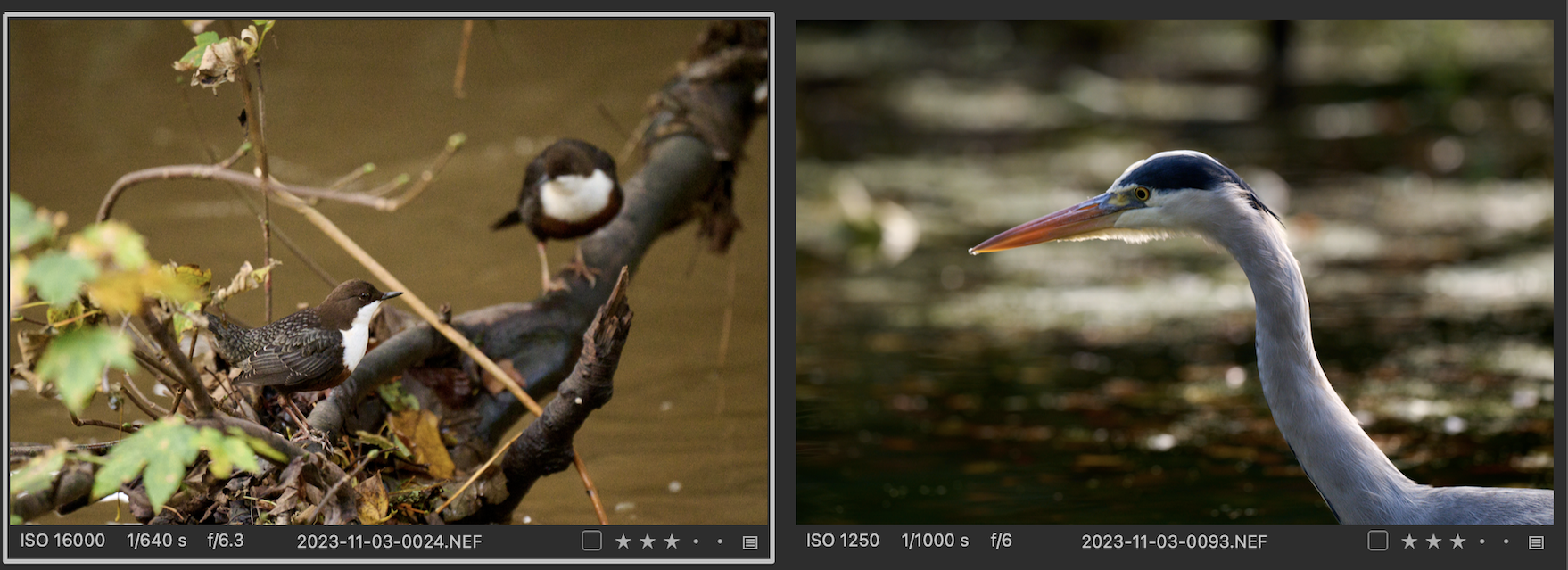
With the right hand image, the Subject button flawlessly selected the heron. With the left hand image, the Subject button picked up part only of the out-of-focus Dipper at the back. But I then used the AI brush instead, and it correctly selected the bird at the front. There was another one that selected the bird but also a bit of the branch but that was very easily corrected with the AI eraser.
Ian
0 -
Thanks. The masking is pretty good. I had only used an AI generated Subject mask on the heron, so now I have duplicated the layer, inverted the mask, and reduced exposure and brightness by the maximum amount possible.
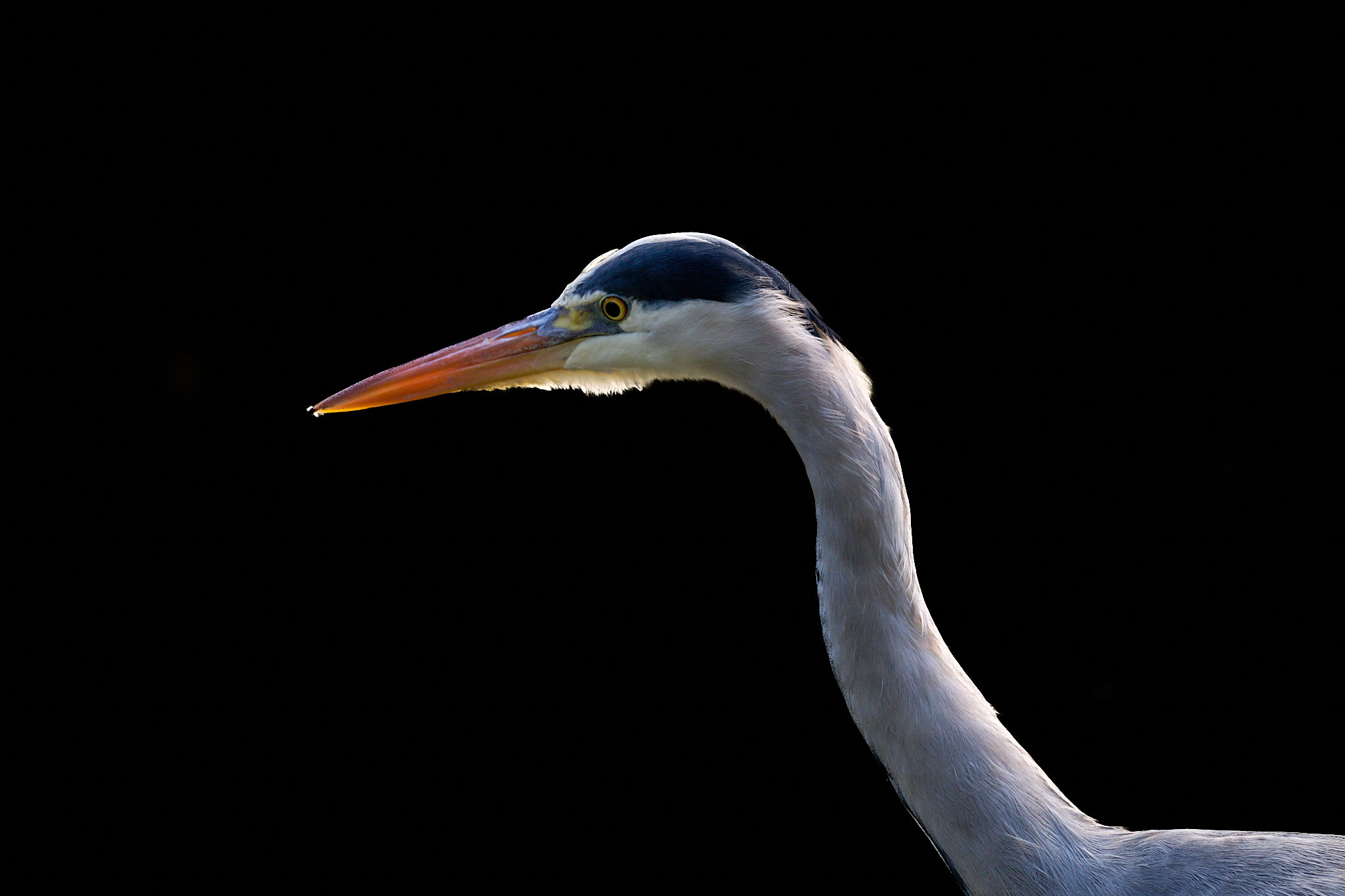
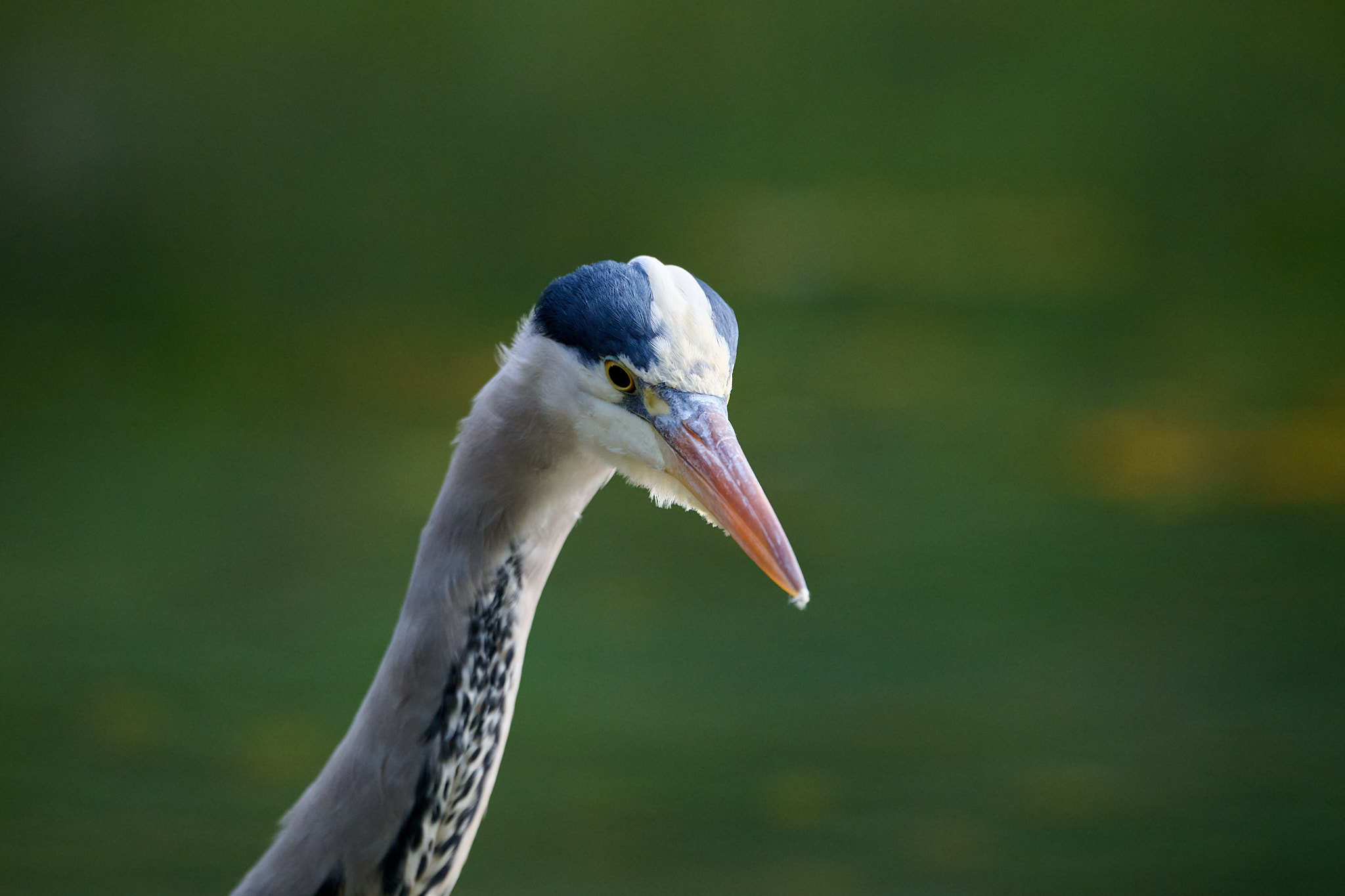
At first I thought the slight white stripe on the front side of the neck just above the bottom of the frame was an error in the masking, but inspecting the original version, I can see that it is actual due to the stripes on the heron's front, as shown below.
 0
0 -
Yes, sorry - I am using both tools. I didn't mean to mention ON1 in this comment.
And you are probably correct. As I get more familiar with C1, I am sure it will become a lot easier.
Alan
0 -
If anyone has experience with subject and background masking in other tools compared to C1, with problematic cases, this would be interesting too.
Alan, for the model shot, can you use "Fill mask" from the three dot menu of the layers tool? Does it help in this case?
0


Post ist für Kommentare geschlossen.
Kommentare
17 Kommentare