Heal Layer - Bug when copying to another image

There is a bug when copying a heal layer from one image to another. I experienced it when working with PNG files that I previously exported from raw files.
Backstory:
I needed to re-heal the PNGs because the heal on the raw files was not suitable. The reason is that the heal brush samples from the original image, not from the already healed layer, and it was making things very difficult. What I'm doing with these images is I'm removing some power lines.
Anyway, the current issue is with copying a heal layer from one png image to another.
Steps to reproduce:
- Have multiple images taken one after the other, same scene, same settings, lighting, everything.
- Use the heal layer to remove a small imperfection from the first image
- Copy the heal layer to multiple other images at once
Actual results:
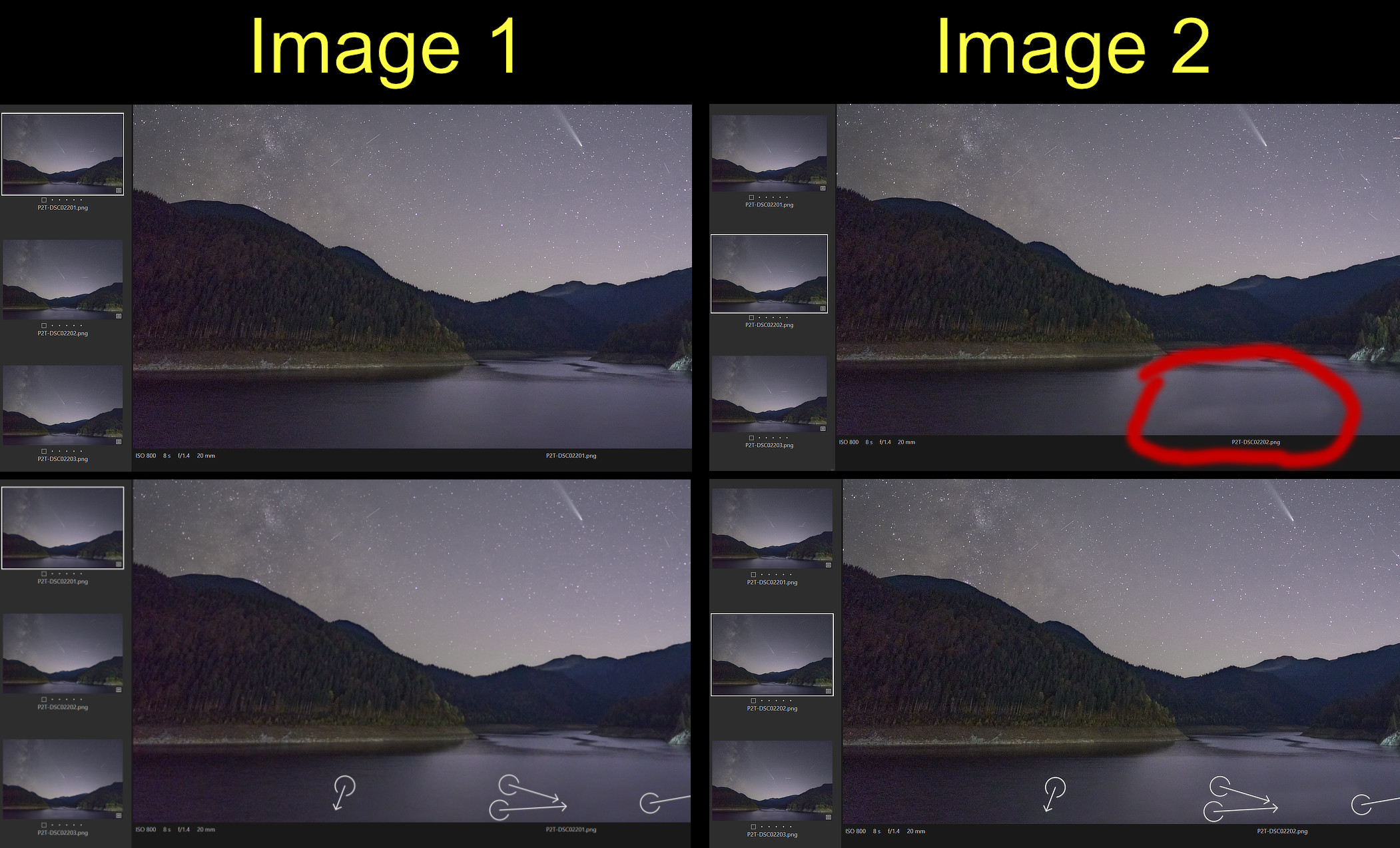
- The heal layer is copied but the heal looks very different, almost like a very rough clone stamp.
Expected results:
- The healed region looks identical in all images.
Attempted workaround - not working:
- Manually move the healed spot just a few pixels back a forth, then the heal will look good, identical to the first image
- Note. You can manually move any of the heal spots, they will all get "recalculated" and the entire image will look good
- However, the exported images still look bad, as if the heal is not blended - like you see in the attached image
Attempted Workaround 2, not working:
- Paste the heal layer just to a few images. It appears to be working ok with 2-5 images or so.
- However, the exported images still look as if the healed region is not blended into the surrounding area.
In C1, even if the images look like "image 1", after 10-15 minutes of scrolling through them, they start looking again like "image 2".
Also, when exporting they look like "image 2" even though in C1 they look like "image 1".
I've noticed that in the exported file, the healed spots look like they do while I'm dragging the heal source around in the image and the preview is shown, so before the heal is actually applied and the spot is blended into the surrounding area.
Does anyone know of any other workaround?
I've already tried:
- Regenerate previews
- Enable/Disable the heal layer
[EDIT] Possible solution / workaround
I noticed that if I delete the spot that has this issue and I create a new one, I can copy/paste it to other images and it works fine. However, the way it works is by:
- Ctrl + Shift + C on the image where I applied the new heal spot
- Select other images and Ctrl + R to reset all adjustments
- Ctrl + Shift + V to paste all adjustments from the first image
Below I have attached an image showcasing this issue. On the left is the first image, on the right is the second image.
On the first row it's the image without the tools visible, so you can better see the issue.
On the second row I've also included the tools so you can see where and how they are applied.
Post ist für Kommentare geschlossen.
Kommentare
0 Kommentare