Dual Monitor Setup and Panels Grief

1. I am in a trial with 11.2 on a Win 10 machine and was wondering if there are any instructions on setting up a second monitor. I have 2 EIZO's which are identical but I notice when I go to workspace and select dual monitor - large viewer I can drag the new window onto the second monitor and make it full screen but the image on the first monitor is blurry. I am beginning to think this is not truly a dual monitor setup like Lightroom is?
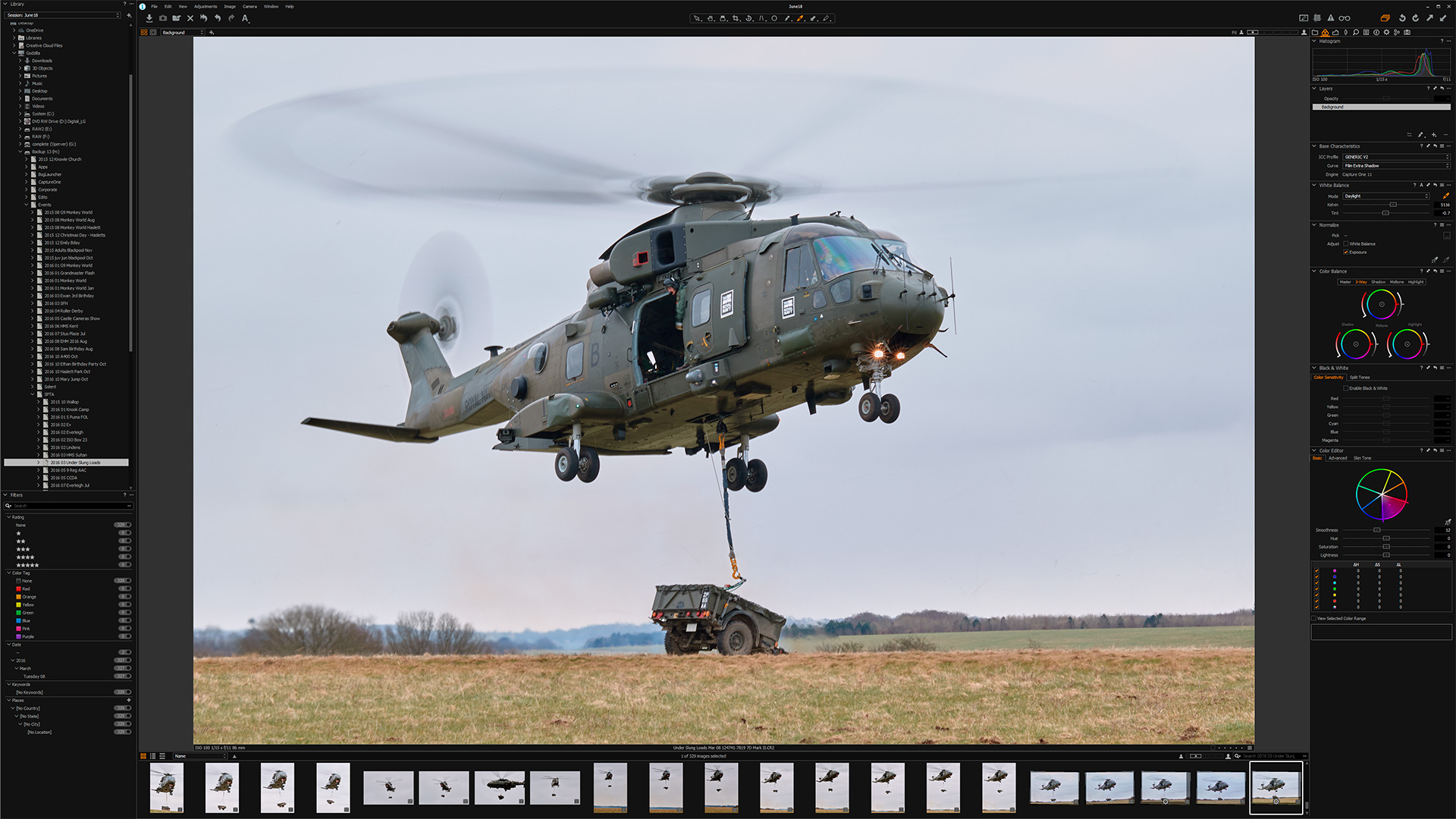
2. I also want to create a workspace where I have the Library panel and a few other panels on the left and other panels on the right with the image between them. I have watched this youtube video and support has not been able to help despite sending them the link here https://www.youtube.com/watch?v=cUCuY5E4d8o at about 19:30 in on the video. I have not been able to duplicate this. The panel even though I dragged it over still blocks part of the image.
Unless I can get this sorted out then C1 may not be for me.
2. I also want to create a workspace where I have the Library panel and a few other panels on the left and other panels on the right with the image between them. I have watched this youtube video and support has not been able to help despite sending them the link here https://www.youtube.com/watch?v=cUCuY5E4d8o at about 19:30 in on the video. I have not been able to duplicate this. The panel even though I dragged it over still blocks part of the image.
Unless I can get this sorted out then C1 may not be for me.
0
-

There are subtle differences between Windows and Mac User Interfaces and some of the commands will need to be interpreted form the video as it is Mac based.
There are some Phase One videos - both tutorial and recorded webinar sessions and I wonder if you have also watched those, a recent one (from memory) was intended to cover the differences and options for LightRoom to Capture One potential converts.
In terms of your first question - what are you viewing on your "blurry" screen and what resolution is it running at?
If you have the Browser displayed and at full screen bear in mind that the browser is only displaying relatively low resolution thumbnails in order to avoid excessive and unnecessary (indeed pointless!) system resource usage. If that is what is blurry then oversize of a thumbnail maybe what you are seeing.
If the entire screen is blurry then I would wonder about the settings for the graphics processing drivers and the way C1 might use them but without seeing what you are seeing it's a bit difficult to offer much more.
For your second question, the presenter has created a floating tool - or rather selection of floating tools and connected them into a panel (they will auto attach if you place one against another vertically) and dragged the panel to the other side of the screen.
He has then observed that the floating tools cover the Viewer window so he has reduced the amount of screen real estate the main C1 screen is using and left the floating panel floating alongside. His commentary tells us when he did this. You could, should you wish to, leave the main screen at full screen and put the floating tools onto the second screen - or some other revised configuration.
If you do this and want to make the new configuration permanently available remember to save it (after each change) with a new name on first save and optionally a new name as required for subsequent versions.
If you use a name that is one of the workspace names shipped with C1 releases a new release will overwrite the contents and your changes so best to be sure to use your own names.
HTH.
Grant0 -
Thanks Grant I tried F10 and then placed that window on the second monitor and made it full size and the image although somewhat smaller is not blurry anymore. not sure what happened there. I opened up several other images and both screens are sharp now.
As for placing a library panel on the left side so it does not block part of the image still evades me. The video shows using a mac that you can do that the question is how!0 -
[quote="NNN635040576084044010" wrote:
As for placing a library panel on the left side so it does not block part of the image still evades me. The video shows using a mac that you can do that the question is how!
Just re-size the main C1 Window so that it is less than full screen.
The stack of floating tools that was built in the video is a separate window and can be placed anywhere. Once you have resized the main screen and made space on the desktop for the floating tools of your choice joined in a stack you just put them beside the main window. If you look carefully at the point in the video where that is being presented you can see the Mac desktop under the C1 windows. MS Windows allows the same approach.
HTH.
Grant0 -

[quote="NNN635040576084044010" wrote:
As for placing a library panel on the left side so it does not block part of the image still evades me. The video shows using a mac that you can do that the question is how!
The clue is to shrink the window and drag the library and filters out of the main window.. *should take approx 10 seconds*0 -
I must be missing something here as I can shrink the overall window and place the library panel there but when I go back to full screen it overlaps the image again, is there a way to keep it where it is and have a full screen with no overlap of the image. 0 -
[quote="NNN635040576084044010" wrote:
I must be missing something here as I can shrink the overall window and place the library panel there but when I go back to full screen it overlaps the image again, is there a way to keep it where it is and have a full screen with no overlap of the image.
This is where I think your problem lies, you can't visualise the fact that full screen will make the panel overlap the image 😉0 -
[quote="NNN635040576084044010" wrote:
I must be missing something here as I can shrink the overall window and place the library panel there but when I go back to full screen it overlaps the image again, is there a way to keep it where it is and have a full screen with no overlap of the image.
No, full screen means full screen for the main active window. So it expands again. Click on the icon to take it back out of full screen and you should be back to where you were.
As per the video, don't go back to full screen. However this constraint probably works best if you have a high resolution screen which effectively gives you plenty of "spare" area so that your main viewer window is still giving you the size of view you like to work with.
Grant0 -
My monitor is 24" and I am not in full screen mode the image on screen is at the smallest size that I can tell by using the icon slider with the small head on one side and a larger head on the other, its all the way to the left.
Is there a way to make this image even a bit smaller? so I can place the library panel without overlapping the image and should the panel stay put if I can make this happen?0 -
some screen shots of what you're trying to explain would help 0 -
I was able to reproduce what was on the video with the Windows version
http://www.photographs.rjwhetton.co.uk/forums/Lr-Setup-small.jpg
just click this
http://www.photographs.rjwhetton.co.uk/forums/C1-Icon.jpg
http://www.photographs.rjwhetton.co.uk/forums/C1-Icon-2.jpg
Drag the Library and Filters out of capture one and place them where you want them to go, and drag the main window to fit.0 -
Yes! I was able to duplicate this so thats good, I like the forums and your help has been great. Thank you for all your help. I am trying out Capture One and On1 Photo Raw 2018 and will be leaving Lightroom behind as I find it sluggish and really needs to be rebuilt in my view plus the subscription stuff which I won't cater to.
It appears at this point that On1 Photo Raw 2018 still needs a lot of work, it does not support dual monitors, lacks any real print layout options as does Capture One. For some reason these photo software companies don't think printing is important other than providing a single photo layout. I am also trialing Qimage and this allows enormous options for photo layout.
So at this point it seems Capture One and Qimage might be the way to go?0
Post ist für Kommentare geschlossen.
Kommentare
11 Kommentare