Save in same location

I have thousands of photos so catalog is very helpful. But I have my originals in dated folders and am constantly needing to change the output folder location by hand. It would be so great if I could just click "Save in same location" as you can do in Lightroom.
I hope I have expressed this clearly ... Not always sure of correct terminology.
I am using the Pro version 12.1.0
Thank you, hope someone can help.
-
When you import images into a catalog, you have a choice in the import dialog as to where they will be stored, in the Destination drop down menu. The choices are
- current location (the folder where you are importing from) (1)
- Inside catalog (2)
- choose folder... (3)
Inside catalog stores the image files actually inside the catalog file - one disadvantage of that is the huge size that the catalog file will quickly grow to.
The other two store the images themselves outside the catalog file (referenced images) but the catalog will still index them in its database, and generate previews and record adjustments inside the catalog.
If I don't want my images "in catalog", I would use (1) for importing images already stored in my computer fie system, and I would use (3) for importing images from a camera memory card.
If you have images inside the catalog, and would like to move them to be stored outside the catalog (referenced) it is easy to do.
(A) create the folder(s) where you want them to go, and add the folder(s) to the catalog.
(B) go to the In Catalog section of the Library tool and just drag and drop the images down to the folders in the Library tool that you want them to move to. Capture One will move them and keep track of their location so that it can still connect them the information it holds about your edits.
Ian0 -
Thank you Ian3! I used method 1 and it is working just fine. I am happy that now I can have the relevant file appear in both my Windows Explorer and my Capture One user collections in the named dated folders I have created, and I am now able to export the relevant jpg from C1 into the folder of the same name in Explorer automatically. So I have my original and amended files together. Just what I needed, thanks for the clear explanation.
Maria0 -

Hi - I know this is an old thread, but I am having a similar problem - I have tried Exporting to "same folder as original" and it says the image has been exported, but the new image doesn't appear in the folder. So if I specify that a
DNG be exported as a JPEG to the same folder the DNG is in, no JPEG ever appears. Am I misunderstanding something? Where are these JPEGS going?
I'e also found that Synchronize Folder doesn't do anything, new images never get added to the catalogue. Perhaps these things are related?
Any help from anyone would be greatly appreciated! Thanks in advance, Kelly
0 -
You could look a the folder in Finder (or Windows File Explorer) to see whether the image has in fact gone into that folder. If that shows that it has then you need to work out why you can't see it in Capture One, but if that shows that it hasn't, then you need to work out where the exported file has actually gone.
Ian
0 -
Thank you for replying! Yes, when I add images to a folder and click on Synchronize, they show up in Finder but do not appear in the C1 catalogue. And if I export them to the Same as Original folder, they are also in the Finder but don't appear in the C1 catalogue. Not sure where to go from here...
0 -
When you are synchronising in Capture One, and looking for the exported file, where are you looking? I know you said in the same location, but do you mean in the same album, the same smart album, or the same actual folder in the Folders section of the Library tool. If it is added to the Folder, then synchronising that folder should certainly add the image to it in Capture One. But if you are looking in an album, it won't automatically update the album - you'd have to choose to add the output JPG to the album. If it's a smart album, then whether it will automatically get added to that depends on the criteria that the smart album is using. If for example, it is an album of 5* images and if your export recipe includes the ratings of the source file, then you it would be added because it would be 5* rated. But not otherwise.
0 -
I'm looking in the actual physical Folder. I haven't gotten into using albums yet...
0 -
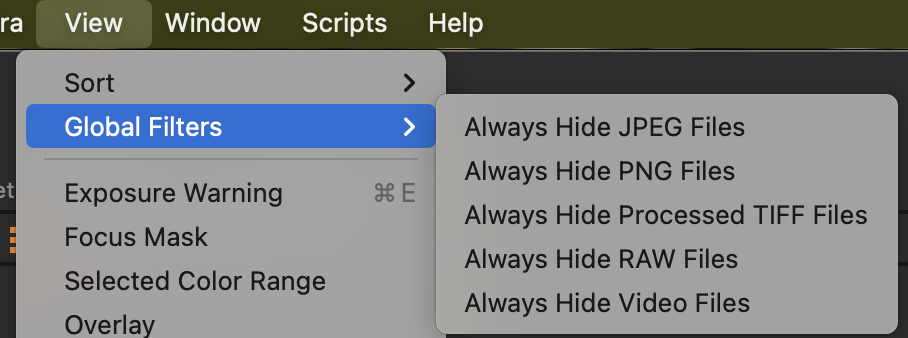
Then the next thing I would think of checking is whether any global filter is preventing the files from showing up. Go to the View menu and Global Filters, to ensure that none of the options to hide some file types is checked.
 0
0 -
Nope, no Global Filters are selected.
Today was new, when I tried to export it kept telling me no image had been selected to export. I selected the images, so I'm not sure what was happening there...
I appreciate your focusing on this problem so thoroughly --Here's hoping we can figure it out, but either way thank you so much!
0

Post ist für Kommentare geschlossen.
Kommentare
9 Kommentare