Tools Auto-Collapsing

-

Save your workspace (Window menu) could help. 0 -
Sorry, that makes no sense.
Example, go to any tab that has a Color Editor. Expand it, notice how every single other tool within that tab collapses. It's silly that I now have to toggle it. Or, now, I have to expand all the other tools within the tab.
Sadly, I think it's an oversight in design. Maybe someday, they'll hire real developers.1 -

[quote="NN635421166041861250UL" wrote:
Sorry, that makes no sense.
Example, go to any tab that has a Color Editor. Expand it, notice how every single other tool within that tab collapses. It's silly that I now have to toggle it. Or, now, I have to expand all the other tools within the tab.
Sadly, I think it's an oversight in design. Maybe someday, they'll hire real developers.
Hmm.
What is your screen resolution?
Have you customised the list of tools in any tabs?
Which version of Windows are you using?
With Windows 7 Pro on my notebook at native resolution (1920 x 1080) most of the tools in most tabs are open when the tab is opened. Once or twice I have had situations where all tabs are closed after some sort of problem when Windows has not updated the "last state used" values in the registry. This has been a very rare occurrence.
You have probably observed that some expended tools are of necessity "longer" than others. The colour adjustments, to give one example, have a lot sliders to accommodate. If you open a tool that will not fit into the available height of the tool workspace C1 will attempt, where it can, to recover space so that it can be displayed without disappearing off the screen. Sometimes this may involve minimising another tool in the display. As compromises go (when using a screen with a reasonable vertical resolution to play with) I find this works pretty well. Clearly there are some tools (Exif information for example) where the display design concepts will always be compromised one way or another. This is true of all software.
If you find this really troublesome there are probably some approaches you could adopt.
Within the C1 software you can create you own tool tabs so you could design something that, with perhaps a couple of exceptions (Exif for example) would allow the tools in every tab to remain open at all times.
Or you could open the tools as Floating tools and have them open all the time.
No doubt people will come up with further ideas for you at some point.
If those ideas don't work for you the option is always open to using a higher resolution monitor or perhaps a second monitor dedicated, wholly or partly, to the use of floating tools.
I have to say I find the User Interface logical, intuitive and very usable. I very much like similar concepts that I use working with other software. So I must profoundly disagree with your comments about C1 developers. I suppose that just illustrates that in software development there is absolutely no point in setting out to keep all users happy all of the time, especially when there is a requirement to support an application across multiple platforms each of which will have different "standards" - if the platforms have any real standards at all.
HTH.
Grant0 -
[quote="NN635421166041861250UL" wrote:
Sorry, that makes no sense.
Example, go to any tab that has a Color Editor. Expand it, notice how every single other tool within that tab collapses. It's silly that I now have to toggle it. Or, now, I have to expand all the other tools within the tab.
Was anticipating this answer. As Grant suggests, your screen resolution might not meet the system requirements.0 -

[quote="NN635421166041861250UL" wrote:
Maybe someday, they'll hire real developers.
Yeah, a glib crack like that might fly if was happening to all of us.
But... Y' know...
Local issues usually point to local solutions, like the screen res suggestion made already.0 -

My display is 2560 x 1440 and this happens when I make the window size smaller (which I sometimes do to preview images at a smaller size to match how they'll look on a website since C1 doesn't allow you to go any smaller than "zoom to fit"), close the application and then open it again even after maximizing the window. 0 -
can proof margins help with seeing smaller preview? 0 -
[quote="Alex1111" wrote:
It can but you have to go into preferences to set the margin value. It's obviously faster to just grab the corner of the window and resize.
can proof margins help with seeing smaller preview?
You just have to remember to expand to full screen again before closing. It'd be nice if P1 eventually added an "expand all tools" option.0 -
[quote="Dominic" wrote:
[quote="Alex1111" wrote:
It can but you have to go into preferences to set the margin value. It's obviously faster to just grab the corner of the window and resize.
can proof margins help with seeing smaller preview?
You just have to remember to expand to full screen again before closing. It'd be nice if P1 eventually added an "expand all tools" option.
I suggest you open the second viewer (Window menu) and resize that viewer.0 -
I found a semi-solution. I undocked the tools I want and just moved them to the left of the screen. Then, resized C1 to best fit. In the end, I can now see at a glance the settings I commonly use without having to go tab to tab...then, having to expand the tools. This is much much much more expedient when going image to image. (see below printscreen)
http://goo.gl/1NNNf50 -
Each to their own preference, I suppose. That set up doesn't appeal to me, but if it works for you, fine. However, another thing you could try is to create a custom tab with just the tools you use all the time, or show the Quick tab and add and remove tools from it to suit your preferences.
Ian0 -
[quote="Ian3" wrote:
Each to their own preference, I suppose. That set up doesn't appeal to me, but if it works for you, fine. However, another thing you could try is to create a custom tab with just the tools you use all the time, or show the Quick tab and add and remove tools from it to suit your preferences.
Ian
The problem with putting the tools in a custom tab is I like everything expanded. All the tools I want to see at a glance will not fit into 1 tab when expanded. And, there lies the problem with things will start to collapse just like the "normal" tabs. I would be back to square 1 of my issue.0 -
[quote="Paul_Steunebrink" wrote:
Thanks Paul. Learn something new every day.[quote="Dominic" wrote:
[quote="Alex1111" wrote:
It can but you have to go into preferences to set the margin value. It's obviously faster to just grab the corner of the window and resize.
can proof margins help with seeing smaller preview?
You just have to remember to expand to full screen again before closing. It'd be nice if P1 eventually added an "expand all tools" option.
I suggest you open the second viewer (Window menu) and resize that viewer.0 -

Experienced the same thing with V 21 on a MacAir. Really annoying. I went to Window > Workspace > Capture One 14.3 and it worked. Thank God. Super annoying, time consuming and no reference in the Tools options to pin or unpin it.
0 -
Since this thread started 7 years ago, things have changed. Now we have tool tabs that can comprise both a pinned and a scrollable area. If you have tools in the pinned area, they will collapse as needed depending on the space available on the screen. If you move them down to the scrollable area, you can leave them expanded and scroll past them to other tools.
Ian
0 -
hi Ian -- thank you for that -- it is good to know. But the issue here is that all of the tools (indeed, the tool bar itself) disappear. You must mouse over a small ">" on the far left, center of the screen and then the tool bar flies out. As soon as you move the mouse over the image, it disappears again.
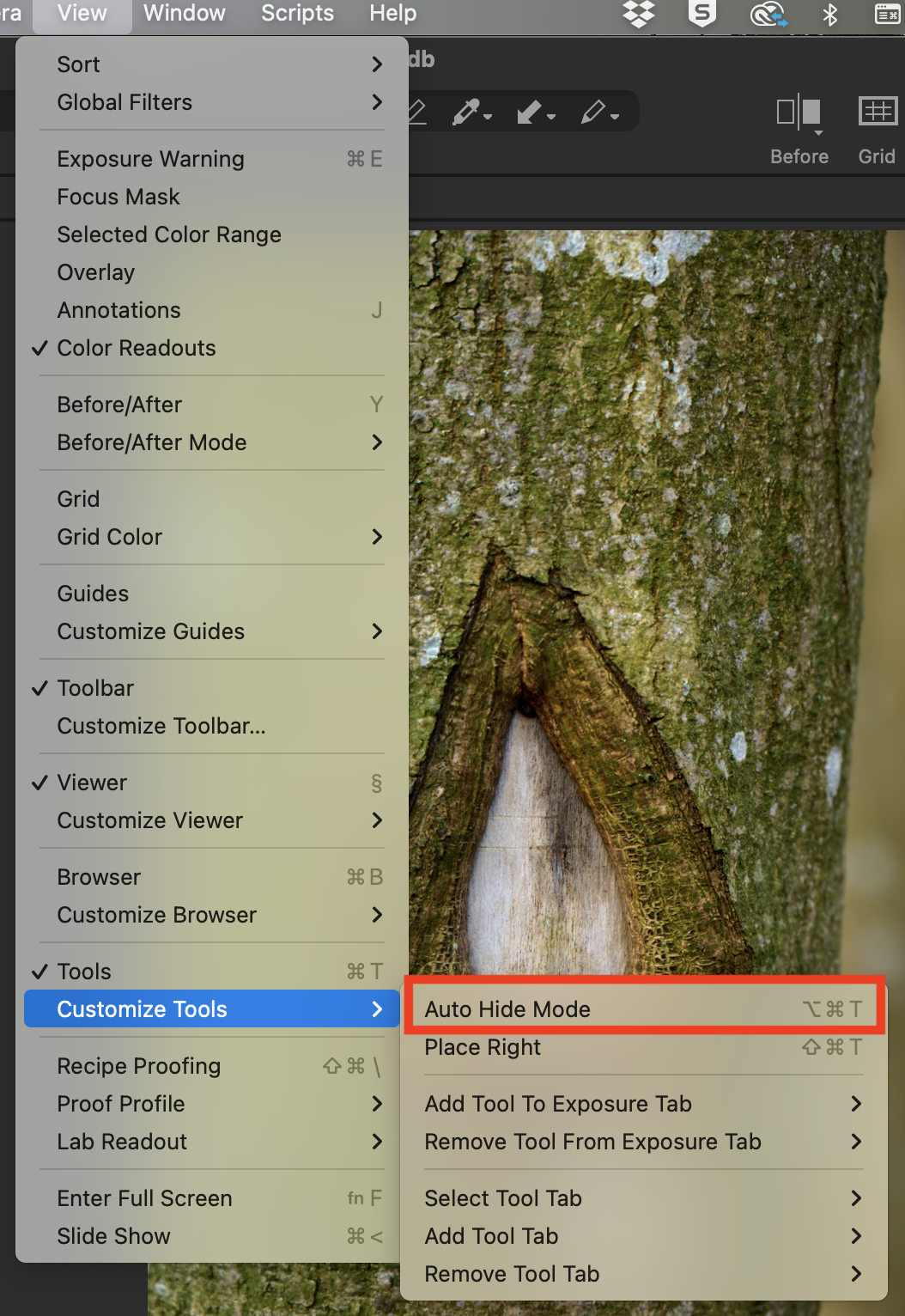
Capture One has no options in the "View" menu to keep the tool bar from auto collapsing. Capture One also has no way to pin the tool bar then you are in the tool bar itself. And for newer users, even searching support articles is a bit tricky because the tool bar itself is not labelled.
The only way I was able to keep it pinned was to go to Workspaces, and select "default".
0 -
If the tools are doing that, do you have auto hide mode enabled? If so, uncheck it.
Ian
 0
0 -
Ian!
That is exactly what I am looking for! Thank you so much!
Take care!
0

Post ist für Kommentare geschlossen.
Kommentare
18 Kommentare