Relative Adjustments please
Implemented
Hello,
I would like to have a relative adjustments options for styles/import recipes.
Especially useful for changes in white balance.
Say all my pictures got too warm and I want them -200Kelvin. Capture One could do this automatically. Today you can only save absolute numbers for white balance. Example: you save 5200K, then every picture gets 5200K.
But better would be to have a setting: -200Kelvin; +1Tint. Then every pictures would get these numbers added regardless of their white balance "base" settings. 5200K gets 5000K; 6800K gets 6600K and so on.
This would be really useful! Thank you!
-

Matthias,
Check the Keyboard Shortcut definition options.
For speed try a search for the word "kelvin" as a starting point. Or perhaps "White Balance". That gives a few more references.
0 -
Thank you SFA!
This works like a charm. It also works when selecting all pictures. Capture One changes the values on all pictures in one action. Nice. This is a fast way for editing a bunch of pictures.
Its not the feature I requested but I think I could easily work with CO in this way!
Best regards =)
0 -
Hi Matthias,
Glad it works for you.
There are quite a few slightly under promoted features similar to that when using the Keyboard shortcuts. It's well worth have a browse around in case others might be useful to you.
The big benefit from a batch/multi image processing point of view is that the calculation required to simply add a specific adjustment value to an already set value is quite straightforward and fast. It's a little more calculation intensive when taking a slider adjustment and interpreting that into a value adjustment (probably based on a slider scale that may not always be linear) to be read from the exiting file before an adjustment "number" can be derived.
By supplying the number you get the adjustment although the effects may vary somewhat if the range of selected images in not very consistent with the starting value of the particular setting.
That is perhaps why the options are not pushed to the front of processing recommendations via tutorials and webinars.
0 -

Hi Matthias,
Thank you for your post.
There is an option for auto adjustments in Capture One.
Select the image or images which require the white balance adjustment, then go to the Exposure tool tab and click on the Auto Adjust icon in the White Balance tool.
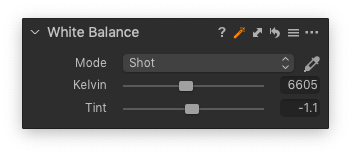
Also, in the main menu Adjustments -> Configure Auto Adjustments -> White Balance make sure that the checkmark is there next to the White Balance so that when you import images and checkmark the Auto Adjust icon in the Adjustments panel of the Import Images dialog, the images will be automatically adjusted just right after the import.
0 -
Thank you Lily,
I tried the auto adjustment but sadly iam not getting the results I like from it most times.
The solution from SFA did work very well in terms of speed. From there I then have a good starting point.
Maybe it would be good to have such functions better reported, as SFA already said. Its a great feature.
0
Post ist für Kommentare geschlossen.
Kommentare
5 Kommentare