C1P ver 14.4.0 - 'Edit With' broken

The Edit With option now comes up with export options, creates psd files in C1P but doesn't actually send the files to Photoshop.
The Open With command still works correctly but obviously that doesn't bring across changes made in C1P
-

Same here. "Edit With" creates a tiff file (I work with tiff's), but nothing else.
2 -

Does photoshop need to be advised that there is a new C1 program version installed?
0 -
SFA, I doubt that very much as the Open With still works perfectly (even with the PSD/Tiff files the Edit With option creates)
0 -
But Open with is simply point PS at an original file, bypassing C1 completely.
Edit with creates an intermediate file so it's a somewhat different requirement.
0 -
SFA, I create the intermediate file with 'Edit with', then I open the file with 'Open with' and that works... I fail to see How photoshop is doing anything different.
0 -
"Edit With" worked fine in all previous versions of C1. It stopped working with the recent update to v. 14.4.
Besides, it's C1 that needs to be "advised" what app I want to edit my file with, not the other way around.
The culprit here is clearly C1, not Photoshop or any other app.
1 -

I have the same question. I use either Photoshop or Lightroom Classic and for the moment, Lightroom Classic isn't importing or receiving the file from Capture One Pro. Exporting to PS works like it did before the update.
1 -

I have just tried this and it works for me selecting PSD in the C1 window and then it loads up PS for the edit. Are you on an M1 Mac?
0 -
No. iMac Pro 2017 Big Sur. It loads fine for me when exporting to PS but not Lightroom Classic.
0 -

Same issue. Upgraded to v 14.4 and no files now opening in Photoshop when I click edit. The tiff file is created but Photoshop doesn't open as it did previously.
1 -
FWIW I just tried Edit with... launching Affinity Photo. The tiff was created and Affinity Photo was launched to process the tiff. My only issue is that it takes forever for Affinity Photo to launch if it was not already running in the background. That is an Affinity thing, not a Capture One thing.
I don't know what's different between Photoshop and Affinity Photo is this regard. On don't have Photoshop to compare.
0 -
All, can you report this as a bug please via the submit request button? Thanks
2 -
Same with me. Im using an iMac Pro and the Edit With function is not sending the image to PS. Updated to latest version of PS and restarted the computer but still a no go with the Edit With function.
0 -
As mentioned above in part, this is a bug, I have it also with Photoshop and Lumiar AI, nothing gets sent to either app when doing "Edit With," but a TIFF file is created. So for now, the workaround this bug it to use Edit With as normal. Then go down to the TIFF file that creates, then do "Open With." One extra step, but at least we can still keep some of the same work flow.
Now, when will C1 ever add back showing multiple apps when choosing Edit With and Open With??? I regularly use Photoshop and Luminar AI and it is an absolute pain to have to go into the Apps folder and choose either one each time. Drives me nuts in fact. Never was like this before the last few updates took it away.
1 -
Same here. "Open with" works after the "Edit with" command creates the round-trip file, but this is obviously a workaround. Previous version of C1 worked; 14.4 does not.
0 -
Now, when will C1 ever add back showing multiple apps when choosing Edit With and Open With???
That's another issue that I don't see. I wonder if it's related to the issue some are having with Edit with... not working. These are my Edit with... options. 14.4 on an intel iMac running 11.6.
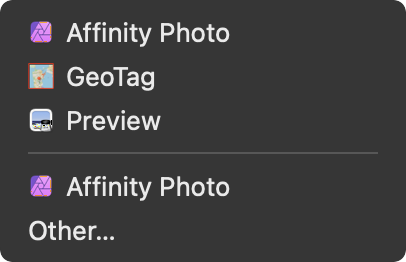
Don't know why Affinity Photo is listed twice.
0 -
Well - I just tried it with Affinity Photo and a TIFF and it worked fine.
0 -
I have done some further testing this morning and on my system (M1 based Mac) it works fine, for both TIFF and PSD files. I know when I have had a similar issue before I have cleaned C1 of my machine and reinstalled which fixed the issue, so it maybe a preferences issue. Keep in mind that on a MAC C1 stores files in hidden system folders.
2 -
Could open it in Pixelmator Pro and Affinity Photo (both started with the RAW), in DxO ViewPoint (as TIF) and Filmpack (as RAW), then I lost interest 🥱 (but honestly, I just didn't want to try all apps in that menu as I hardly ever use it).
0 -
Cleaning C1 files seems to have worked.
I just removed com.captureone.(...).plist files from my Library folder (on my Intel based MacBook Pro) and reloaded (reopened, not reinstalled) C1. "Edit With" seems to be working fine now.I still think it's a bug and I reported it as such yesterday.
Big thanks to James Grove for the tip!
1 -
Yep thanks James, worked for me too 👍
0 -
In Library -- Preferences .... I removed these 3 .plist files and that basically reset C1 to scratch, library gone, everything gone. Had to put the .plist files back in to get everything back! Delete just one of these perhaps? The captureone14 seems to perhaps be the only active file that had been modified anytime recenlty.
 0
0 -
you're library has gone its wherever you put it, you just need to open it agin.
0 -

Found the solution [SOLVED] for Capture One 14.4
Preferences > Plugins > Enable "Open With"
This will also bring back the menu of multiple options for the applications you check.
Working for me on M1 Mac
1 -
@Tymel
THANK YOU!!!!!! That just solved both my major issues. I just enabled that, and not only does "Edit With" now send the photo right to whatever app I chose, I have the LIST of apps I use back to choose from!!!!!
For the bonus, whenever C1 has an update the Exposure tab totally resets itself, meaning the tools I want in the tab are gone, and it is just the default set of tools. So I have to take 5 minutes every update to add the tools I want and arrange them in the order I want. Any idea how to prevent that from happening?
Thanks again!
1 -
@Jason
No problem. This was something that I only noticed during this update. Hopefully C1 solves this issue now that it's been brought to their attention so we don't have to do this for every update.
0 -
Any idea how to prevent that from happening?
That's what workspaces are for. Use them.
Configure Capture One exactly the way you want it. From the main menu select Window -> Workspace -> Save Workspace... and give your workspace a name. Once that is done at any time in the future you can select Window -> Workspace -> <your workspace> to get things back exactly the way you like them.
Only hard part is remembering to re-save your workspace if/when you make changes.
1 -
@Marco -- thanks, had no idea about that feature. Just saved my workspace, I do not change it that often. All these things should not need to be done for a simple app update!
0 -
Jason,
In general they will not need to be done so long as you have saved your changes with your own name for them and not just used the defaults. The defaults will be overwritten (and possibly changed if something has changed that requires a new configuration for a default workspace) with an installation update.
Beyond that and so long as no glitches interfere, C1 will also try to retain, by catalog or session, the state of play that existed when you last closed it.
So, in theory but with necessary exceptions from time to time, you should not need to re-do your settings in most cases UNLESS something fundamental changes in order to introduce some new functionality OR, very rarely, remove some old functionality.
0 -
Still not exporting and suggestions for using Lightroom Classic (Not Affinity) have been tested. I have all available plugins for Photoshop and Lightroom Classic checked and the only one that doesn't work is Lightroom Classic.
0
Post ist für Kommentare geschlossen.
Kommentare
32 Kommentare