Import Session into Catalog

In various folders I have thousands of images to which I have applied keywords, ratings, metadata, etc in a Session.
How do I import only specific images from a Session to a Catalog, for example, only those with a Star Rating, so that the Catalog only has the images with a Star Rating, not all the images in that folder.
If you import the cosessiondb file you end up with all the images. If you choose Import Images in the Catalog, in the dialog box you can check or uncheck the images, but the Advanced Search does not recognise any of the ratings I have applied in the Session.
Boris
-
If you choose Import Images in the Catalog, in the dialog box you can check or uncheck the images, but the Advanced Search does not recognise any of the ratings I have applied in the Session.
You mean the Advanced Search after you have imported the images? In the import dialog, did you check the box "Include adjustments"?
0 -
Hello, thanks for your reply
I was using the Advanced Search that is part of the import dialog (in the top-right corner), rather than after I have imported them.
Yes, I did check the "Incl Adjs" box, but that's not the problem.
I successfully imported images from a Session into a new Catalog with all the adjustments, star ratings, keywords, metadata, etc., but the problem is ALL the images from the various folders were imported into the Catalog. Is there a way I can import only those with, say, a Star Rating, or with Adjustments.
I have thousands of images in some folders which I keep organised in a Session with Star & Colour Ratings, keywords and various metadata. I want to leave all the images in the folders they are in, but obviously don't want to import all of them to a Catalog, only selected ones.
0 -
I agree that filtering on a colour tag or a rating doesn't seem to work in this circumstances. I don't know why. I imagine that this is some unintended limitation - it works OK filtering on things like date.
However, I regularly import images from sessions into my catalog, but I never import the whole session.
I generally add just the images in the Selects folder of my session. You could arrange to put only the images you want into the Selects folder, or you could create a new folder - perhaps called Transfer and move the images into it (from within the session).
Here's how to import them into the catalog. (There's more than one way, but this is the one I most usually use.)
(1) In the catalog, click the Import button.
(2) In the Import From section at the top left choose "Choose..." from the drop-down list, and navigate to the folder with the images.
(3) In the Import to section, choose
- Add to Catalog if you want the images to be referenced (that is, they will stay in there existing location but the catalog will add them to its database) or
- Copy into Catalog, if you want the images to be actually stored inside the catalog. This will do what it says and COPY the images, so they will still be in their exiting location too - expensive on storage space.
(4) You should see thumbnails of the images in the Import Window. If you just want them all, just ensure they are all checked. If you want to exclude some, uncheck those.
(5) VITAL STEP - ensure that Include Existing Adjustments is checked.
(6) Click the Import button bottom right in the import box.
Ian
0 -
I see, it is the importer dialog's Advanced Search (or sort).
Ian: I agree that filtering on a colour tag or a rating doesn't seem to work in this circumstances. I don't know why. I imagine that this is some unintended limitation - it works OK filtering on things like date.
I guess the importer dialog only looks at image file properties (date being one of them) and not at the adjustments stored in the sidecar .cos files.
If you want to keep them in place (and not move them to the Selects folder of the session) than the only possibility I see is to go into your session, select the desired files according rating, color etc., and pack them as EIP.
Then, in the catalog, import all EIP files (you can filter in the import dialog by just typing "eip" without the quotes.They will stay as EIP in the catalog (and session), you are referencing the same file. You cannot unpack them from the catalog (and should not unpack them from the session as not to invalidate the reference in the catalog, or accept that they become "offline". I think you can delete them in the catalog (but not search for offline images).
This approach has an advantage, that is you can easily identify in the session which images have been imported into the catalog, provided you always import the images right after packing them in the session.
0 -
I am not an expert with EIP files, I rarely use them.
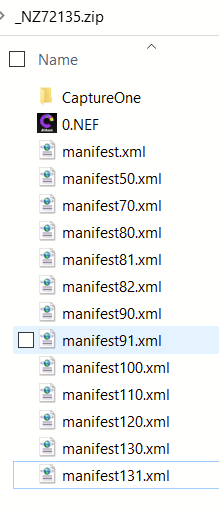
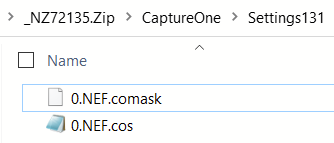
The EIP is a ZIP package which contains the original raw file, the settings (cos file) and masks (comask file) and a smallish xml files needed for C1. (And subsequent edits go into this package, not into a new cos file, I just checked this).
By just renaming the extension .eip to .zip I am able to open it (just in case in a future without C1 I want to have access to my original raw file. However, the name of the raw file in the package is not the original file name, which means you would have to do tricks (scripting?) to unpack and rename all your raw image files.
_NZ72135. NEF is my original raw file name, _NZ72135 .eip is the package, and renamed to _NZ72135.zip it shows the following content:
 0
0 -
but not search for offline images
btw, I just created a feature request "Filter for offline / online images" which is waiting for votes...
0 -
Thank you both Ian and "BeO" for taking the time to write your detailed responses. Really appreciated it.
Regarding your suggestion, Ian, I was aware of that, but it means scrolling and searching through 1000's of image icons to find the odd one here or there, or switching back and forth to the Session to find and check the filename, and click each one. This is grossly impractical, especially considering I've already taken the time and trouble to rate and tag them.
Your suggestion, BeO, doesn't sound very practical either.
I guess then the best solution I can think of is to import all the images, then delete the unwanted ones (not rated or tagged) from the Catalog using the filter. Can either of you see any issues with that? I'll give it a try and let you know how that goes.
There may be some time-lag between our messages as I am in Sydney, Aust. I presume you are in Eu, UK or US?
Best regards, Boris
0 -
PS. one thing I just realised I forgot to mention in case you're wondering what's so impractical about finding and clicking a few images, is that I want to import hundreds of images from folders with thousands. So it's like trying to find every single one of hundreds of needles in a haystack
0 -
Sync metadata works great. Once imported you can remove the xmp files and you're done.
Layers reordered? What a shame...
0 -
THAT'S IT!!! BRILLIANT!!! That did the trick! Thankyou thankyou thankyou! :-) :-) :-) Orsum!
How did you know that?? How would anyone find out? It's not really clarified in the User Guide.
After reading all the relevant parts of the User Guide and watching many tutorials on Sessions and/or Catalogs and still not finding the answer, I asked this question on the online Knowledge Base a couple of weeks ago, but have had no response, so then I tried here. What's happened to Lily? Maybe she's been seconded to help out with the "higher than usual number of tickets" they've been getting lately, which is what I've been advised in long awaited responses to Support Requests I've made.
I'd like to make a suggestion that this information (regarding syncing) is added to the User Guide section "Importing a Session". What's the best way to do that?
0 -
Secondly, thank you for the heads-up regarding Adj. Layers being reordered. Does that happen to all cases of images with Adj Layers or only occasionally? If it's not too frequent and impractical, it's possible to Copy/Apply adjustments from Sessions to Catalogs in order to fix those, in case you weren't aware of that.
But further to that, it's interesting that you mentioned that because I currently have an long ongoing Support Request regarding Adj Layers being reordered within a Catalog, which thus far they have been unable to resolve. I will start a new conversation regarding this.
0 -

"I'd like to make a suggestion that this information (regarding syncing) is added to the User Guide section "Importing a Session". What's the best way to do that?"
Probably best to post in the C1 Feature Requests forum.
C1 is actually looking at that one.
https://support.captureone.com/hc/en-us/community/topics/360000154057-Feature-Requests
You could also re-post here as a new topic, including relevant keywords in the title,
and stating the problem and solution in the body of the post.
This would be picked up by the help forum search engine which is usually pretty good.0 -
Re: suggestion that this information (regarding syncing) is added to the User Guide
Ok, great! Thanks gb for that info.
I only just happened to notice that section in the Support forum only just yesterday. Until then I wasn't aware of it.
Instead I recently sent a list of suggestions directly from the "Submit a request" link (email). They replied that they would forward it to the development team, but didn't mention the Feature Request forum.
0


Post ist für Kommentare geschlossen.
Kommentare
13 Kommentare