Not able to modify DNG file in CO22

All,
Just tried to create the panorama's using the guide. Seems to work fine producing the DNG output. Less issues than in Photoshop, for sure. But.... the guide says ...– all in Capture One. Panorama Stitch Tool outputs a linear DNG that behaves like a RAW file for further editing.
I am not able to modify the DNG. It feels exactly like trying to modify a non-PhaseOne file. What am I doing wrong?
Is my license corrupt?
Thanks
Eelco
PS: Topic Capture One 22 is not available hence the chosen option
-
 Permanently deleted user
I am not able to modify the DNG. It feels exactly like trying to modify a non-PhaseOne file. What am I doing wrong?
What do you actually mean by that, Eelco? You shouldn't be able to "modify" a DNG file, in the same way that you can't modify any other Raw file.
0 -
HI, Let me rephrase.
I can not apply de Capture One functions as I can do with my *.IIQ files.
Does that make more sense?
Thank you
Eelco
0 -
Anyone the same issue?
1 -
Permanently deleted user
Which camera are the DNGs (directly or indirectly) from?
0 -
Anyone the same issue?
Works fine here with Nikon raw files from several models.
0 -
HI Keith,
PhaseOne XF. IIQ>DNG using the Panorama tool. CaptureOne DB 15.0.0.192 on macOS Monterey 12.0.1
Reg. Eelco
0 -

eelco,
Have you also asked the question through the Phase One camera support channels?
0 -
I thought I first check with you guys before I ask a real trivial question to the support team
Best Eelco
0 -
Only users here in most of the forum eelco, and I suspect not that many of the active users are recent model Phase One back owners or, if they are, they likely use the full Pro C1 rather than DB.
DB does not seem to be specifically referenced in any recent C1 website content Support articles. Except license questions where, last time I saw the page, users were referred to Phase One.
DB is rather like Express in some ways. But maybe without the tool constraints leaving just the file type constraints? I'm not sure.
In the Pro vs. Express comparison the new V21 features are not mentioned (as of 15 minutes ago) so I have no idea if they are available or not in Express. Clearly you have them in DB. Maybe the file type constraint modification (IIQ and IIQ derived files) to allow the derived DNG "RAW" files is not functioning for some reason? Or perhaps there is a preference flag to set to enable it? Not something I have seen in the Pro release but it might exist in DB?
I could imagine that the large IIQ files might result in a pano that could exceed the pixel count or size dimensions for editing but my understanding is that such a situation would then prevent the creation of the combined DNG file at the calculated size. Perhaps that is not always the case?
0 -
Thank you SFA will try to contact support!
0 -
Eelco,
I have a similar issue - I can create a merged .dng file from the .iiq files I can't edit it, it's a read-only file. Am using Capture One for Phase, formerly known as DB. Did you solve the problem?
0 -
It looks like bug in the Phase/DB version, here's what I got from Phase:
You are having a Capture One for Phase One license.
It is not by intention that you cannot edit your panorama stitches and HDR merges, with a Phase One license of Capture One.
However this is a known bug that our RnD engineers are working on to fix. I will place your ticket on-hold and will get back to you when we have a response from our engineers.
We also cannot guarantee that this bug will be fixed in the next service release, but rest assured that it has been reported and will be looked into and our developers will do their best to roll out a fix as soon as possible.
We are sorry for the inconvenience!
You can download the 30 day free trial here of Capture One Pro 22, that should give you 30 days temporary solution.0 -

I experience the same problem, IQ4 license, cannot modify Panorama DNGs
- Erling
0 -
...and I can't even export it to edit in LR, it says the image is Read-Only (!)
0 -
Hi all,
Had help from Pete and Ulf and for me it was the Software version. I also used the Phaseone version as well. Apparently their is bit of an issue with that. Also had a CaptureOne Pro coming with the IQ4 that solved the issue. Erling maybe this could work for you too?
If you want to export to Lightroom I wild guess is to check the file-permissions: https://smallbusiness.chron.com/change-file-permission-readonly-readwrite-mac-67960.html
Curious to know if it solves the problem.
Happy holidays to all!
Eelco
0 -
Just chiming in here… IQ4 user here, same issue. C1 22 pano DNG files become raw files (and flat, desaturated versions, at that) when exported as opposed to what is specified by the recipe.
0 -
Hi Michael,
Do you mean you used C1 to enhance the files using layers then stitched them into a panorama and didn't get those enhancements back? Or the DNG is flatter than the original .IIq Raw files?
In the tutorial video (https://learn.captureone.com/tutorials/panorama-stitch/) it says at 0:32/3:00 that layers will be ignored...
Curious to find out this was the issue and whiter this helps?
Best Eelco
0 -
Thanks, Eelco, I'm not looking to retain the layers from the C1 file... rather, I'm looking for the output to translate to a TIFF directly to photoshop and for the file to look close (before any further adjustments) to what it would look like were I to export the individual frames and stitch into a pano in Photoshop, as we always used to do. I then do some final tweaking to the file in Photoshop to prepare for print.
With the new version of C1, it creates a panorama in C1, but the DNG opens in Camera Raw as a sharp, but far less saturated version of the file. I would have to do all kinds of work to get it back to where it was, and that seems like a cumbersome and unnecessary operation. If that's the case, I'll just go back to stitching in Photoshop.
0 -
The Capture One panorama tool is designed to produce a DNG file - it won't produce a TIFF file directly, though you could export the DNG to TIFF format. But why do that? The DNG is essentially a stitched-together raw file, with all the possibilities of editing that a raw file offers. So why not edit the DNG in Capture One and make the most of its raw-handling features?
(And of course, as a raw file, the DNG won't have any baked in adjustments.)
Ian
0 -
I understand that, and yes, I agree that it's preferable to work with a raw file, however, at a certain point, after optimizing the image to the best of my ability within C1, I like to take the file to Photoshop for the final proofing process (as I still prefer PS for some manipulations) and ultimately final printing.
So, in other words, once the DNG file is ready, I'd like to be able to export it, open it in Photoshop in the same state it was in when it left C1, and optimize it further in PS before printing. As of now, it seems when I export the DNG, the file that opens up only opens with Camera Raw, and when I develop that file to open with PS, it is not the same and would require much more effort to get it to where it was when it left C1.
Does that make sense?
0 -
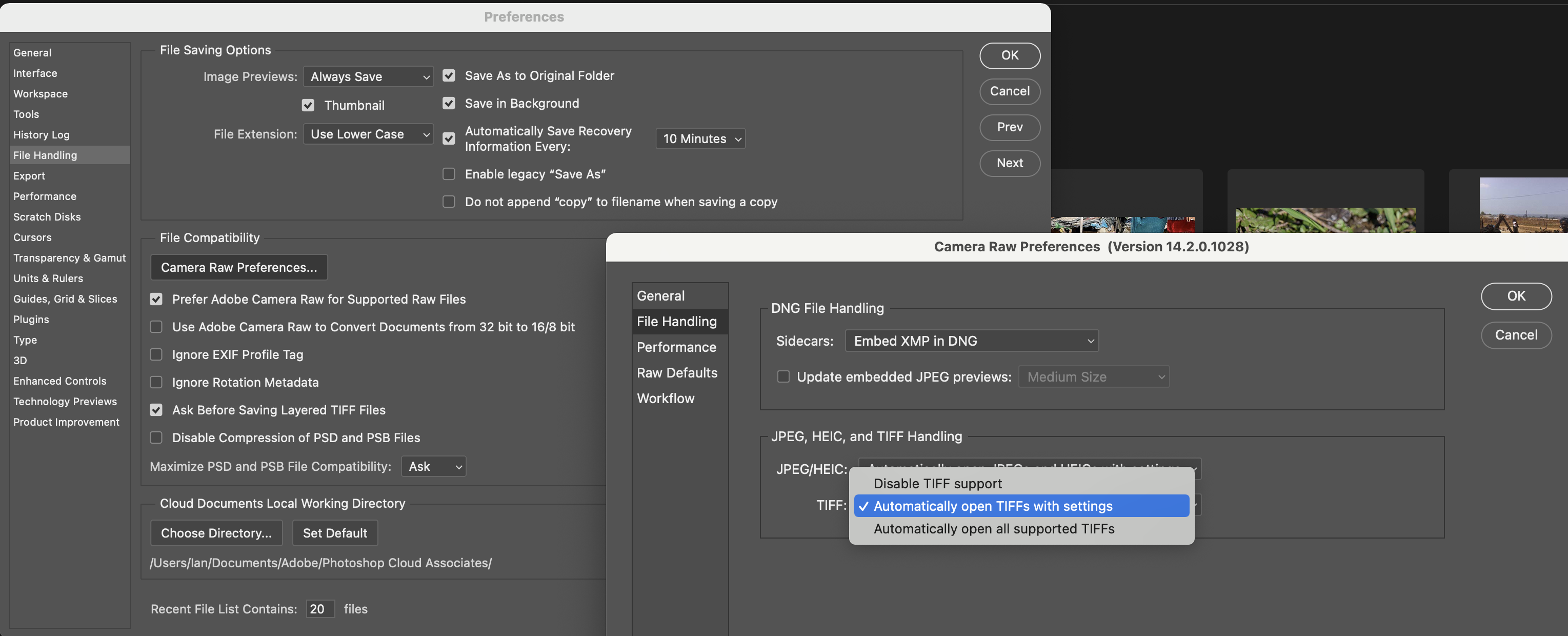
Oh, I see. There's a setting in Photoshop that controls whether a TIFF (or a JPEG) opens in Camera Raw, or straight into Photoshop proper. (And you need the Disable Tiff support option, I think, not the one that is selected in my screenshot.)
 0
0 -
Also, you need to use Edit with (not Open with) if you want to take your edited DNG to Photoshop, and it will need to make a TIFF or JPEG of it at that point. But you probably knew that already.
Ian
0 -
That's super helpful, Ian. Thank you. I wasn't thinking about settings in PS.
Question... how do I use "Edit with?" I only see "Open With" in the export recipe options.
0 -
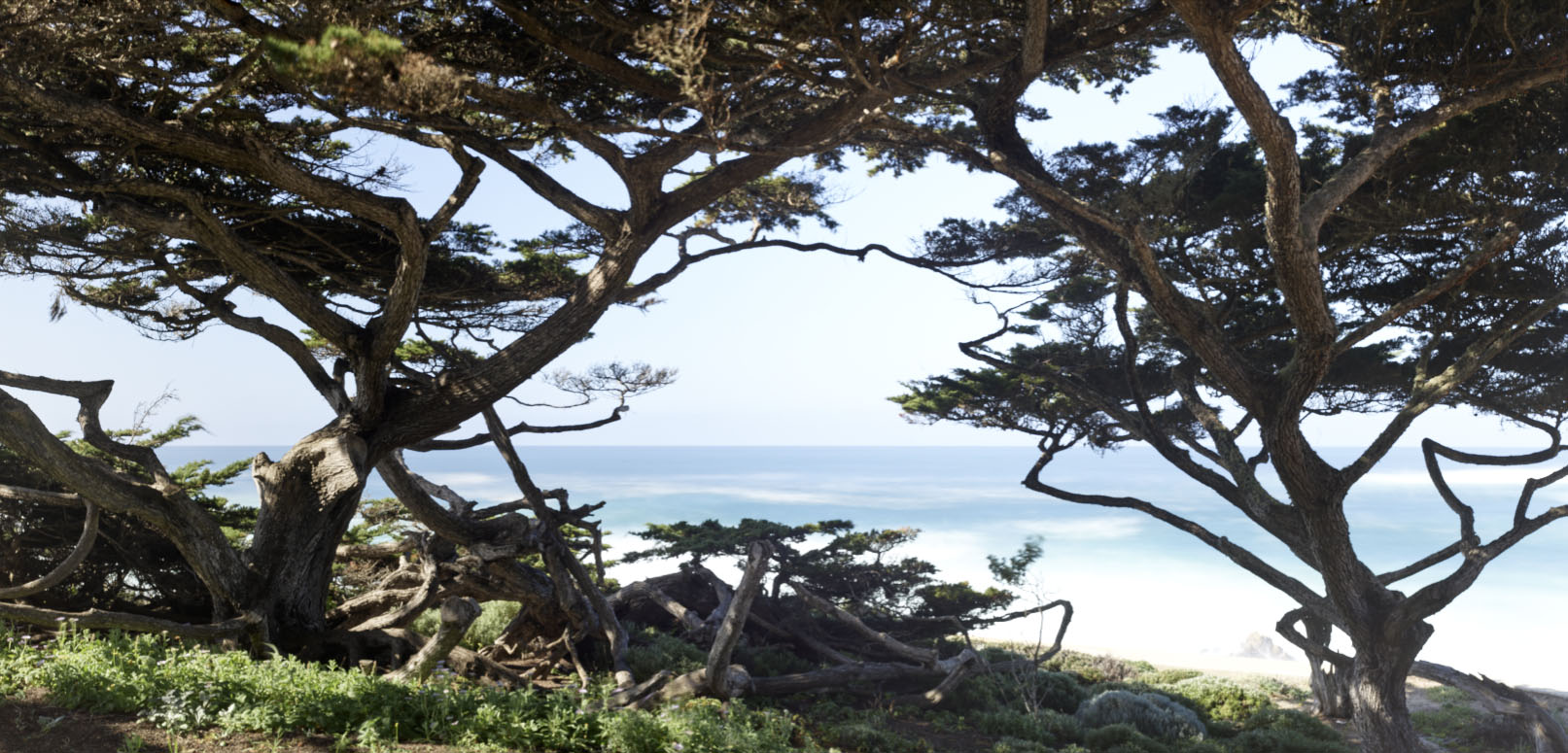
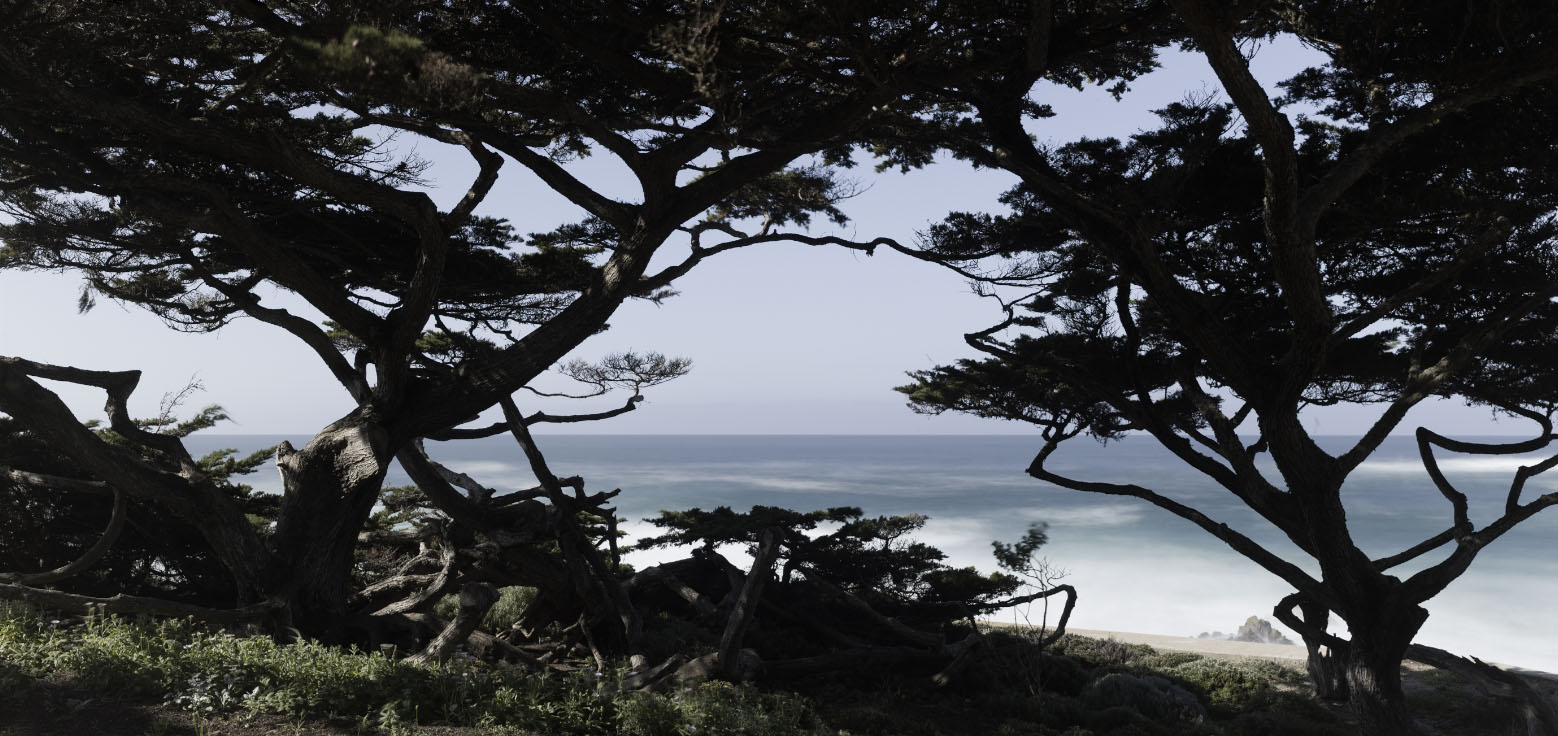
I disabled the TIFF support, but that didn't seem to change anything. The DNG goes to Camera Raw and opens looking flat, if much sharper because of the display quality being superior in PS. Disregard any imperfect exposure issues, as this is just a quick stitch to see how to make this work before any final efforts have been applied. But you can see what a problem this is...
C1 before export:
DNG after export:
 0
0 -
Now, on top of that, it seems that I can't use the newest Photoshop to stitch in Photoshop. OMG. This is so infuriating. I'm so sorry to bombard you with this, but I feel as though these are problems that other people must be encountering.
0 -
If I were going to stitch in PS, I don't think I would be starting with raws, would I? Wouldn't it have to be TIFFs, JPEGs, or something?
In your two screenshots, presumably DNG before export is your stitch in Capture One. Is that edited at all? Did you apply any changes to sliders, add layers, or whatever? If you did, then to go to Photoshop you could
- choose Edit with Photoshop at that point (from the Image menu in Capture One) - it would prompt you to choose the format you wanted to take into Photoshop, TIFF, JPEG, or PSD.
or
- just export as a TIFF (or JPEG, or PSD) and then head over to Photoshop and open that file from there.
or
- Export from Capture One and choose the option to Open with ... Photoshop, in which case it should open your TIFF (or whatever) in Photoshop for you.
When I referred to Open with or Edit with previously, I meant that you should choose Edit with, not Open with in the first bullet point above. I wasn't referring to the Open with option in the Export panel.)
Ian
0 -
I hate to belabor this, and I really do appreciate your consideration... I think there's a misunderstanding here... My current attempted workflow is:
1. Import image from my XQD card removed from my Phase One IQ4
2. Make initial adjustments (LCC profile application, Base characteristics, Film curve) to each frame.
3. Stitch to pano in C1
4. Continue to optimize to a point where I believe it is close to print-ready.
5. Export to TIFF and make final corrections in conjunction with printing tests in Photoshop, saving as a PSB.
6. Print from Photoshop or a rip.
I used to do the same thing, except at step three, instead of using c1, I would either go to the scripts tab and click "stitch with photoshop," or, if the file was too big, would export each individual frame then use "automate" and "photomerge" to create a panorama.
UPDATE... As it turns out, it may have been an issue with it being 16-bit output. Is a DNG not 16 bit? Perhaps there was a conflict there, because once I switched to 8-bit, it was opening in PS fine. I am always hoping for 16 bit... but perhaps with stitched panos and HDR photo merges, that's not possible. I know with a PS photo merge, the file is converted to 8-bit automatically.
Anyway, thanks again.
0 -
I think you are misunderstanding how the pano feature works in Capture One. At your step 3, when you used to do it with PS, didn't the script (behind the scenes) convert the files to a format such as TIFF? In Capture One, the pano feature stitches raw files together to create a stitched raw file (in DNG format, which is a raw format). It is worth dealing with light fall-off first so that there aren't odd luminosity changes where the stitching occurs, but really not much else. Then you get a raw file on which you can begin to do your editing, rather than expecting to stitch edited files together.
Or am I misinterpreting your thought process?
Ian
0

Post ist für Kommentare geschlossen.
Kommentare
28 Kommentare