Spot removal

New to Capture one and enjoying it so far.
Having trouble finding a spot removal tool.
Any help would be appreciated .....Thanks
-

Bottom of the Layers tool
 0
0 -
Thanks Jerry
0 -

Could the shortcut keystroke be the letter Q?
0 -
Note that there are two spot removal methods.
(A) There is a Spot Removal tool
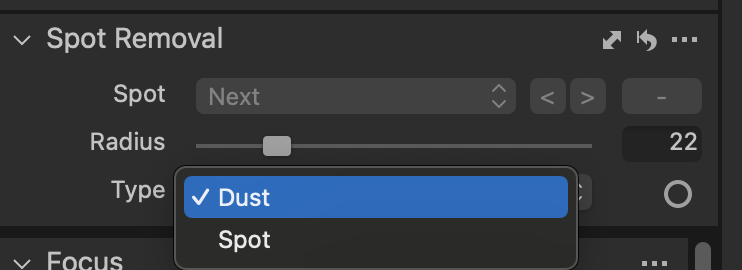
This is the old method, and it doesn't appear on any of the tool tabs in the default layout. However you can add it to any tool tab by right clicking in the tools area, choosing Add Tool, and selecting Spot Removal from the list. There are two settings, for Dust (dust on the sensor etc) and spots (blemishes on the subject such as pimples, unwanted seagulls etc). You just adjust the radius using the [ and ] keys and click the spot. It works fairly well, but has the limitations that (a) you are limited to 100 spots, and (b) you can't do it on a layer.
(B) There are the heal and clone tools shown in Jerry's screen shot. These are considered the better way these days as they are more versatile. You are not limited to the number of heals you can do, and it works on a separate heal or clone layer. You can more readily remove non-circular blemishes because you can drag the brush to cover them along a line or a curve, such as removing a hair, or brushing over an irregular shape like a bit of litter.
Ian
0 -
Thanks Ian that explains it perfectly!!
0

Post ist für Kommentare geschlossen.
Kommentare
5 Kommentare