Crop prefs

I'm trying to change the dimensions display to inches or pixels (currently cm). How do I do that. I've reviewed some of the comments on the topic and I'm either not understanding... or it doesn't work. Capture 21 (Nikon), Mac. TIA
-
The dimensions you see in the crop tool are connected with at least two things - the units you set in the crop tool, and the currently selected process recipe.
In this case, I am using a process recipe that outputs to 2048 px on the long side. That results in the units drop-down in the crop tool being greyed out, because my recipe specifies a number of pixels. (But 2048 is the number of pixels that will appear in the output file: the "real`" pixel dimensions happen to be 3063 x 3063, but my recipe will down-scale that to 2048 x 2048.)
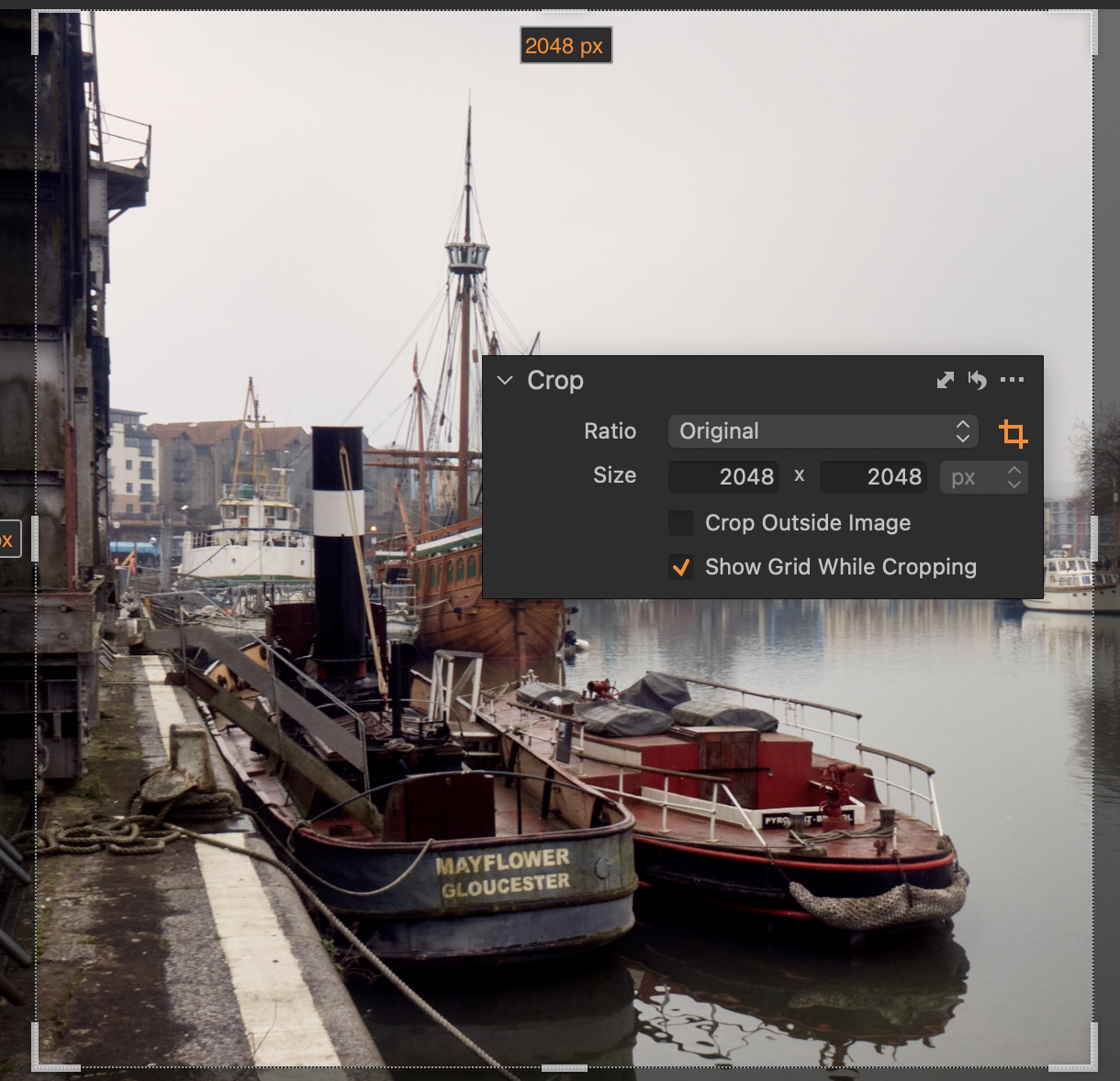
If I change on the same image and the same crop to a recipe that outputs at 100% scale, then I can use the drop down and choose between px, inches, mm and cm. In this example, I have chosen inches. The number of inches it shows is dependent on the process recipe too: because it is set to 300 px/in (for a 300 dpi printer) the 3063 px translates into 10.21 inches (or 25.94 cm if I choose cm) like this:
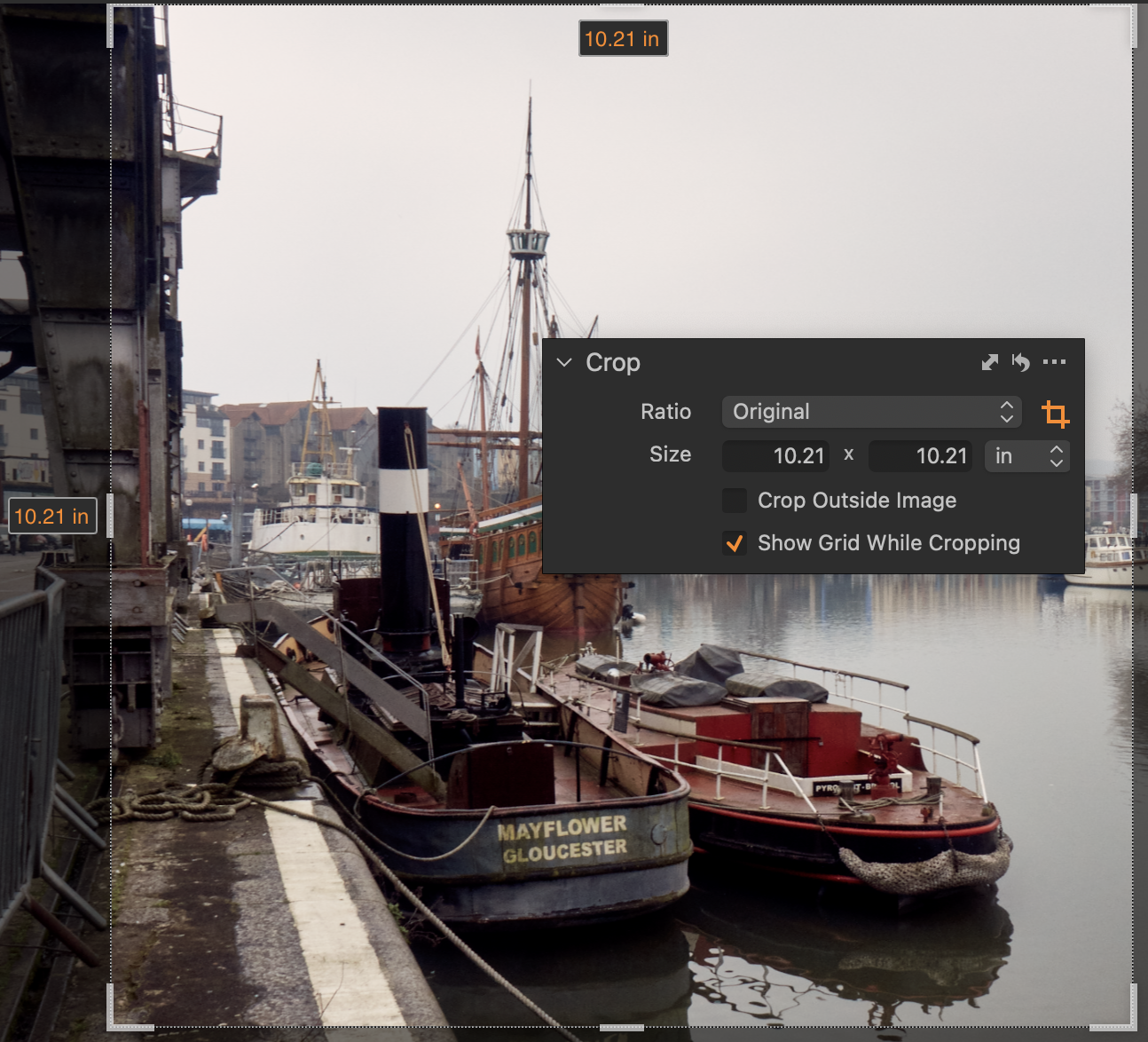
But I do get to choose the units with a recipe like that.
Finally, here is the same again with a recipe that aims to print out at 10 inches x 8 inches - the units are greyed out in the crop tool, because they are specified in the process recipe. I could choose cm in the process recipe if I wanted, and then the crop tool would show cm - but in this case as 10 inches x 8 inches is a standard print size it's convenient to me to use inches for this one.
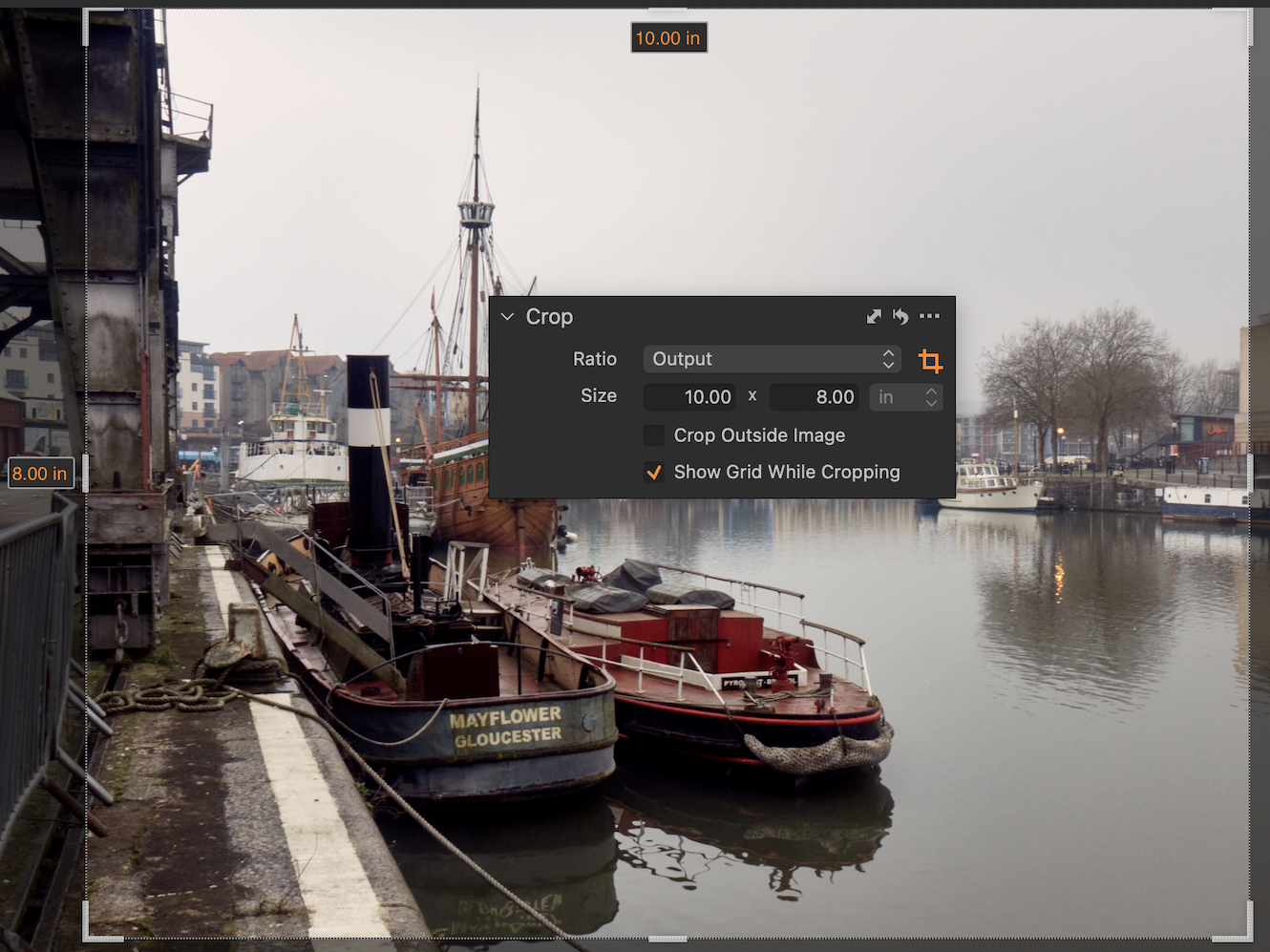
So I hope that makes sense - it is dependent on several factors!
Ian
0

La publicación no admite más comentarios.
Comentarios
1 comentario