Three questions

Hi, in previous iterations of Cap One, when I imported new RAW files, it seemed to overwrite the existing files, but now it just adds to them. What should i do with the existing files - move to trash or 'Move to selects folder'? I have no idea what the latter means.
When I try to click on a photo to select it in Cap One, rather than highlighting the photo it brings up the colour pallette? What's that about?
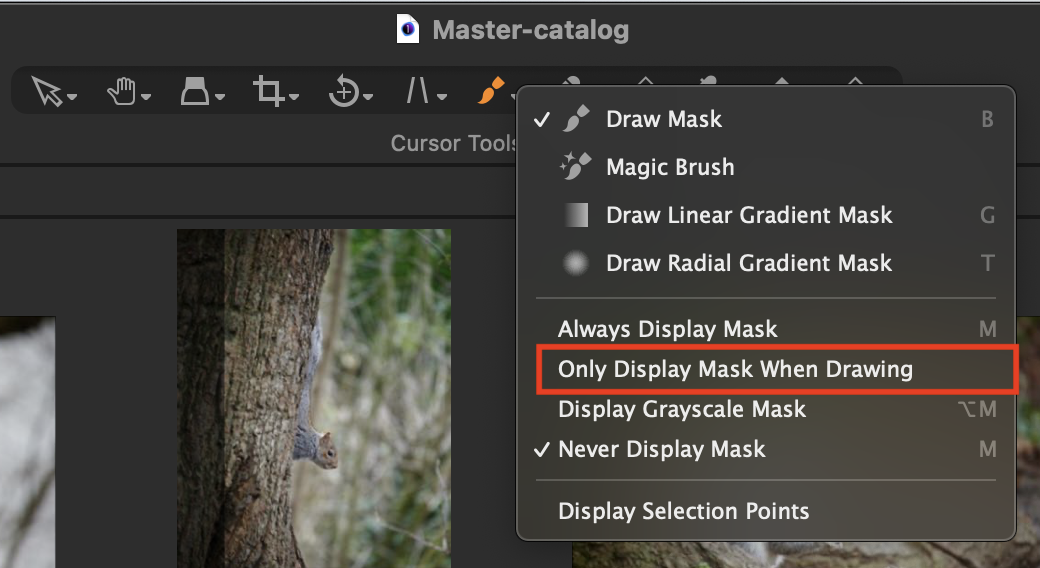
Finally, when I am using the Magic Brush or Linear Grad tool, it no longer brings up the red shading. What have I done to switch this off?
Apologies for such basic questions.
Tim
-
(1) If you import new files in a session, typically the images you import will be added to the files in the folder (normally the Capture folder). I wouldn't expect Capture One to overwrite existing files, but if you were working in a Catalog instead of a session, it might appear that that was what had happened, because a new item would appear in the Recent Imports section of the library tool. So in this screenshot, when I imported 48 images to my catalog on 7 March, Capture One would select that collection. But the other imports are still there, and I could choose one of the other collections on the list to see them, or I could go to the physical folder in question (further down the Library tool) and see everything in it.

Move to Selects - typically, the folders that Capture One creates when you create a session are Capture, Selects, Output and Trash. The intended use of these are that images are imported into the Capture folder. The ones you want to keep, you move to the Selects folder. (I do use them like that, but I know that many users have different approaches.)
(2) Don't know, sorry.
(3) There are options for seeing the mask when you use the magic brush, the gradient brush (or any of the other mask creating tools). Press M on the keyboard to make the mask visible, and press M again to toggle it off. (There is another option, which is to have the mask only appear when you are brushing and hide itself again when you have finished doing that. You can select that option by using a long press on the brush tool on the toolbar. There isn't a keyboard shortcut for it.)
Ian
0

Cette publication n’accepte pas de commentaire.
Commentaires
1 commentaire