Version 6.3.3.6 has become so unstable I can't open it. Mac

Before getting into any specifics, I'm wondering if there are preference files, etc within my Library that can be deleted the way there are in Photoshop? For Photoshop I keep a set of these files in case Photoshop becomes unstable. I can replace them with good copies and not have to recreate all my preferences from scratch. I've never seen a list like this for Capture One, but I thought I'd ask.
I am using Ventura 13.6.2. I would normally update my operating system to see if that fixes it, but with Capture One taking so long to support OS releases does anyone know if I can safely update to the latest version (14.2.1)? Would this work with C1 v 6.3.3.6 and/or would it break 12.2.6.7 (see next paragraph)?
I have had to revert to my copy of 12.2.6.7. Weirdly even after activating it the program shows it as being in Trial Mode. When I select "License" it shows it as activated. I don't know the limitations on Trial Mode, but so far it seems to be behaving normally.
I did send a report to C1 support, but I did not receive a confirmation email so I do not know if it was received and how long I'd have to wait for someone to get me working again. I cannot find a phone number to contact a human being.
Basically, C1 6.3.3.6 crashes every time I try to start the program. If I hold down the option key and select a session it crashes. I then have to restart my computer before I can try this again. If I hold down the option key and create a new blank session it crashes. If I boot into safe mode it still crashes. I tried deleting the program and downloaded a fresh version. It crashes. If I log in as a different user it does open which is why I believe something is corrupted in my user library.
Thanks for any help!
-
The Capture One preferences are stored in ~/Library/Preferences like they are for most other apps.
Do you have any custom styles and/or presets? Could those be contributing to your issue?
Capture One 16.3.3 is supported on macOS Sonoma.
0 -
Hello Walter. I know where they are stored. What I don't know is what is safe and useful to delete. And what will not prevent previous versions from booting. I've shown here why I consider it important to maintain the ability to open previous versions. This is not the first time I've had to revert to a previous version for some reason. Also there are files for much older versions which I would delete if I knew it was safe to do so. I've attached screen shots of some of the Capture One files in my library. I don't know if I've found them all.
To be clear 16.3.3.6 is supported in Sonoma v 14.2.1. And is 12.2.6.7 supported? Obviously, with problems like this I don't want to lose the ability to boot v12.
Thank you.
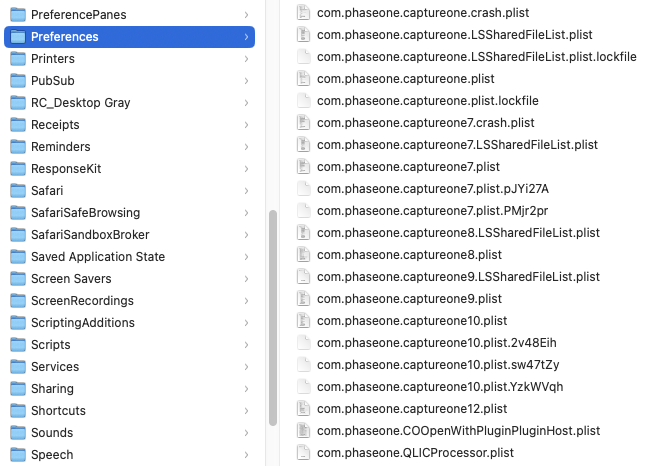
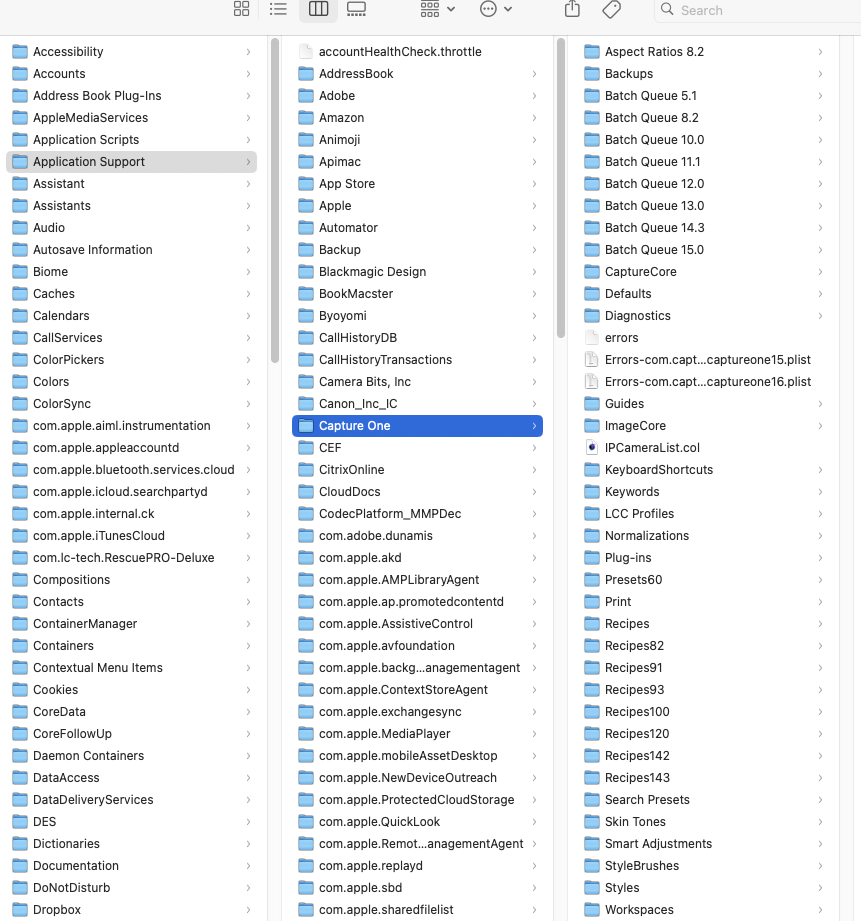 0
0 -
Each version has its own Prefs files. You can delete all file prefs with 7,8,9, etc in them except the 12 and 16 ones.
I don't know whether the non-versioned ones are shared across versions and thus might impact one version of the app or the other.
You can delete ALL of the Batch Queue folders. They are probably filled with job files and that will dramatically impact performance of the app, especially app load time.
https://support.captureone.com/hc/en-us/articles/360004439797-Capture-One-12-1-x-release-notes
Apple® Macintosh® minimum requirements
• Intel CPU with 2 cores
• 8 GB of RAM
• 10 GB of free hard disk space
• Calibrated monitor with 1280x800, 24-bit resolution at 96dpi
• macOS 10.12, macOS 10.13, macOS 10.14, macOS 10.15*
*Support for macOS 10.15 is supported for builds up to 10.15.10 -

Have you tried to boot into Safe Mode? Unless you know that your other User account is identical to your main one, it's possible that the other account has different Launch Items or Settings than your main account (for example).
There are 2 places to look for C1 tidbits. Walter already mentioned the Preferences. C1 also maintains a large folder in ~/Application Support/Capture One. That one has all of your Styles, Style Brushes, Workspaces, and so on. There's also ~/Caches/com.captureone.captureone16 (this one may be the cause of your problem).
I'd start by deleting the Cacne folder, then try preferences. Before deleting Preference, be sure to copy your preferences (or just move them to the Desktop), so you won't need to recreate everything if the problem turns out to be something other than that file.
0 -
Thank you Walter and Abbott. I deleted the files you listed and it opened! My suspicion is all the Batch Queue folders. I'm wondering why these get buried in the Library to begin with? I don't think I'm unusual in not habitually going into the Library looking to delete files.
I really appreciate your help!
0 -
I think Capture One (the company) must think no one needs to attend to the Batch Queue folders, yet they are sloppy at house keeping. You can go to the Batch Queue tool and Clear History and it does NOT clean out this folder. I have no idea why these files are retained. A Clear History should wipe the folder. I have put in tickets for this. It has not been fixed.
1 -

Another odd thing about the batch queue tool is that it only appears if you click on the export tool in the tool tabs, not the export icon in the toolbar.
0 -
You are right. The Exporter dialog does not show the Batch Queue even when Show All Options is checked. The Export tool tab is the only place it appears. Perhaps that is because the Exporter dialog disappears once you start the export process.
0

投稿コメントは受け付けていません。
コメント
8件のコメント