Radial Gradient mask: Control inner and outer circle independently with ALT key
Implemented
Note, the middle line or middle circle actually is always 50% effect of the mask, with both the Linear and Radial gradient mask. This would not be changed by the request.
The Linear gradient mask can be modified with the ALT key (while dragging one of the the "outer" lines), so that the resulting mask actually has two gradients, from 100% to 50% and from 50% to 0% along different distances, in other words different falloff / transition zones.
Possible today with ALT key modifier (distance a can be different from b):
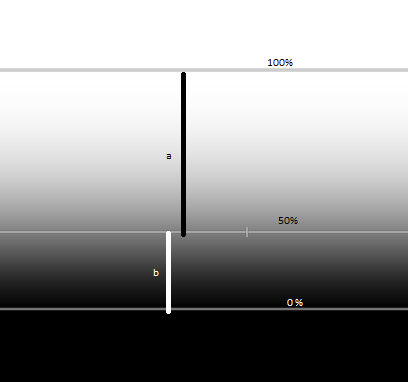
But the Radial gradient mask always has equal distances, which effectively represents only one gradient from 100 to 0% with equal falloff:
Today (distance a always equals distance b).:
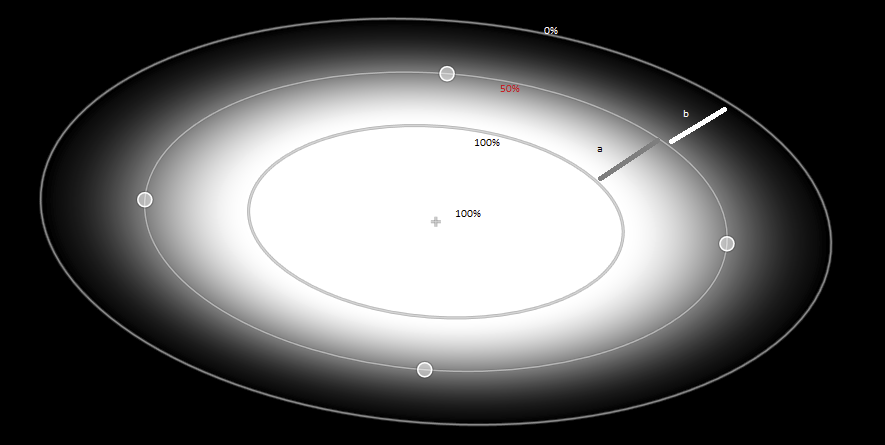
The ALT key is "free" and could be used as a modifier while dragging the outer or inner circle. All other but the ALT-dragged circle should remain at their place and size.
This would give us more fine control for the Radial mask, and would serve the same purpose as with Linear gradient masks.
Online help links for users willing to dig into and discuss:
https://support.captureone.com/hc/en-us/articles/360002626538-Editing-the-Linear-Gradient-Mask
https://support.captureone.com/hc/en-us/articles/360002627458-Readjusting-the-Radial-Gradient-Mask
-

I concur. I have struggled with the Radial Gradient when trying to bring an even but tight focus to a subject. Adjusting the falloff does not give me the control I want and I often abandon the radial and look for another solution.
0 -
Hi,
Thank you for your post.
I have forwarded your suggestion on the ability to control the circles of the Radial Gradient Mask independently to the Product Management team.
0 -
Hi Lily, any update on this feature request?
0
投稿コメントは受け付けていません。
コメント
3件のコメント