Newbie:Show toolbar and browser when windows is maximized?

I am new to Capture One 9. One thing I can't figure out is that when I make the window maximized (clicking on the green circle), the toolbar on top, the tools on left and the browser are hidden. I can hover over them but as soon as I move the cursor away they disappear again. I would like for them to stay visible. This doesn't happen when the window is not maximized.
Is there a way to avoid this behavior? Can the tools be "pinned" like in some other apps?
I hope the description of the problem makes sense.
-
Your description makes perfect sense.
Try this.
(1) Maximise the app with the green button.
(2) Hover the pointer at the top, to see the menu. Under View choose Browser manual mode. (The arrow at the side that revels the browser will disappear - but no browser yet). Or the keyboard shortcut is At-Cmd-B.
(3) Again on the View menu choose Show Browser (or Cmd-B).The browser is now permanently visible. Cmd-B toggles it off again.
(4) Do the same thing for the Tools. The shortcuts use T instead of B, otherwise it's the same process.
That should sort out the tools and the browser. I can't see any way of keeping the toolbar always visible in full screen mode, though. Unless the answer is to use the Alt Key in combination with the green button, to get the pre-Yosemite green button behaviour.
Ian0 -

If you maximise C1 from browser view and then switch to viewer the tools and filmstrip remain on screen, but if you maximise C1 for the viewer they auto-hide.
The implementation of full screen on the Mac OS is not very good, the windows version is much better.
I put in a feature request in this respect some time ago and had hoped it would be rectified in the next version but unfortunately V9 is, if anything, even worse.
On my machine the control bar icons don't display correctly and I get a lot of beachballs!
regards
Ian0 -
IanW and Ian3, thanks a lot! I have a better grasp how it works now.
I agree the full screen implementation on the Mac really is not good. the auto hiding doesn't make sense at all.0 -

This is unbelievable. This will be reason why I will not subscribe after my trial period.
I think it's common sense to use the app maximised for more screen space and better contrast (without background etc.). To be forced to move to the edge of the screen every time I need to move some slider or press a button (or to just take a look at some value) is not compatible with my RSI. To implement this functionality is one man-day at most. Six years ago ... are you kidding me?
Please tell me I am stupid and I missed some basic workaround how this app can be effectively used in fullscreen on MacOs. Until then, see you in Lightroom.
0 -
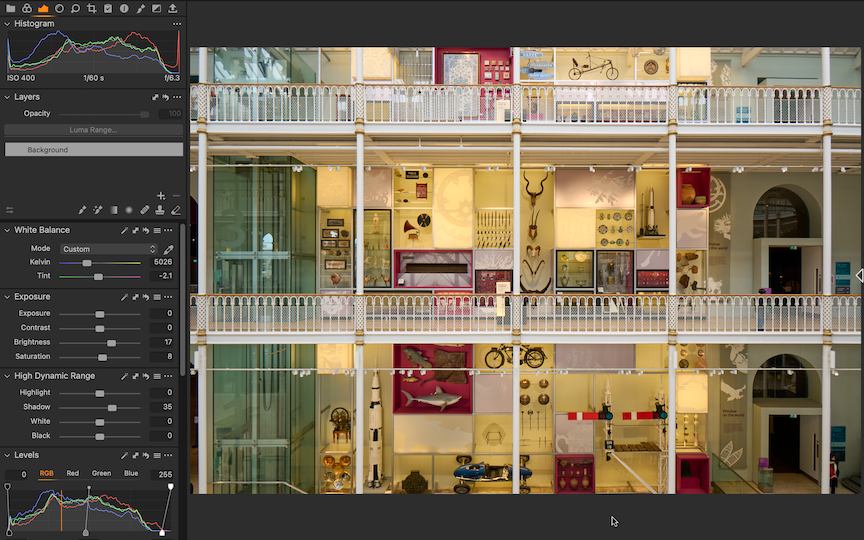
If you go to full screen but you would like the tools to show at the side, you can show or hide the tools with Cmd-T (on a Mac - presumably Ctrl-T on a PC).
Ian
0 -
Oh and when I use keyboard shortcuts (Cmd-T, Cmd-B) then top toolbar stays visible too (until I click on some other window).
Fair enough, this looks like valid workaround, thanks for that! Hopefully this thread can help others in future.
0 -
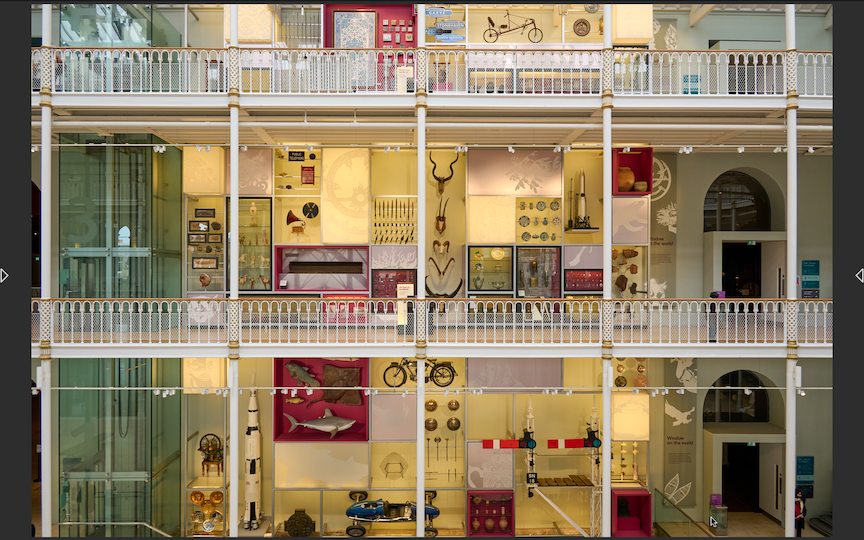
If I press the green button to maximise, I see this.
And then Cmd-T gives me this.
Ian
0

投稿コメントは受け付けていません。
コメント
7件のコメント