What determines my C1 21 Catalogue (Catalog.cocatalog) size?

Hi, my Capture One 21 catalogue inside my system drive (Catalog.cocatalog) size is 20GB.
What is contributing more to this size and how big this can be?
I understand that my raw files are outside of my Mac and C1 Catalogue in only referencing the original raw files for editing purposes. So how this catalogue size increases? Or decreases?
I don’t have this concern with other applications like Affinity Photo or DxO PhotoLab because there is no catalogue and referenced images. All editing work in done accessing the raw files where they’re stored.
Previews quality? Other parameters? Number of files (even if they’re only referenced files and not the original raws)?
The goal is to choose a 512GB or 1TB disk system for my next Mac M1 machine for future use without problems.
I don’t use Sessions, only Catalogues; in fact I like a big Catalogue with folders organized at will. Works well for me because is like a Mac folder system mindset.
Thanks for all your help.
-
The previews (and thumbnails) will certainly contribute quite a lot to the catalog size, because they are stored within the catalog (rather than alongside the raw files as they are with sessions). if your raw files are referenced (so stored outside the catalog) then the previews will be by far the largest component of the overall size. Obviously using managed image files (stored inside the catalog, rather than referenced) would greatly increase the catalog size, but of course it would save the space they would take up if referenced.
Don't skimp on the size of the previews - it is more efficient to have them large enough.
And I would guess that if you are undecided between 512GB and 1TB, it's better to go for the larger size if you can afford to because your image collection will only increase over the hoped-for life of the new computer.
Hope that helps.
Ian
0 -
Thanks for your message Ian.
As I suspected the answer are the previews. But one must work with proper previews for accurate editing. My question is answered 🙂
About the drive size I guess you’re also right.
Thanks again for your help. All the best.
0 -

You don't have to guess. In Finder right click on your catalog (the .cocatalog "file") and select Show Package Contents. There you will find folders for Adjustments and Cache as well as your catalog database and possible catalog database backups from when new versions of Capture One modify the database format.
This page says how to see folder sizes when using a list view: https://www.macrumors.com/how-to/view-folder-sizes-on-your-mac/
On my Catalog of almost 50K images My Cache folder has 182 GB of previews and 1 GB of thumbnails. The Adjustments folder only uses about 146 MB.
0 -
Thanks Marco, for you help.
I did that from my Time Machine backup (I am between Macs) using a 2008 machine just to some very light tasks.The Cache is indeed 99% of the space occupied; mine is 19 GB, for now 🙂0 -

And you can exclude cache and thumbnail folders from the TM backup to save space. You can even delete them as the software will regenerate them.
And one neat trick you can apply to guess the right preview size, while you have the full window of the software, like editing photo in the middle and then all the toolbars around where they should be, take a screenshot and measure the area of where the actual photo sitting. That should be the minimum preview size. Like in my case, I use a 5K iMac, the actual photo consume around 3000 pixels wide so I set my preview to that size rather than 5000 pixels.
0 -
FA thanks for your tip 🙂
0 -
Finally with my new machine, I changed the size of my Previews in Image> Preview image size (px) from 2048px to 1440px.
An image on my 1080x1200px monitor, on the C1 with the menu bars around it, occupies approx. 1340x1000px. I think the Preview 1440px is enough? Or should I give a little more? Maybe 1680px?
After that I closed the program and opened it again but the size of the .cocatalog is the same. Shall I have to do anything additional for the C1 to generate new Previews and decrease the size it occupies on my disk? Thanks.
0 -
When you change the preview size as you have done, that changes the size at which Capture One CREATES previews. It won't automatically regenerate all your previews at the new size. (And that is probably a good thing, because you might otherwise find Capture One tied up for ages regenerating previews.)
Previews created for new images brought in to the catalog will be created at the new size. If you want to convert previews for existing images to the new size, select some images and on the Image menu, select Regenerate Previews. I suggest you do it a folder at a time, rather than select All Images and try to do them all at once: even if it starts off quite fast, it may slow down.
Ian
0 -
Thanks a lot 🙂 Great help! Should I choose just enough size preview like 1440 or a bit bigger?
0 -
You certainly don't need a preview size bigger than your monitor. I'm not sure what size your monitor is, because you must have mis-typed it - I guess it isn't 1080 x 1200. What is the correct screen resolution?
Capture One's advice is to use the preview size nearest two your screen resolution. My MacBook Pro is 2560 x 1600, and I use 2560 as the preview size. Some people suggest that you can trim that down a bit because the preview image doesn't in fact fill the whole screen when you take toolbars, side panels, etc into account. I am not sure if that is sound logic or not.
But even with a change from 2048 to 1440, you should see quite a reduction in file size. The file size will be proportional to the number of pixels, and the number of pixels will be proportional to the area of the image that is to the square of the reduced side. So 1440/2048 = 0.703, and 0.703 squared = 0.49. So you might expect the storage space taken up by the previews to be halved.
Ian
0 -
Thank you very much Ian.
So sorry; mine is 1920x1200 (WUXGA) .-)
0 -

I have one question …
„if your raw files are referenced (so stored outside the catalog) then the previews will be by far the largest component of the overall size.“
>> where can I switch the Setting to store my RAW-files outside the catalog? my catalog size is 280GB (8000 Images).
TY0 -
Two things you can do.
(1) When you add new images to the catalog, use the setting shown below.
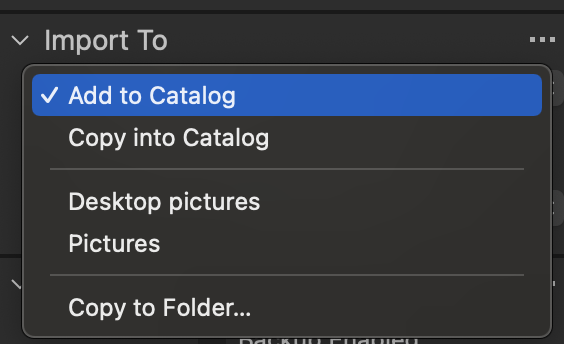
Add to catalog means that images stay in their existing location, instead of being stored inside the catalog (which is what Copy Into Catalog does). If you are importing from a memory card, you need to use Copy to Folder... and then choose whatever location you want to store the images in.
(2) You can move existing images from being stored in the catalog to being referenced (stored on a drive of your computer). Just add the folder you want to put them in to the catalog (using the + sign in the Folders section of the Library tool). Then drag and drop images to it from the "In Catalog" section of the Library. Do this within Capture One not in Finder, so that Capture One knows where the images have been moved to.
Ian
0 -
hmm I think I dont understand the workflow of „(2)“.
So my RAWs outside of the Catalog are in folders (2019, 2020, 2021 etc. with folders in the folders). Does it work by just giving C1 the path to the main-folder? or do I need to restore the links to all the single folders?„Just add the folder you want to put them in to the catalog (using the + sign in the Folders section of the Library tool). Then drag and drop images to it from the "In Catalog" section of the Library.“
>> Can you show me a screenshot of that please?First I have to remove the „Originals“ out of the catalog-file, right?
0

投稿コメントは受け付けていません。
コメント
14件のコメント