Deleting photos from user albums is not putting them in the trash

This is really odd. I have a catalogue, import photos, divide them into few albums within user collection and then start going through them. I spend some time choosing the best ones and deleting unwanted ones. And now I find they are not really in the trash, but still fully present in the photos list for different dates. And there is no option to choose sending images to the trash from user albums (now or later).
This is really frustrating and not well thought of. Unless I miss something.
I would have to go through the photos again in their date folders and erase them again - but how can I remember which I erased when going through them before ?
Even if I go through the images first and delete some, I still may want to delete others later when working with them within the albums. Do I have to delete each image twice ? (from the album and then to look for it in the collections based on importing date? This would be beyond any user logic and comfort.
-

Are you aware that deleting images from C1 is a two-step process?
After selecting images for deletion, you go to File > Empty Catalog Trash:
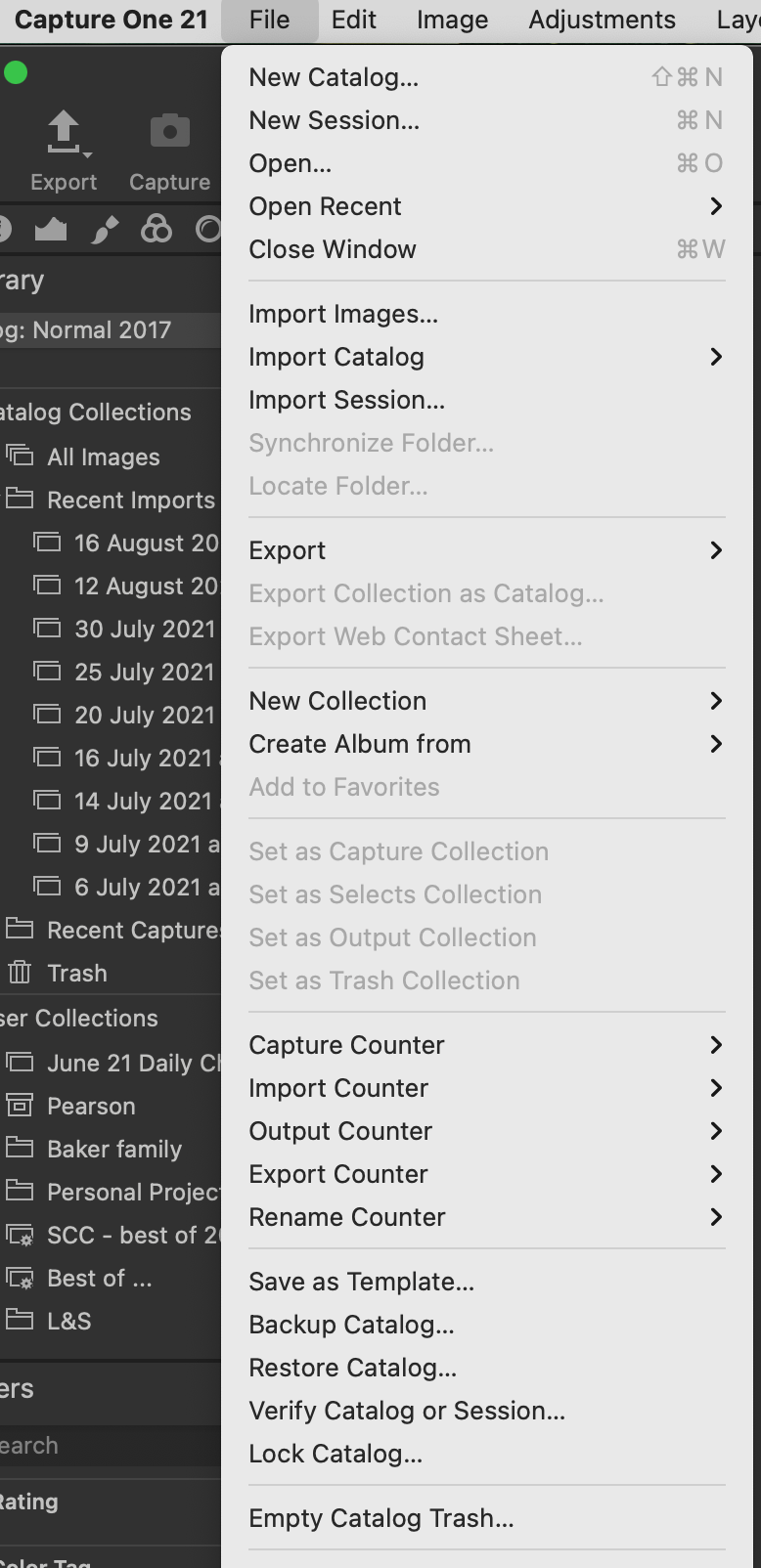
Click on "Empty Catalog Trash" and you will get this dialogue:
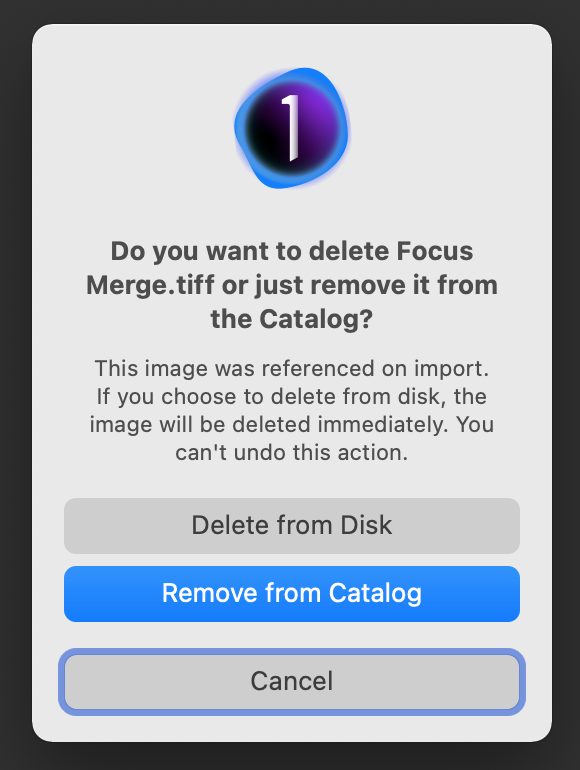
The two step process has saved me more than once!
0 -

What I see is that e.g. for "Smart albums" the menu offers me "Delete (from Album abc)", while for regular albums the option is "Delete (Move to Catalog Trash)". Which in a way makes sense, since photos belonging in a smart album are selected by the album rule, so the only meaning for "delete" is from the Catalog, while in a regular album you could just want to remove the photo from the album. The best solution would be for C1 to provide a double option in the latter case, so you can choose whether to remove from the catalog or from the album.
Given that such an option is not there, here it is what I do: I pick the photos to move to the trash by marking them with the "red" tag, then I select "All" from the catalog, apply a filter to see only the "red" ones and then I remove them (from the "All" collection "delete" works with the trash). Creating a smart album for the "red" tag might speed up the process a little bit.
Alternatively, especially if you have only a single image to delete, you can use the menu "Show in library" that keeps the current photo selection, but let you see it in the physical folders. From there the delete option offered is the one what works with the Trash. The problem with this way is that AFAIK there's no option to quickly return to the original album, so you have to reselect it manually. That's why this approach is viable only when you have a single photo, or just a few ones.
0 -
I also use the red color tag to tag those to be deleted later.This is my "own" two steps process...
Sometimes when culling if I want them to vanish immediately from my sight I filter them out by its color tag.
0 -
Deleting from albums is not the same thing as deleting from the catalog. An album is a virtual collection, and an image can be in more than one of them. For instance a shot of my grandson at the beach could be in an album called Holidays and in another album called Grandchildren. If I go to the Holidays album and delete that image, ir removes it from the Holidays album, but it doesn't remove it from the Grandchildren album and it doesn't remove it from the catalog (or from the physical folder where it is actually stored).
Ian
0 -
To expand a little on Ian's excellent description, photos get sent to the trash only when you delete them from their original folder. As others said, the items under "Collections" are all virtual groupings.
The thing to remember is that when you delete an image ("send to Trash") and them empty the Trash, that image will be permanently deleted from all albums, smart albums, projects, etc. that you'd put it in.
I do as the others: If I really want to permanently delete the image from all collections, I color tag the image and then search the originals for all images tagged with that color to delete them globally.
0 -
Ian Wilson: Yes, I know that but I find it very unpractical and user unfriendly. Concentrating on albums and sorting them, the option to put the images directly in the trash shall be very basic. I don't want to leave a "garbage" in the catalogue or to do the same work twice (i.e. to go through the images in the albums and then again in the catalogue - does not make sense). So a simple switch - delete from the album or put in the trash is quite missing for me.
0 -

My approach is slightly different, but largely the same as above. This applies to managed catalogs that I use when traveling and I think it also applies to my master catalog, which is a referenced catalog. I cannot remove an image from the catalog by removing it from the original album I put it in or any other album in which it appears. Pressing Delete just deletes it from that album. If it is a recently imported image, it is still in the Recent Imports folder and the All Images folder.
So, I also tag images for deletion with a red tag. You can do this several ways, by clicking on the tag box and selecting the color or by selecting the image in the browser or viewer and clicking the minus key. This latter method selects a red tag. You can the go to the Recent Imports Folder and delete the image and it will be placed in the trash. Same for deleting it from the All Images folder. Or, you can drag the image directly to the Trash folder, which you can then empty.
0 -
@jj kk
So if you are working in an album (not a Smart Album - see Note below, and not a physical folder) you have the following options on the Image menu:

- Delete (from Album...) just removes the image from the album, but doesn't remove it from the catalog, or from Disk.
- Move to Catalog Trash removes the image from the album, and puts it in the catalog Trash. (This one doesn't seem to have a default keyboard shortcut, but it is possible to edit the keyboard shortcuts to create one.) You can retrieve images from the catalog trash, or empty it later.
- Delete from Disk... brings up a dialog box where you can choose if you just want the image removed from the catalog or physically deleted from your computer as well, like this.
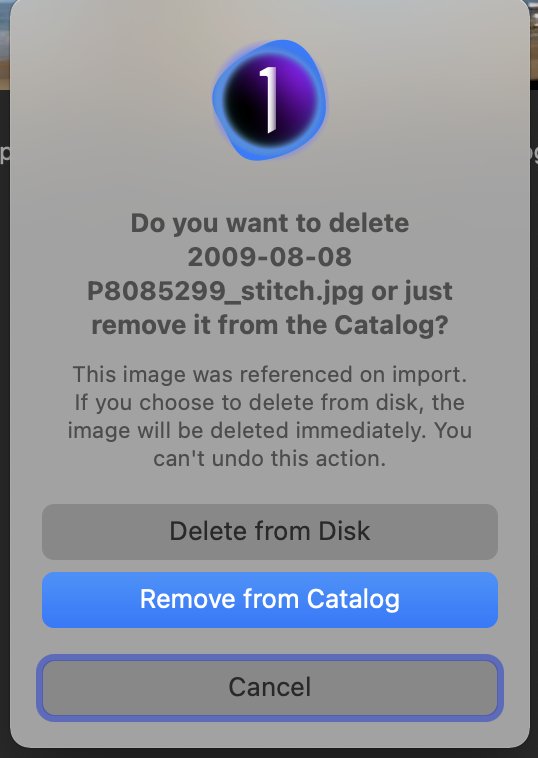
(I use referenced images for my catalog and I haven't explored what the options here would be in the case of managed images.)
So it seems to me that you can put images from an album directly into the Trash - and you could create a keyboard shortcut for it if you wanted to.
Ian
NOTE - smart albums: the options are different because you can't just delete something from a smart album. It is there because it meets the criteria, such as having a green tag, or 5 stars, or a particular keyword. You can remove it from a smart album by removing the attribute that put it there, such as changing the star rating from 5 to 4, for example.
0 -
As smart albums can also be made of non-removable metadata like camera, lens or date and much more, it's better to flag the photos you like to remove with a colour label - or sent them to the "selected album" in case you don't need it for something else.
And I do think it IS user-friendly that I have to know, if I want to remove a variant from an album or delete it physically from the catalog or disk. But as catalogs and asset management are the unloved stepchilds of C1, there is plenty of user-unfriendliness on various places. Anyway, I can recommend to watch some of David's explanations about the catalog, as the "help" is only helpful for C1 apps running in English, everybody else has to guess the often questionable translations.
0


投稿コメントは受け付けていません。
コメント
9件のコメント