50% of previews pixelated in catalog with offline images

I'm trying to put a catalog from my desktop on a portable SSD without copying the original images over. When I open it on a laptop about 50% of the previews (not the thumbnails in the browser, but the larger preview in the Viewer) are very pixelated, as though the preview is only a few hundred pixels. The other 50% are totally fine. It seems completely random - one image from a shoot will be fine and the image right next to it will be garbage. Adjustments are carrying through OK, and the browser thumbnails look fine.
What I do notice is that when I select in an image, it will very briefly (tiny fraction of a second) seem to look good, and then it goes all pixelated. But it's so brief it's hard for me to be sure.
In the original catalog I've got previews set to the defaults (2560px) which should be fine for my 1440px height screen, and have tried regenerating but. But I'm still having the issue.
I created a brand new catalog, dropped some images into it, made sure previews had regenerated, and copied it over to the SSD and tried it on the laptop. Same problem.
I'm using C1 v20. Hardware acceleration is set to Auto though I've tried setting both items to Never and it doesn't seem to change anything.
Any clues on what's going wrong? It's going to make juggling 2 machines impossible if I can't get this workflow sorted out.
Thanks!
-
If you select such an image and then goto to menu>image>show in explorer, does it locate the image file?
0 -
No, because the intended use-case here is I'm using the catalog on a laptop and the majority of photos are offline. Nevertheless, the previews should still be showing at specified resolution.
0 -
Understand, I originally thought the orignial files are always on the SSD (only) and neither on the desktop nor on the notebook.
Your notebook screen has 2560 x 1440 I assume, then I also assume the previews should be sufficiently big for a fit to screen zoom level.
That's really strange.
With the brand new catalog you are also having some previews pixelated but others are good? Are the test catalog images adjusted or unadjusted?
Could you paste an example screenshot of a pixelated one here?
0 -

Adam,
If you select to view at 100% does anything change?
As a guess ... to display the Preview files at "fit" size for the smaller screen C1 may well need to decide whether or not it needs to reduce the size of the Preview image it is using - much the same decision as it would need to make if the image files were available.
Now by my observations when going the other way - a "fit" Preview size to a larger view, if zooming to around 50% or a little over, C1 may go back to the original file and recalculate rather than try to "stretch" the original preview. The reverse likely happens then making a 2560 preview fit a 1440 screen.
The decision made MAY vary according to whether the code thinks it can simply bin some pixels and use what is left it needs to start afresh - in which case it may prefer access to the original file.
If it does not have access to the original file OR if the process to greatly re-process the preview does not succeed for some reason you might get the sort of result you describe. Indeed if the Preview display fails it may substitute the Thumbnail.
I'm speculating here. Only if the speculation seems likely would it be worth trying to create a plan for testing the theory.
0 -
Here's three screenshots, one showing what a blurry preview is looking like, the other a sharp preview, both from the same shoot just taken a few minutes apart. The third screenshot shows the blurry one at 100% zoom instead of zoom to fit. As you'll see, both images are Offline.
If I take the images offline and open the catalog on either my desktop or laptop then I have the same pictures being blurry or sharp. My laptop screen is 1440x2560,and that longer dimension is what the Previews are set to.
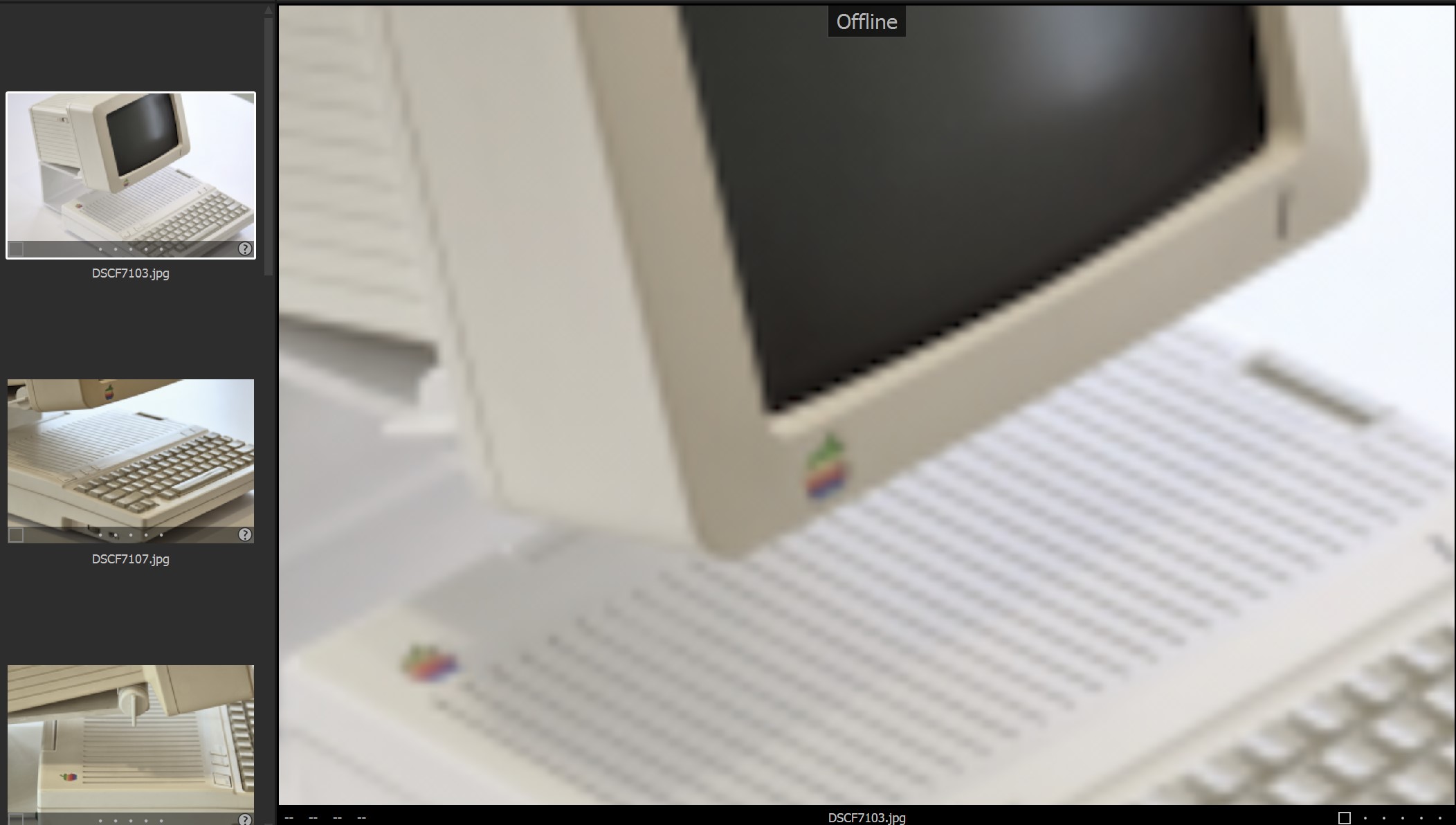
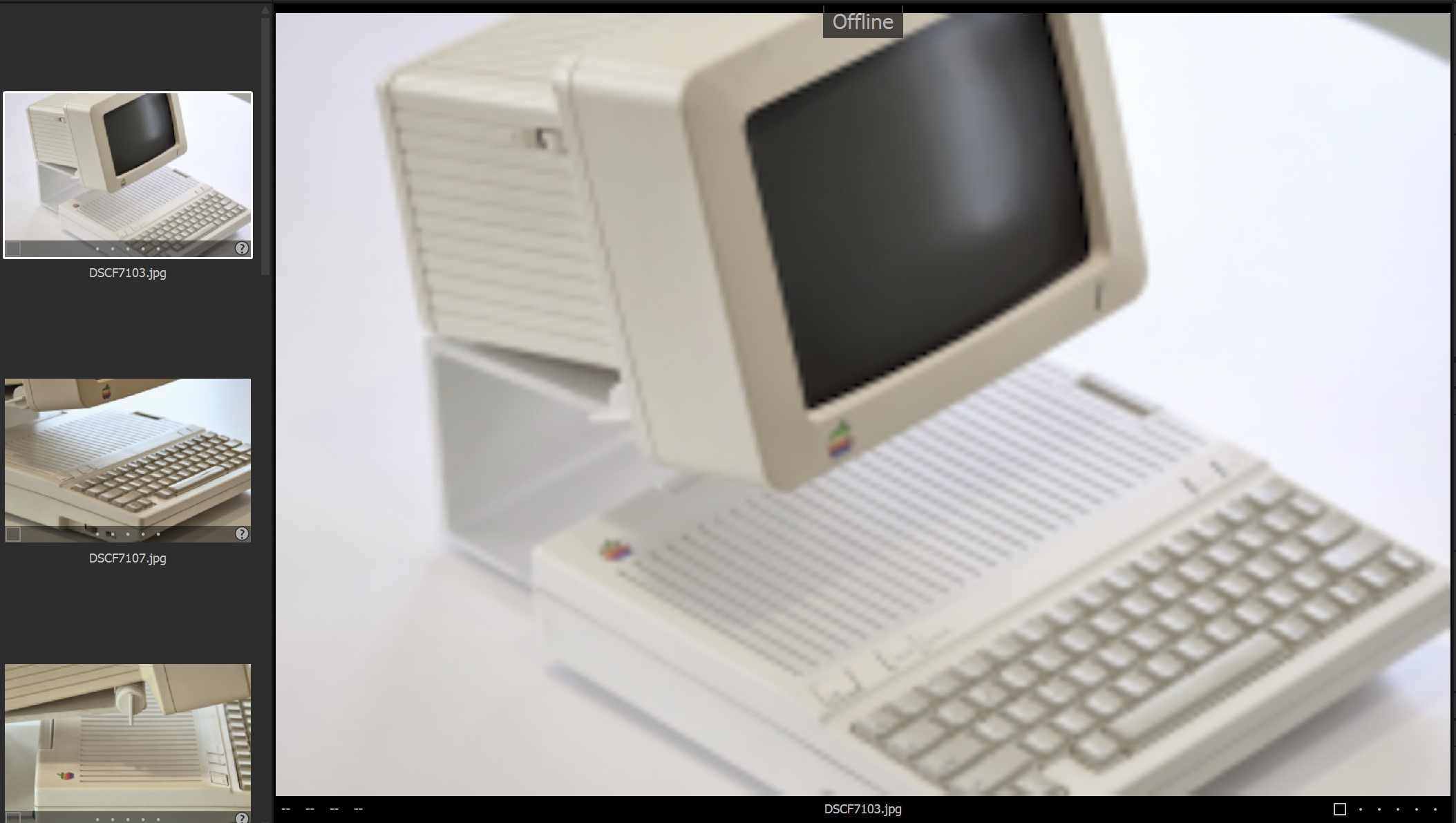
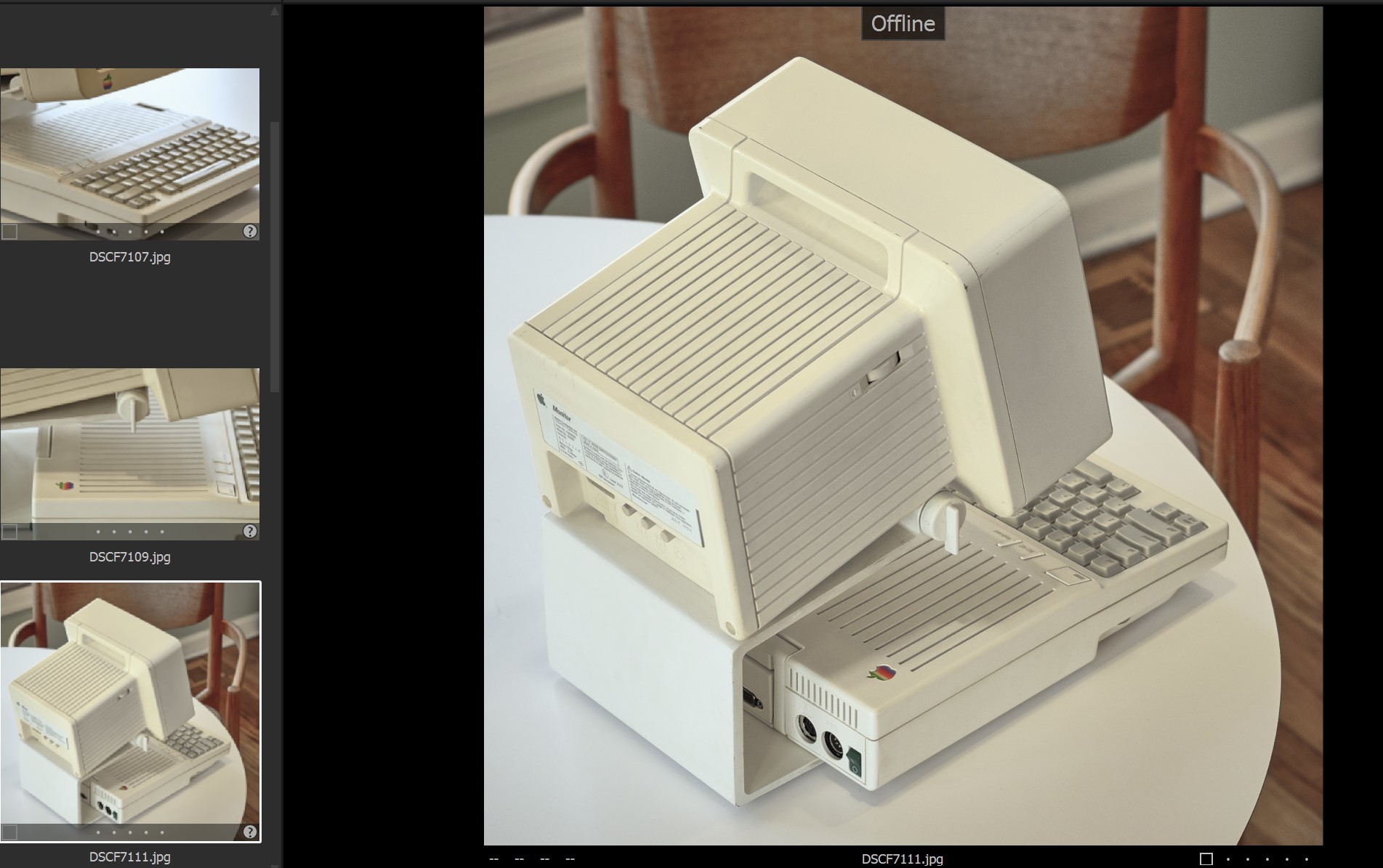 0
0 -
Adam, can you check if the preview (capture one proxy) files were actually generated and copied to the SSD, for the blurry images?
e.g.
Capture\CaptureOne\Cache\Proxies\DSC7103.jpg.cop
0 -
Adam,
All of these are jpg shots not RAW?
What size are the jpgs?
Of the 3 screengrabbed images the first 2 look like they have been zoomed in quite some way. What are the original jpg file dimensions?
0 -
When Adam has them online then all of them are sharp, that's what I understood at least, so the jpgs should be fine.
The second image is fit size, just compare the thumbnail and the viewer.
0 -
Ah, good question BeO!
Unfortunately (for me) there are .cop and .cof files for all the images, regardless of whether they are showing up blurry or sharp.
SFA - these were all shot in Jpeg - I don't have the pixel dimensions handy right this sec but they were shot on a 24MP Fuji, so they are plenty big, about 6000px on long edge if memory serves. What you're calling "zoomed in" is the extreme pixelation I'm trying to resolve.
Thanks all for the ongoing brainstorming!
0 -
Hm, maybe the treatment of Fuji files differ from other brands with regard to what is baked into previews, or when they can be used or not be used. Just guessing.
Did you eventually use different tools with the pixelated images than you did with the good ones?
Or did you change tools them after making them offline?
0 -
By tools, do you mean other software? None of the problematic images have been touched outside C1
0 -
Adam,
Taking your first image, the "Viewer" view is larger than the original jpg image. So does that represent the full jpg size (100% zoom) rather than "fit" and the second screen grab shows "fit" of the same image?
The Information tab should open up that Metadata tool and present the file info for the original file including dimensions.
Sorry to question your information but long ago I learned (and sometimes remember to apply) a rule to never assume any information is correct without at least double-checking - especially if it is obvious that it cannot possibly be wrong!
0 -
By tools l mean C1 tools, e.g. Exposure, Color Editor, Noise reduction, Base characteristics etc.
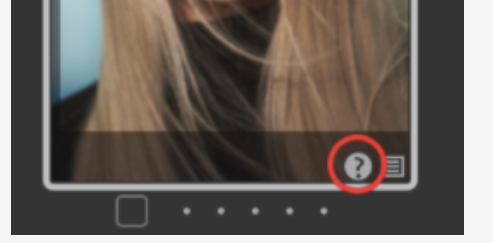
EDIT: They are unadjusted, no C1 tools used, right? At least the thumbs don't show the adjustment icon next to the question mark.
 0
0 -
Tx:
Unfortunately (for me) there are .cop and .cof files for all the images, regardless of whether they are showing up blurry or sharp.
When you compare the file dates (creation date, modification date) of DSC7103.jpg.cop (the bad preview) with DSC7111.jpg.cop (a good preview) on your SSD (and also on your desktop from a preview generation action when images were online on your desktop)?
0 -
Another idea: Can you verify the catalog? menu File>verify catalog
0 -
Forget what I said about Fuji images, you have jpg originals, not raw Fuji files...
0 -

Adam, try comparing the preview size of a blurry image to a sharp one. Go to the export tab and select the Preview Size recipe and see if the dimensions are the same for each.
0 -
And the file dates. It might give you a hint when (which C1 process running on which machine) has created them, maybe pointing to the root cause.
0

投稿コメントは受け付けていません。
コメント
18件のコメント