How do I crop multiple images in a batch process? (mirrored post from C20 forum)

I cropped a photo. I click on the copy upward pointing arrow, I select a second photo and click on the downward facing apply arrow...it crops.
I select another and click apply - it crops.
OK, I think to myself (foolishly). I select the entire rest of the photo shoot, and click on apply..only the first of the select set crops.
This software has the ILLUSION of being able to batch process the simplest of edits...but it is a lie. If I de-select the group and choose any one photo and click apply it works, so it DOES retain the crop setting.
I have the 'Auto Select>Adjusments' checked in the adjustments clipboard.
What spells, potions or incantations are required to do this simple task in Capture one pro 20?
-

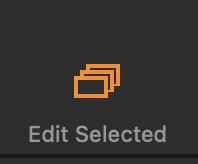
Do you have "Edit Selected" enabled? If it isn't enabled only the "most selected" image will be edited.
1 -
As Marco says. This is the button on the tool bar that needs to be on.
Ian
 1
1 -
Thanks folks. I had to step away from trying to edit my christmas pics in C1 as it was activating my ulcers (literally). So many different places to hunt for obscure things in this software. I am sure that if I was using it daily, for the exact same tasks over and over, I could establish a flow and be at peace with this software. However, as someone who uses it rarely, and mostly as an image organizer and catalog, I find even the simplest of tasks (like this one) to be so non intuitive, and the interface to be so scattered that I end up in forums like this one, trying to figure out how to 'tie my shoes', instead of actually accomplishing things.
I almost never use this software. Over the past year I have developed a stress response even thinking about using it. I continue to grieve for Apples' 'Aperture' - which was a fantastic DIM. Lightroom was competent, but the infinity pricing of a subscription is a no for me. On1 was ok, but very twitchy and limited. Capture one SEEMS like a full featured DIM, but for me it just doesn't serve.
Just to use this one picture set as an example...even now two weeks after I shot them, and finally (with your help) was able to navigate the bewildering interface (what DOES the Copy/Apply button to the right of the 'edit selected' button actually DO?)....
When I look at the entire set of shots in the browser(?) the multiple images pane on the right, it does not show the crops. Only by selecting an image to appear in the 'viewer'(?) - the main window in the middle, do I see the crop.
So, again, how do I tell if the software even did anything by looking over the browser thumbnails...I can't. I have to manually inspect each one. THAT is clunkiness defined. I truly feel for people trying to use this on the daily to manage thousand photo shoots. Guessing if your edits actually took...just....wow.
0 -

You should see the Thumbnail with the crop mask identified.
Check the "Crop" tab in the "Preferences" tool to check how the settings for the crop mask are set.
If you see the mask in the Viewer then you should also see it in Browser but is it possible that the settings being applied make it more readily visible in the Viewer and difficult to see in the Browser.
As for what the tools do - using V21 (assumed because the post is in the V21 section of the forum) - you should be able to access comprehensive on-line assistance via the tool or the Hints in the menu icons.
If you are using V22 the nature of the assistance available should be even more comprehensive.
Copy/Apply - if I have understood the "/" to be part of the "button" is actually 2 separate buttons.
There is also a "Copy and Apply" icon available if you wish to customize your toolbar. That will copy and apply with a single click.
There are also Keyboard Shortcut definitions available for the same actions. If working with an individual tool - for example the full Crop tool rather than the quick access version from the viewer toolbar - there are also options to Copy (to the Clipboard) and Copy and Paste immediately in a single action.
This may sound confusing but the key is to understand that C1 is quite extensively configurable to cater to the greatly variable needs of different users. Few people will wish to use all of the options and I doubt anyone would really need all of them. So we can just pick and choose the things that work for us.
It can take a little time and a little investigation but, in my experience, is worth the effort.
0

投稿コメントは受け付けていません。
コメント
4件のコメント