Library not showing contents of external hard drive. C1 22

This has always worked fine, including yesterday. In the Library tab I can see the external hard drive but when I click on the down arrow nothing happens. No problems using this hard drive through the Finder, with Photo Mechanic and with Photoshop. Also, when I right click and choose Show in Finder it goes to the Hard Drive. I tried restarting the computer and ejecting and reattaching the hard drive. I haven't had any problems using this hard drive with C1 22 since installing v22 a couple of weeks ago.
However, I just closed C1 22 and opened C1 21 and it is working correctly!
Any ideas on what I can do to fix this?
-

This needs to be in some kind of FAQ given how often variations of this question are asked. Anyway...
The Library pulldown shows sessions and catalogs recently opened. If you've never opened a session or catalog in Capture One 22 it won't show up in the library pull down of Capture One 22. Instead use File -> Open and navigate to the location of the session or catalog. Open it. Now it is a "recently opened" session/catalog and will show up in the library pulldown.
Until Capture One 23 is released... then you'll have to use File -> Open again.
0 -
@ Marco, I don't believe this is my issue. I tried to make clear in my description that I've done what I need to do to have access to all the files in my Mac Finder in C1 (i.e. all the files on my internal hard drive plus any mounted
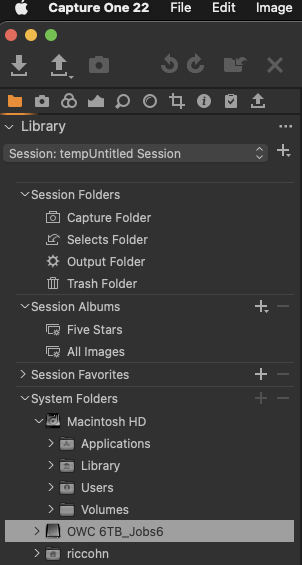 external volumes). I use System Folders instead of using Sessions or Catalogs. I was able to open this hard drive through the Library tab from the day I installed C1 22 a couple of weeks ago right through yesterday with no problems. I lost access to this Hard Drive today and am able to access it using my copy of C1 21. This hard drive contains images that are no longer on my internal hard drive. I have attached a screenshot showing my Library. The external hard drive that does not open when I click the arrow is named OWC 6TB_Job6. I hope that clarifies my problem. If not, please let me know. 0
 -
I see. That is a different issue which leads to a new question. Does Capture One 22 have access to external disks? Look at System Preferences, Security and Privacy preference, Privacy Tab, Files and Folders. Mine looks like this:
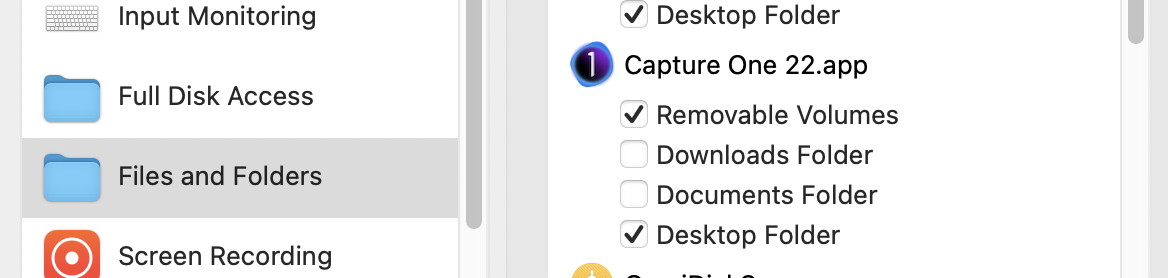
I've had those preferences change in the past, possibly due to system upgrades. Do you have access to Removable Volumes in Capture One 22.app?
2 -
Marco, you nailed it! Thank you! I have no idea how this could have been turned off between yesterday and today, but sometimes computers are like the stairs at Hogwarts, "they like to change on their own". No system updates or changes that I'm aware of. I wouldn't have thought to check that this didn't change, in the future I'll try to remember to do this.
1 -

unfortunately I have come down with the exact same problem Ric as you had - I have tried all the (very potentially useful solutions proposed by Marco but my preferences were all set correctly - I unchecked all of them and rechecked them, restarted Mac - no cigar - then went and reset NVPRAM on Mac and restarted again nothing...
I DID upgrade to Monterey just before this all happened so can only assume this is what has caused it - basically my problem is I have 4 external HD's - 3 are perfectly accessible in the library tab but one of them when I click the turndown arrow there is just no content....and its a drive I have been using for a number of years (it is in fact my MAIN go-to drive)....
I do get the error message after some time that says "an error occurred and the session ... must close. An unrecoverable error was encountered while working with he session's database unable to open database file The session will now close."
It is also the same drive that has Time Machine running on it - I have tried turning that off and then on and no help, changed cables, used different ports, created new cosessiondb file (which works perfectly fine if I create new session file on a different external drive)....can only think something has happened in the upgrade to Monterey...I have also tried opening the (test) cosessiondb and the original cosessiondb file with previous versions of C1 (version 21) and that DOES NOT work either in contrast to the success Ric seems to have had when he had his problem.
I have written to C1 and hope they will respond....but if you do have some suggestions....I'm now out of ideas!
I'm on a Mac Pro 6,1 (trash can) upgraded to 3Ghz 10 Core
0 -

Same issue here. I cannot access old session on my hard drive. So when a file is missing and a client want it a couple weeks later, I cant open the session. Very frustrating!! Monterey as well. MBP 2019 16''
1 -

MBPRO 2020 M1. Monterrey 12.4
I've repeated all of the steps listed above and I have the same problem on my laptop. So far the desktop iMac Pro is not seeing these problems.
Has anyone else offered a fix because what's been listed previously is not working.
0 -
Hi Douglas, I found a solution.
I opened a session from my MacBook, connected my external hard drive, and then in the session's file browser on the left, went into the backed up session on the external drive and chose the capture folder. The session started generating previews and after that, I was able to open the backed up session directly from the external HD and every other one too.
Hope that helps!
0 -
I think I finally worked out what the problem was - my session was simply too large - I forget exactly how large but it was a few hundred GB - I have since created a Catalog instead of the same work and it seems to be working fine .... it does mean the hassle of having to 'import' to a Catalog but at least all the content is visible ...
0
投稿コメントは受け付けていません。
コメント
9件のコメント