Layers Tool Features Refinement
Implemented
Layers tool can have following refinement to improve user experience.
In Pic marked as 1, for heal and clone layers respective icons are added by default, where as for layers with different mask types same icons is added. So,
1. As Linear and Radial Gradient masks are non-destructive Linear and Radial icons can be added.
2. If the layer doesn't contain non-destructive masks either created using brush or rasterized, brush icon can be assigned for that layer. So that user can understand no non-destructive mask exist in the layer.
3. In the example Pic, there are 3 Adjustment Layers out of which one is empty, one is filled and one is with gradient (non-destructive) mask. Unless "Display Mask" option is used or layer is named properly, no way to identify the layer mask type. For empty layer(0% mask), empty rectangular "[]" icon and for 100% filled layer shaded rectangular icon can be added.
4. Suppose layer "A" contains linear gradient mask and and layer "B" contains radial gradient mask then when layer "A" is selected again, the tool does not reselect the linear icon (In Pic marked 2) automatically. Instead it stays on radial icon which misleads always. Since the layer has non-destructive mask in it, tool should automatically jump on to corresponding mask icon automatically.
Few additional small optional tweaks:
a. When empty and filled layers are created default names can be "Empty Layer 1" and "Filled Layer 1" similar to Heal/Clone layers instead of "Adjustment Layer 1"
b. "Adjustment" word looks redundant in "New Empty Adjustments Layer" and "New Filled Adjustments Layer". They can be simply "New Empty Layer" and "New Filled Layer"
c. It is allowed to create Luma Range for empty layer. Either it can be disabled for empty layer or an option in the preference can be added to enable/disable this option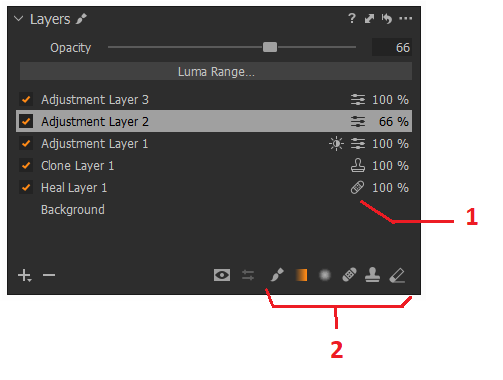
-

You make some good points, but your terminology could be improved.
Masks are not "destructive" or "non-destructive". They are either "manually drawn" or "parametric" (radial/linear gradient).
Regarding point 4.: In Build 13.1.1.31, the tool (and icon selection) changes according to the layer selection. Which version are you using?
My main issue with C1 -- which will prevent me from upgrading ever again -- is that Build 13.1.0 introduced a new brush selection system which is worse than the one it replaced. While the problem you describe does not exist (at least not in 13.1.1.31), there is a related problem in that there is no single shortcut for activating the (appropriate) brush if a layer is already selected.Imaging you are working on a layer and then choose the eraser brush to erase some of the mark. Now to go back to positive mask brushing, you need to press one of three keys (adjustment brush, heal brush, or clone brush). This is silly and clearly worse than the previous approach where you could just press "B" and the correct brush type would automatically be used.
I described the issue here and am lost why the initially even worse new brush design was only half fixed.
I don't recommend Capture One to other photographers anymore and my engagement here is very half-hearted because I lost hope that I'd ever be able to efficiently switch between erasing and brushing again with an up to date version of C1. I'll just keep using the last good one even though it only supports a single source vector per heal/clone layer.
0 -

Hi Prasad,
Thank you for feedback on Capture One - we appreciate the time you've taken to contribute towards the development of the software.
I have forwarded your comments and suggestions on to our Product Management team as something to consider in a future release. Hopefully your feedback contributes towards a future version of Capture One.
Though we cannot comment on future releases and the features to be added, we recommend keeping an eye on this article - click Follow next to the title of the article to stay up to date with new features and improvements.0
Post ist für Kommentare geschlossen.
Kommentare
2 Kommentare