2 fingers scrolling wacom intuos Pro

I can't for the life of me get two finger scrolling of the thumbnails window pane in capture one 20 using a wacom intuos pro on windows 10. Any ideas? It will 2 finger scroll if I hover the cursor over the scroll side bar but not if just hover over the thumbnails. My laptop touchpad will 2 finger scroll through thumbs so it's definitely possible.
Any help would be hugely appreciated.
G
-

Does this work in any other application, such as a web browser?
You should be able to use two finger scrolling on your TouchPad or use the pen to move the scrollbar.
The tablet does not support touch so what do you expect? 😊0 -

Intuos Pro doesn't support touch 0 -

I think I've seen this and just accepted that since the pen is enabled to take over with natural scrolling, I didn't need to multitouch scroll.
This is probably poor implementation on the Wacom driver side; can't walk and chew gum at the same time.0 -
WPNL wrote:
Does this work in any other application, such as a web browser?
You should be able to use two finger scrolling on your TouchPad or use the pen to move the scrollbar.
The tablet does not support touch so what do you expect? 😊
Yes 2 finger scrolling works on all other apps, browsers etc, but not in Capture One 20 / Win 10. It does work on my Win 10 laptop using the laptop touchpad, so it's something to do is the Wacom Intuos Pro.
WHat do you mean the tablet doesn't support touch?
Cheers0 -
Bobtographer wrote:
Intuos Pro doesn't support touch
Have I missed something? It definitely works in all other apps.0 -
gusferlizi wrote:
I think I've seen this and just accepted that since the pen is enabled to take over with natural scrolling, I didn't need to multitouch scroll.
This is probably poor implementation on the Wacom driver side; can't walk and chew gum at the same time.
It's odd that touch scrolling works in all other software though.0 -
It seems that by now we are talking about different things.
1 two fingers scroll (touchpad) working
2 pen hovering scroll = driver mess
3 pen touch scroll = working
4 two finger touch scroll on Wacom Intuos. ( = impossible)
?
😊0 -
WPNL wrote:
It seems that by now we are talking about different things.
1 two fingers scroll (touchpad) working
2 pen hovering scroll = driver mess
3 pen touch scroll = working
4 two finger touch scroll on Wacom Intuos. ( = impossible)
?
😊
Current gen intuos pro does indeed have multitouch support0 -
Gareth Iwan Jones wrote:
gusferlizi wrote:
I think I've seen this and just accepted that since the pen is enabled to take over with natural scrolling, I didn't need to multitouch scroll.
This is probably poor implementation on the Wacom driver side; can't walk and chew gum at the same time.
It's odd that touch scrolling works in all other software though.
Yes, fair point...
The tablet software engine layer interacts differently with different apps, however. That is, for example, so it can switch application specific shortcuts on the fly.
Maybe there really is a receiving issue on Capture One's end. Worth creating a support ticket to get more technical insight.0 -

I have the exact same issue, not just with the thumbnail view, but also in the tools menu. It seems to be trying to actually move items rather than scroll. I don't know how many time is has moved a directory on me when I was just trying to scroll down the list of directories. I had to make sure that the "are you sure" option was turned on for that function so that it wouldn't just be moving things around on me.
I'm still on 12, but I'm sad to see that this hasn't been fixed in 20 yet.
BTW: I just checked and two finger scrolling works just fine using the trackpad on my MS SurfaceBook2, so it is certainly something related to the wacom table. Maybe I'll play with the settings and see if there is something different we can set to make it work as expected.0 -

Just thought I would ask if you were using the new for V20 scrolling tools enabled Workspace and how you had the scrolling options set in Preferences. 0 -
SFA wrote:
Just thought I would ask if you were using the new for V20 scrolling tools enabled Workspace and how you had the scrolling options set in Preferences.
This happens in the image browse window as well, so it's not just related to the Tools menu.
I did notice that if I physically click on the scroll bar, 2 finger scrolling will work. However if you just click anywhere in the window (browse or tools), it will try to select whatever is under the cursor and move it. That's not how it should be acting.0 -
MHamptonPhotography wrote:
SFA wrote:
Just thought I would ask if you were using the new for V20 scrolling tools enabled Workspace and how you had the scrolling options set in Preferences.
This happens in the image browse window as well, so it's not just related to the Tools menu.
I did notice that if I physically click on the scroll bar, 2 finger scrolling will work. However if you just click anywhere in the window (browse or tools), it will try to select whatever is under the cursor and move it. That's not how it should be acting.
Yes this is the odd thing two finger scrolling will work if you hover over the scroll bar but nowhere else. Frustrating! Let me know if you ever manage to solve.0 -

Hello there,
any new insights on this topic so far?
This is really painful and I remember I once had a similar issue a couple of years ago with an older version of COP and Win7. I was was able to solve that following a description that I had found in another user forum. Unfortunately I was not yet able to get this working on the COP20 7 Win10 combination so far. One time I tried to apply the settings and it seemd to work right after I made the changes but after restarting it was back to "not working properly" without having changed the settings.
This is the text from the Post that helped me long time ago (originally the post is from 2015) - maybe someone has more luck or another idea:
+++++++++++++++++++++++++++++
I haven't had any problems after finding the correct combination of settings in both the Control Panel and the Wacom Tablet Properties and the ones I use are both the same for a Pen & Touch (previously Bamboo) and the lntuos 5. Do the following:
Go to the "Control Panel> Hardware and Sound" the dick "Pen and Touch" and you should have these settings in the Pen Options tab:
- Click on "Press and Hold" in the "Pen Action" box then click "Settings... " and unclick the "Enable press and hold for right-clicking" check box. Then press OK.
- Make sure that both options for the Pen Buttons, i.e. "Use the pen for right-click equivalent" and "Use the top of the pen to erase ink (where available)" are both selected.
Then if the flicks tab shows just disable flicks, but leave touch as it is and press OK to exit.
Then using the Wacom Tablet Properties the defaults should be OK and with Pen mode (I have a later Bamboo called Pen & Touch) you need to select "Use Windows lnk".
The other thing is that whenever you update the driver you need to use the Wacom Tablet File Utility to Remove all user preferences before uninstalling the current driver before you install the new driver. Wacom has always had problems installing drivers.
Note that the preference file utility allows you to Backup and Restore your own preferences also.
+++++++++++++++++++++++++++++
1 -
I've never managed to solve unfortunately. Will try your 2015 solution and see if it makes any difference. Thanks for the suggestion!
0 -
Hi there,
unfortunately no solution so far but I just accidently discovered that scrolling is working as supposed when the Wacom Tablet Properties Window is open and the foreground application. If I then move the cursor outside the oüproperties Window pointing at COP all of a sudden it works fine.
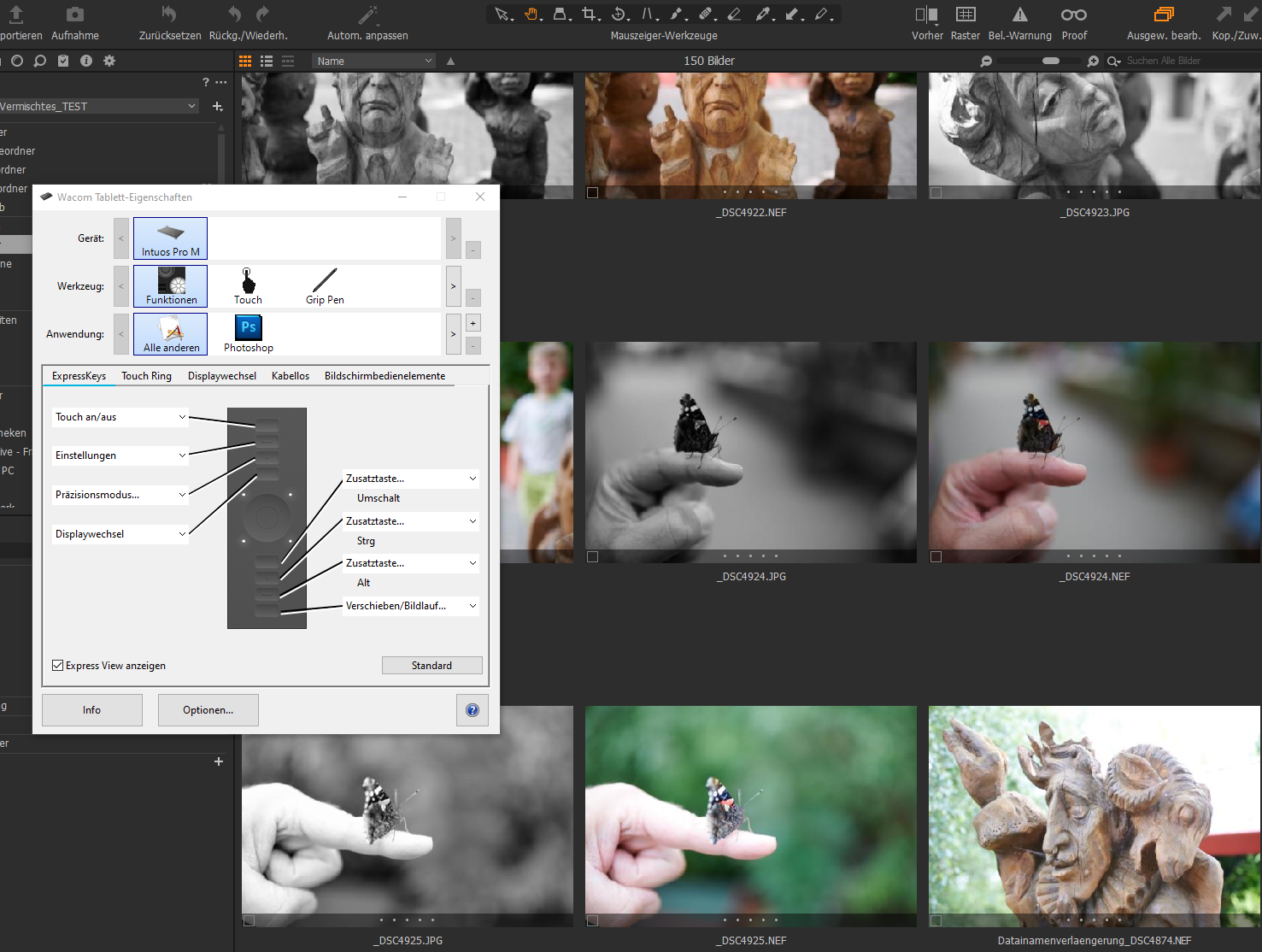
Once I switch to COP as application in the foreground it's no longer working although the Wacom properties window is still open. This is really a pain.
Has anyone ever made an official support case of this?
P.S.: Same behaviour when trying to scroll via the Touch Ring of the wacom ...
0 -
unfortunately no solution so far but I just accidently discovered that scrolling is working as supposed when the Wacom Tablet Properties Window is open and the foreground application. If I then move the cursor outside the oüproperties Window pointing at COP all of a sudden it works fine.
Three versions later and 2 years have passed, still no solution. But yes weirdly if Wacom Tablet Properties is open and in the foreground it does work! How very strange.
I'm bumping thi spost in the hopes anybody solved this?
0 -
Quick Update on this from my side: For me it finally seems to be working at the moment.
Not sure if it's related to the latest release of COP, or if I was just lucky because I made whatever change on my machine...
Hopefully this is a stable change for the better!0
Post is closed for comments.
Comments
18 comments