keyboard shortcut for "edit in photoshop"

Can I create a shortcut for opening a file in photoshop?
-

You can't do this directly from Capture One, but you can set a shortcut from System Preferences. You can create shortcuts for any menu command in any application.
1. Open System Preferences, navigate to the Keyboard preferences, and select the Shortcuts tab.
2. Select App Shortcuts and hit the + button
3. Select Capture One from the Application drop down, and enter your desired shortcut.
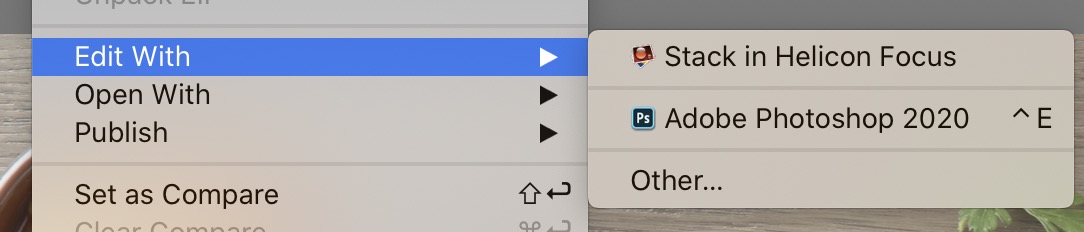
4. In the Menu Title, paste "Image->Edit With->Photoshop", replacing Photoshop with whatever Capture One shows in the Edit With menu.
Also, if the menu is unique in the application, you don't need to enter the full menu path. In this case because Capture One has both Edit With and Open With, you need to specify the full menu.
0 -
Thanks, Emorydunn. I will give that a try. 😊😊
0 -
Emorydunn, I created the shortcut, but get stuck in nr 4. I am not sure what you mean with that. Could you explain?
0 -
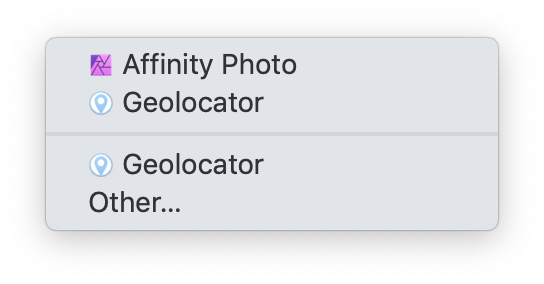
In the Edit With menu Capture One lists all of the available applications. I use Affinity Photo, but the process is the same.
This is my Edit With menu:
Here's what I put in the menu title:
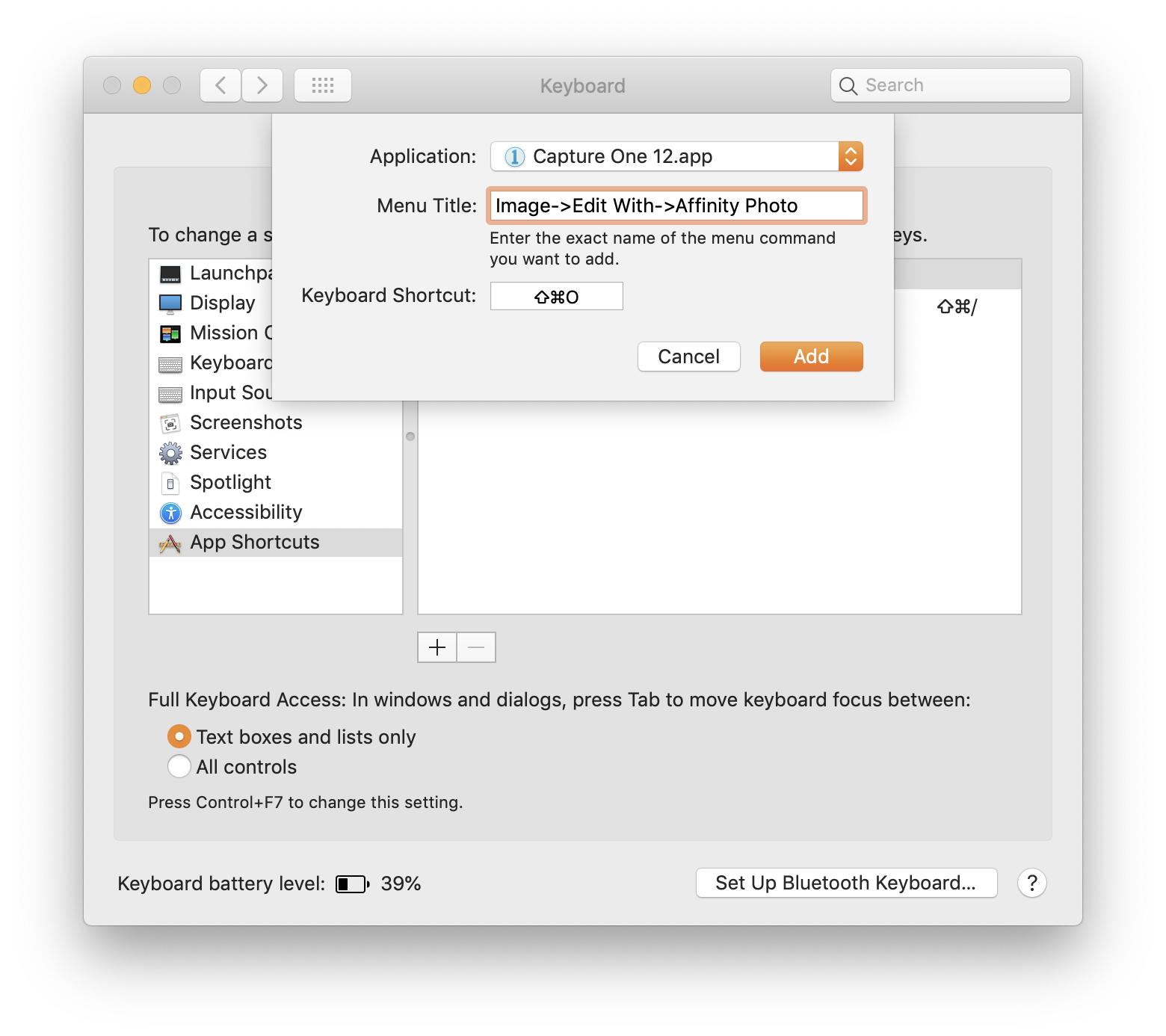
Does this help?
1 -
Thanks so much. It is totally clear. Found out that it does work in capture 11, which I own, but not in capture one 20, which is still a trial for me. I plan to buy at the end of the trial and am confident that it will work then.
Can I also bypass the process recipe window?
0 -
You'll need to add a shortcut for each version of Capture One, like so.
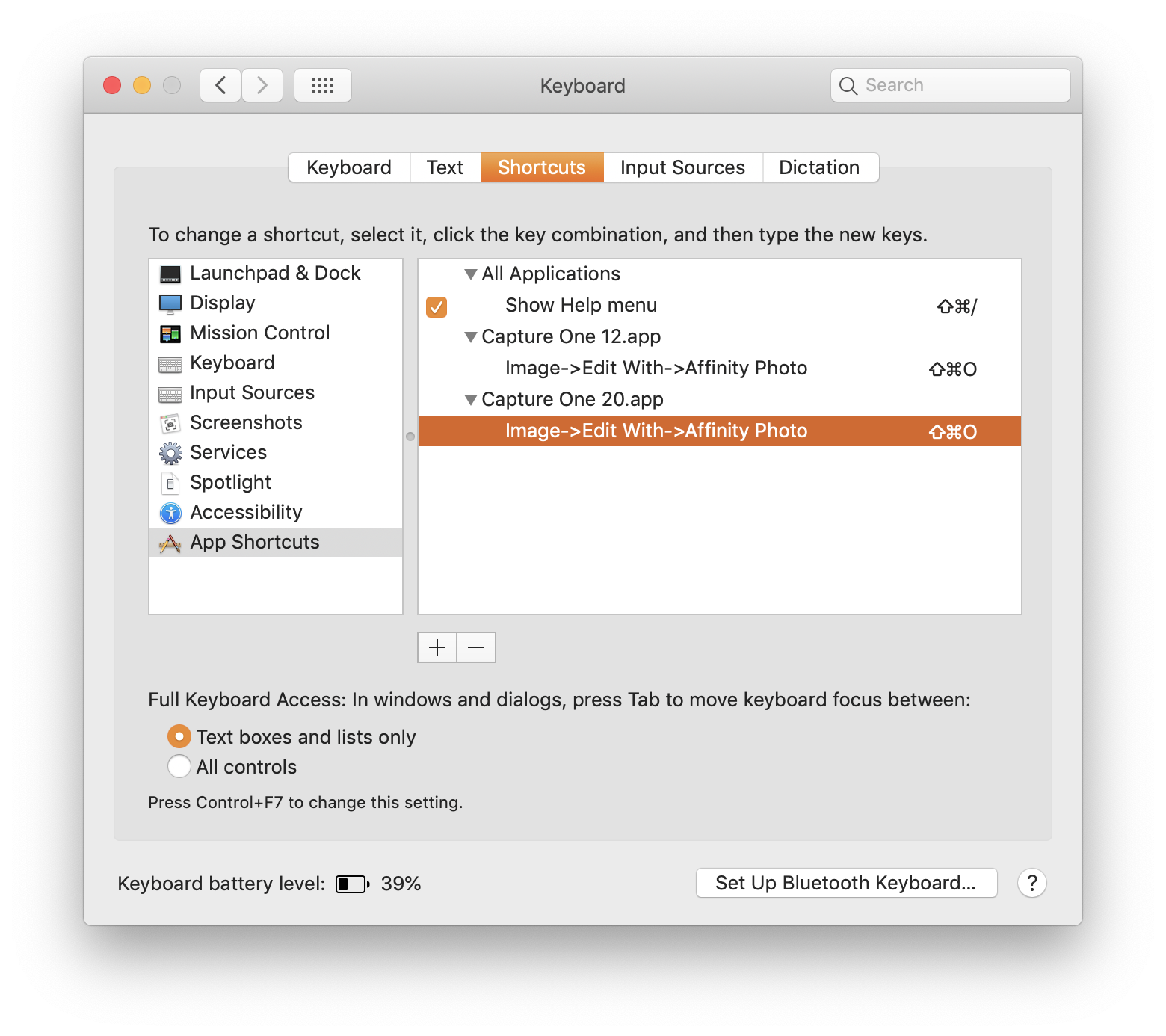 I'm not sure what you mean by bypass the process recipe window. ⌘D will process the selected images with any enabled recipe. 1
 -

Hi there,
Thanks for the post,
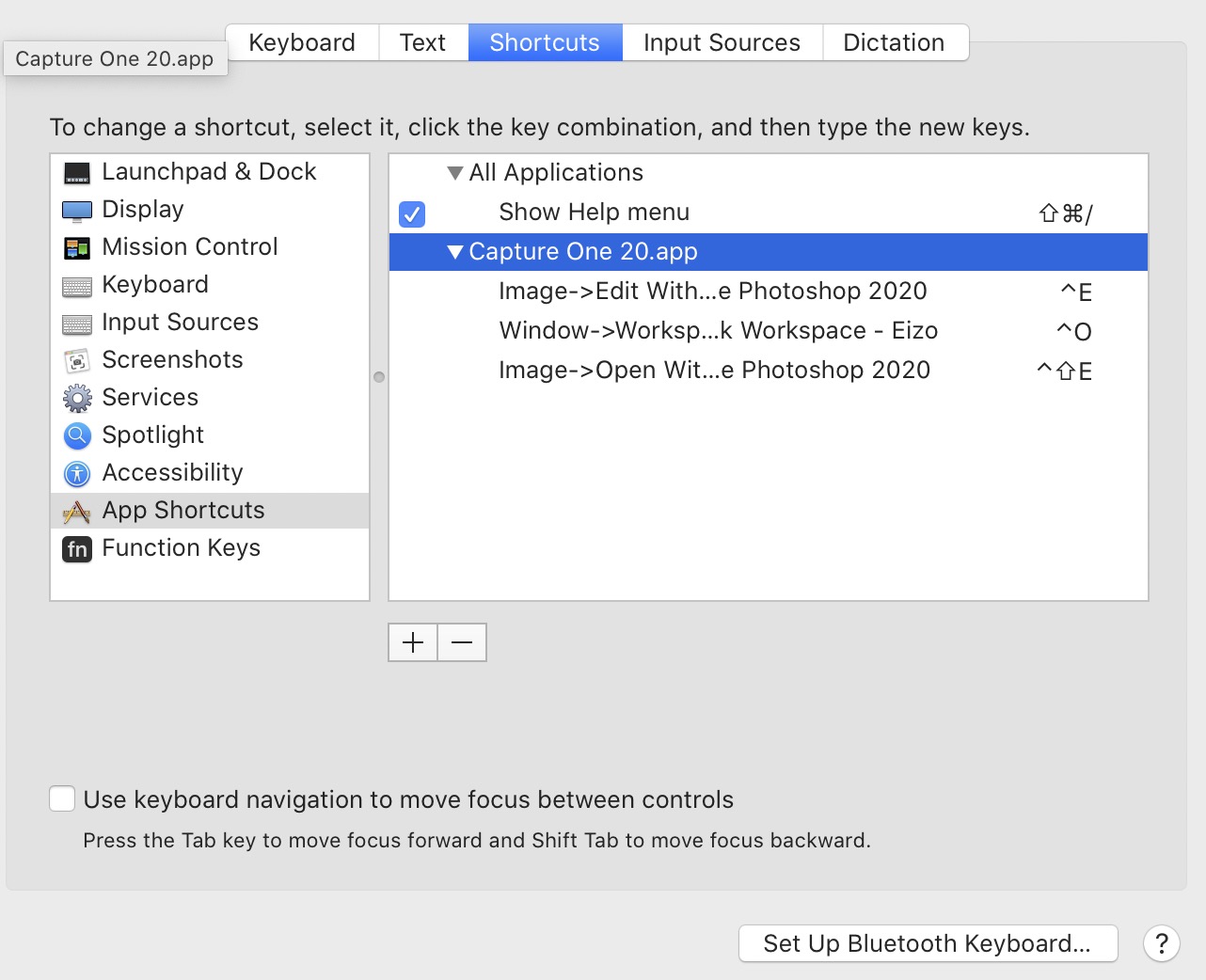
I've followed these steps and have implemented them correctly in Capture One 2020. However it doesn't work on the image menu items. It does however work on the Window menu. As you can see in the screen grabs below, the menu has the correct shortcuts next to the application. However when I press the shortcut it doesn't do anything. I have noticed that if I engage with the 'image' menu to produce the drop down menu, if I press the shortcut it then works. But it means I have to go up to the image menu with my cursor and then press the short cut which defeats the point. Any ideas why this might not be working?
 0
0 -
Right, I should have thought about this earlier. I believe what’s happening is an issue with the way the Edit, Open, and Publish menus are populated.
Those menus get their items from plugins you have installed and as a result the menu items don’t exist until you actually open the menu. This is also why you’ll sometimes see a loading message when first opening the menu or the items will reorder when opening the menu.
The best way to work around this would be to use a short script to open the images in Photoshop:
tell application "Capture One"

  set theSelection to file of parent image of variants whose selected is true
  tell application "Adobe Photoshop 2020" to open theSelection

end tell
0 -
Hi Emory,
thanks for your speedy reply. I've tried what you have suggested The code got most of the way, but ended with a syntax error:
Adobe Photoshop 2020 got an error: Can’t get {file "Macintosh HD:Users:ryanballphotography:My Cloud:Ryan Ball Photography:_Photography Capture:01 - Capture:new test:Capture:Product 2:Birchwood Beef Ribs RGB 191.iiq"}.
Not sure why photoshop can't find the file as the file path is correct
0 -

Try to change the second string to following:
tell application "Adobe Photoshop 2020" to open alias (theSelection as string)
0 -

Maybe not the best solution, but this works for me. I created a process recipe that will output a tiff, then open with Photoshop. The recipe also moves the tiff to the Selects folder. Then you can use the Command-D hotkey as long as the recipe is selected. The recipe also gives me better control as to how I want to edit image. For example, if the image happens to be a JPEG from a drone, then the photoshop recipe is different using 8 bit instead of 16 bit, and certainly not tiff format.
A note about the folder move: Under file tab, set root path to Image folder, then in sub folder enter "../Selects". Otherwise it will create the folder under the image path.
0
Post is closed for comments.
Comments
11 comments