Import does not find images in source folder

I am having trouble to import images from an external source into a referenced catalogue. When I start the import, the source folder on the external source shows a number of images, see attachment 1. When I click open, it says "No pictures found in folder" (English translation of German message), see attachment 2.
With some other imports from the same server, CO imports some images, but not all. All concerned files are of same type, the terminal shows no difference.
What's wrong?
macOS Catalina 10.15.3, CO 20.0.3

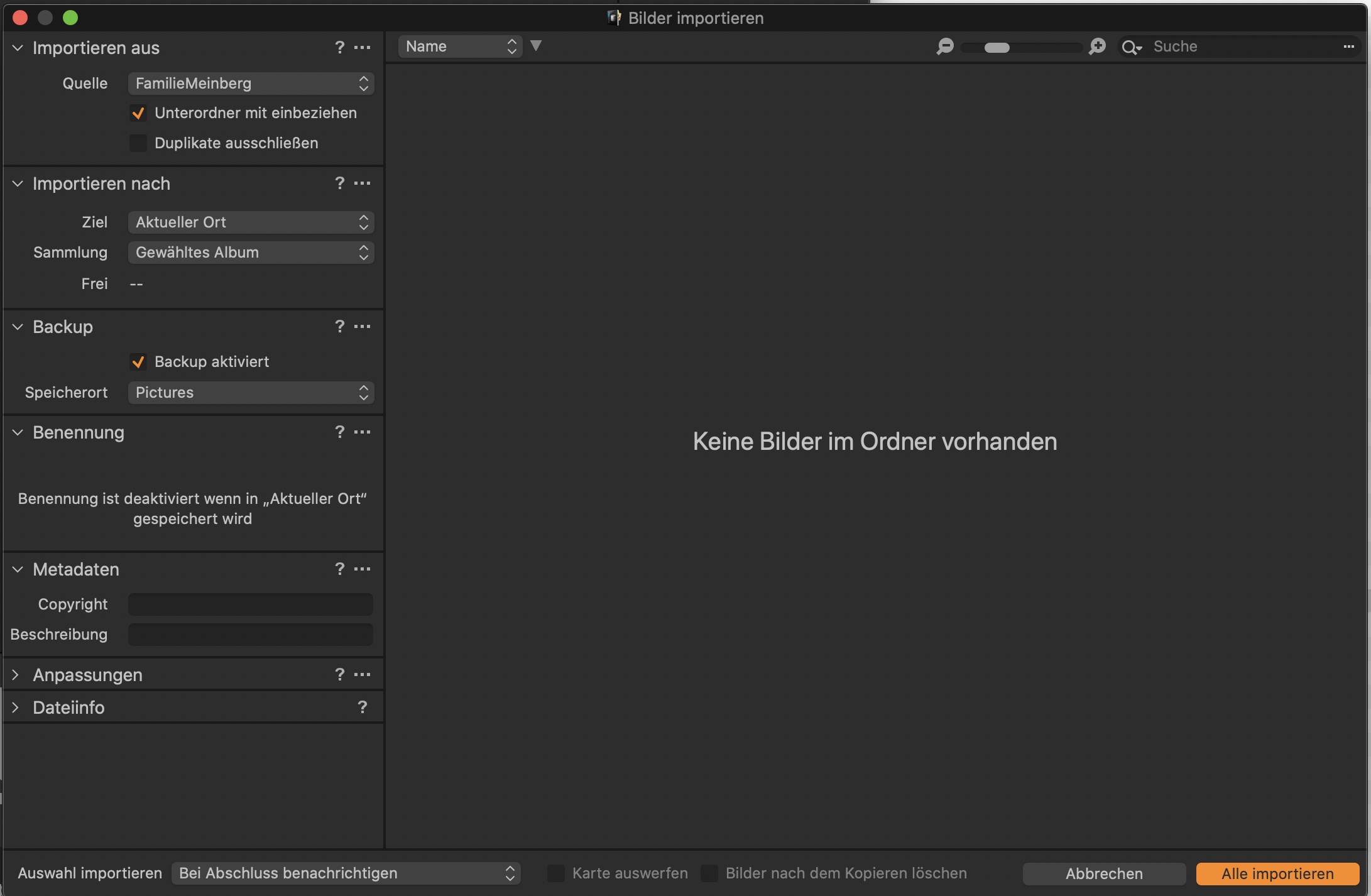
-
Additional information: When I change the file format into PNG, the dialog shows that image (only).
0 -
Can you check the preferences, third tab "images", edit jpg and edit png? On Windows it does not make a difference (even if I disabled jpg, my import dialog shows jpgs. But I did not restart C1 to test this).
regards
0 -
All three file formats, JPEG, TIFF, and PNG are activated.
Regards,
Kurt
0 -

Capture One does not "see" files from cameras which are not supported, and file formats which are not supported. Is it possible that this is the case?
JPGs are ususally supported, but there have been issues with black and white images, and also from certain scanners which do not provide an Alpha channel.
If you open one of these files with Preview, and use the inspector to check the file details, does it disclose anything unusual about the file? Which camera are they from?
0 -
To proof that " ordinary" jpgs are seen by the importer you could export a raw image of yours to jpg and put it in the same folder where the other jpgs reside(FamilieMeinberg).
Eric is right, even some edited raw files (e.g.Nikon Nef files edited with Nikon software which changes the nef file) are sometimes not recognized, C1 can be picky with the file formats...
0 -
@Eric:
I checked the concerned files, they are in fact B&W images, the preview inspector shows different color models. I don't see any other relevant differences. All the images were scanned with a Konica Minolta Scan Elite 5400 film scanner. I scanned a large number of old negatives and slides, this is now completed.
I will import all files into CO and check which files were ignored and convert the missing files into PNGs and import them afterwards, this will be a lot of work but it's a one time only task.
Thanks a lot for the tip, Eric.
Regards
Kurt
CLOSED
0 -

Yup. Capture One can not edit most grayscale images. I used the free ImageMagick suite of programs to convert all of my Grayscale images to RGB so I could edit them in capture one. The conversion only changes the color model. The image still looks the same. The command line to convert an image once ImageMagick is installed is
convert "image-name.ext" -type TrueColor rgb-"image-name.ext"
This creates a copy of the image prefixed by rgb- so you can compare and verify nothing else changed. I installed ImageMagick on my Mac using Homebrew. The quotes around image-name are only needed if the name contains spaces or some special characters. The quotes never hurt.
0 -
This is a good hint, thanks marchyman. In fact, after conversion of the B&W images into PNGs using preview I saw subsequent issues that after the import the image was deformed although shown as correct image directly after import, see attached example.
I will check this tomorrow and see if it helps.
Regards
Kurt
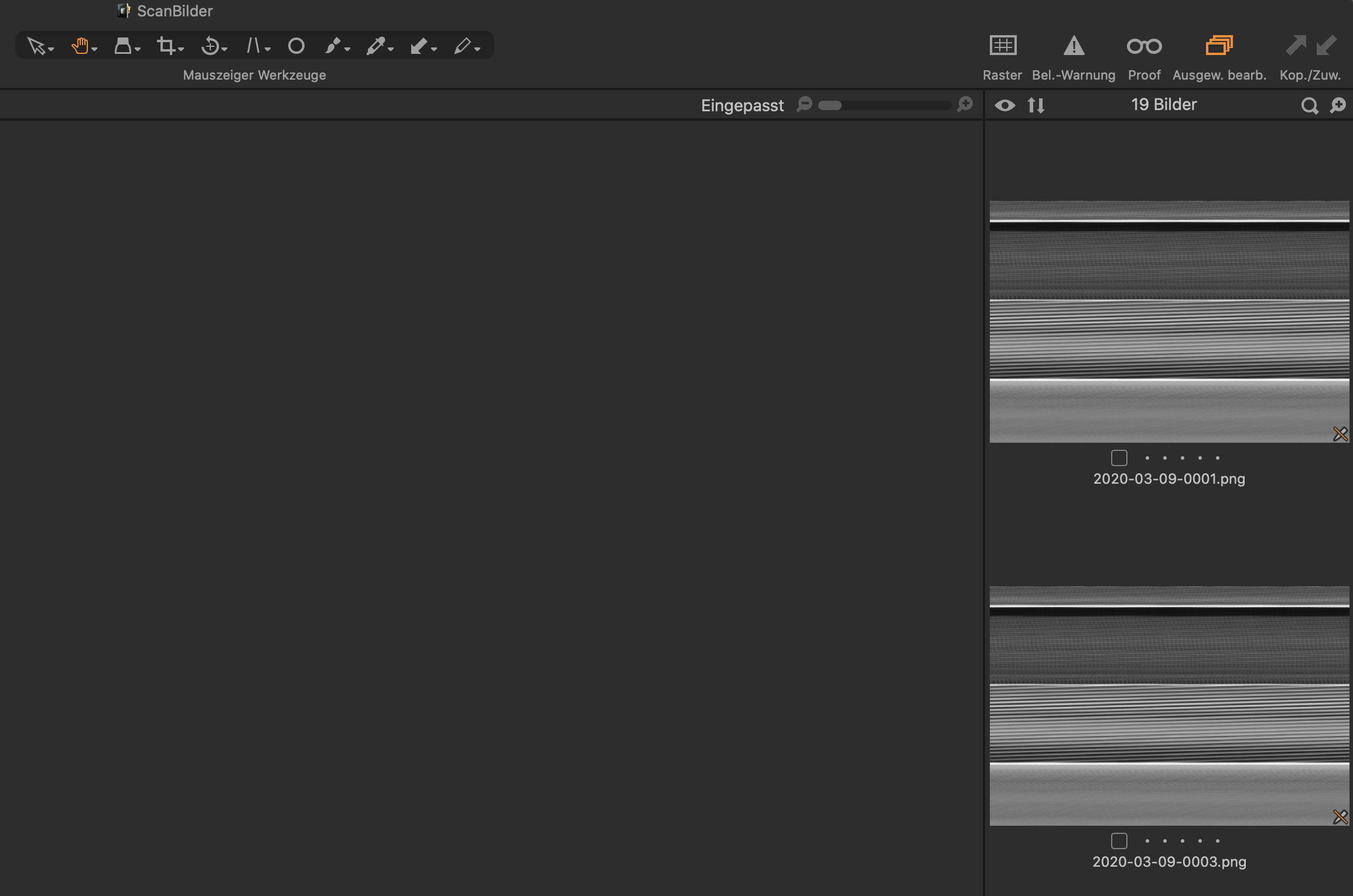 0
0 -
The color profile is grayscale.
However, I still have problems with this. I have a folder which contains about 10 grayscale images. C1 did import the first 2 and ignored the others.
Since installing ImageMagick on Catalina is tricky, I plan to use the GraphicConverter app from Lemkesoft.
BTW: I updated Catalina today to 10.15.4 and since then I cannot access posts in the forum entirely, I only see the original post using Safari but not subsequent comments. I only could use google chrome to see all comments. Did you anticipate the same?
0 -
FWIW I have no issues seeing forum posts using Safari on Catalina 10.15.4.
Installing ImageMagick is as easy as "brew install imagemagick" from the command line if you've installed Homebrew. If you haven't installed Homebrew see https://brew.sh -- the install instructions are on the top of page. It, too, is quite easy.
That said, if GraphicConverter works for you there's no reason to install anything else.
0

Post is closed for comments.
Comments
10 comments