C1 equivalent for 'B' (quick collection) in Lightoom ??

Hi,
Coming from Lightroom I have some troubles with organizing my pictures in C1.
E.g. While browsing thru a bunch of pictures I used to use the 'B' shortcut. This quickly adds my picture to the QUICK (or some other default)-collection.
I use this often to make a collection for a special purpose.
Is there any equivalent (or fast work around) for this super-handy feature of LR?
Thanks!
Charles
-
Hi Charles,
I am affraid there is no equivalent of the Lightroom 'B' stroke to select and transfer at once images in a temporary collection. This is indeed missing, and I used it quite often when I worked with Lightroom 5 years ago. You could maybe submit a feature request at the Capture One staff.
But, in a general way, we can't expect the same functionnalities in Capture One and Lightroom. They are different softwares, with different philosophies and approaches. Some features are missing in one, while existing in the other. No software is perfect. But this missing specific functionnality is minor with respect to the quality of the development and the capacities offered by Capture One, IMHO.
Robert
0 -

Yes, there is a workflow in Capture One that is similar to the "B" command in Lightroom. The feature that you use is the "Add to Selects Album". The concept is borrowed from Capture One sessions, but unlike in sessions, no image is moved as this is not necessary for a Catalog. This is the How-to:
Create an Album in the Library > User Collections section and select it, or alternatively, select an existing Album. Next, right-click that Album and choose "Set as Selects Collection".
[Now you have designated the Selects Collection tag to a specific Album. Mark the curved arrow next to the Album name. Note that you can not remove this designation, but you can assign it to another Album later. Only one album in a Catalog can have this Selects Collection designation.]
Next, use Cmd+J (macOS) or Ctrl+J to add an image to the Selects Collection or use the Image menu > Add to Selects Collection option.
Note that you can change the shortcut to "B" by editing your keyboard shortcuts. In Capture One the "B" is used for brush and will be reassigned.
3 -
Paul, I learned something new :-)
And, I should have read the complete post ("you cannot remove this designation") :-). Hence I created a new album "Selects album" for later use...
Unfortunately, when CTRL+J'ing also some tif files I get the issue reported elsewhere
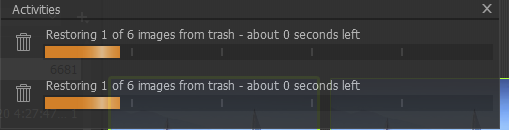
There is no solution yet, right?
0 -
I could move the trashed tifs back (manually in the library tool) to where they belong.
0 -
Beo,
To add and partly correct me, you can remove the Selects Collection designation, after you applied it once. The trick is easy. Assign it to a dummy album and delete that album. This removes the Selects Collection from your catalog.
1 -
Hi guys,
As a relative greeny in C1-land I learned a lot from all of the answers.
Cheers!
Charles
0 -
Thanks Paul. Me too, Walter :-)
My "tip of the day":
I started using a Wacom tablet a couple of months ago and struggeled with precise slider or curve adjustments. It is easy with the mouse by just hovering over the slider or curve point and use the mouse wheel.
Then I learned that I can tap/ click into any value field and use the cursor keys of the keyboard, and for curves I can select an existing point of the curve and move it with the curser keys too.
regards
0 -
Great tip, BeO about the use of cursor keys. In combination with Shift-key you can adjust with bigger increments.
In addition to the Selects Collection in Catalogs, there is a similar Capture Collection that you *must* assign to an Album to be able to tether into a Catalog.
0

Post is closed for comments.
Comments
8 comments