Adobe 1998 Imput Color Space - not possible?

Hello
I have some TIFF files that have no embedde color profile / icc. But as soon as I import them to Capture One, it uses a supposed sRGB profile, that to my knowledge is not embedded within the file.
How can I Import Adobe RGB as in the "Base Characteristics".
I tried this way:
https://support.captureone.com/hc/en-us/articles/360002409057-How-to-install-output-ICC-profiles-
But when I don't assign it to a camera model, it doesn't show up in base characteristic, and when I assign it to a camera model it has the wrong color rendition because of that model.
Any suggestions?
Thanks and cheers
-

This is a kind of gray area, an RGB file without a profile embedded. Like most software, Capture One apparently defaults to sRGB.
Further making assumptions, for interpreting the colors of your RGB file for different color space, please embed the profile. The Base Characteristics tool may not allow you to select a specific profile for an RGB file, only for RAW files. The camera profiles in the tool are for their respective RAW files, not RGB.
0 -
I am a bit confused (which occurs more often than I wish... :-)
Can you paste a screenshot of the base characteristics tool directly after import without changing anything?
And also the metadata / basic?
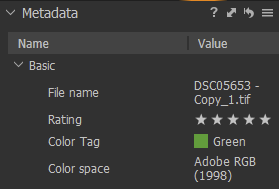
Cheers
0 -
Thanks for you answers.
@Paul: It should be possible to choose the color space for files without a embedded color space. When I open the file in Affinity it says it assigns the current color space since no one was detected (in this case ARGB 1998 is my default), but I can always change it later on. It would only make sense to me if the same were possible in C1 so I don't have to go over Affinity.
@Beo: it says sRGB as well, but only because C1 enforced it. In Apples Finder Preview there is no color profile embedded, otherwise it would be visible there.
0 -

I have no idea what it will really do for you but what happens of you go to the ICC profile field, click the drop down for option, select "show all".
Then select the drop down list again, go to "Other" and look for AdobeRGB. I would expect it to be found. If so select it.
Presumably this will display successfully and accurately with your current screen settings?
0

Post is closed for comments.
Comments
4 comments