alt-reset disappeared ?

Of course there is the new "before/after" function, but since it is not clear to me which is the "before version", I think it is a pity that the "alt-reset" function was removed.
That would have been a nice way to compare, as before, with the unedited file.
-

Claude,
Before is on the left if you use the slider.
If you are not using the slider option there should be a label for Before at the top left corner of the screen and the "Before" Icon on the menu bar will show as an orange colour. Click is again and it is no longer orange and the Label disappears.
Of course if you have not made any changes only the label and the colour of the icon will identify which way the tools is set.
HTH.
Grant
0 -
Sorry, I was not clear in my description.
Of course, there is the label "before".
What I meant is: what version of the file is used ?
It doesn't seem to be the "unedited" RAW file, but the last edited version. Am I right in this ?And alt-reset did just that: remove all edits - for a thorough comparison, but it vanished.
0 -
No, the new before/after does exactly what Alt-Reset did. Also have a choice of a side by side view with a movable divider, or just the whole before/after versions.
Ian
0 -
Are you sure ?
I am not.
To me, it seems that the "before" takes the last edited version and compares it with your most recent adjustments.That is, if you had edited your file before (e.g. with C1 13.0), that version will be the "before".
And any adjustment added in 13.1 will be the after.That is at least what I see from my files. Perhaps a C1 representative could comment ?
0 -

I am with Ian Wilson in this. The Before state is unedited, except for composition.
0 -
Hi Claude,
Nope, the previous alt-reset is now replaced by the "before/after" function. As far as I know, it doesn't show the last edited version, but the unedited RAW. You can use alt-reset on each and every tool to have a look at the last edited version.
Robert
0 -
Claude,
This is mainly a User to User forum. It is rarely attended and replied to by C1 staff - other than some updates in the Feature Requests section.
I really wish the Before/After option DID allow comparison of different variants but it always uses the base RAW (or more accurately the "source" file ) as its "Before".
This was confirmed in at least one of the "new features" videos published last week.
HTH.
Grant
0 -
OK, thanks a lot to all for your views.
Seems like a need a new pair of glasses :-)
Too much screentime during lockdown, you know :-)0 -
Dears,
Sorry to bother you again, but here is what I see:
I put all sliders back to normal, all edits back to "0".
Here is what is supposed then to be my "pure" RAW file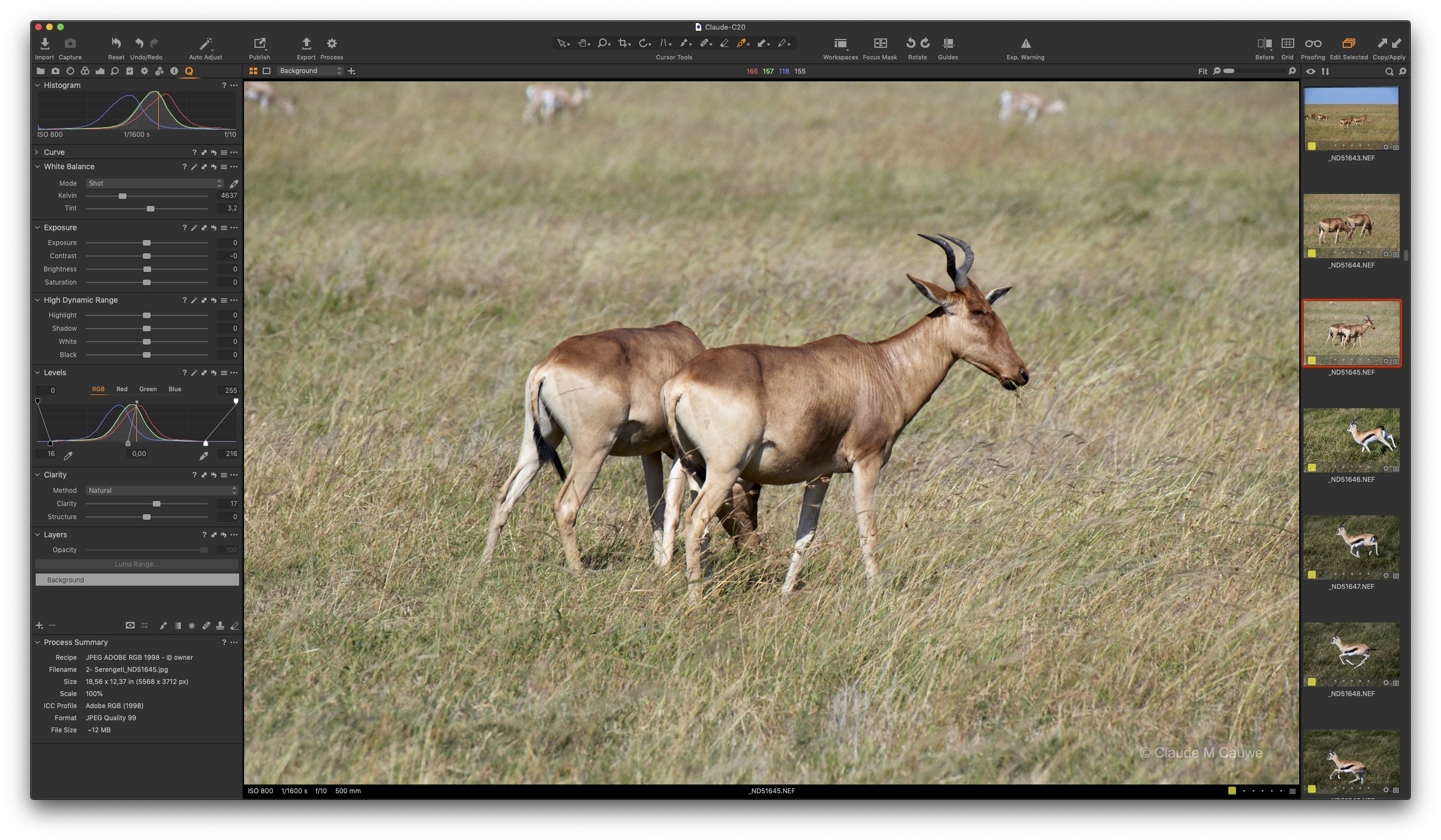
And when I activate "before/after", I get this:
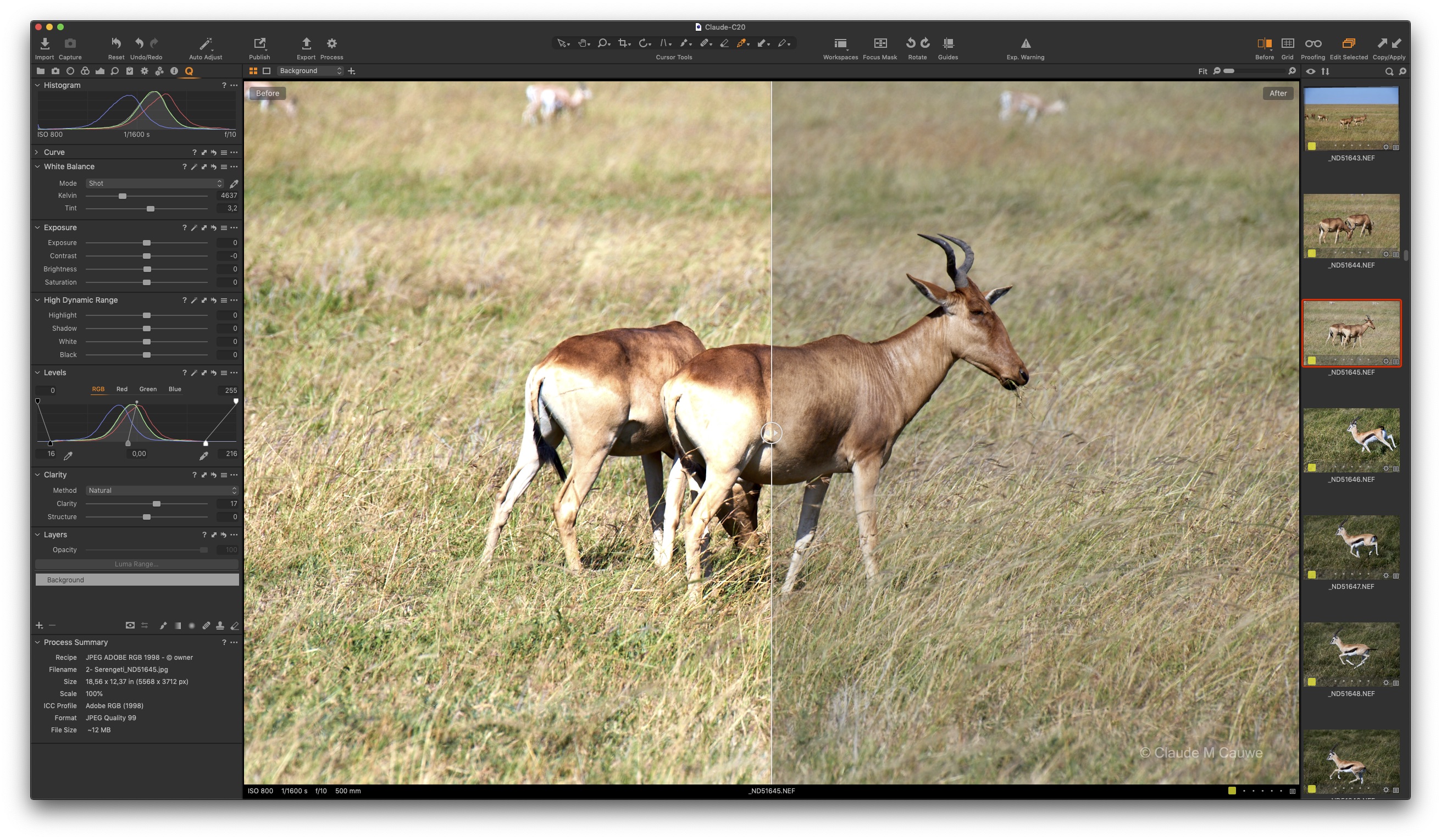
As you can see, the "before" has become a brutally overexposed image.
It is not the one that was shot - where is it coming from ? Why this overexposure ? I am confused to the max...
0 -
In your first screen shot, you haven't in fact pulled everything back to zero - the Levels tool needs to be reset for one thing. And the Clarity.
Though I admit, I don't see how that would explain the overexposed look on your second one.
Ian
0 -
You are right, I forgot those two.
And the result looks like a "dull" RAW/NEF out of the body.
But the overexposed ... Nothing that comes straight from the camera...0

Post is closed for comments.
Comments
11 comments