Get Logs Error - Capture One Pro 20 version 13.1.0.72

When using the 'Get Logs' option after various C1 crashes, I'm getting an AppleScript Error -1712 which is an AppleEvent Time Out Error.
I've tried both a complete and a simple log but I'm getting the same error with both and subsequently, it crashes the Finder on macOS. I'm running Mojave 10.1.4.6.
Just wondering if anyone else has experienced this issue?
-

Yes, same error running the latest version of Catalina.
What I did was go to ~/Library/Logs/ and copy Capture One related logs to another folder which I compressed and uploaded for my ticket. The logs I picked were those whose name started with one of these
- CaptureOne
- com.captureone
- com.phaseone
Hopefully that is all they need.
0 -

Another option is to do the following:
- With Finder, navigate to Capture One 20.app Right click on Capture One 20.app and select Show Package contents
- With Finder, navigate to the folder: Contents/Resources/Scripts Right click on Get Logs.app and select Show Package contents
- With Finder, again navigate to the folder: Contents/Resources/Scripts
- Right click on main.scpt and select Copy
- Navigate back to the Desktop or other covenient foilder and paste. The file main.scpt will appear
- Optionally, rename main.scpt to Get Logs.scpt
- Remove all windows from the screen except the one Finder window, so that dialog pop up windows do not get hidden. (One of the common reasons for failure is that sometimes a popup dialog will be hidden and the user does not respond)
- In Finder, Double click on the new script file, or right click on it and and select open
- Script Editor will start with the new file open
- In the menu bar at top of the screen, select Script>Run
- There will be a number of security related popups, requesting permission for Finder and possibly the Script or Script Editor to do various things. Accept each request.
If you still get a timeout error, carefully copy the error message, and report back. Applescript commands timeout with a defaualt of 60 seconds, its fairly simple to add a longer timeout, if I know which command has timed out. Capture One developers would likely want to know as well.
0 -
Hi ericnepean,
Thank you for your detailed step by step, extremely helpful...
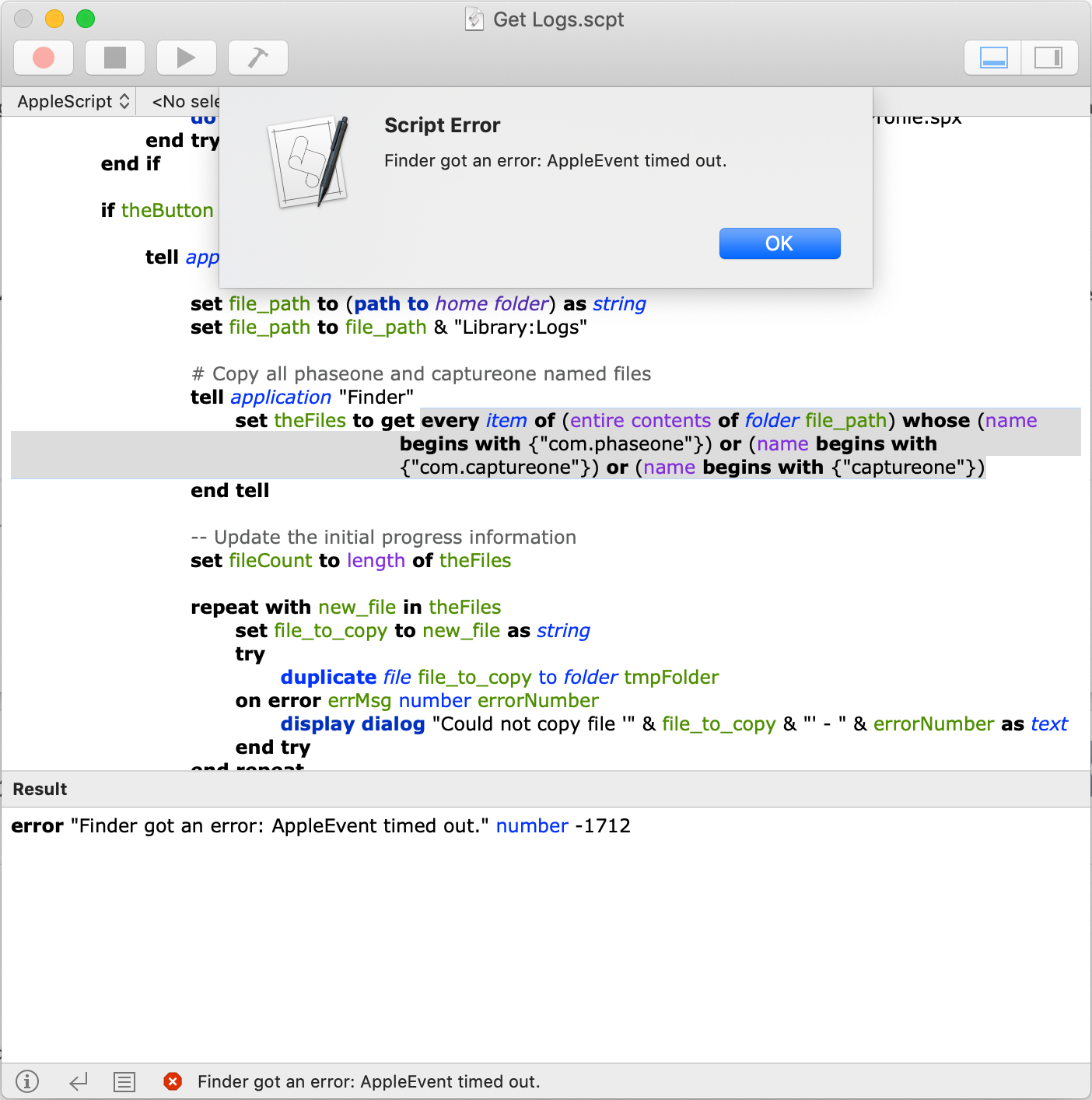
Following your steps and running the script pretty much resulted in the same outcome, although I'm unsure whether the lines highlighted when the error displays helps in identifying the command which is timing out?
If so, I'd be interested to understand how to extend the default timeout to overcome this,
Many thanks
 0
0 -
Good progress.
I'm not sure of the highlighting is yours or Script Editor's. I wasn't sure if you would be overwhelmed by the complexity or not.
Could you run the script again. After it crashes, at the bottom of Script Editor, at the left, you will find three icons, the third icon from left is a square with horizontal lines (like a small document). Click that.
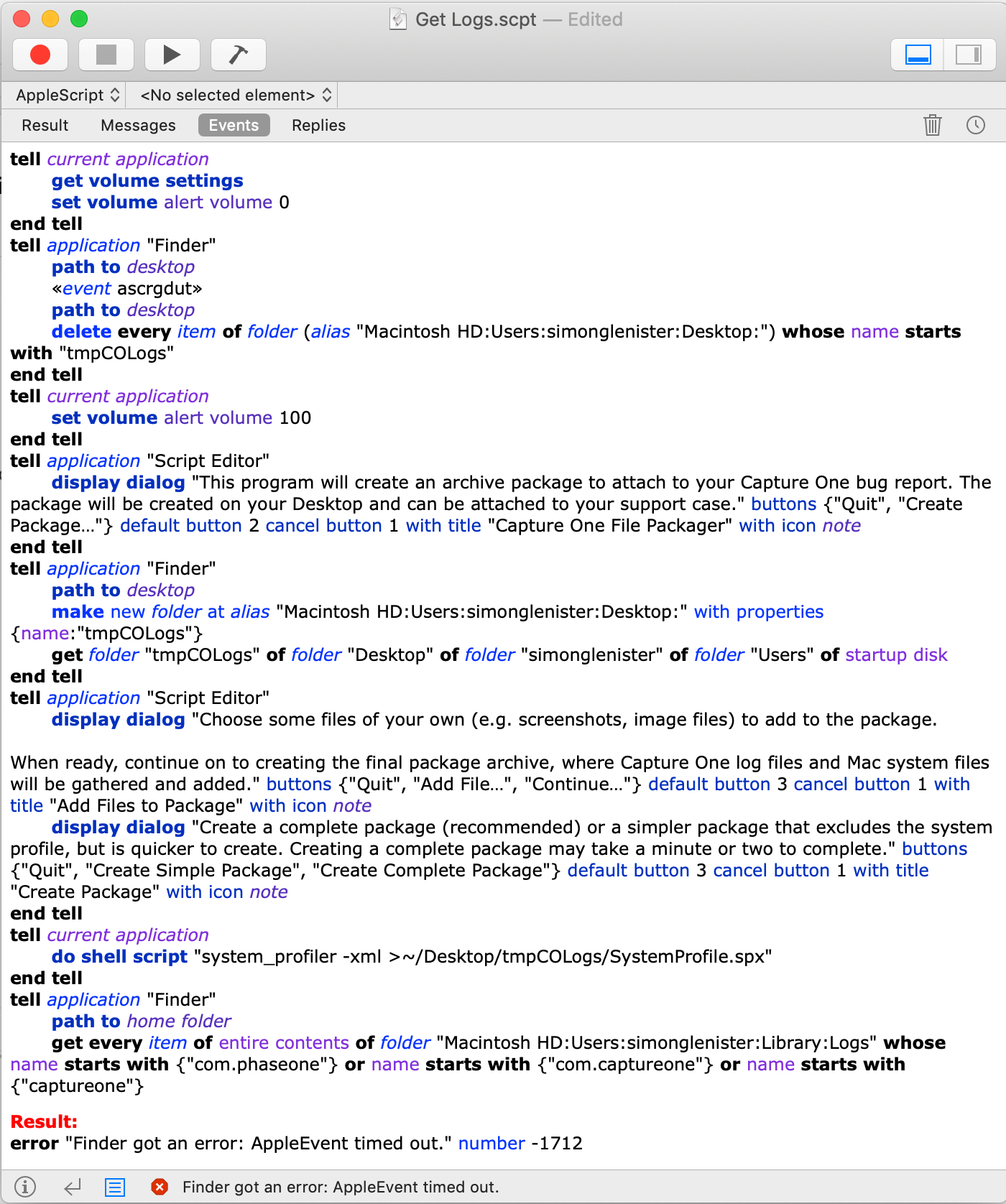
At the top of Script Editor's bottom window section, there will now be a row with "Result Messages Events Replies"; Click on "Events". This should show all the Applescript events. The last event will be the one that timed out.
Probably the Finder command that is highlighted. It will look like this:
get every item of entire contents of folder "Macintosh HD:Users:ev:Library:Logs" whose name starts with {"com.phaseone"} or name starts with {"com.captureone"} or name starts with {"captureone"}Assuming that is so, lets set the timeout to 5 minutes.
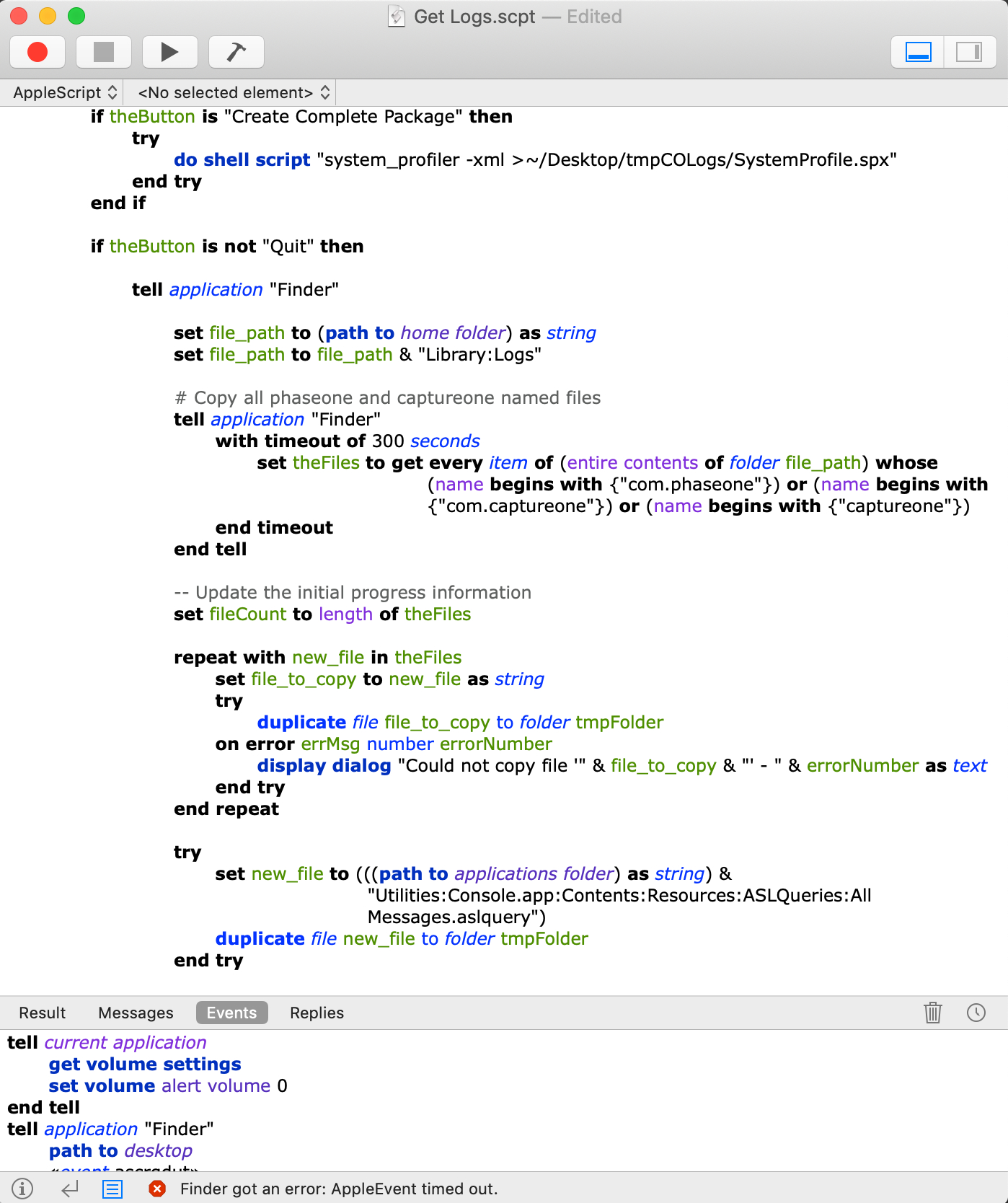
Just after the line: Tell Application "Finder"
Add the line: with timeout of 300 seconds
Just before the line: end tell add a line: end timeout
Run the script again, it will recompile and then run.
That should do it.
0 -
Okay, it still timed out with the same error after 5 minutes. I could extend the timeout duration but wondering if there is something else going on as my assumption is that 5 minutes should be plenty of time?
Unsure whether «event ascrgdut» is the issue? Unsure what that means. Revised Script and Events Log below...
Revised Script
Time Out Error Events Log
 0
0 -
I don't think increasing the timeout will help.
Time to open a ticket I think; we've gone above and beyonfd the normal call of duty.
One thing that you could still try is a safe boot of the Mac.
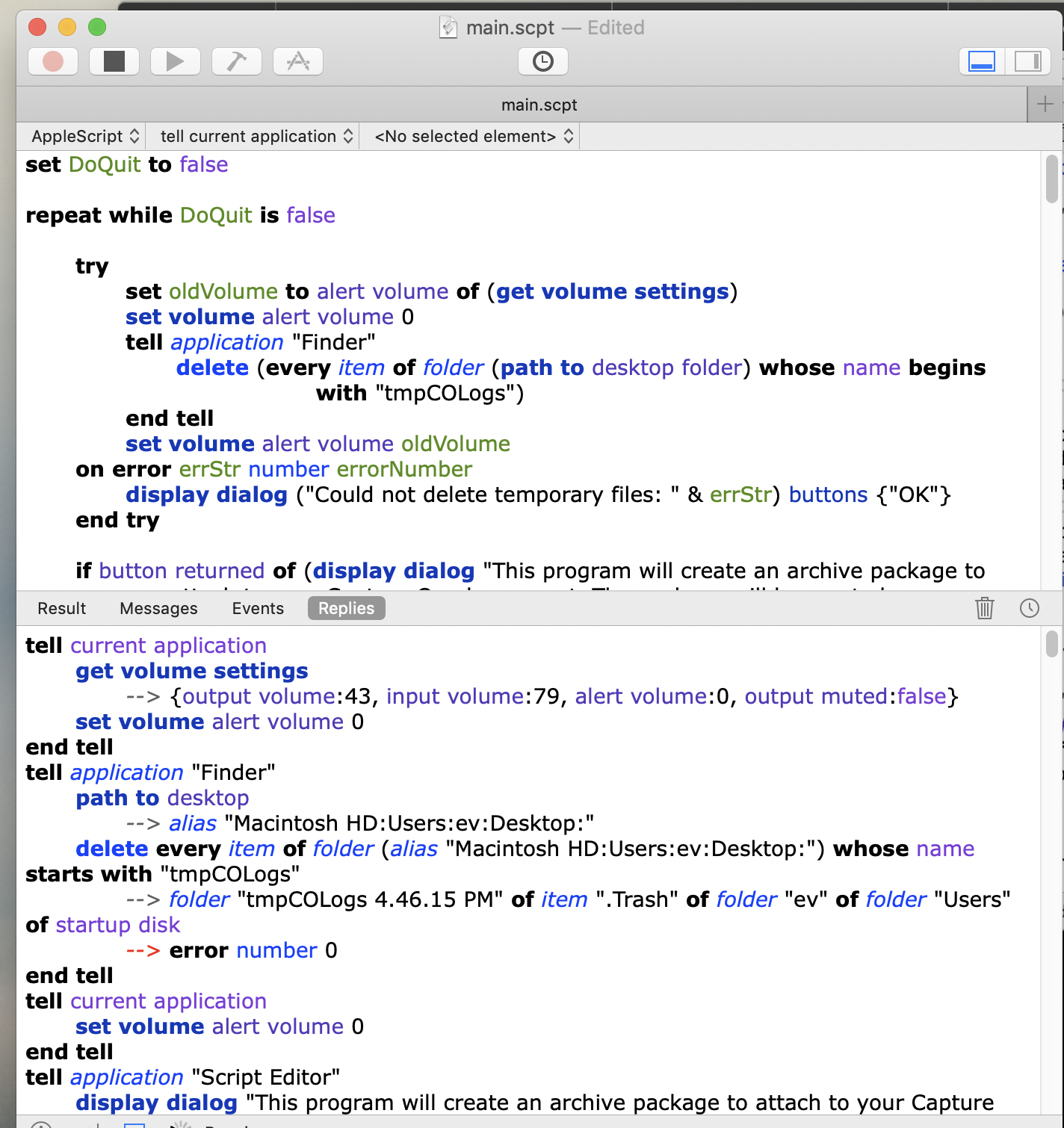
Very odd. I do not get the «event ascrgdut»
You have two Path to Deskop events, I only have one
I am also running 10.14.6
I am on a late 2015 27" iMac, files on my main drive and on several USB connected drives. No relevant files on my NAS.
Here is a snapshot of the Replies log, which is both the events, and the responses to the events. The matching part of the script is shown.
 0
0 -
I didn’t get the «event ascrgdut» the first time I ran the script either but did the second time, no idea why?
Support ticket raised, let’s see what they come back with.
Many thanks for your help with this, very much appreciated 😊
0
Post is closed for comments.
Comments
7 comments