"Clone Variant" does not work! Multiple layers cause issues!

In trying to figure out why my C1 display looks very, very slightly different from the .jpg output color-wise on some files but apparently not others, I've discovered something I think is related to the issue.
I frequently use multiple layers to do local adjustments (now called layers in 11.01, used to be called local adjustment I think).
Anyway, I noticed that I have a number of images (Sony .ARW files) that have 4,5 or more (sometimes the maximum) number of layers / local adjustments that when you "Clone Variant", it isn't exactly the same. First thing you notice is the crop might be slightly off (if it had one). Next thing is the histogram of the clone is not the same. I have looked, but can't seem to find the parameter that isn't the same from one to the other, but it isn't the same.
Anyway, this led me to think that somehow these files that may somehow be corrupt (or not actual clones) may not have the proper color applied to them when they are exported (.jpg in my case). They are REALLY close - so close you'd be hard pressed to notice, but there is a difference.
I"m wondering if some of the adjustment layers are being displayed, but not included in the export (or not included properly), or some other bug in display -vs- export. Also possible is that the masking (where you apply the local adjustments) is somehow not exactly right in the clone, causing the different histograms. That is hard to look for in troubleshooting the issue.
I went back and checked some other slightly older files and even if I re-export them, the colors are exact from C1 view to output. Now I didn't check tons of files, some with multi-adjustment layers and some without, but I think it is safe to say that something isn't right either with "cloning" process of files with many layers, and / or export of those, and possibly related is the integrity of the color profile associated with those.
Don't have much more to go on than that, but I have now looked at dozens of files that don't "clone" exactly right, and when that happens it appears there can be other issues that you're in for also, even though you can work with the file normally.
Don't know if anybody else has experienced this or related issues?
EDIT: Used "New Variant" command to start over, and applied no layers to the image. Exported and still have the slight color shift. I did choose what may be a corrupt "clone" to make the "New Variant from, but you wouldn't think that would matter ...)
The color shift is visible on a screen capture - I've attached (I thought - linked to Dropbox image as I can't seem to embed one...) an IrfanView window of a C1 export overlayed onto C1 showing the image that was just exported. Notice the greener -vs- pinker/redder wood tones in the table.
I frequently use multiple layers to do local adjustments (now called layers in 11.01, used to be called local adjustment I think).
Anyway, I noticed that I have a number of images (Sony .ARW files) that have 4,5 or more (sometimes the maximum) number of layers / local adjustments that when you "Clone Variant", it isn't exactly the same. First thing you notice is the crop might be slightly off (if it had one). Next thing is the histogram of the clone is not the same. I have looked, but can't seem to find the parameter that isn't the same from one to the other, but it isn't the same.
Anyway, this led me to think that somehow these files that may somehow be corrupt (or not actual clones) may not have the proper color applied to them when they are exported (.jpg in my case). They are REALLY close - so close you'd be hard pressed to notice, but there is a difference.
I"m wondering if some of the adjustment layers are being displayed, but not included in the export (or not included properly), or some other bug in display -vs- export. Also possible is that the masking (where you apply the local adjustments) is somehow not exactly right in the clone, causing the different histograms. That is hard to look for in troubleshooting the issue.
I went back and checked some other slightly older files and even if I re-export them, the colors are exact from C1 view to output. Now I didn't check tons of files, some with multi-adjustment layers and some without, but I think it is safe to say that something isn't right either with "cloning" process of files with many layers, and / or export of those, and possibly related is the integrity of the color profile associated with those.
Don't have much more to go on than that, but I have now looked at dozens of files that don't "clone" exactly right, and when that happens it appears there can be other issues that you're in for also, even though you can work with the file normally.
Don't know if anybody else has experienced this or related issues?
EDIT: Used "New Variant" command to start over, and applied no layers to the image. Exported and still have the slight color shift. I did choose what may be a corrupt "clone" to make the "New Variant from, but you wouldn't think that would matter ...)
The color shift is visible on a screen capture - I've attached (I thought - linked to Dropbox image as I can't seem to embed one...) an IrfanView window of a C1 export overlayed onto C1 showing the image that was just exported. Notice the greener -vs- pinker/redder wood tones in the table.

0
-

I think that the issues you link are not related.
I looked at your Dropbox file which shows the JPG and RAW next to each other. A few comments.
Make sure the background of the image (surrounding area) has an identical color. In your case one is on white, one on black. This will for sure give you a different reading of the image.
Second, I do not know the tool you use for viewing the JPG file, but please be aware that each tool renders color information (slightly) different. Also make sure that your image viewer for the JPG is a color managed application like Capture One is.
Hope this helps.0 -

I downloaded your example and opened it in C1 then applied a few colour readout pins.
Obviously that is not an exact science in this situation!
However one can get quite close to more or less the same spots - there are few areas of the image that are likely to have even reasonably large areas that will totally consistent so it's a bit of a trial and error exercise to get as close as possible to the some point on the different images and expecting complete agreement of readings is unrealistic anyway.
However what is possible to to get close and to see if there are any general trends in the number differences shown on the pin readouts.
So what I could see is that in general, but not always, the "paired" pins would show more or less the same values shifted perhaps by one of two points where position was reasonably accurate and a relatively consistent areas of colour.
Except for Blue. Blue was generally a few extra points different on the mid tones being a little more blue in the Irfanview image.
In addition the blacks are less black, So for example some usefully out of focus areas of the wine bottles in the background show all 0s for the C1 area of the image but all 4s or 5s in the Irfanview area of the Processed file.
You don't seem to have the Recipe Proofing active according to the C1 screen capture and we don't see the settings used for the output processing. Both of these may be factors.
In addition I got the impression that the mid tones in the Irfanview section has ever so slightly lower overall colour values but the dark and and the higher end were slightly raised although the blacks appear to be clipped short of full black. The Irfanview section does reach full white on a jar behind the serviettes but that section is not included in the C1 screen capture.
My personal feeling is that we should consider the effects of the Output Process settings and see what effect proofing has as a first step in order to eliminate any possible anomalies introduced at that step.
Out put to jpg (and the effects of compression) can have a sometimes marked and sometime subtle effect on results depending on the image - which is why proofing is provided in an effort to avoid the very worst results that may appear, especially when printing.
I make no claims to being an expert in these matters but having seen similar things from time to time and investigated them I found it important to be absolutely sure that (in so far as one can be) that all possible influencers in the visible and controllable process have been accounted for and assessed early in the process. It can save a lot of time and confusion. Or sometimes point very quickly to the solution or the unsolvable (by the user) problem.
HTH.
Grant0 -
[quote="FPL" wrote:
"Clone variant" is for sure not working as intended.
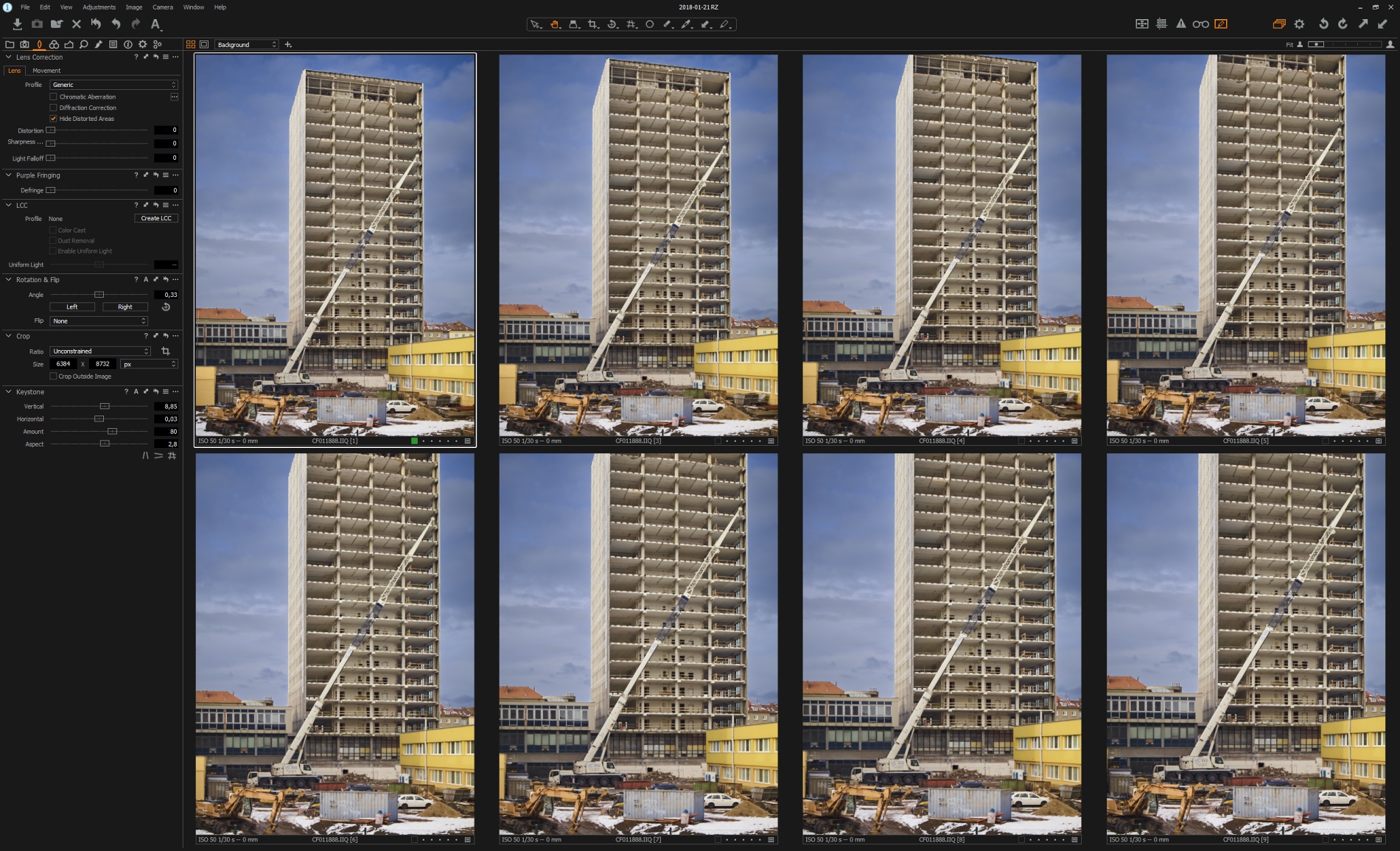
Repeated use of "clone variant" is every time slightly changing crop:
Latest C11 version, image contains about four or five layers.
Interesting!0 -
I think you will find this is basically an effect of the Keystone adjustment.
As far as I can tell it has nothing to do with Layers.
Grant0 -

Still it shouldn't reapply it over and over again when you create a variant, in my opinion. 0 -
[quote="John Doe" wrote:
Still it shouldn't reapply it over and over again when you create a variant, in my opinion.
Possibly so and it may be worth creating a Support Case for it on that basis.
However as far as I can tell it has nothing to do with layers existing in the edit. I get the same effect without layers.
And it not really applying the Keystone correction each time either.
The Keystone adjustment is almost certainly going to result in a crop with rotation.
An existing variant with Rotation applied, with or without Keystone adjustment and irrespective of the existence of a layer in the variant will, if cloned, have a tendency to shift the crop (towards the top left corner in my testing with some rather obvious rotation adjustment set) until it reached the edge of the image (not allowing crop outside image) and after that the crop just decreases the area visible.
There may be other effects using different settings but if so I have not found them.
I think if others can confirm that they see the same there is a good case for putting forward a support case.
That said if you instruct the system to apply a rotation to an already rotated image (via a copy and paste for example) you would see the same effect ...
I guess there it would be kind of logical and the adjustment could be eliminated in the clipboard.
With a clone instruction for existing settings the adjustment should not be re-applied IMO.
Grant0 -

[quote="SFA" wrote:
I think you will find this is basically an effect of the Keystone adjustment.
Clone variant should create copy of image with all adjustments. Exactly the same.
And in this way it worked in many previous versions of C1.0 -
[quote="FPL" wrote:
[quote="SFA" wrote:
I think you will find this is basically an effect of the Keystone adjustment.
Clone variant should create copy of image with all adjustments. Exactly the same.
And in this way it worked in many previous versions of C1.
As I said in my previous post.
But the post title by the original OP refers to Layers and colour so far as I can tell the shifting crop has nothing to do with layers and does not adjust colours.
It really requires a different thread.
Grant0 -
At images without layers I didn't observed such behaviour, so IMHO this bug could be related with new implementation of layers. But I don't care - my upgrade to 11 is now postponed and I will check it again after few next updates. 0 -
Did you file a bug report? (link in my signature). 0 -
[quote="John Doe" wrote:
Did you file a bug report? (link in my signature).
Done. Thanks0 -

I have found that the same thing happen when you try to export photos as catalog, or import photos from other catalog ☹️ 0 -

Layers is not the issue, rather, I find that Lens Profile seems to be the culprit..
I've put a support request in with proof.0
Post is closed for comments.
Comments
14 comments