Color Management: jpg does not look like the preview in C1

Hello,
I am using Capture One 4.5.1 on my 24" calibrated MVA monitor, and I have some pb with the color management and how the profiles are used.
I have a 30D, so I've let the "Canon EOS 30D Generic" ICC as input profile.
As I first want to see and publish my pictures on computer, I've set the sRGB IEC profile as jpg output.
But the color rendered in the jpg (visualized in XnView and Mozilla Firefox3 which should take the monitor profile into acount) are not the same as the ones I see in C1.
I present here 3 pictures, for which the jpg is generated by C1 with height set to 800px and quality to 90, it is by the way interesting to see the resulting pictures having 801px instead of 800px: wrong round calculation?
The sharpening is disabled and the NR (Noise Reduction) set to 0.
First picture embeds the the camera profile, the 2nd my monitor profile and the 3rd the sRGB IEC.
http://eric.ftp.free.fr/DSLR/C1_ColorAndNR/1-Concert_the_Jazznuts_CameraProfile_noNR_noSharpen.jpghttp://eric.ftp.free.fr/DSLR/C1_ColorAndNR/2-Concert_the_Jazznuts_MonitorProfile_noNR_noSharpen.jpghttp://eric.ftp.free.fr/DSLR/C1_ColorAndNR/3-Concert_the_Jazznuts_sRGB_noNR_noSharpen.jpg
On my computer, the 2nd picture is the one corresponding the most to what I see in C1.
Here is the screenshot from CaptureOne saved as PNG in Paint.
When I export with sRGB, the reds are not so faithful, and the picture is generally too "yellow".
What is going wrong in my workflow? Should I really export my monitor profile in my pictures?
I am using Capture One 4.5.1 on my 24" calibrated MVA monitor, and I have some pb with the color management and how the profiles are used.
I have a 30D, so I've let the "Canon EOS 30D Generic" ICC as input profile.
As I first want to see and publish my pictures on computer, I've set the sRGB IEC profile as jpg output.
But the color rendered in the jpg (visualized in XnView and Mozilla Firefox3 which should take the monitor profile into acount) are not the same as the ones I see in C1.
I present here 3 pictures, for which the jpg is generated by C1 with height set to 800px and quality to 90, it is by the way interesting to see the resulting pictures having 801px instead of 800px: wrong round calculation?
The sharpening is disabled and the NR (Noise Reduction) set to 0.
First picture embeds the the camera profile, the 2nd my monitor profile and the 3rd the sRGB IEC.
http://eric.ftp.free.fr/DSLR/C1_ColorAndNR/1-Concert_the_Jazznuts_CameraProfile_noNR_noSharpen.jpghttp://eric.ftp.free.fr/DSLR/C1_ColorAndNR/2-Concert_the_Jazznuts_MonitorProfile_noNR_noSharpen.jpghttp://eric.ftp.free.fr/DSLR/C1_ColorAndNR/3-Concert_the_Jazznuts_sRGB_noNR_noSharpen.jpg
On my computer, the 2nd picture is the one corresponding the most to what I see in C1.
Here is the screenshot from CaptureOne saved as PNG in Paint.
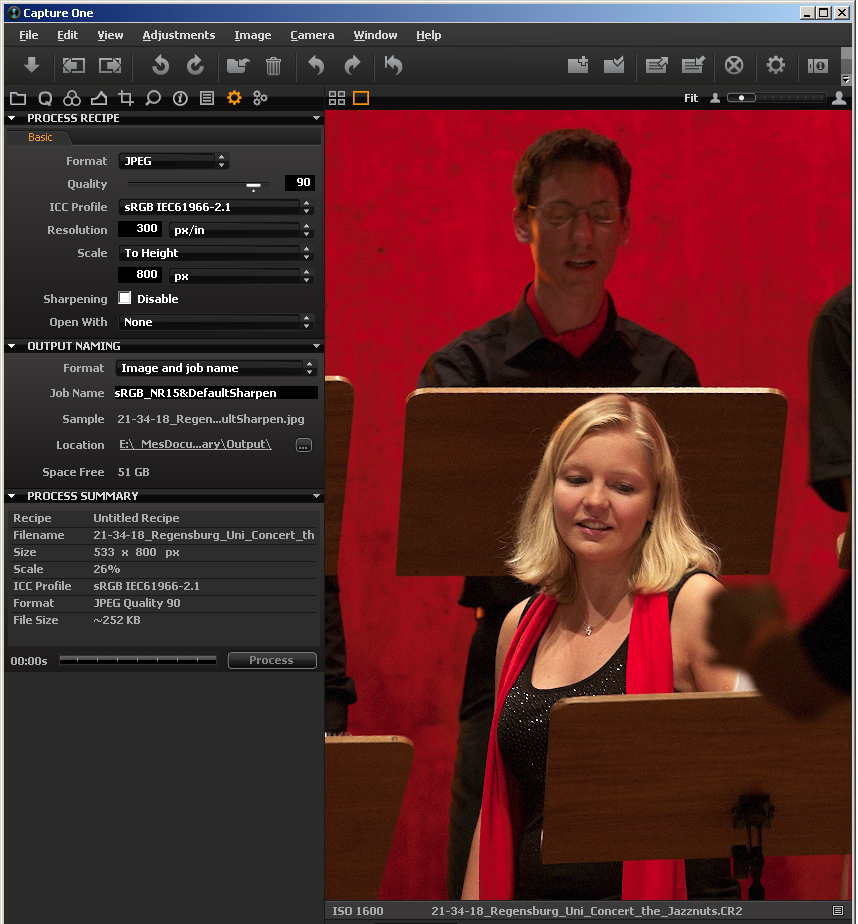
When I export with sRGB, the reds are not so faithful, and the picture is generally too "yellow".
What is going wrong in my workflow? Should I really export my monitor profile in my pictures?
0
-

Eric,
I looked into your files and I think (actually I am sure) that you have a color management problem. First, I noticed that in my browser (Safari on Mac) the images in your posting are absolutely identical in color (when viewed in Opera browser, there were differences but Opera is not supporting color profiles properly). Next, I downloaded all 3 images and opened them in Photoshop CS3. Same: exactly the same color. The PNG screendump of CO4.x is not usable for color evaluation because the monitor profile was not embedded. Never mind.
My thesis is that despite you go a long way in color management with conscious use of profiles and monitor calibration, the applications you are using to evaluate your images are not properly supporting color management (or not setup properly, which I cannot control and therefore not justify as a statement).
Since you are not scared by non-standard browsers, I like to challenge you to install Safari for Windows. Like it or not, Safari is the only trustworthy browser regarding color management on both the Windows and Mac platforms (this should generate some response 😊 )
Another option is to install Photoshop CS3/CS4. You can download a trial if you don't have that program. Capture One is also a good viewer, color management wise, so it is easy to check yourself. In the end you need a good viewer, like PhotoMechanic or Breeze Browser or other paid software. The free stuff is not helping you here. Hope this helps.0 -

all 3 look identical on Firefox 3 with color management activated.....Paul seems to have
presented some valid points on your "in machine" color management0 -
Thank you for your replies.
I naively tough that the color management was activated per default in Firefox3. But it isn't. Now that I've activated it (by just installing this plugin, I get also identical pictures.
Now, I'd like to understand how it works: it seems to me that the embedded profiles is overridden by my system profile, and therefore, I get for the 3 pictures the warm red I had only in the 2nd picture previously.
So, what is the point of embeding profile in the picture?
If the profile only concern those not having properly color managed browser/system, should I rather embed my monitor profile than the sRGB?0 -
Eric,
Profiles are not overridden. A color (space) profile helps to interpret the RGB values in the image and translate them into the proper RGB values of the screen (in this example, could be a printer if you print and apply the printer profile). The basic concept of color management and profiling is that each device has its own color space and record RGB values in its own way. So far for the 30-second course in color management.
Did you know there is a nice PDF on color management on the Phase One web site (and on many other locations on the web)? Somewhere on the miscellaneous downloads department.0 -

Paul did very well with his 30 seconds, if you give me another 30 I'll expand a tiny bit more--but still read the PDF and any other resources you find.
Basically a 24-bit color image has 8-bits for each channel of red, green, and blue. That means 2 to the 8th power or 256 different levels of each of those colors can be mixed. But what does level 27, 66, or 139 of red look like? That's what a profile does. It first describes the limit of the device: values 0 and 255. And then attempts to distribute the rest in the most usable fashion. It doesn't have to be (and most of the time isn't) a straight line from 0 to 255 either. Nor is every channel represented with the same mapping (the human eye is more sensitive to green than red or especially blue).
Oh, the photos don't look exactly the same on my monitor. I have a wide-gamut display, and the red around the guy's neck pops more on the first image than the other two. So that means the camera was able to capture more colors than most displays can show (which is pretty typical).0 -
Thank you for your explanation regarding color management.
I partially already knew that the profile correct the colors and the importance of the device profile. My question regarding the embedded profile is still not yet 100% answered: how the different profiles (embedded then system) are interpreted?
So, from my current understanding, the embedded profile set the references for the color correction, and then the monitor profile update them and make the final correction before displaying.
When no profile is embedded, some software are using the sRGB profile per default, but not all: other software do not make correction without basic embedded profile (like XnView which is a freeware supporting color management).
I still wonder what is the best practice for the embedded profile: which profile should I set as output of Capture One?
I think I understood what is going on for those having enabling the color management on their computer. But what happen to the others (unfortunately still the majority): why are the picture so different?0 -
From your summary, I think you do have a pretty good grasp on color management, but now that I've got a few minutes I'll go into a little more detail so my final answer regarding the embedded profile makes the most sense. Still, the full subject is too big for one thread in a forum to contain, but here's my 5-minute version.
Each device involved in the image processing workflow should be profiled so it is know how to best interpret the data coming from, or manipulate it when going to.
First, there is the input profile. This describes the full extent of color space of the device acquiring the image, be it a scanner, camera, or even a computer program generating the picture in a totally virtual environment (e.g. 3D renderer or procedural brushes in a paint program).
Then there is the output profile. This usually serves to limit or remap the colors of the image into the most pleasing (or in some cases numerically accurate) fashion. This is because most of todays image acquisition devices can capture more colors than today's displays and printers can reproduce. This is improving, but the remapping feature will always be required because there will be come colors unique to each device.
The last big piece is the working space. If a program is going to be taking an image from an input device and doing anything with it, that data should be converted into some working space. This may be the input profile, but drastic changes to saturation or other multiplicative operations may create colors which fall outside of that original gamut. I didn't say "working space profile", because some spaces are absolute (i.e. are able to represent all possible colors). L*a*b* is a good example, and indeed how the color space of an ICC profile is described. Though there are some problems with using L*a*b* (mostly implementation problems, but well beyond the scope of this post), so it might be better to use an RGB working space. ProPhoto RGB is a popular choice; I like Beta RGB from Bruce Lindbloom: http://brucelindbloom.com/index.html?BetaRGB.html
Oh, sRGB. What is it? It is basically a formal quantification of how RGB colors were handled before current color management came into being. That is 0,0,0 is black, and 1,1,1 is white @D65 and everything in between is mapped with an even distribution along an approximation of a Gamma 2.2 curve. Not particularly good for anything other than assuming that everyone will know what to do with it, and even if they are not using a color managed environment they'll see pretty close to what you see.
Now to answer your question: What profile do you embed? The answer is simple: It depends. 😜 The real answer of course is more complicated. What is depends upon is your target "audience".
If the images are going to be displayed on the web, sRGB is pretty much the only choice. As you discovered, even Firefox 3 which can support color management has the feature turned off by default, and everyone else is going to be assuming sRGB.
If you are going to be handing the images strait from Capture One to someone else which uses a properly profiled setup, or are going to be importing the photos into another color managed program for further work, then embedding the camera's profile is probably a good choice, but with the caveat below.
There is an issue with the gamut size represented by the profile. Some gamuts, like ProPhoto RGB, are so huge that 256 levels per channel get stretched pretty thin. While it is nice to have a large working space make sure no possible colors are lost during manipulation; JPEGs and other 8-bit/channel formats don't have enough color steps to guarantee that gradients will appear smooth. So if you want to use a large working space, and then embed that in your final image you should be using 16-bit TIFFs. As for the caveat I mentioned, I believe that the gamuts of today's DSLRs (and I'm sure DBs) are large enough that they too should use 16-bits/channel when embedding the profile.
What to use in JPEGs and other 8-bit formats while still preserving more of the original colors than sRGB? Adobe RGB improves things a little, and is very commonly used. But again I like Bruce's Beta RGB. While it can make use of a higher bit depth, it isn't too constrained by 8-bits, and includes most colors you'll encounter (by design).
The last case is when you'll be sending something to an outside print shop. Actually this has a few sub-cases. You'll want to ask them how they handle color profiles. If they don't know, pick another shop. Ideally they'll be able to provide you with a profile of their printer/paper/ink combinations. It is still probably best to deal with a shop which understands embedded profiles, but some will just want everything in sRGB. Even if they do take profiles and have provided you with ones for their printer, I still wouldn't embed that one, I'd only use the printer profile for soft-proofing.
Soft-proofing is when your color management software takes the profile assigned to an image transforms it through it's working space, and taking into account your display's profile attempts to mimic what you should expect to see in the printed output. The problem with permanently converting your image to the printer's profile is the conversion process isn't perfect and you may throw out more than would be lost just sending the full color to the printer and letting it sort things out. The soft-proofing will allow you make manual adjustments to get any seriously out-of-gamut colors under control so you don't end up with large areas of flat color as they get remapped.
Too make a long story short:
Use the camera's profile if further processing will be done in a 16-bit aware, color managed setup.
After further processing has been done use a good working space profile, or go to that working space out of Capture One if you are going to be limited to 8-bits/channel.
sRGB is for the web or non-profile aware software.
Soft-proof with the printer's profile, but keep the largest profile supported.
EDIT: Forgot to mention. Don't embed your monitor's profile. That doesn't represent anything other the the limitations of your display which the color management software must work with when rendering for the screen.
I should state that the long-winded above is entirely my opinion and what I've found to work. Other people will probably tell you other things. I still suggest you search around, read, experiment and find what gets you the results closest to what you desire. Color management is a science, but an imperfect one.0 -
I am convinced now, and will continue to embed sRGB as I was doing previously and as it is advised in the help of C1.
Thank you again.0
Post is closed for comments.
Comments
8 comments