Topaz Edit/Open Plugin not working

Using the Edit With or Open With Topaz plugin has no affect and does nothing.
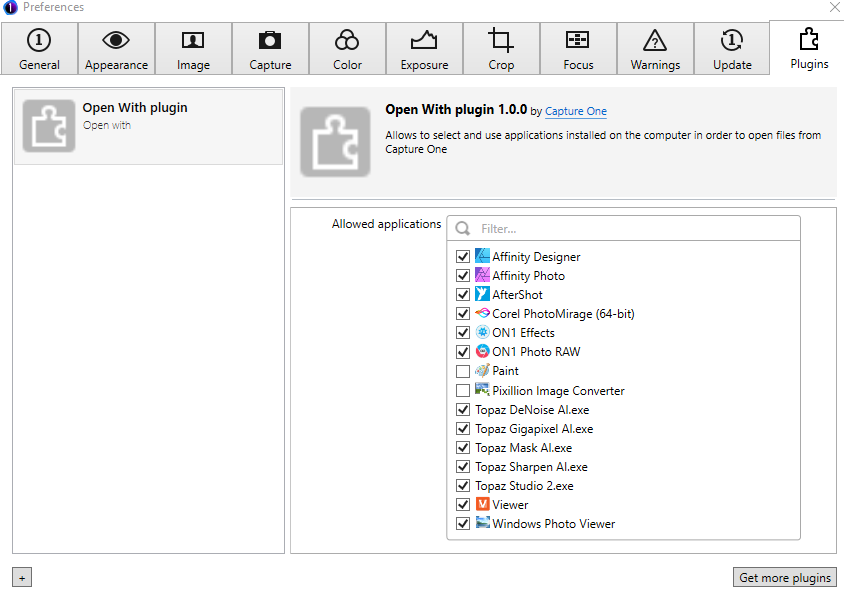
They are enable in the Plugins under preferences.
I can use the Browse option to point to the various Topaz exe files and that works - but that just defeats the point of having an easy shortcut to click on.
I cannot see any option to edit the plugin - please help, this is driving me crazy.

-

me ocurre lo mismo con color efex
0 -
Made some progress and have also posted this in another thread on Plugins:
At one point tonight, Edit With Topaz Denoise actually worked - and i noticed that when it did work, the Topaz application ICON was next to the plugin name - unlike the other Topaz application plugins - they were listed by no icon next to them.
Then tried grepping through the logs and came across this - basically the path to the Topaz applications is wrong ... except for the denoise application which worked.
Capture One is trying to access all the Topaz applications from the same directory of C:\Program Files\Topaz Labs LLC\Topaz DeNoise AI - regardless of where the application is actually installed.
Each Topaz application is actually installed under its own directory:
C:\Program Files\Topaz Labs LLC\Topaz {app name} AI\Topaz {app name} ai.exe
BUT Capture One is trying to access ALL the applications from the same parent directory of
C:\Program Files\Topaz Labs LLC\Topaz DeNoise AI\ - obviously that is why only Denosie worked.I have no idea where to go from here - but Capture One is not working as it should - PLEASE HELP
[2020-07-01 18:09:29.912][000][ID:011, ]{PLUG } | path - System.IO.FileNotFoundException: C:\Program Files\Topaz Labs LLC\Topaz DeNoise AI\Topaz Mask AI.exe
**| at System.Drawing.Icon.ExtractAssociatedIcon(String filePath, Int32 index)
**| at BuiltInOpenWithPlugin.BuiltInOpenWithPlugin.GetAssociatedIconFromPath(String argPath)
[2020-07-01 18:09:29.912][000][ID:011, ]{PLUG } | path - System.IO.FileNotFoundException: C:\Program Files\Topaz Labs LLC\Topaz DeNoise AI\Topaz Sharpen AI.exe
**| at System.Drawing.Icon.ExtractAssociatedIcon(String filePath, Int32 index)
**| at BuiltInOpenWithPlugin.BuiltInOpenWithPlugin.GetAssociatedIconFromPath(String argPath)
[2020-07-01 18:09:29.912][000][ID:011, ]{PLUG } | path - System.IO.FileNotFoundException: C:\Program Files\Topaz Labs LLC\Topaz DeNoise AI\Topaz Studio 2.exe
**| at System.Drawing.Icon.ExtractAssociatedIcon(String filePath, Int32 index)
**| at BuiltInOpenWithPlugin.BuiltInOpenWithPlugin.GetAssociatedIconFromPath(String argPath)
[2020-07-01 18:09:44.091][179][ID:008, ]{PLUG } | GetTasks -> Id: Topaz Denoise AI.exe, DisplayName: Topaz DeNoise AI.exe, Image: ImageSkipped, G:\Exmoor-milkyway\Capture\ISO-50\A7R00645_20.tif
[2020-07-01 18:09:44.097][005][ID:008, ]{PLUG } | GetTasks Topaz DeNoise AI.exe Topaz Denoise AI.exe
[2020-07-01 18:09:44.142][044][ID:008, ]{PLUG } | StartOpenWithTask -> FileHandlingTask: Files: G:\Exmoor-milkyway\Capture\ISO-50\A7R00645_20.tif, Id: d7facd10-a772-4222-86d6-059d07ebf180, Action: Id: Topaz Denoise AI.exe, DisplayName: Topaz DeNoise AI.exe, Image: ImageSkipped, Settings: SettingsSkipped
[2020-07-01 18:09:44.150][007][ID:008, ]{PLUG } | StartOpenWithTask d7facd10-a772-4222-86d6-059d07ebf180 Topaz DeNoise AI.exe Topaz Denoise AI.exe
[2020-07-01 18:09:44.150][000][ID:008, ]{PLUG } | Trying to start application Topaz Denoise AI.exe
[2020-07-01 18:10:38.692][542][ID:016, ]{PLUG } | GetSettingsAsync
[2020-07-01 18:10:38.958][265][ID:017, ]{PLUG } | path - System.IO.FileNotFoundException: C:\Program Files\Topaz Labs LLC\Topaz DeNoise AI\Topaz Gigapixel AI.exe
**| at System.Drawing.Icon.ExtractAssociatedIcon(String filePath, Int32 index)
**| at BuiltInOpenWithPlugin.BuiltInOpenWithPlugin.GetAssociatedIconFromPath(String argPath)
[2020-07-01 18:10:38.958][000][ID:017, ]{PLUG } | path - System.IO.FileNotFoundException: C:\Program Files\Topaz Labs LLC\Topaz DeNoise AI\Topaz Mask AI.exe
**| at System.Drawing.Icon.ExtractAssociatedIcon(String filePath, Int32 index)
**| at BuiltInOpenWithPlugin.BuiltInOpenWithPlugin.GetAssociatedIconFromPath(String argPath)
[2020-07-01 18:10:38.958][000][ID:017, ]{PLUG } | path - System.IO.FileNotFoundException: C:\Program Files\Topaz Labs LLC\Topaz DeNoise AI\Topaz Sharpen AI.exe
**| at System.Drawing.Icon.ExtractAssociatedIcon(String filePath, Int32 index)
**| at BuiltInOpenWithPlugin.BuiltInOpenWithPlugin.GetAssociatedIconFromPath(String argPath)
[2020-07-01 18:10:38.958][000][ID:017, ]{PLUG } | path - System.IO.FileNotFoundException: C:\Program Files\Topaz Labs LLC\Topaz DeNoise AI\Topaz Studio 2.exe
**| at System.Drawing.Icon.ExtractAssociatedIcon(String filePath, Int32 index)
**| at BuiltInOpenWithPlugin.BuiltInOpenWithPlugin.GetAssociatedIconFromPath(String argPath)
[2020-07-01 18:10:50.004][046][ID:016, ]{PLUG } | GetOpenWithActions -> keys: .ARW, values: 1
[2020-07-01 18:10:50.273][268][ID:016, ]{PLUG } | path - System.IO.FileNotFoundException: C:\Program Files\Topaz Labs LLC\Topaz DeNoise AI\Topaz Gigapixel AI.exe
**| at System.Drawing.Icon.ExtractAssociatedIcon(String filePath, Int32 index)
**| at BuiltInOpenWithPlugin.BuiltInOpenWithPlugin.GetAssociatedIconFromPath(String argPath)
[2020-07-01 18:10:50.274][000][ID:016, ]{PLUG } | path - System.IO.FileNotFoundException: C:\Program Files\Topaz Labs LLC\Topaz DeNoise AI\Topaz Mask AI.exe0 -
MANAGED TO FIX ITIf from WINDOWS Explorer i find an image file, i chose a tiff file, and right click and choose 'Open with' > 'Choose another app', then scroll to the bottom of the presented list and choose 'More apps', scroll to the bottom of the presented list again and choose 'Look for another app on this PC' and then go a find and select the Topaz application that was NOT initially listed in the open with list of apps.Now if i select the image, right click and and choose 'Open with', the Topaz application is now INCLUDED within the available applications listed.If i then check Capture One, then the Topaz ICONs and Applications are now listed under the Edit/Open With menu option and also the Preferences > Plugins.All Topaz applications can now be executed from the Edit/Open with menu option.

 0
0 -

I have the same issue when application is listed without icon Capture One will not open it from menu open with / edit with. The another issue in my case was limited number of plugins I can select.
With updated version 13.1.1 now is working fine. All application got icons and no limit on installed plugins.
0
Post is closed for comments.
Comments
4 comments