Smart Album creation using Date as one criteria

How does one create a Smart Album using date as for example 1/7/2020 or the date format in metadata?
I have been able to use the date as it appears in the Display Name in the drop down but no entry seems to work if the date is selected or entered using Date in the drop down. The little calendar doesn't work as well even when the desired date is selected. Images downloaded into Recent Downloads are are filtered with respect to date as a criteria during import. These images are the items I would like to put into the smart album by date for follow up editing.
-

Hi Michael,
You just go to the "search" field in the filters, click the three dots. A window will open, in which you can select any criteria, and create a smart album from your choice.
0 -
What you suggest seems logical, but the entry "date" is not recognized at all in the output. The filtering to make the smart album does not work for Date . I have to use Display as the source of the date. IE, Display Name contains Jan 05 2020 (example).
I must be preventing the use of date since my Filters contain Date and Color tag. The pics are sorted in the columns by date etc. The smart album I try to create is specific for one of the dates along with the desired color tag.
When I import I set the date as one of the criteria to do the initial sort, then I "cull" using the color tag .
Thanks for the suggestion, though.
0 -
Michael
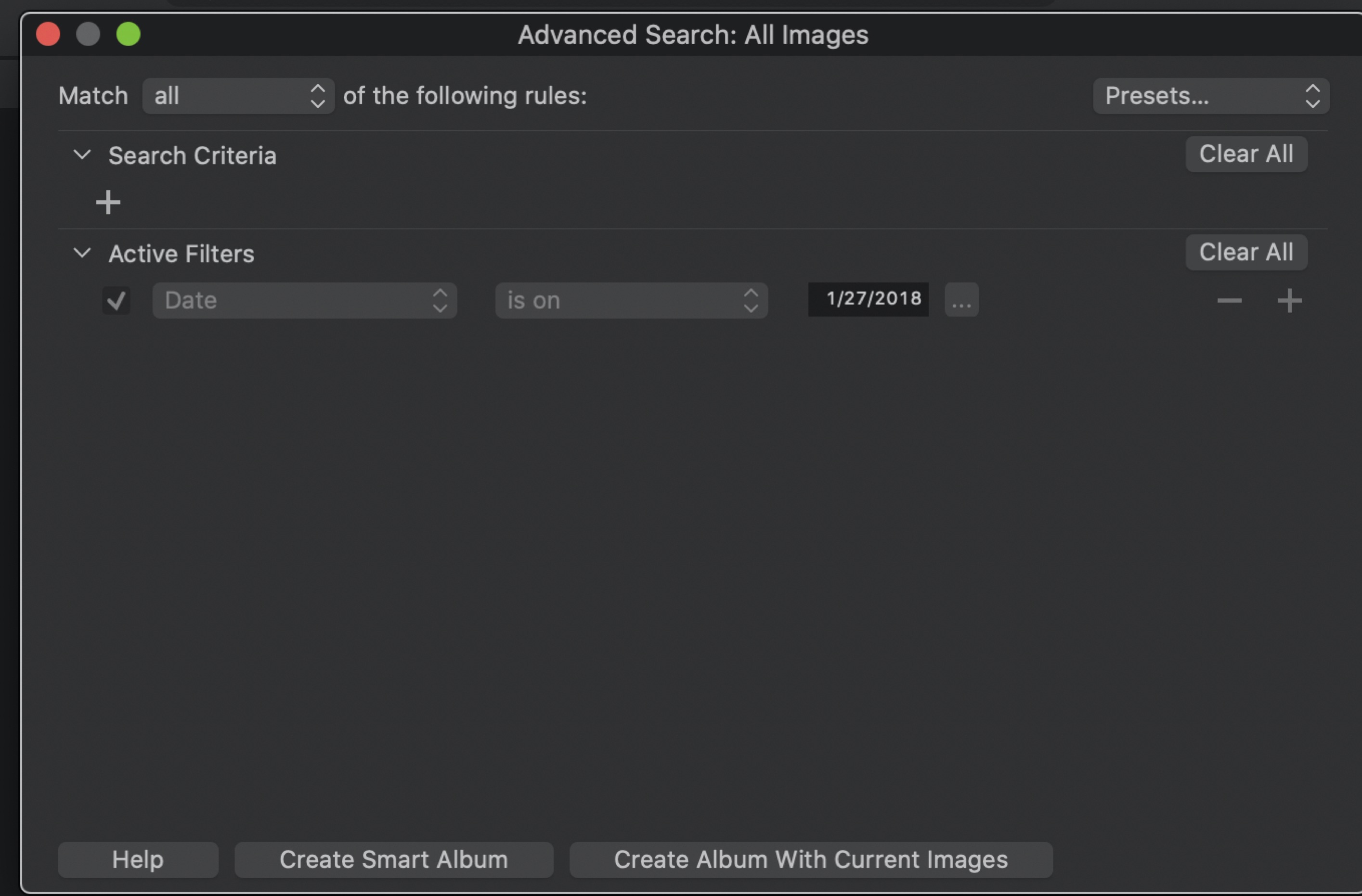
The easiest way to create a smart album by date is to select All Photos and use the Filter Tool to choose the date(s) of interest. Then click the three dots next to the Search field and you will get the Advanced Search dialog box. In the lower portion of this dialog is a box to create a Smart Album. Click it, give your smart album a name when asked and you are done. Note there is a known bug in the search tool - the date(s) you selected will be shown as one day earlier in the dialog. CaptureOne knows about and has acknowledged this problem but has not yet fixed it. I've attached an example where, using the Filter Tool, I chose 1/28/2018. Note the dialog shows 1/27/2018. The images found are all from 1/28/2018.
 0
0 -

My way is#1 click on the"display list" in the browser
#2 select to order by date. Select the wanted date and drag to the smart album.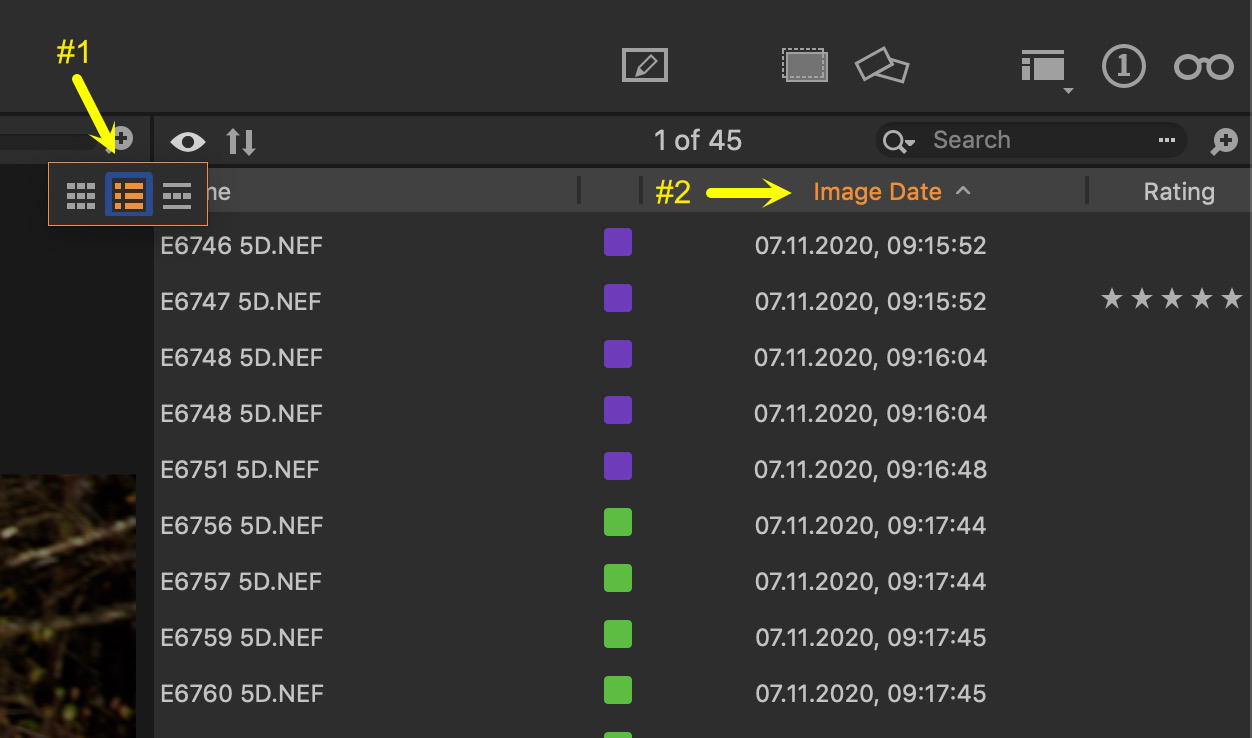 0
0 -
Fred: Your solution works and fits my work flow. Thank you very much!
Nikon Shooter: Your solution works but I am not adept enough to rely on drag and drop. Thank you! I will practice the drag and drop when I finish this round of work.
0
Post is closed for comments.
Comments
5 comments