Catalog system is a failure

I am a photographer. I have been working with Photoshop for 30 years. In Photoshop my files are safe. In Capture One my files exist with bombs attached to them. The slightest movement and they are destroyed. I just bought a new computer and in the transfer all my files vanished. There is no technical support to assist in recovery. Articles posted on the subject do not help. The catalog system was obviously designed by engineers who assume that you are also a computer engineer not a photographer. Capture One is a great tool but the cataloging system is a perverse nightmare. If anyone knows how to contact Capture One for technical assistance please let me know.
-
To contact them for technical assistance you click the Submit a Request link at the top right of this page.
Ian
0 -
And in the meanwhile, can we your fellow users, help at all?
Where were the files that have disappeared? Are the raw images referenced (stored out on your file system) or managed (stored within your catalog)?
Ian
0 -

Jerry,
I believe there are people here who can help if you give some details. Questions:
- Mac or PC?
- Were raw images stored inside the catalog? or were they "referenced"? (if the latter, "locate originals" might be the trick).
- Were images stored on the internal drive of the old PC or on an external drive?
Just trying to get you some help.
0 -
Thank you for your responses. When I got Capture One a few months ago I tried to set it up using the catalog / session system. I watched 30 minute you tube demos and and it just made my eyes glaze over and my head get dizzy. God only knows where the images I had were saved. At some point I began saving to external folders, unlinked. But there are images hidden somewhere (why in god's name are files hidden by apps? It's like they are being held hostage). I am interested in getting back these images but I fear that in moving things around I have probably broken some link and they are not recoverable. They are probably lost, drifting in some sort of Capture One limbo. If you have any suggestions about reestablishing the links I would appreciate it. I'm on a Mac. They were stored in the internal drive inside the catalog (as far as I know).
0 -
Your raws are almost surely not lost, but it seems like you may have a combination of things going on.
SInce you are on a Mac, you should be able to use Spotlight and Finder to locate the raw images.... so for instance, if you shoot with Sony, the raws will end with .ARW, or Nikon with .NEF etc..... and use spotlight to search for those files.
It also sounds like you are not used to using a catalog based system, like Lightroom and C1. You said you used Photoshop but not LR, that's why I mention that. So with a 'catalog' system the idea is to put your images in a folder structure and then never (or hardly ever) touch them again. In your situation, I think you need a couple basic steps:
1) get your images into a new folder structure (e.g, /yyyy/month/project/) in one specific place. Since things are scattered now, I would suggest, again, trying to discover your raw file locations and using Spotlight search and Finder and copy those images to the desired location. I'm guessing here because we don't know where your files are, nor do I know how big your drives are, nor do I know how much free space you have.
My structure is similar to this. I have a TOP LEVEL folder called "Photolibrary" , within that I have a folder for each year, and within the year folder I have "month" folders.... then project folders under those.
\Photolibrary\
Photolibrary\2020\
\2020-01\
\Project1
\Project2
\2020-02\
\Another project
\ yet another project
etc...
2) When you get your raws moved to the new location, then create a new Catalog (assuming you want to use catalogs). Your catalog should be on your "fast drive" like SSD if possible. The images can and I recommend should be on a different drive (but it's not necessary). In my case I have 5TB of images on an external RAID and my catalog on my Mac's SSD boot drive. So when you create the new catalog, save it to the appropriate location before beginning to import (next step).
3) IMPORT: import images into the catalog. Select FILE then IMPORT IMAGES then make sure you set the Destination to "CURRENT LOCATION" (e.g the folders where your images will be kept going forward ... that you set up in 1). Current location means "leave the raws where they are". Which is what you want at this point.
2) and 3) are 2-minute exercises; the hard part is 1) where you need to locate your raw images and get them organized.
ASSUMING you get through those steps, then your basic workflow GOING FORWARD would be a little different
- insert SD (or whatever type) card from camera into a card reader connected to your computer
- Assuming C1 is running, the import screen should pop up
- this time you want the import process to place the raw images on the card into your file structure (you setup in 1). This may and probably will require you to create a new folder for that files on the car (that project if you will).
- So in the IMPORT screen, under destination, you want the "Choose Folder" option to point to the folder in your image folder structure where you want the RAW files to land. By doing that, C1 will copy the images from the card to the correct location.
But again, it's hard to reconstruct what happened to get you where you are, but I think your catalog and the raw files are disconnected... and I'm trying to get you a workflow that avoids that problem.
Keep in mind, in C1 , when you edit an images, you are not saving a new version of the image, C1 is constructing a "preview" of the raw file with the edits you just made. The raw is never changed or touched. This is different from a pixel editor like Photoshop. To produce an file for sharing in C1, with all the edits you just made, you need to "process" (or export) the images ... and that's another part of working in RAW and there are probably good tutorials on that out there.
Now, if you don't need the benefits of a Catalog (e.g being able to search years worth of images), then I could redo this for a "Session based workflow" but I'm assuming (perhaps incorrectly) that you want a catalog. If I guessed right, I'd forget sessions until you resolve your issues. I use Sessions in conjunction with my Catalogs but I don't want to add that level of complexity at this point.
PG
0 -
Thanks for the reply. Your explanation is very clear. Unfortunately the spotlight search for .ARW did not turn up the missing images, only images I already have in folders. Is there a further step to find them?
0 -
You said that you tried to set up Capture One using the catalog/session system... Whenever you use Capture One you are either working in a catalog or in a session whether you realise it or not.
If you were working in a catalog, and you had chosen to store your images inside the catalog (rather than in their current location, or some other location on your file system) then I don't think that Finder would locate them because they are hidden inside the catalog. You could use Finder to locate any catalogs you have on your computer - they would have a file extension of .cocatalog. Using the File > Open command in Capture One you could open any that you find and see what they contain. In the Library tool there is a section that is labelled In Catalog. Any images in there are stored inside the catalog and not out on a folder somewhere on your system.

In my screen shot there are 13 images that are stored inside the catalog rather then outside in system folders.
Ian
0 -
Thanks, I just went to Open - Catalog , and it told me it can't be opened because it is already in use, by me! And of course I have not opened it.
0 -
OK -- there is a simple remedy for that. It may have happened because Capture One did not close cleanly at some point. Right click on the catalog in Finder, and choose Show Package Contents. Inside you should see a file called Wrtelock - delete it. (It is created by Capture One when a catalog is opened to prevent it from being opened more than once, which could corrupt it. It should be automatically removed again when the catalog is closed, but sometimes something goes wrong.)
Ian
0 -
OK, I just went to Folders - In Catalog and the images I'm looking for are there. So how do I transport them to my new machine?
0 -
Simplest way would be to create a folder using Finder (let's say you call it Transfer). Then in Capture One, add it to the catalog using the + sign. Then you can just drag and drop the images from the In Catalog section to the Transfer folder. (Do it in Capture One, not using Finder.)
The of course you can copy the folder to the new machine.
Ian
0 -
I'm not clear on this When I click on the + sign next to Catalog I get the option to create a catalog not import one.
0 -
Is there no Export Catalog option?
0 -
Ok I just used File - Export Images and managed to get them out. I presume that they will be intact and I'll install them on my new machine. Thanks for the help. I appreciate it.
0 -
So just to clarify something: The Catalog does not contain image files at all it's just data about how you've edited the originals so the space taken by the Catalog on the hard drive is very small compared to the actual raw files. So the Catalog can go on the internal SSD without taking up a lot of space. Correct?
0 -
Wow, I stepped away and a lot has happened. To answer your last question, the Catalog size is dependent on a lot of variables (preview size, number of images, amount of metadata etc), but that is correct. It *should* be able to go on your internal SSD provided you haven't already filled it up. So I would check your available space on "Macintosh HD" by right clicking on it on the left margin in your Finder panel and hit "get info" .
So in my case, as reference for you:
- my "personal" catalog contains 75,000 images on an external drive.
- The folder structure, containing the raw files, is 750GB in size.
- The Catalog, which is on SSD, is 94GB in size.
The size of the catalog will vary depending on the preview size you choose in system settings. I have a 4k screen so my preview size is pretty large .... and since the Catalog contains the previews, my catalog is somewhat large at 94GB. If I were using a 2k screen with smaller previews, the catalog might be 50GB (just a guess).
0 -
I can spare 100GB on my internal HD so that's not a problem. Thanks
0 -
The + sign I meant was the one in the folders section of the Library tool, to add a new folder to the catalog. But as you have seen, there is more than one solution to what you want to do.
Ian
 0
0 -
Jerry,
One more thing, when you did "File Export Images" it should create a subfolder called "captureone" which is where it stores the edit instructions and meta data (if memory serves me). When you Import those images on your new machine, C1 should see that CaptureOne folder and the edit files inside it and incorporate those edits in your new machine's C1 catalog. I did some testing of this a while back and that's how I recall it working.
BACKUPS: One other thing you should do is check where C1 is saving its backups. Go to Preferences (general tab) and near the bottom you see the "Catalog Backup" area. I would put the backups on slower disk, not the SSD drive and where you have a fair amount of room. The backups add up over time so you will want to go there occasionally and delete the older backups.
0 -
What is the function of the Catalog Backup and why would it take up more space than the Catalog?
0 -
After I import the images onto my new machine should I go and remove the C! subfolder from the transport image folder since the data presumably is now in the C1 catalog?
0 -
So just to clarify something: The Catalog does not contain image files at all it's just data about how you've edited the originals so the space taken by the Catalog on the hard drive is very small compared to the actual raw files. So the Catalog can go on the internal SSD without taking up a lot of space. Correct?
Maybe. You have a choice of putting your images in the catalog or elsewhere. Where do YOU want to put them. Ian's screen shot above, for example, shows that 13 images are inside his catalog. How many are in your catalog?
As for catalog size... your previews live in the catalog. My catalog is about 185 GB for 46,000 images. The largish size is because I have a 5K monitor and therefore have large previews.
0 -
I see. So the size of the previews is where the memory gets eaten. Thanks
0 -
"What is the function of the Catalog Backup and why would it take up more space than the Catalog?"
An individual backup does not take up more space than the catalog. BUT...... when you backup over time, C1 does not overwrite the backup file so they accumulate.
Here's my "personal vol one" catalog's backup folder. It currently has backups from September 12th thru today.
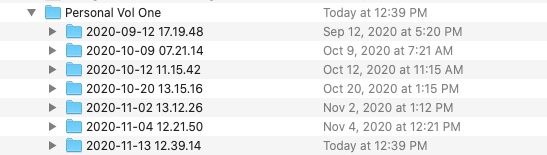
The last one, 2020-11-13 at the bottom, is 892MB (not GB, MB). The catalog is 95GB. So why is the backup folder so much smaller than the catalog?
C1 is smart in that it does not backup the Preview images that exist inside the catalog (and they take up most of your catalog size), since Previews can be regenerated at any time.
0 -
So these backups are kept so that you can go back and undo changes you made months after the fact? I have a feeling I really don't need that given that the raw files are readily available. Is it perhaps a good idea to change a setting to limit the depth of backups?
0 -
I've never used them to undo changes.
This is mainly a backup of "the database". The database which stores all your edits. If the database gets corrupted for some reason (who knows ... power failure during a read/write process? a bug?) then you want a backup of it for sure! I've used C1 for maybe 10 years now and I've had to restore from a backup maybe twice.
0 -
Returning to the C1 subfolder that was imported from my old machine: Should I remove it? Is there any chance it could create confusion in the system? Does it have any function or is it best removed?
0 -
You should satisfy yourself that your new catalog has the images and the adjustments. Once you are happy about that, you could remove the C1 subfolder, but it is doing no harm. (Don't delete the folder with the images though, unless you have chosen to put them inside the mew catalog.)
I generally start with sessions and import the keepers to a catalog later. I leave the session folders intact though as a safeguard. (Though I usually delete the non-keepers in the end.)
Ian
0 -
One last question: when I decide to delete a raw file completely ( remove it from the HD) can that be done in C1?
One problem I have with a folders full of files is that there are no thumbnails to make it easy to find an image to drag to the trash.. There are a lot of images that I don't need to keep, and they take up a lot of space. Can C1 generate thumbnails for raw files?
0 -
I would do file maintenance from within C1 whenever possible.
So if you want to trash an image, right click and select "Delete (move to Catalog Trash)". Don't do it from macOS Finder. Later you can right click on the "All Images" view in C1 and select "Empty Catalog Trash".
C1 will generate previews including thumbnails for every image that has been imported into the catalog. If the images aren't showing up in the catalog, then they haven't been imported yet.
Couple useful things for you (I think):
1) you can right click on any image in C1's browser and say "show in finder" (it will take you to macOS Finder to the location of the image, or alternatively click on "show in Library" (it will take you to where the image resides in the C1 library). This comes in handy if you created an album and are not sure where an image in the album came from.
2) if you want to move a folder of images that are in the catalog, just drag the folder from within C1 from location 1 to location 2, and C1 will move them appropriately. If you go to Finder to move them, then your catalog will be pointing to the old location and you'll have to "locate originals" which works but is not the way you want to go.
But generally, do file changes (detetes and moves) from within C1 to keep the database intact.
0

Post is closed for comments.
Comments
32 comments