How to make adjustment from a current color to a pure white color in Color Editor?

I just installed Capture One 20 for Mac.
And I cannot find an answer to a pretty easy question...
How to make adjustments from a current color to a pure white color in Color Editor?
-
Do you mean you would like (for instance) to make a green garment white?
Ian
0 -
Hi, Ian.
Yes, let's say I want to make a green garment pure white. How exactly can I do that?
Or, another example, I want to change the background from black (black screen) to pure white. How can I do that?
0 -

Try this:
1. With the Color Picker, select the color you want to change. I use the Advanced Color Editor for this.
2. From the elipsis (...) menu, choose "Create a layer from color selection" (or words to that effect)
3. In the new layer, which should contain only elements with your selected color, then reduce Saturation to zero to convert it to grayscale (reasonably well), then if you want to change it to black, reduce layer's Exposure to zero, or to make it white, try increasing exposure to maximum.
Another approach IF the background is very different luminance from what you want to keep, create a new filled adjustment layer, use the Luma Range slider to isolate what you want to change, and then apply the corrections you want.
There may be other ways in C1, or you may need to go into a pixel editor.
1 -
Changing a colour to white is possible. Here is an example - I have changed the blue door to a white door.
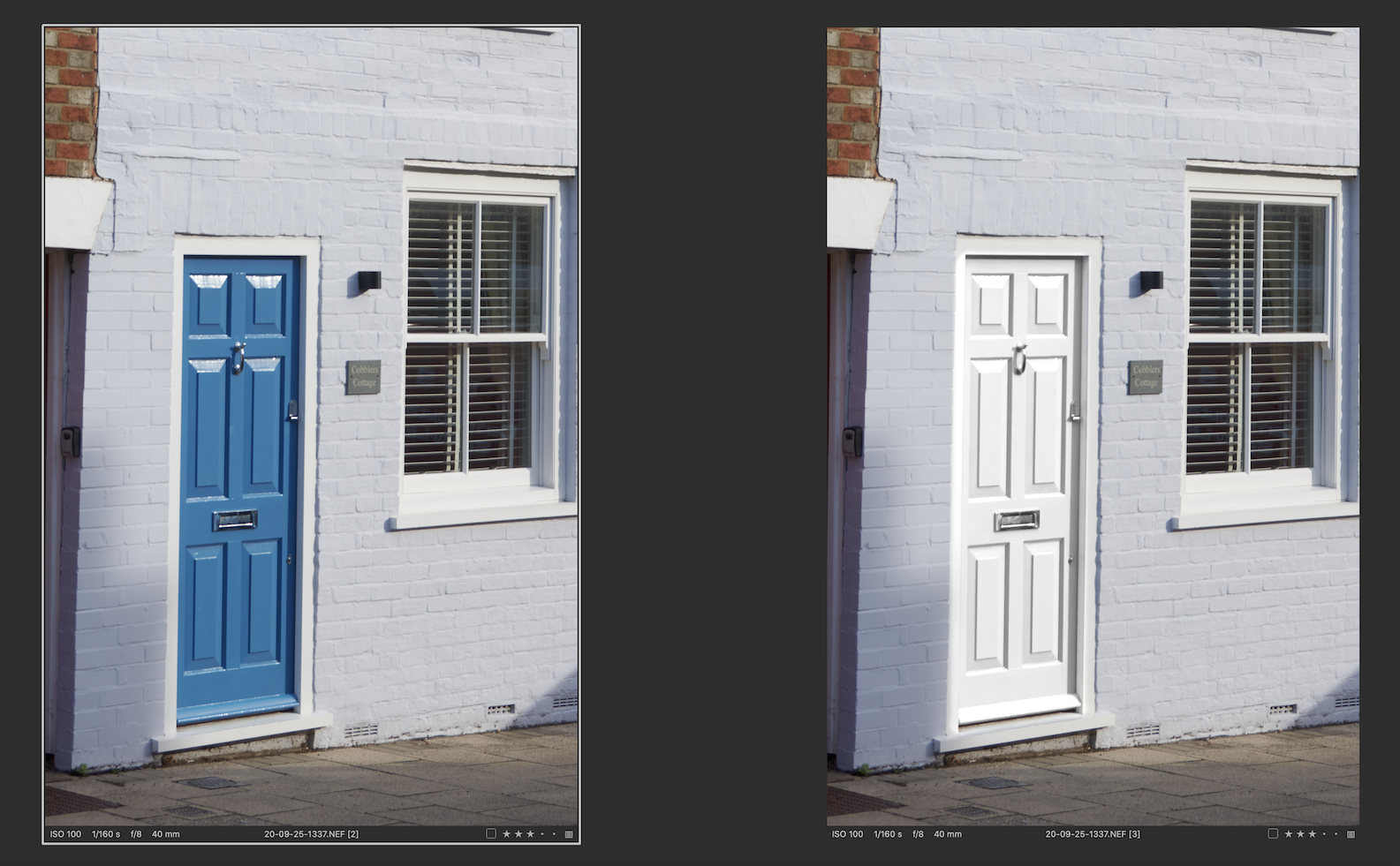
Here's how.
(1) I created a new layer and called it change door colour, and then drew a mask to cover just the door. (Not too carefully - it covered all the blue door but it didn't matter that it overlapped the white door frame a bit, because in the next step we are choosing to modify only the blue.)
(2) On that layer, I used the colour editor (advanced tab) to pick the blue colour.
(3) Then I reduced the saturation all the way to zero. But that gave me a rather darkish grey, so then...
(4) Increased the lightness as far as it would go. Not bad but still not brilliant white, so then...
(4) In the Levels tool, still just on that layer, bring in the lower right handle to make the door whiter.
I think it looks pretty convincing.
But changing black to white is a different matter, mainly because black is not a colour that you can select in the colour editor tool - it is no colour at all.
Ian
0 -
It sounds to me like you want/need a pixel editor. Selecting and changing arbitrary colors would be better done in photoshop, affinity photo, pixelmator, gimp, etc...
My personal favorite is Affinity Photo. When needed (which is rare) I process the image with Capture One to get the best representation from the raw file and then "Edit with..." Affinity Photo to do the things Capture One isn't designed to do. Mostly I use this for content aware fill, but once in a while will use it to replace colors, too.
0 -
Hi, Marco:
Thanks a lot for your comment. That's great that you know different pixel editors.
Actually, I am looking for photo-editing software, which I am going to use for editing my pictures of garments, which my wife sells on Amazon.
Basically, I need to perform just two operations:
1. Color adjustments (Here is an example: a garment has three colors: white, yellow, and gray. I should be able to easily adjust EACH of them) separately, at different way;
2. Depending on a garment's color, I need to change background either from black to pure white, or from off-white to pure white.
3. Sometimes I need minor retouching (like Healing Brush in Photoshop).
What FREE software would you recommend for these purposes?
0 -
Affinity is not free, but it's a pretty inexpensive one-off purchase, much less than a Photoshop subscription and capable of pretty much the same things.
Ian
1 -
GIMP is free, but not so easy to manage. I agree with Ian : Affinity Photo is not expensive and very efficient.
1 -
I'm with the others. If it has to be free GIMP is probably your choice. It is the only free app I've used but that was a long time ago. Affinity Photo is a one time $50 fee unless you happen to catch it on sale which it seems to be right now (30% off). Pixelmator classic is $30 on the Max App store. I have that, but haven't used it since getting Affinity Photo. There is also Pixelmator Pro. I haven't used it and don't know anything about it.
0 -
Ian, Robert and Marco, I really appreciate your friendly advice!!!
I just want to add that I tried using GIMP a few months ago, and it is really user-UNfriendly software, especially for beginners and who do not have extensive experience with Photoshop.
Stay safe, guys.
0 -
I don't know if it's worldwide or just in the U.S., but I just got an email from Serif that all of their Affinity products are on sale now for 30% off. That's pretty sweet. I didn't pay attention to how long the sale's on for.
1 -

If you are just black to white (or vice versa) and have a good clean separation with the background you could look at using the Levels tool (swap the lower adjustment value settings) or the Curve tool (using the same idea but vertically.)
Changing colour to another colour may be a little trickier.
Select for the initial mask on a layer (you will need a layer most likely) using the Advance Colour tool or maybe you would only need the Luma Mask selection on the layer in some situations.
0

Post is closed for comments.
Comments
12 comments