Printing question

I am using Capture One 20 for Sony, Windows version (Windows 10 Pro 64 bit).. In the Print dialog box of Capture One it says before printing to "turn off Color Management" in the Print dialog. How do I find this setting to be sure it is turned off? I have never seen it. Rick
-

Press Windows key + R shortcut to bring up the Run dialog.
Type control printers and press Enter to bring up Devices and Printers.
Right click your printer and select Printing Preferences.
Then it is:
More Options - Color Correction - Custom Button - Advanced - Color Management - No Color Management Button - OK - OK.0 -

Rick,
It's a function of the printer driver, as gb had indicated.
At some point in the process where you have access to Printer Settings you should be able to access the driver that runs your printer and check the value of the setting.
You may even be able to save that as a default for a specific setting and then perhaps make that a default "Printer" to save the need for checking and setting it for each use.
How easy all of that is rather depends on the standard of the printer driver interface, how it works with Windows and so on. Some look really good. Others are distinctly utilitarian. Some prove to be incredibly obscure and frustrating. In my opinion.
0 -
gb, SFA,
Thanks for your posts. I followed the routing gb outlined, and I got access to the printer driver with no problem. so to SFA's post, no problem finding the driver settings. In fact, what pops up following gb is exactly the same driver windo that opens in Capture One when I select "Print".
The problem is that nowhere can I find in the driver a "Color Management" or "Control Color Management" setting to check.
My printer is a new Epson SC P900, and the driver was just updated when I installed it. This is what the driver window looks like when I open it:
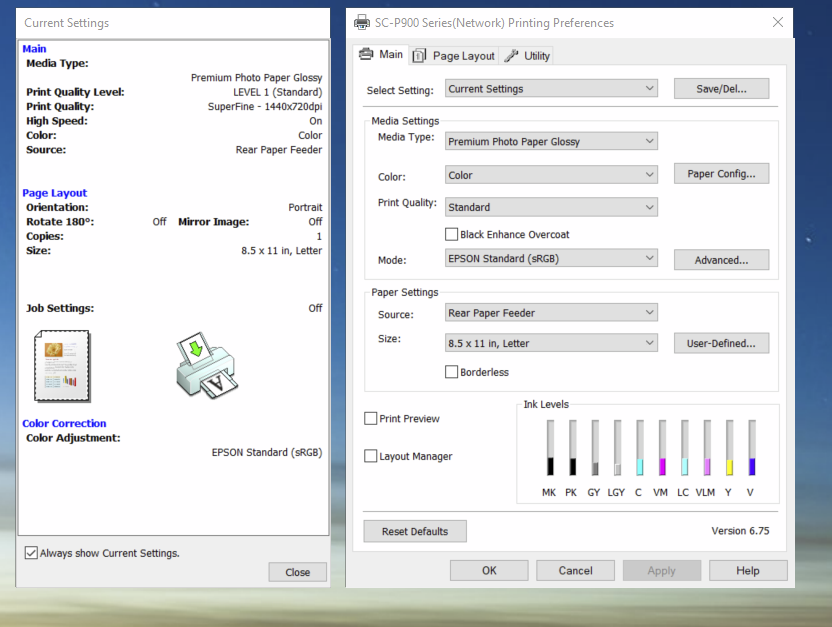
So I am at a loss what to adjust. If under Mode" in the right hand panel I press "Advanced" this is what I get:
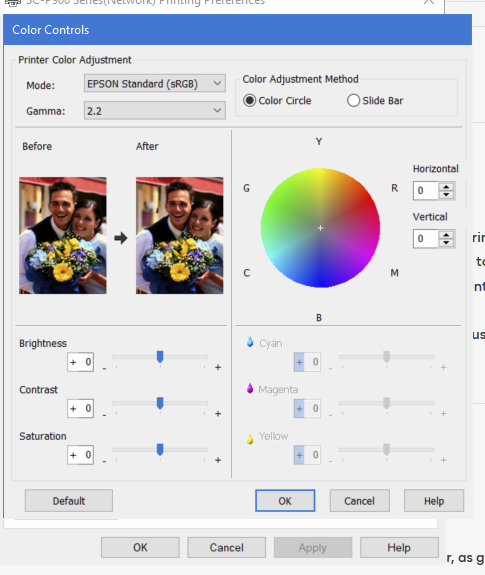
The "Select Settings" option at the top is for options like Photo, Fine Art, Poster and seems to have to do with paper types.
Perhaps the answer is under the "Mode" button where the options are "Epson Standard (SRGB)", "Adobe RGB," "PhoteEnhance", "ICM" or "Off (No Color Adjustment)".
I have typically selected "Adobe RGB" both in Capture One and in this driver spot assuming this is part of the ICC profile and the printer and C1 have to agree. I will try turning it off and see what happens.
Rick
0 -
"Perhaps the answer is under the "Mode" button where the options are "Epson Standard (SRGB)", "Adobe RGB," "PhoteEnhance", "ICM" or "Off (No Color Adjustment)".
I would think "Off" would be correct but I'll let gb confirm as I have a Canon printer and I'm not familiar with Epsons.
0 -
I just tried a print with Mode set to "Off" on the printer driver window, and "Adobe RGB" in the C1 print dialog. It made no difference, positive or negative.
The basic problem is that prints coming off the printer have muted or subdued colors relative to what is in the C1 browser...and with this printer that should not be the case. I have a BenQ monitor and I have calibrated it, so that should not be a problem either. It seems more like some kind of setting conflict between C1, the printer driver, and perhaps Windows, but I am not sure where to look. The only thing I can think of where I have not been able to find a setting is the "Turn off color management" warning in the C1 print dialog window.
Rick
0 -

Hallo Rick, mein englisch ist zu schlecht.
ich habe den SC P 800,
im Druckertreiber muss unter Mode aus (off) stehen, der Drucker druckt dann normal ohne etwas an den Farben zu ändern die ihm C1 liefert.
Media Type Matte oder Glossy je nachdem welches Papier du verwendest.
Print Quality auf 4 oder 5 , auf Custom stellen.
in C1 darfst du dann nicht auf adobe RGB stellen, ist kein Printprofil.
Du musst ein Papier profil auswählen. Normalerweise werden vorgefertigte Profile für Epson Papier mit dem Treiber installiert. Beim SC P800 fangen sie mit "SC-P800 Series Premium Glossy" an.
Wenn du die Möglichkeit hast ist es aber besser ein eigenes Papierprofil anzufertigen.(Xrite).
Das vorhandene sollte aber zum Anfang reichen.
Die Prints sind aber trotz Papierprofil manchmal etwas dunkler als man es am Monitor war nimmt. Es gibt leider immer noch keinen Helligkeitsregler im Printmodul wie in Adobe LR6.
Beim wiederholtem öffnen des Printmoduls muss man auch leider alle Einstellungen des Druckertreibers wieder neu einstellen. Das Printmodul speichert die Treibereinstellungen nicht wie Adobe LR6 z.B. Es greift immer wieder auf die Standard Einstellung unter W10 zurück. Wenn man da Normalpapier und das Farbmanagement auf Epson Standard hat fängt C1 bei jedem öffnen des Druckmoduls mit diesen für Foto Prints unbrauchbaren Einstellungen an.
Hoffe es hilft
0 -
Andreas,
Thank you for your note...and auf Deutsch is fine...I can read German (much better than I can write it!). I actually lived there for a year and spent quite a bit of time there in years past.
I will play around with the things you suggest when I have some time later today and let you know how it worked.
Rick
0 -
Andreas,
I posted my comments in bold italic...I think between your comments and a setting I played with, I have solved it and I may have found a slider that will help you...see bottom. Thank you.
ich habe den SC P 800,
im Druckertreiber muss unter Mode aus (off) stehen, der Drucker druckt dann normal ohne etwas an den Farben zu ändern die ihm C1 liefert.
This makes sense…C1 should be managing colors, not the printer (or Windows). So I will keep ,ode set to “off”
Media Type Matte oder Glossy je nachdem welches Papier du verwendest.
Yes. Actually the list is far more detailed, listing ICC profiles for a lot of specific papers, not just broad categories like “glossy” or “matte”. I always specify a specific paper in the Printer Preferences screen, and once selected that paper type is also displayed on the printer LCD screen.
Print Quality auf 4 oder 5 , auf Custom stellen.
I never noticed the “Quality Options” selection here…I had been just using “high quality” or “Max Quality” for printing. I will try 4 or 5 under quality options as you suggest.
in C1 darfst du dann nicht auf adobe RGB stellen, ist kein Printprofil.
Du musst ein Papier profil auswählen. Normalerweise werden vorgefertigte Profile für Epson Papier mit dem Treiber installiert. Beim SC P800 fangen sie mit "SC-P800 Series Premium Glossy" an.
This I missed entirely! I did not realize C1 listed the individual paper profiles here…I only looked for those in the printer settings. I still get confused about when I should be looking for a paper/printer profile vs. a C1/monitor profile. Another option under this button is to pick the color profile for my specific monitor. I will follow your suggestion and pick the specific paper.
Wenn du die Möglichkeit hast ist es aber besser ein eigenes Papierprofil anzufertigen.(Xrite).
At the moment I am using Epson papers and there are specific Epson paper profiles already listed. If I try other brands (like Hahnemuehle for example) I will download a specific paper profile from them and add to the list.
Das vorhandene sollte aber zum Anfang reichen.
Die Prints sind aber trotz Papierprofil manchmal etwas dunkler als man es am Monitor war nimmt. Es gibt leider immer noch keinen Helligkeitsregler im Printmodul wie in Adobe LR6.
This may be something new with the P900 interface, but there is an “Advanced” tab next to “Mode” in the printer driver window, and if I click on that I get access to a color wheel or color sliders, and also sliders for Brightness, Contrast and Saturation. I have no idea what these adjustments do relative to C1…they do seem to work, at least on the “before” and “after” views in this window, even when “Mode” is set to Off No Color Adjustment. I am not sure if they will actually work on the level of the print being printed.
Andreas: THIS WORKS!! With “Mode” set to “Off”, I clicked on the “Advanced” tab and used the sliders on the left side to boost brightness (+12) and saturation (+10). I then clicked to generate a print preview and it looked perfect. I printed it and it is just about 100%. I never would have found this to play with except for your help with the above settings. Thank you very much! Since you were wondering about a brightness slider, if this option is available on the P800 driver it will do just what you were looking for to brighten up a print.
Beim wiederholtem öffnen des Printmoduls muss man auch leider alle Einstellungen des Druckertreibers wieder neu einstellen. Das Printmodul speichert die Treibereinstellungen nicht wie Adobe LR6 z.B. Es greift immer wieder auf die Standard Einstellung unter W10 zurück. Wenn man da Normalpapier und das Farbmanagement auf Epson Standard hat fängt C1 bei jedem öffnen des Druckmoduls mit diesen für Foto Prints unbrauchbaren Einstellungen an.
I have also noticed this. It is annoying, and easy to forget a setting somewhere in the process. I wonder if they fixed this in C1 v 21.
Rick
0 -
Rick, freut mich, dass es funktioniert.
I can read Engish (much better than I can write it!) (me to).
Danke für den Tip. Hab gleich mal nachgeschaut. Der Advanced tab ist in meinemTreiber auch vorhanden, aber er verschwindet stellt man das Farbmanagement im Treiber auf off. Da ich aber meistens selbst erstellte Profile benutze ist das Problem nur ein kleines. Ich hebe die Mitten mit der Gradiationskurve etwas an und dan passt es. Wäre nur schöner Wenn man es nicht bräuchte. Vieleicht macht Epson ja auch beim SC P800 nochmal ein Driver update und man kann es da dann einstellen.
0
Post is closed for comments.
Comments
9 comments