Process Recipe Problem! Processing wrong images.

I was wondering if someone can please help me! I'm tearing my hair out right now... :(
I've been a long term user since I can remember of Capture One, as both a photographer and a digi-tech, running on both Mac and PCs. I recently upgraded to Capture 21 and not sure if this is a new issue?
I've just finished a bit retouching job, and went to my usual process recipes to send to the client, exporting both TIFFs and JEPGs of all the images. I checked my Output folder to realise that instead of two versions of each of the 30 or so images in total, its now just giving me multiple versions of the two or three of the files?!?
That the heck is going wrong?!? It's been absolute bullet proofs stable and now I can't even export the files? Can anyone please help as I need to get this fixed asap with a lot of upcoming work on!
PS: On my main editing machine I'm running CO 21 on a Windows 10 machine, alongside a Macbook Pro running C0 21 too.
Thanks everyone in advance for any help you can give me!
Best wishes,
Gavin
-

Try clearing the Batch Queue and History and re-running?
0 -
Hi SFA,
Thanks so much for chiming in, appreciate it.
Sadly I've already tried it with no luck!
I think it must be a Windows 10 issues as I've tried doing EXACTLY the same task on my MacBook pro running CO 21 and it works fine (albieth much slower than my Windows desktop!)
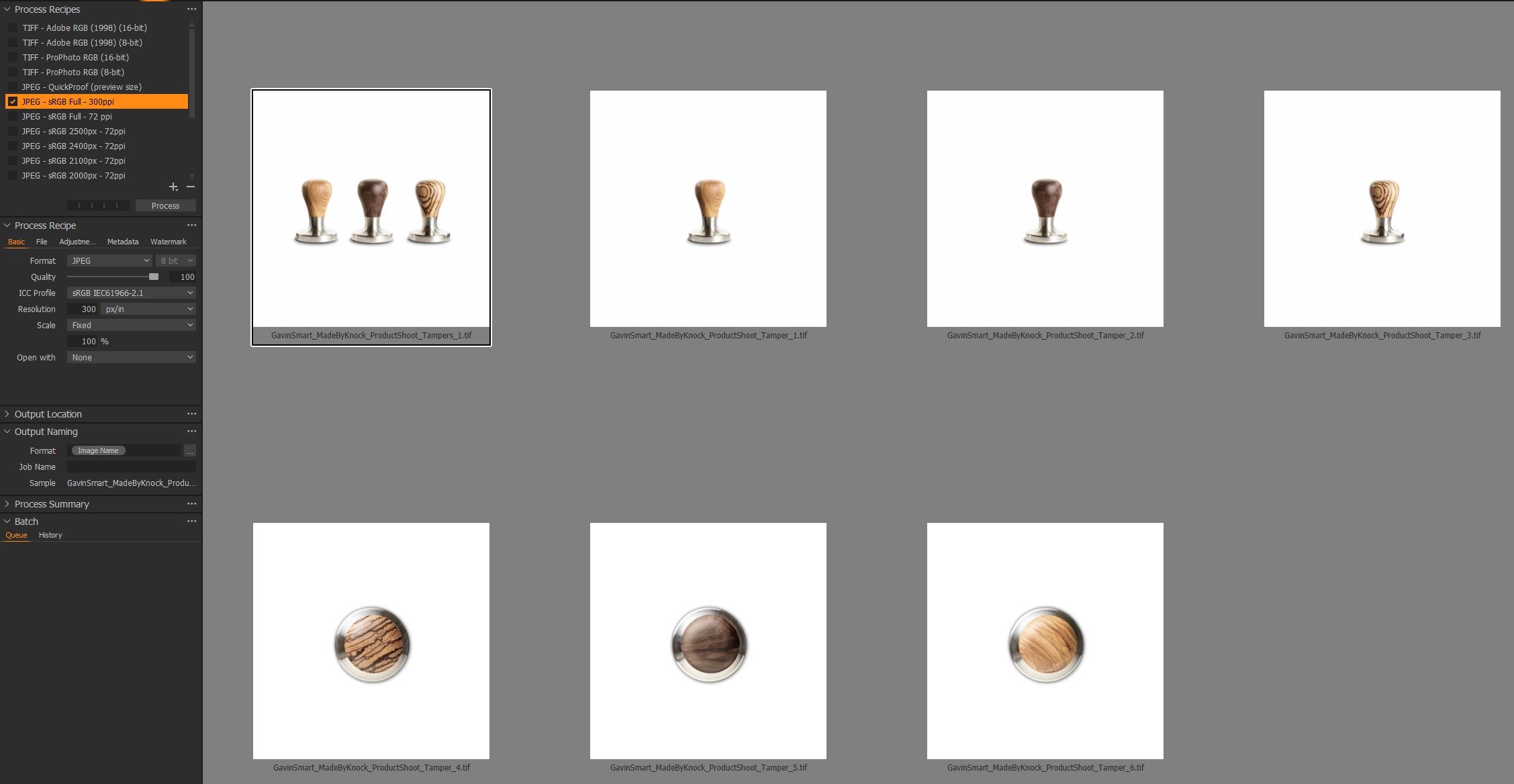
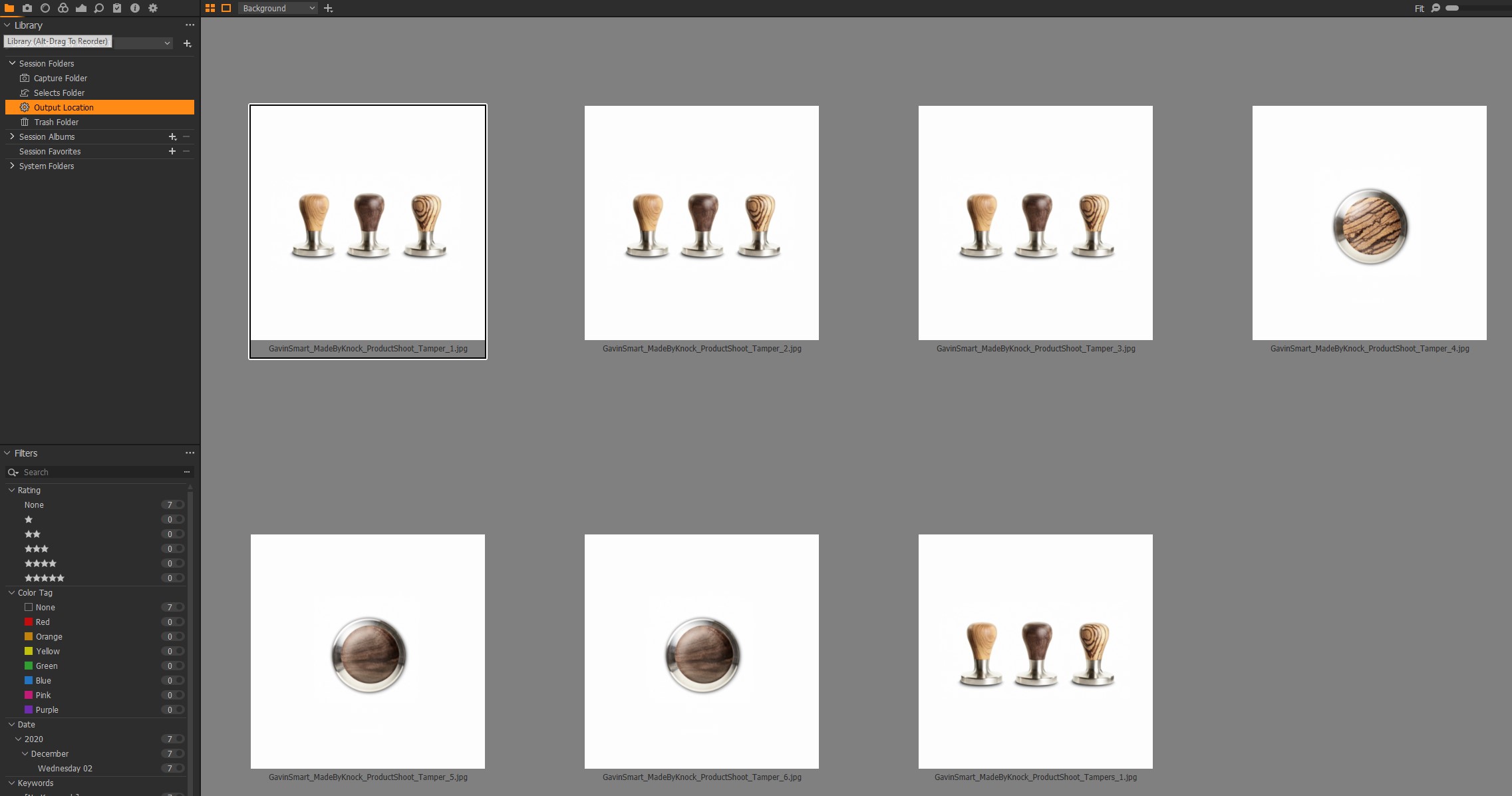
Attached are some screen grabs, first is a before and shows the process recipe to burn full size JPEGs of six images selected. The second is the Output folder showing the nonsense that it has actually created!
Its maddening as its never been an issue before!
Thanks a lot for your kind help,
G
 0
0 -
Hang on,
The first image has 7 tiffs. The second has jpgs
As a double check what happens when you set the recipe list to only show "Selected" recipes?
The Output location folder selected in the second image is a virtual link. Where is it actually pointing?
For clarification: Have you run the output more than once or are you getting all 3 copies of the image from a single run?
In the Output Location tool what is the target Output location? How does that compare with the Output field of the Process Recipe "File" tab?
It very puzzling but I can't think of a way that this could suddenly happen unless some very odd activities have somehow corrupted wither the available list of recipes (by multiplying them somewhere, somehow for the jpgs) or, given an upgrade has taken place, something like the userconfig file has some unwelcome amalgamations between versions.
The Windows side option might be possible related to work files in temporary memory or disk storage but it all sound very odd indeed. Especially if you can get it to repeat time after time. Nothing in the Batch history after a run?
0 -
Thanks again SFA!
Yes thats correct, the images from this example are the finished retouched TIFFs in the "Selects" folder. The Output shows the 7 JPEGs the Capture One actually created, which as you can see is nowehere near what it should be?!?
Just to clarify, both folders "Selects" and "Output" are both in the same session, stored on a local fast access SSD disk that I use for working projects whilst retouching.
As I check through it, the "Output Location" in the process recipe matches exactly the "Output" folder and the folder structure seems fine.
Just to check, copied the entire session (keeping all folder structre etc EXACTLY the same) onto a USB-C external drive, and opened that up in CO 21 on my MacBook pro. I ran EXACTLY the same functions and recipes that I have on my Windows desktop and it worked perfectly.
Could it be the session that is corrupted? It has me bamboozled and so frustrated!!! It only started doing this a day or so ago, around the time I made the jump from CO 20 to C0 21.
Thanks again for your kind help,
G
0 -
Certainly is a puzzle Gavin.
If you start the Batch and monitor the Queue and History what do you see? What are the counts?
If you temporarily change the Output Location in the Output Recipe File tab to a completely different folder what happens then? 3 versions of the image to the new folder created by the process or something different to that?
0 -
Hi SFA,
Thanks again for your kind help!
I checked the batch monitor when I run my chosen process recipe and it all looks as it should. The right images appear there as thumbnails, and the right count etc. Only when I go to the Output folder that it all appears as a mess!
I tried creating a totally new Output folder, and then setting that as the new "Output Location" but still no joy there either.
I can only assume it must be an update issue as it keeps happening in exactly the same way every time.
So annoying!
Thank you again,
G
0 -
Very weird.
The only possible positive aspect is that it is repeatable!
Hmm.
How do you feel about looking at some xml files in the Appdata folders?
0 -
Thank you!
Sure I don't mind if you can guide where to look?
Happy to get my fingers dirty in code if necessary.
Thanks again,
G
0 -
Hi Gavin,
Well I was going to suggest firstly diving into the Windows appdata > local folders and heading to the Capture_One folder (note the underscore) and then drill down until you see folder(s) named something like 14.0.0.xxx. Close C1 first!
Pick the highest number (the one that coincides with the release you are using) and in there discover a user.config file.
You could then open that in notepad or wordpad and look for some odd form of duplication of entries or, perhaps more efficiently, simply move that file somewhere else or create a "saved" folder and put it in there. C1 will then, I believe, create a new clean user.config file based on defaults next time it starts. It may, however, go looking for a previous user.config file from an earlier folder. I''m not sure if that activity is part of the install or always happens at runtime if no existing file is found where expected.
Assuming you get a brand new file and not a copy of a previous file, re-try the Output Recipe Process to a new folder (to avoid confusion) and see what you get.
However, before that can I ask how you are generating the single tamper jpg shots? Are the individual shots all based on variants of a sole triple tamper image? (or maybe the other way around?)
Are the tifs the result of a round trip activity to Photoshop or similar?
I'm not totally comfortable with my understanding of how your process is working. I could, for example, imagine the anomalies being part of a variant selection step that is not doing exactly what you intended to do for some reason. But I cannot see that step of the batch process as far as I can tell.
The mixture of the correct number of images and some of the images being as expected but others not concerns me. I don't want to suggest diving into some of the less logical "system doing strange things" ideas before double checking the more basic parts of the process that are so easy to overlook. Experience, mine and that of others over the years and in different situations with different products, suggests it is usually not wise to skip the early steps in any process when checking for unexpected and apparently inexplicable results. Just in case something simple has been overlooked because it could not possibly be the problem.
0 -
Hi SFA,
Thanks again for all this!
Easy things first. The tampers are part of a large session of around 30 images in total, just basic product stuff on white for a commercial client.
The workflow is (almost always) as follows:
1. Tethered capture into C1 using Sessions (was done on version 20 this time), from my D850 as RAWs (Nikon NEF format). All RAW images located in "Capture" folder.
2. Basic optimisation done in C1, then exported for retouching into Photoshop via "Edit with". Exported as ProPhoto 16-bit TIFFs.
3. Retouching work done in PS, then final completed TIFFs saved into "Selects" back into C1.
4. Images then handled via "Process Recipes" to create final images in "Output" folder. In this case I wanted to have two recipes running to create 300dpi JPEGs and 8-bit flattened TIFFs (Adobe 1998) on output.
Note:
- I (maybe stupidly!) upgraded to C1 v.21 halfway through the retouch as it was a two day job.
- Some of the images are composites of two or more images.
- This anomily works on all the images in the set. Any selection of images is giving me this randomised output. (I just selected these 7 seven images as they were the first in the set for a visual example).
- The problem is that this was working PERFECTLY up until a day or so ago, and the ONLY thing that I can think that has changed is my upgrade to v.21. Nothing else in workflow or equipment has altered at all.
I'll try those steps tomorrow with a fresh pair of eyes, but thanks agian for all your kind help so far!
Best,
G
0 -
QUICK UPDATE:
- I just tried opening two previous session that I've worked on in the last few months, both created using EXACTLY the same workflow as above.
- Both sessions originally created in C1 v.20 and now in c1 v.21 with my recent upgrade.
- I tried to do the same export, JPEGs and TIFFs using the same recipes and it appears to WORK! I tried with different selections of images and recipes and seems to work fine.
I can only assume then that there must be something gone astray with that particular session then?
Will try your suggestion tomorrow SFA, but hope this helps a little?
Thank you!!!
G
0 -
Hi Gavin,
So it seems like the problem only exists with that session on that machine.
To me that strongly suggests an anomaly with one of the local variable work files and favourite there would be the user.config file since that constantly saves the current state of the open session and recent session as well. In some detail.
I have never knowingly seen any problems with it myself and usually on an update the user.config seems revert to "vanilla" settings in order to add anything newly developed and then merge with the previously used settings from whatever version/build was the most recent available. (I assume that it will use the most recent available but that does not necessarily mean the the most recently run so there is potential for it to be programmed to be smarter than that and take the last opened value looking back through history. I doubt it, but there may be potential. I would need a few more coffees before even considering trying to work out the possible complexities involved if that was the case.
Now if I am correct the result would be an xml file with a base vanilla file for all system settings including possible Preference file settings, etc. with merged values from the most recently used previous user.config file. All or just some of them I do not know for certain.
Normally that works fine in my experience but of course there is always potential for something odd to happen with the merge if any unexpected and unusual circumstances pertain.
The user.config file is not an easy read in its RAW xml state as it contains the last used settings for up to 10 "recent" sessions or catalogues. (As I understand it - there may be more to it than that.)
So quite a lot to assess and I have not so far needed to dig into the concept in a particularly structured way. I don't have a template to assist with making it all readable.
If you can make my suggested for a vanilla user.config file test work (and it behaves as required) we could dig a little deeper although in reality it might be more realistic to simply forget about the niceties of retaining last user settings for a few previously opened sessions - especially if you are unlikely to be worried about such things should you ever open them again in the future!
0 -
Thanks again SFA!
I'm in the root directory of C1 on my Windows 10 desktop machine.
Program Files \ Capture One \ Capture One 21
I might be being really dumb here but there isn't a user.config file? I've got "Hidden Items" checked to make sure that everything in the folder is visible, but it just doesn't appear to be there? I've tried searching for it too with no luck...
Thanks!
G
0 -
Hi SFA,
Apologies, just realised its in App Data not in the C1 directory!
Found it now....
Doh,
G
0 -
Hi SFA,
QUICK UPDATE:
I tried that by removing the exiting "user.config" info for C1 v.21 and older versions (just moved them onto a backup drive) and let C1 create a new version on opening.
It doesn't work and still has the same issues, but I'm wondering if its best just to call it quits with this? Only as I can't make the problem show up in any other session I have, plus moving the session to a different machine on a different platforms works fine.
I've retouched this job and its now just archived in long term storage, so I might just move on and see what happens in the future as I don't know what else to do? Hopefully on future sessions it'll be fine?
Thanks again for your kind help with everything, and do let me know if you think there's anything else I should try?
Best wishes,
G
0 -
Hi Gavin,
OK, if it's not the config file I can't think of anything else right now that might have that effect, at least in terms of configs.
Abandoned temporary files somewhere in the Windows/C1 processing chain would be my next suggestion but more often than not it seems that some deep knowledge of Windows and the problem application are required to be able to get anywhere with that.
A "clean up" might work but doing that manually has the potential to discard things that other applications might not want discarded.
If you are finished with the session in question I think you are right - it makes more sense to move on. Maybe make a note about it somewhere for future reference should you ever find the same thing recurring.
I have seen a few odd things that appear to be temporary file related (or similar) that seems to be cleared by multiple re-boots of the system without running any applications.
I suspect that is is possible to get a chain of dependencies in temporary files that will only fully clear once the dependencies have been eliminated on a sort of "layer by layer" basis. 2 or 3 reboots can be useful in my experience if obscure problems persist.
The suggestion is certainly not based on any specific knowledge of computer science but it does seem to work in certain situations. It may be just down to coincidence.
0 -
Thanks SFA, really do appreciate all the kind help with this!
I'll keep a note of things and revisit this if it ever does rear its ugly head again.
All the best and many thanks,
G
0 -

I am having this exact issue as well!
Workflow was: import to C1 from folder on PC. Edit in C1 then use the "edit in photoshop 2021" option. Save and close in PS. When opening the files in C1 again they work perfectly fine, until exporting using process recipe.
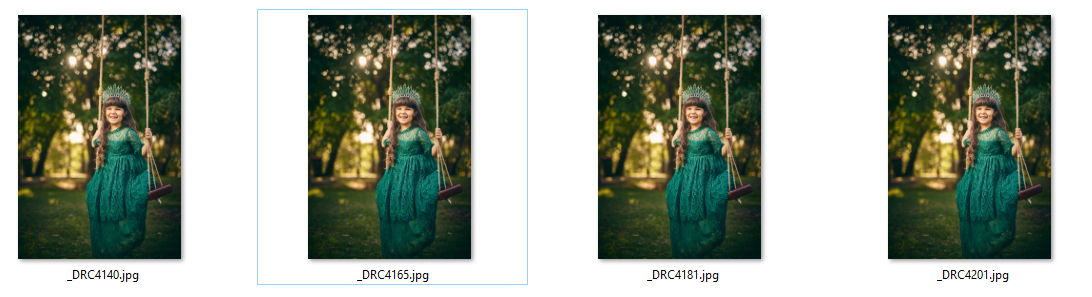
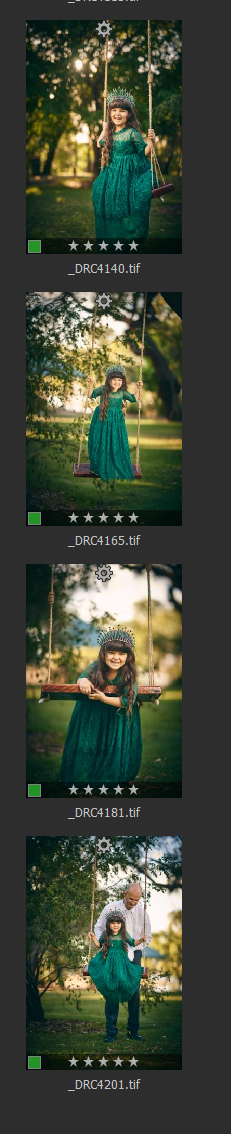
I have tried disabling hardware acceleration, updated to 14.0.1, re-saving the TIF files in PS, restarting C1 etc. It appears that after a restart, the first image that is processed will work correctly, but any subsequent photos it will choose a random photo from the batch and apply it to a few images. Example shown below, 4140 is the actual image, and each of the other shots are wrong.
 0
0 -
UPDATE:
after re-importing the TIF files from a separate folder, it still does the same thing!
0 -

I believe I’m having the same issue that the output is sometimes showing one JPEG then randomly change the others even though export shows four separate images and four different JPEG numbers
0 -
@Peter Davis
Have you also seen this with images that have NOT been through any Photoshop processing?
Are you sending a batch of files to PS via "open with" or do you still get the same result if you send one at a time?
Is it safe to assume you are using a "Save" from PS rather than a "save as"?
If you open the output JPGs in another viewer or another editor do they always show only the same image?
0 -
Hi SFA, thanks for your reply.
Issue only happens in C1. Yes it starts with opening a batch of files using the "edit with", C1 creates the TIF files from my NEF's, and then i edit in PS. I hit "save" in PS and then refresh C1.
Exporting from PS to JPEG does not result in issues, and opening the output JPG in other viewers (C1, PS etc) always result in it being the wrong image.
It has happened on a few sessions now too. It seems to be issues with the conversion to JPG, PNG, PSD etc. When exporting as TIF file (from TIF) it has no issues. Also happens regardless of solo export or batch.
I've opened a support ticket with C1 people, but they are understandably not good at replying this time of year.
0 -
Sounds exactly the same as my issue Peter.
Do you sometimes “see” the corrected exported image, click on the picture and then refresh to be the same as a previous photo as well? As I’ve had that happen a few times. Think it’s all fine but then no it changes.
Same edit in C1 of NEF file
Right click “edit with PS” which creates TIF file
Save in PS once finished retouching
Process output in C1 from TIF to JPEG
View output folder in Windows Explorer and results in showing same photos even when different image numbers0 -
Yep, so from what i've found the thumbnail thats stored inside the jpeg is the right image, but the proper size jpeg is wrong. If in windows explorer you increase the thumbnail size to largest you'll see that its the wrong images straight away
0 -
Totally the same as mine then!!
As I changed the View option once from small to large and the thumbnail changed right away. Which was confusing because it was fine then not fine...
Which when you’re trying to export 100+ photos for a commercial client, checking the output is a little time consuming
0 -
yep and then you have to go an manually export them from PS, which is very time consuming. Like i said i've opened a ticket with them via there support page, i'd suggest you do the same!
0 -
I opened one last week and not heard back and tried chasing but nothing so far
0 -
Very strange results.
Out of interest would you both feel comfortable checking this ...
In the Appdata folders at
C:\Users\[user name]\AppData\Local\CaptureOne\
You will probably find one or more folders named "Batchxxx" where XXX denotes a Capture One release where something about the Batch output process changed. For example I have Batch70, Batch110 and Batch120 listed.
Within those folder are other folders for "active" and "history".
These seem to contain ".list" and ".task" files in the "active" folder and just ".task" files in the History.
Do you see the same sort of thing?
Do any of the listed files appear to have the same file names as files you are currently attempting to output process? Or indeed anything that looks vaguely similar?
Whether they do or they don't it might be interesting to clear those folders (renaming or copying elsewhere might be a safe approach just in case they are important but looking at my folders suggests that the contents are not important and in most cases seem to be related to long completed (or incomplete?) activities.
Then try the output processing again.
This could be a completely blind alley activity but it's not very time consuming to try it out to see if it makes any difference to the results you obtain.
It does occur to me that the word "batch" may not relate to Output batches but the contents of the folders seem more aligned to Output Processing than anything else. The content I see in my most recent folder seems to suggest that the history contains a list of the last images batch processed on a particular and that list is not erased when moving on to a new date. Hence the number of .task files seems to build up over time. The most recent collections (Batch120 folder in my case) seems to have a greater number of what I assume are orphaned files than the two earlier folders.
There is never more than one History.list file. (As is to be expected.)
As indicated above, I have no idea if this is really relevant but it is some sort of variable in the chain of data used for the task and given that it will take no more than a few minutes to see if anything changes is any previously deposited data files are removed before the next batch of problem files are processed it seems to be something worth doing.
0 -
so i've got 2 x folders in there, batch110 and batch 120. batch 110 is a monster sizem with 5800 files. 120 has only 101 files, which makes sense as the 'history' in C1 tends to be 100 images. There is an option to "clear history" in C1 somewhere anyway (which i tried as a part of trouble shooting as requested by C1 rep)
I'll try clearing it manually and then perhaps i'll try fully uninstalling and reinstalling C1 (even though i've uninstalled each time i upgrade, there still seem to be files in appdata from them)0 -
Peter,
You should not need to clear anything in the appdata section although I suspect that some things are orphaned from time to time - such as the batch records in this case.
The Appdata is user data and therefore not cleared by deleting the application. If has s=potential use (in all of its sections) should you ever need to revert to an older version.
Clearly a time will come when you will not need the older data but that is your decision not one for a application delete program!
Did you see any problems with V11 Output processes? You could potentially investigate which output session resulted in the orphaning. If you look in the folders and sort them by file date there might be some clues.
I don't think the batch history necessarily related to what is found in these folders BUT 101 files may be the most recent processed files plus the most recent History.list file.
For a quick test just rename/move the files in the most recent version's folders and then try the problem batch again. As a fresh selection.
0
Post is closed for comments.
Comments
33 comments