Capture One 20 Fujifilm x-s10 support

-

https://support.captureone.com/hc/en-us/community/topics/360000154057-Feature-Requests
And if you'd troubled yourself to search:
https://support.captureone.com/hc/en-us/search?utf8=✓&topic=360000330718&query=x-s10
0 -

Happily there's a workaround because X-S10 raw files don't seem to be terribly different to those of previous models: change X-S10 to (eg.) X-T4 with an EXIF editor before importing the folder into CaptureOne. Then it'll edit them perfectly fine.
A quick play with ExifTool (other editors are available) suggests this filename/set of params works:
exiftool(-model='X-T4' -software='Digital Camera X-T4 Ver1.00' -k).exe
Backup first, of course, and you'll want to RTFM because ExifTool looks like quite a powerful program which doesn't pander to the careless.And I'm sure that proper, official support will come in the next patch for v20, right? After all, Christmas and new year are very busy, especially if you've just released a new version, but I'm sure such a simple addition for existing customers will arrive just as soon as they've got up and running for the new year.
1 -

Is there any hope that support for Fuji X-S10 will also be added with a patch to Capture One 20 (which I recently bought) and not only to Capture One 21, or is support of new cameras immedeately stopped for the previous Capture One version as soon as a new Capture One version is released?
0 -

Thanks Mike Coulth, the exiftool works a treat. Though just using the following was enough to convert all X-S10 files to X-T4 to get it working in C1 20
exiftool(-model='X-T4' -k).exe *.RAF0 -

Jon, could you please explain more in detail how to convert? When and where exactly do you have to enter the command "exiftool(-model='X-T4' -k).exe *.RAF"? And what to do next?
0 -
So download the Windows Executable zip file containing the exiftool (https://exiftool.org/).
Extract the executable file exiftool(-k).exe from the zipfile and place it in the folder where all your X-S10 RAW files are that you want to convert. eg. C:\RAWFILES
Then in Windows Explorer, rename the exiftool(-k).exe file so that it now looks like :
exiftool(-model='X-T4' -progress).exe.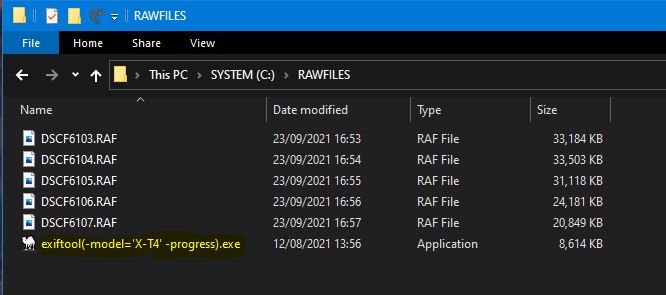
Then open a Command Prompt window and navigate to the folder containing the exiftool and the raw files. eg. type in:
CD C:\RAWFILES
and hit enter to take you to C:\RAWFILES folder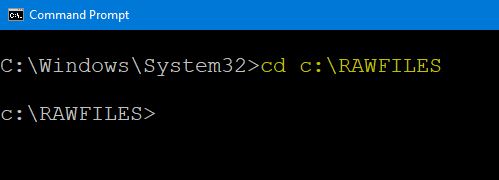
The in the Command Prompt window, type in the command :
"exiftool(-model='X-T4' -progress).exe" *.RAF
and then hit Enter.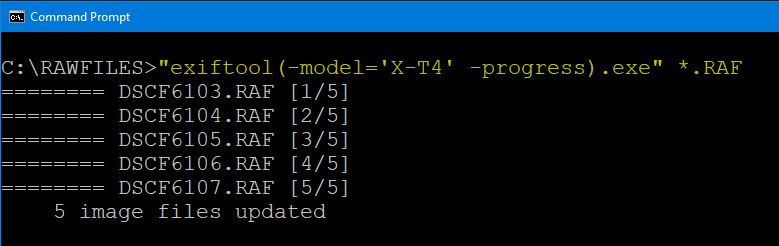
This will begin converting all the RAW .RAF files to use X-T4 model exif information and create backup of your original files.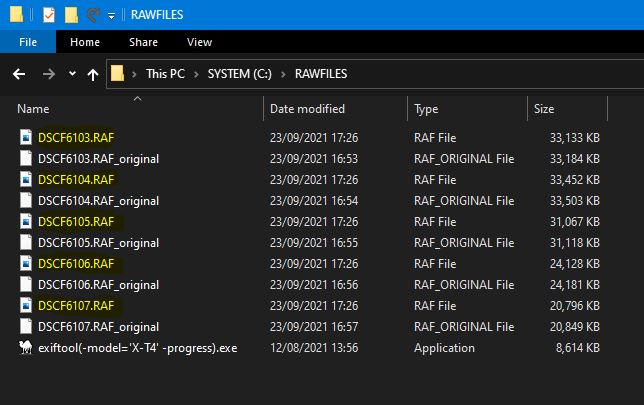
Once all the files have been updated with the new exif information, you can simply move these converted .RAF files to whatever location you use to import them in to Capture One.
I've changed my exiftool executable to exiftool(-model='X-T4' -overwrite_original_in_place -progress).exe so that it just overwrites the original files in place and to show the progress of the files being converted which is handy if you have a lot of files to convert. Hope this helps.
0 -
Thank you very much! I did exactly as you wrote (Command Prompt window is the command line on to of a window, right?), and then I saw some action in the black window (looking like conversion), but at the end all RAF files remained unchanged, are still not recognized by C1 v20. Did I do something wrong?
0 -
Hi Helmut, I've added pictures and updated the instructions to try and make it more clearer. I also advised to include -progress to the rename so that you are able to see what files are being converted.
0
Post is closed for comments.
Comments
8 comments