Spot Removal not working

Hi, I am using the Spot Removal tool on the background layer, and have been selecting spots, but they are not being removed.I am up to 66 spots (its a high contrast black and white, so every sensor dust/real dust spot is showing up).
Help!!!!!
-

Have you already tried the dust setting?
What happens if you view the spots at 100%?
0 -
Thanks for this, it seems its the 'Dust' removal tool that isnt working, the Spot removal tool does work (although a little slowly on my machine). I have now gone through all of my 'Dust' spots, one by one, and treated them as 'Spot' spots and they have gone. Oh to get my hands on the developer that wrote this code...........
0 -
What were you removing?
The process rendering is different for each type and although there are some cross over points in general the "Dust" settings relate to things like sensor dirt spots when visible and "Spots" are more aligned with things like facial complexion blemishes.
I don't remember any notes about anything changing recently but I may have missed something.
Any other processing you are applying, if even moderately extreme, may influence what you see. As does the zoom level - most noticeably with ever higher resolution files as they have become available in recent years. Other than that I don't believe much has changed in the process for some time.
0 -
Hi, its a mix, some are small sensor dust spots, some are items of physical dust on a black background, but they are all small items as opposed to what would be larger facial spots/blemishes.
For 'Dust' not to work at all, makes me think I am doing something wrong, CO21 can't have gone through testing without Dust removal being found to be working.
0 -
I've been using a healing brush on a healing layer. I've found zooming in to 200% when applying the brush works best for the images I'm adjusting (typically in the 18-30 megapixel range). I've also found that using a brush larger than I'd initially guessed often gives better results. I've not had any issues with adjustments missing on export. That's not to say I haven't had some issues. I've submitted a few bug reports on the healing brush to Capture One.
I don't think I've used the spot or dust tools in several months.
0 -

Are the spots only visible in the processed image or isn't the healing tool working for you at all?
For me it seems absolutely fine looking at the preview in C1, but after processing the generated images may still contains a variety of spots or even artifacts as seen here:
Top: C1 preview
Bottom: Processed image
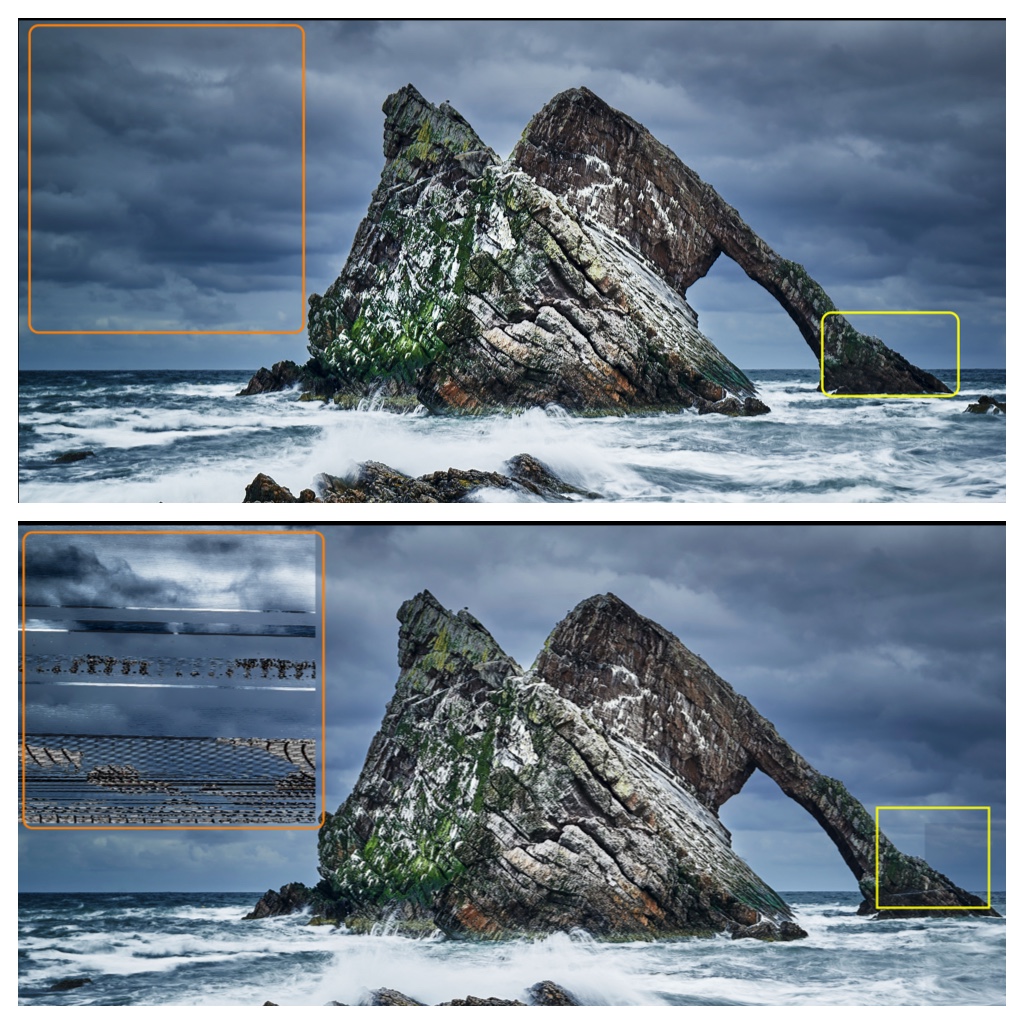
Nikon D600 NEF (RAW)
C1 Pro 14.0.1.7 on a M1 Mac running macOS 11.1
0 -
Try turning off Hardware acceleration for Output in the Preferences.
That is a classic representation of a GPU driver problem. It may be something else but the test is a very quick and simple thing to try.
1 -
To be fair, those heavy artifacts in the upper left as shown in my previous post appear rarely on processed images. After processing the image a second time they were gone.
I had troubles with hardware acceleration on a different machine before, and suspected it to be responsible for those artifacts in the orange box. But I was unaware hardware acceleration could be responsible for not applying brush-settings or those block in the yellow box, which appeared after several processings at the exact same location in the exact same shape. Interestingly, with C1 21 on the M1-Mac I never had any issues processing Fuji's RAF files, only Nikon NEFs seem to be affected.
Anyway, I disabled hardware acceleration and it indeed fixed the issue for me. Thanks.
0 -
As a Windows user I would be looking for an updated GPU driver at this point but as far as I know this is not an option for Mac users although resolutions for the problem may come from a different source (or sources) later.
There are many possibly reasons for HW Acceleration working for some images and not others although in the comparison you mention I have a feeling the different RAW file structures may, amongst other things, take a different processing path.
0
Post is closed for comments.
Comments
9 comments