no system folder in a library

Yesterday I installed Capture One 21 in my new laptop, but something is wrong - I haven't view of system folder in a library. I used before Capture One 20 in my old device and everything was fine. I was trying to check version 20 - problem still exist.
It's complcated for me, cuase when I was trying to import my files, settings of pictures was totally different than I done.
If anyone know how to solve this problem - where can I open this tab, or what is the reason of it?
Btw. copying settings also doesn't works fine - I can't copy my crop - even if I click this function - it looks like reset everytime, so it just doesn't work.
Thanks for your help from advance!
-
Are you working in a session or a catalog?
In a session, you get System Folders section in the Library, like this.
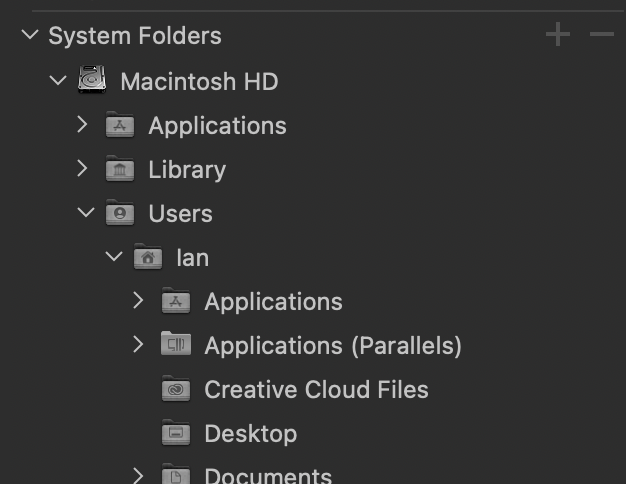
In a catalog, you don't because it only shows the folders you add to the catalog.

(In this case, I have added a lot of subfolders in my Pictures folder, and some in my Documents folder, but I haven't, for instance, added the Applications folder which as you can see was visible in System folders in a session.)
If I am right about what is going on, you may need to create a new session, or open one of the sessions you created with version 20 (and it will convert it for you). Or if you want to use a catalog you need to look at some of the tutorial videos available about the differences between catalogs and sessions.
Ian
0 -
It works! Thanks a lot for your help!
0 -

Only attempt this method if you are comfortable using Terminal and have used it before. This method will make the folder permanently visible, so if you’d prefer it was only temporary, there is another way - for those using Mac OS X (or macOS) Mavericks and later.
-2 -

US Postal Services have an online postalexperience survey for the clients in order to share their valuable response or feedback with the organization. Users can visit postalexperience.com/pos, where they can leave their response by answering some questions for the organization.
-2

Post is closed for comments.
Comments
4 comments