After upgrade to 14.1.0.74 can't process any images - SOLVED!!!!

ARGH!
This morning I upgraded to 14.1.074. and had all kinds of glitches after reboot. Like the GPO hardware support ran again and I kept getting weird situations where the filters were out of sync with reality. And I'd select a picture in the browser and it would not show up in the main viewer.
But eventually all that settled down.
But now I have 8 pictures selected for processing and the same four process recipes selected that I always do. When I hit the process button it chugs a long just like it always does.
But NOTHING gets written to the disk drive. I have triple checked the target location. Refreshed the windows folders etc etc. And I cannot find any exported files anywhere!
HELP! Any suggestions on what to check / do at this point would be very much appreciated!!!
Calvin
SOLVED: After much experimentation I finally figured it out.
If your subfolder had a leading \ character in it, it would work on the previous version but not the current version. All you have to do is remove the leading \
For example, a typical folder name for me is
\final\<<collection name>>\2500px
That worked in the previous version, but not the current version.
But all you have to do is remove the leading \ to make it
final\<<collection name>>\2500px
I wish I had known that before I deleted all my process recipes. But at least I have a way forward!!!!
-
I just tried to select my variants and export as a web contact sheet and that worked ok. But still cannot export using process recipes.
1 -
OK been doing some experimenting.
It seems that if the process recipe has a subfolder defined then nothing happens. Even if the folder already exists, nothing gets written to the hard drive.
Still experimenting. But afaik, if the subfolder field of the process recipe is empty, it works just fine.
AND EVERYSINGLE ONE OF MY PROCESS RECIPES USES THE SUBFOLDER FIELD. MY WORKFLOW IS SCREWED RIGHT NOW.
Calvin
1 -

Calvin, this kind of response is not much help, I know, but I'm not able to replicate your process recipe issue. Whether I have a subfolder defined in the Output Location tab, in the File tab of the process recipe itself, or both, process recipes function as expected and exported images show in their expected locations.
I wish you well in your search for answers.
0 -
Well Bill I am reporting my experience. I can make a screencast to demonstrate it if you don't believe me. I am trying to run experiments to isolate the problem as best I can and reporting my findings. What would you prefer I do?
1 -
Goodness no, Calvin!! I COMPLETELY believe you! I intended my post only to inform you that I can't replicate that specific behavior in CO 14.1. The fact that it's not happening for me in no way means that it's not happening for you. I apologize if that was the message my previous post conveyed.
I wish you success in tracking down the cause of your process recipe issue.
0 -

Same issue here Calvin! Drank the "update" Kool-Aid, and began the same trilogy of zero solutions that you listed. Look forward to the remedy CO! We missed a magazine $$cut off$$ this morning due to this issue! I've been a BIG CO supporter, need an immediate solution.
0 -

UPDATE: All my problems went away by turning off hardware acceleration.
-------------------------------------------------
I also have same problem export hangs. But i also have problem when looking at pictures in my old catalog. Previews are empty and when selected they dont show in middle. Some do after restart but is 100% zoomed in and you cant do nothing but try to shutdown program again.
I went back to earlier version but now i cant open my catalog anymore cause it was updated with 14.1....
0 -
Anyone receive a support response yet or have you uninstalled the CO product(s) you bought?
0 -
Huh I will try turning off hardware acceleration.
I opened an official issue request but have not heard anything back yet. Given the catalog has to be upgraded, I'm not sure it's possible to downgrade back to the earlier version
Calvin
0 -

A firewall can prevent images from being processed.
Capture One apparently uses a separate image process which relies on communication via the local IP address 127.0.0.1. If your firewall blocks the respective communication, no images will be processed.Check the default behaviour of your firewall; I had to instruct mine to allow C1 to use 127.0.0.1.
0 -
BTW, you cannot downgrade a catalogue, but you can return to the catalogue backup that was created when the catalogue was upgraded.
0 -
I do have a VPN running and I added Capture One to hte list of apps to bypass the vpn and added the 127.0.0.1 to the list of addresses to bypass the vpn. But I still have the problem.
Also I experimented with the "Sub Folder" field of the Output Location section and I have the same problem. If anything is in there, no pictures get written to the hard drive.
Both "Sub Folder" fields (in Output Location and the file tab of the Recipe) have to be blank for me to generate any pictures.
It's just curious to me that some people report no issues and others have it. So the firewall theory is a good one. Gonna rebot my computer just in case the firewall config needs it or something.
0 -
Added CO to the Firewall list, still zero image saves to any folder, file search also zero.
0 -
Just added (separately), the local IP suggested to the CO App via Advanced Security under Inbound Rules (CO is not found under Outbound Rules.).
Interestingly, now if I Search for the folder I've been saving my single test image to, the folder is found and I can now finally see each of my frustratingly saved samples (1,2,3....66....). From this I open to view, and then save it to a separate file (including all strange effects the viewer may interpret upon the image).
Now going to the folder as I would normally (including the adroit donkey circus above), the image is in the folder, could be sent, however, back to potential viewer channel misinterpretations, and specific skin tone concerns. Risk it? Not a chance.
Anyone sort this successfully yet?
0 -
For the record, I completely uninstalled my VPN and that has not helped. So unless there is some Windows 10 security firewall something interfering, I don't thin my issue is network related. But who knows?
The good news is that I've a couple of email exchanges from a CO tech guy who asked me to do a couple of things and send him my CO logs. So I think this issue as a bit of their attention at least.
Calvin
0 -
It's great they are communicating and have requested logs. Hopefully a solution can be made available soon and we can resume work in our usual ways and preferred editing software.
James-
0 -
SOLVED: After much experimentation I finally figured it out.
If your subfolder had a leading \ character in it, it would work on the previous version but not the current version. All you have to do is remove the leading \
For example, a typical sub folder name for me is
\final\<<collection name>>\2500px
That worked in the previous version, but not the current version.
But all you have to do is remove the leading \ to make it
final\<<collection name>>\2500px
I wish I had known that before I deleted all my process recipes. But at least I have a way forward!!!!
0 -

Calvin,
If you have had an earlier version of C1 installed complete with the recipes you have deleted in 14.1 , the chances are that they are still saved somewhere in the system. Unless you followed the complete "delete everything before updating" regime.
If you did that there is a greater chance that the legacy information may have been obliterated.
WIth Windows such things are usually found in the Appdata entries under the User account on the system.
C:\Users\<User Name>\AppData\Local\CaptureOne\Recipesxxx
where "xxx" will relate to a version and release number.
0 -
Thanks Calvin for all you effort on this, hopefully this will assist others, including CO's future upgrades.
Cheers,
James-
0 -
Hi Calvin,
Gave this a try, here is what we ended up with.
When we export the Variant (having added a subfolder), it saves only to the initial editing folder, not the designated folder within. For the sub folder reference, we are not able to remove the "\" in the Destination Subfolder details, it is auto included to the new subfolder destination.
If the solution lies with removing the "\" shown in the Sample Path, we'd like to learn how you were able to remove it, or otherwise create a path that will be accepted.
Cheers,
James-
0 -
James,
First of all, the support person I worked with strongly suggested that I delete my existing recipes and create new ones. So I did that. Also, I did a backup of my catalog. The reason I did that is that there is an "optimize catalog" step when you do a backup. So I figured that would make sure the deleted recipes really are deleted.
Here is a screen shot of one of my recipes:
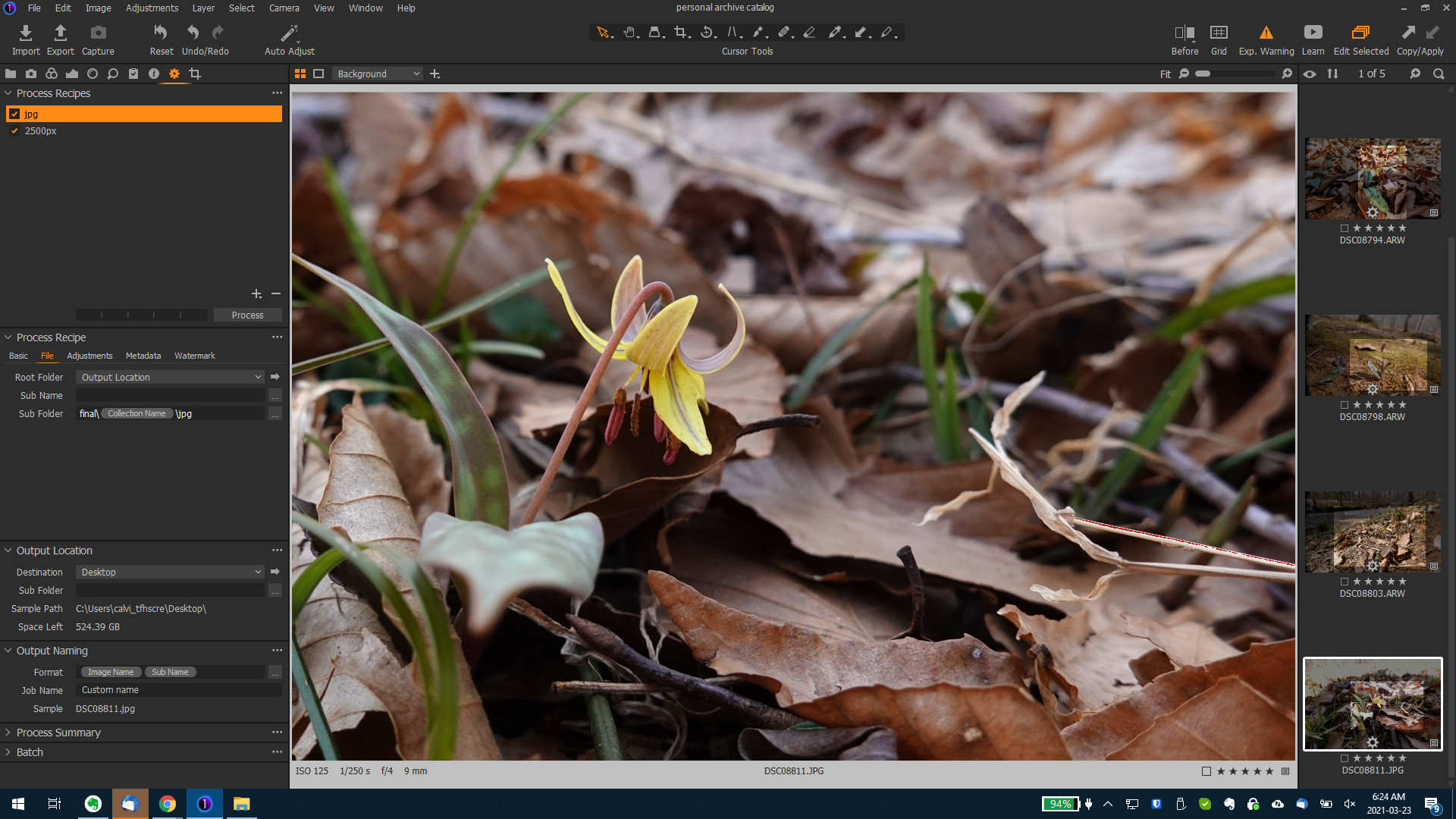
Hopefully you an open the image in a new tab of your browser to see it full size.
In the Output Location section you can see I have selected the Desktop folder. Note that the Sub Folder field in the Output Location section is blank.
I have selected the jpg process recipe and clicked on the File tab of the recipe. Note that the Root Folder is set to Output Location. This causes the processing to use the Output Location folder, which in this case is
C:\Users\calvi_tfhscre\Desktop
You can see that the Sub Folder field of the File tab of the recipe is set to
final\<<collection name>>\jpg
Collection name is a substitution token. This substitution token pulls in the name of the album or collection in the user collections that the input raw file is coming from. In my case, the input file is in a Capture One album called
20210306 yellow trout lily
To build the sub folder name I clicked the three dots at the right end of the sub folder field to open up the Naming Format dialog box. In the Format Filed I:
- typed: final\ (note be sure to use the backslash key, not the forward slash key)
- double clicked the Collection Name token to insert it after the backslash
- typed: \jpg (note I was very careful to not add a space at the end. Also. I did not add a backslash at the end
- Clicked the OK button.
Here's a screenshot:
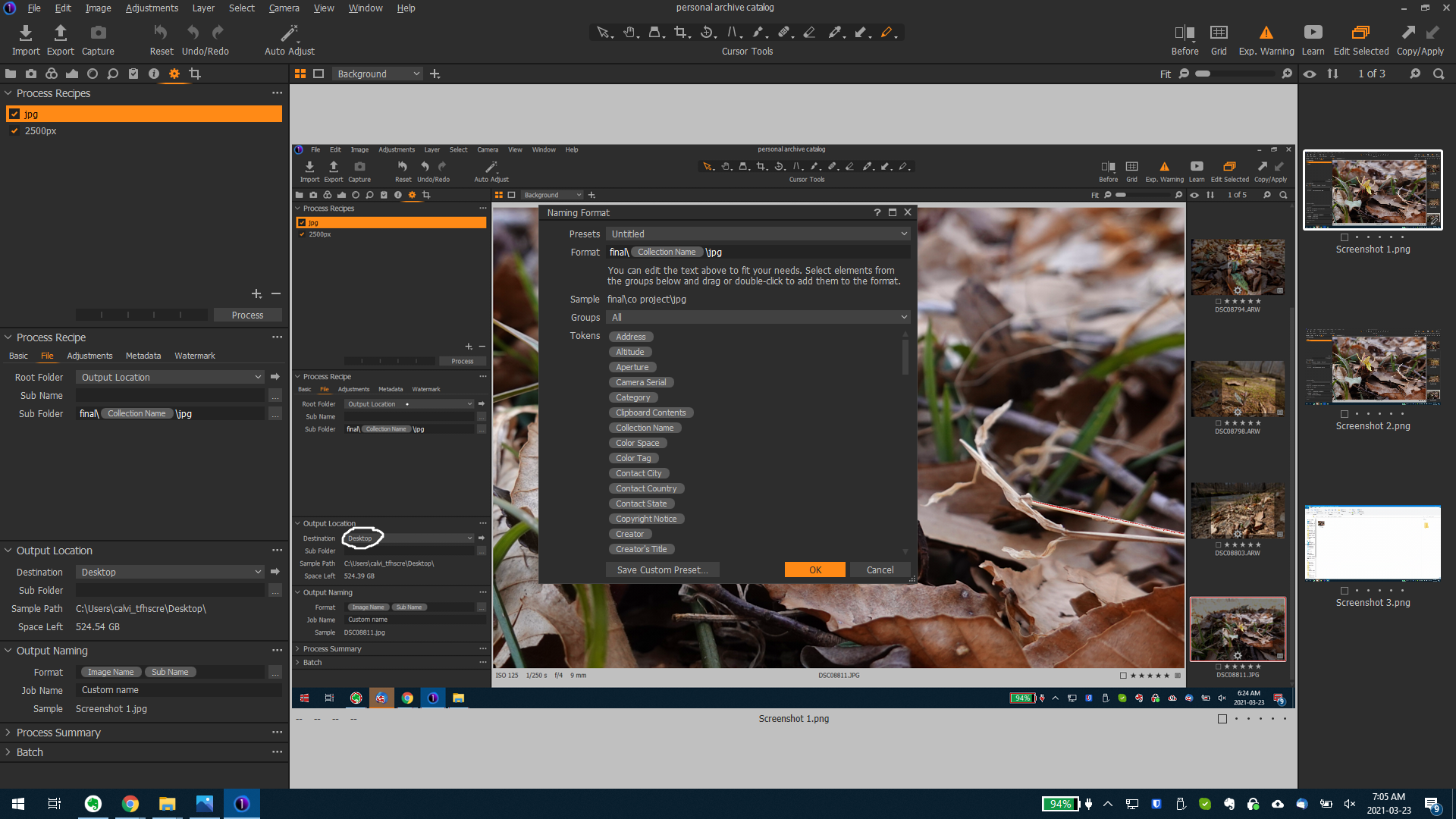
When I process this particular image, the resulting subfolder field will be
final\20210306 yellow trout lily\jpg
So when I click the Process button, Capture One combines the folder in the Output location and the folder in the sub folder field of the recipe to come up with
C:\Users\calvi_tfhscre\Desktop\final\20210306 yellow trout lily\jpg
And it writes the file to that folder:
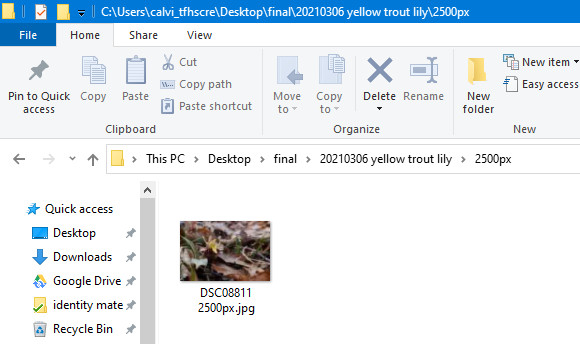
I hope that helps!
Calvin
0 -
Hi Calvin,
Great and sincere thanks for the time and details you have been willing to share for this extremely frustrating condition.
Just now have had the time to dive in on the solution path you kindly provided, and yes, this has resolved the condition. The image to file path is now indeed workable to the specific intended post edit (Variant) client sub file, however, we also now have both the image(s), and a new "Final" file within the "Final" file we had created as the destination file. We care that the image file is there, an empty file is of no consequence.
In regards to the Process adjustments, we hope that these will not need to be altered for each respective client job we have, and that saving an edited Variant(s) will be performed as before (RMC/Export/Variant/File Options), in saving an image file to a determined client specific File. Thoughts?
Again, big thanks Calvin for your charge on this, we are very grateful.
Cheers,
James-
0
Post is closed for comments.
Comments
22 comments