Customized workspace cannot be saved

Hey there,
maybe someone else has the problem, too.
I cannot save my customized workspace (fixed and scrollable area).
Even when I give it a new name, it falls always back to the customized version before.
Has someone an idea and ca help me?
Thanks for a reply and stay healthy
Oliver
-

I am having the same problem since updating to 14.1. Weird things happening when I try to customize the toolbar now too.
0 -

I had the same issue. I closed the session/catalog window so there are no photos visible. Then deleted all my old workspaces. Then started from the default and made the changes and saved the workspace under a new name that I had not used before,
I suggest making one small change first, saving it then exit the program and see if your changes are still visible before making significant changes.
0 -

LVS, thanks for the hint to delete old workspaces. After doing that, I can save a new workspace w/o it resetting the current tool menu (Q) back to the default.
0 -

I am having the exact same problem. It seems odd that you have to delete all existing workspaces in order to create a new one. I hope that the C1 developers are aware of this issue and will fix it soon.
0 -
I have no problem saving my workspace. I give it the name I always use and Capture One warns that a workspace with the same name exists and asks if I want to replace it.
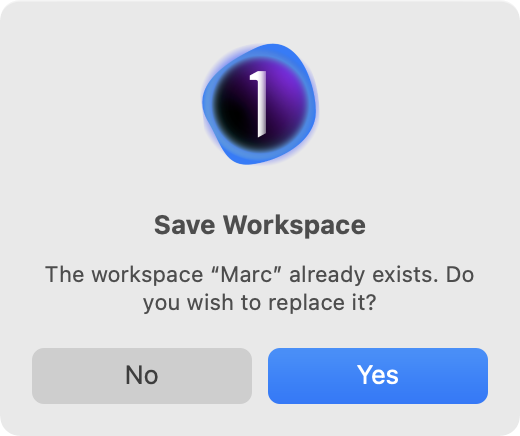
No drama.
0 -
@Marco Hyman
I have tried that numerous times, and the changes are not saved. Rather the software reverts to the previous workspace. I am on a Mac OS 11.8.
0 -
I am on a Mac OS 11.8.
I assume that is a typo. The latest macOS Big Sur release is 11.6.1. I'm currently on 12.0.1 although I didn't have any issues saving my workspace when I was using macOS 11. Hope you can figure out your issue.
0 -
@Robert
You should find saved workspaces at the location shown in this screenshot.
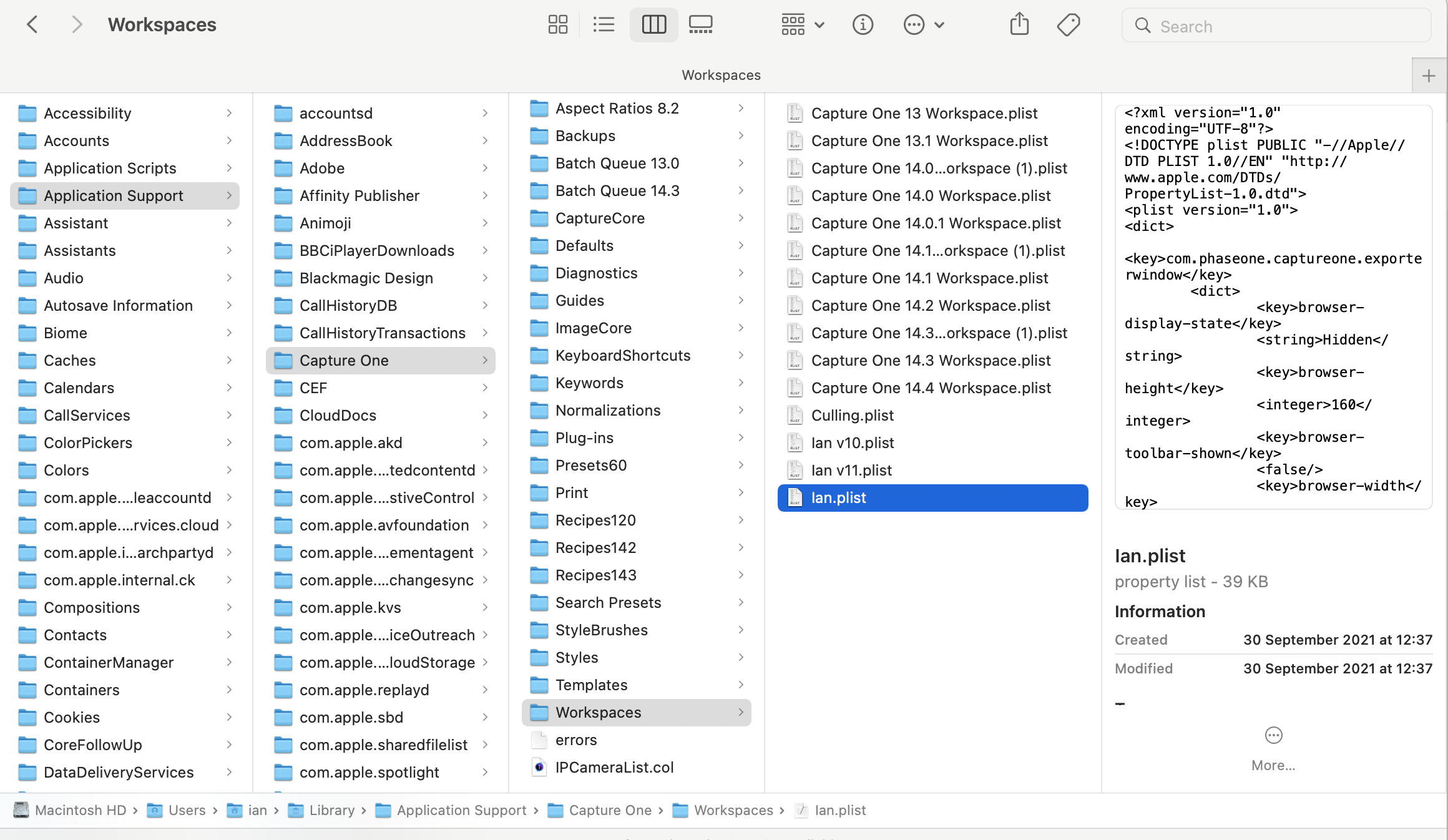
Note that the date on this file (Ian.plist) is 30 September 2021, the date it was saved. You could look in the equivalent location on your Mac and check the date of the file with the name of the workspace you are trying to save. Then in Capture One try saving the workspace again and see whether the date changes. If it doesn't, perhaps Capture One doesn't have the necessary permissions to save there.
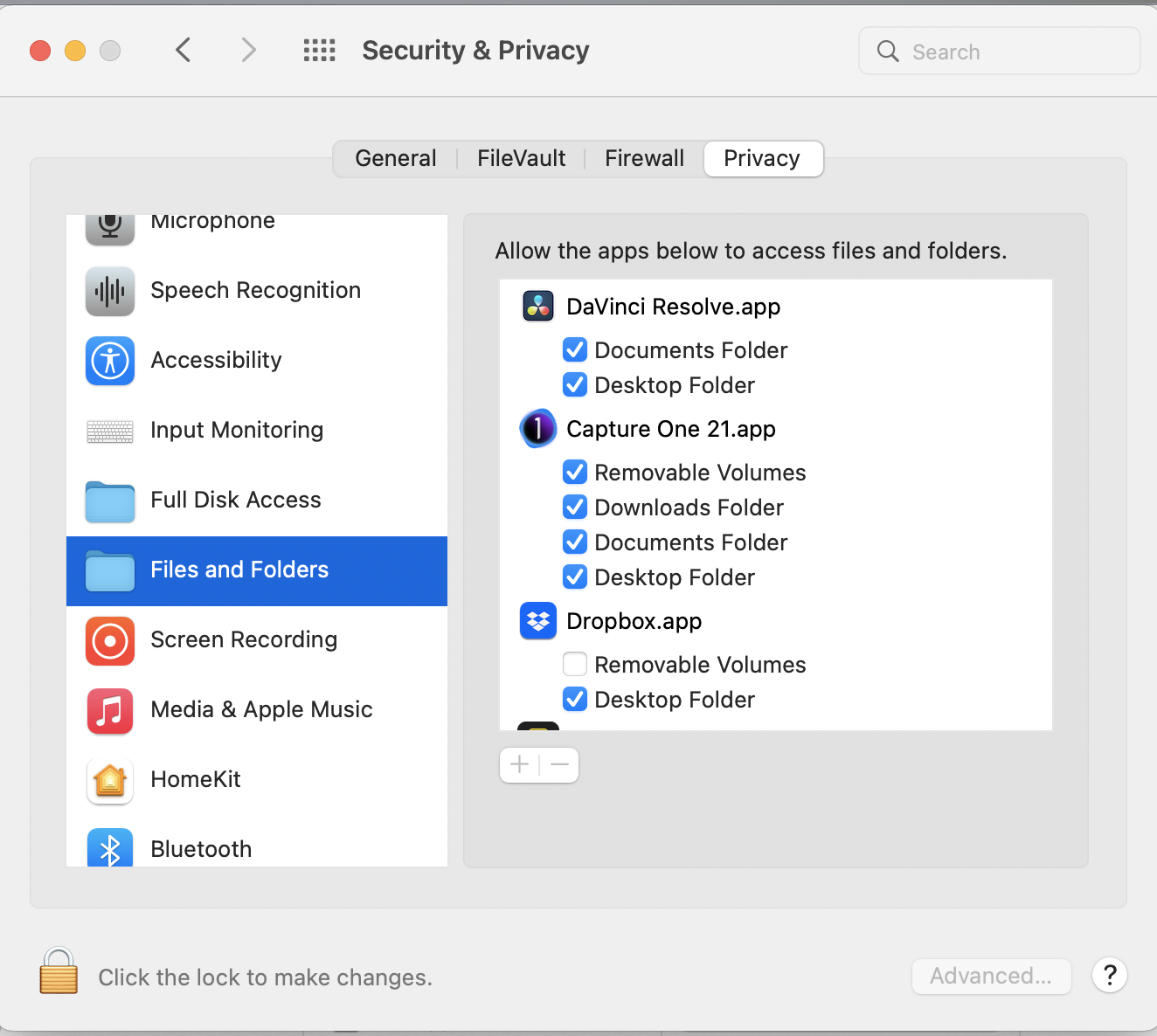
You can check on that in System Preferences, in the Files and Folders section of the Privacy tab.
Ian
0 -
@Marco Hyman
You're right, it is OS 11.6. My eyes were a little blurry last night.
0 -
@Ian Wilson
Thanks for the info. In the Security and Privacy section, I have access to all of the Capture One volumes and folders.
Regarding deleting existing workspaces via the Finder, somehow this does not seem right. I should be able to add workspaces that retain the changes that I have made inside C1 itself. I have accumulated a boatload of old workspaces that were saved trying to deal with this issue. Might there be a limit to how many C1 will accept?
0 -
I finally contacted Capture One's technical support people and got a prompt and helpful response from Daria that solved the problem. Here is her email:
Hi Robert,
Make sure to quit other apps running in background and disconnect any unnecessary hubs from your computer while performing the following tests.-
Make sure to Allow Capture One 21 (specifically 14.4.1) to have full access on macOS - after this, quit Capture One and restart your Mac afterwards.
Start out with the 'Default' workspace from the menu Window > Workspace > Default, and modify from this to create your customized workspace.
Saving a personal workspace
It is very important that you recreate from the Default workspace and not modify from a likely corrupted one created previously.
-
It’s worth testing out other sessions and catalogs to see if this issue replicates across different documents.
Sometimes issues can be session/catalog specific.
When launching Capture One, hold down the Option (Mac) or Alt (Win) key, after initializing the application. This will prompt a window to appear on the screen, whereby you can choose to create a new database (Catalog or Session).
Locate the new session/catalog with test images on your local hard disk.
Check if this solves the issue (Capture One is not launched)
If it does, please try to verify the catalog or session that caused the issue:
-
At last, creating a new macOS admin user is very close to installing a new, clean OS.
You can add and remove users in System Preferences – Users & Groups.
Run Capture One there and create a new document inside the user's Pictures folder, see how it goes.
- If it works on a new admin user account, there is a good chance you'll need to do a clean install on your primary user, as there might be an issue in the background How to uninstall Capture One?
In my case, I had to go through the second process of creating a new Session, in which I customized and saved a new workspace. After that, I verified and corrected all of my existing Sessions. I found two Sessions that were corrupted and repaired them. So at this moment, the problem seems to be solved. I hope that Daria's instructions will be helpful to others with the same problem.
0 -
Make sure to Allow Capture One 21 (specifically 14.4.1) to have full access on macOS - after this, quit Capture One and restart your Mac afterwards.

Post is closed for comments.
Comments
11 comments