Capture One 22 wish

Please add the ability to set points on per-channel curves, not just RGB and Luma.
And also the LAB Curves tool (A, B). And nothing else is needed, everything is already very good!
Thank you!
-

Sergej,
It is already possible to set multiple points on the individual colour curves.
Do you not see that option in your installation? If not, which version do you have?
I am not sure what you are referring to in connection with the Lab functionality.
0 -
Thank you very much for your response and interest in my proposal. Probably my English is not very good.
Now I can use the Pick RGB Curve Point tool and place points on the RGB curve, as well as the Pick Luma Curve Point tool and place points on the Luma curve.
But I would like to have a tool that allows you to put points on the channel curves separately R, G, B. For example, when adjusting the complexion, I track the color in the LAB color space, and I need to place points as accurately as possible on the individual, channel-by-channel R, G, B curves.
Yes, that's why my second request was, curves in the LAB color space. For example, as in the Iridient Developer program.
Yes, I have a version of Capture One 20, I didn't update at 21, I tried the trial version first.
Thank you!
0 -
Sergej,
OK, I understand now. You would like a Pick Point for the individual colour options of the curve tool.
I would guess there is a reason for that not being provided already but let's see what response your suggestion inspires.
0 -
SFA,
Yes exactly. The color is formed from different values of the R, G, B channels. And for example, when setting the points of black and white, it is more accurate and better to do this on each channel and bring it to one value. If you set them on an RGB curve or in the Levels tool, then the original color changes. If you set it on the Luma curve, then only the brightness component changes.
I see the solution to the creation of a new tool "Pick customized R-G-B Curve Point". Or when the curve tool is open, add a hotkey "Add Point" (so that the point would be on the curve that is currently active).
And further. It would be very nice if the numerical values of the selected curve point did not disappear when you remove the cursor from the curves tool window. And the ability to enter digital values of the input-output selected points of the curve from the keyboard.
Thank you!
0 -
So that would require some thought about how big the sample area needs to be to pick a spot related to a specific colour "range" that would truly reflect a single point on the curve?
I suspect that perpetually displaying the numerical values of a curve point is limited by the available visible space the tool occupies. A greatly expanded tool area might allow for a useful display of curve point values next to the point in question bit otherwise things could be become somewhat cluttered quite quickly.
Your specific needs seem to be far and away more detailed than anything I would be likely to use. However your point about per-channel settings chimes with me. It is something I almost invariably do (for images that matter) using the Levels tool in individual colour channel mode and Auto-adjusting to get to a better (in my opinion) starting point.
0 -
I meant this -
I selected a point on the curve, and I see its value -
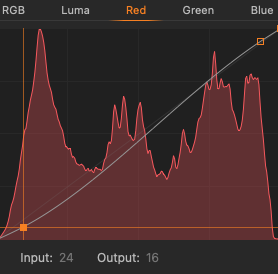
I moved the mouse cursor to another area of the curve, I get different values, although the point remains selected, which in my opinion is not correct -
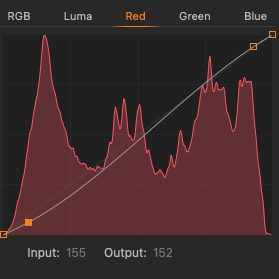
I brought the mouse cursor out of the curves window, the values disappeared altogether, which is also not very convenient ...
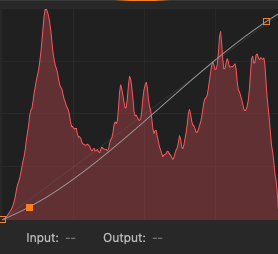 0
0 -
So that would require some thought about how big the sample area needs to be to pick a spot related to a specific colour "range" that would truly reflect a single point on the curve?
5x5 pixels.
0 -
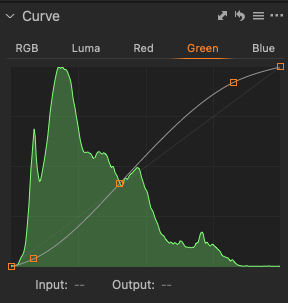
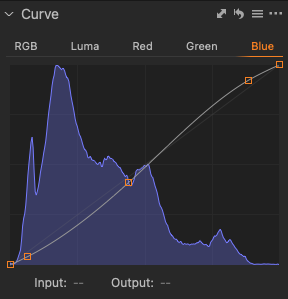
All this can be done now, but somewhat approximately, because I cannot automatically put a point on each individual curve.
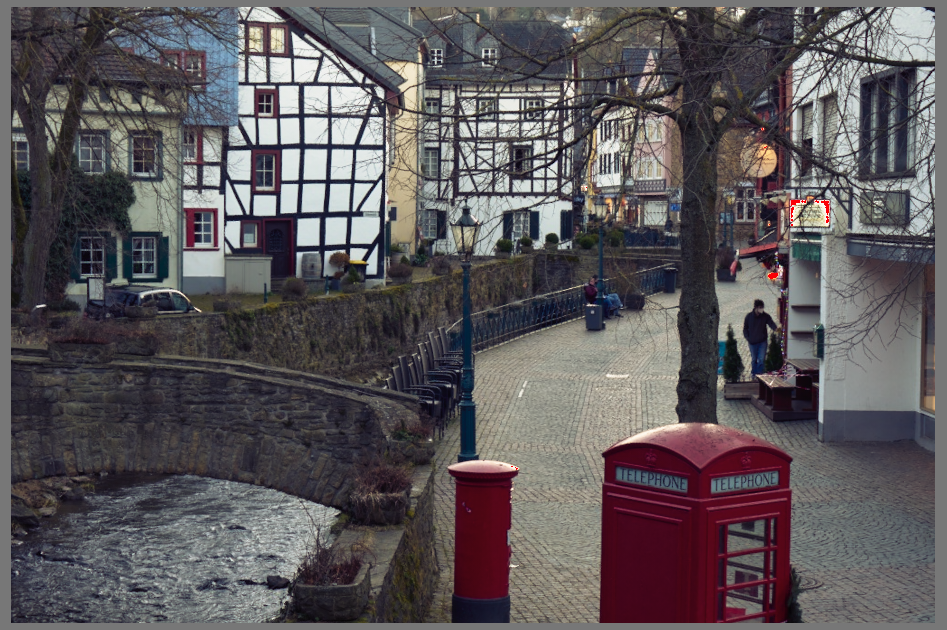
What I would like to get in the end. A simple example, three curves, with set points black-white-gray, whose output values are set to the same. The result is a full contrast image with the correct white balance.
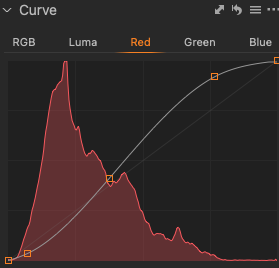
 1
1
Post is closed for comments.
Comments
8 comments