Missing metadata

Suddenly the only metadata showing on my image files in Finder are Tags, Created, Modified, and Last opened. Previously imported files contain full camera metadata when viewed in Finder.
I don't need to see everything in Finder, but I always use Content created when sequencing photos. I now have to go outside the Wordpress upload dialog to find that information.
This does not seem to correlate with installation of the latest CaptureOne update (14.3.0), although it's possible I waited a few days after downloading the update before installing it.
I'm pretty sure this is a CaptureOne issue, because when I view the files on the SD card the Content created field is there.
I'm using MacOS Mojave v.10.14.6.
-

It's not Capture One. For one thing Capture One never modifies an original file.
Open a finder window. Put the window in Column or Gallery mode. Right click on an image file and select Show Preview Options. Pick the metadata you'd like to see. My options look like this:
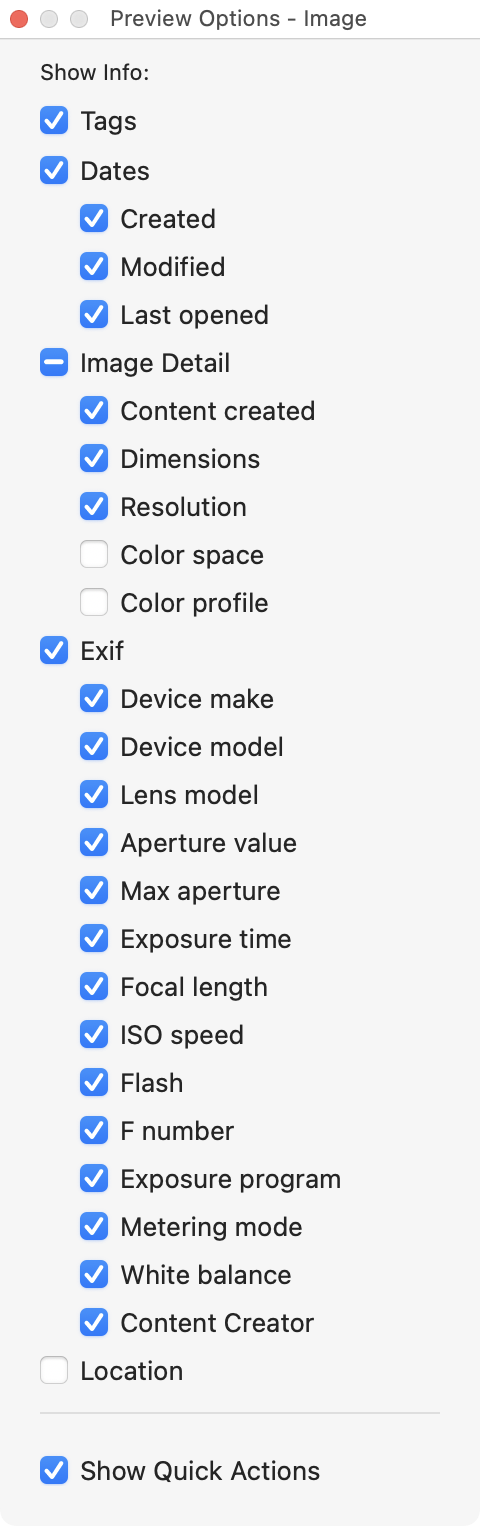
Content Created and the Exif options were off. That may be the default setting. I turned them on.
0 -
Thank you. Content created was unselected. But with the dialog open I can see that the field is blank.
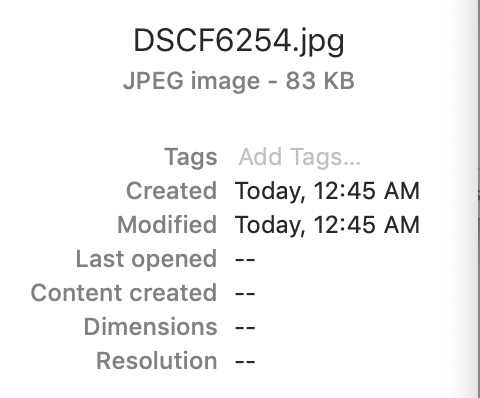
And other files show full EXIF data even though it is unselected in the dialog.
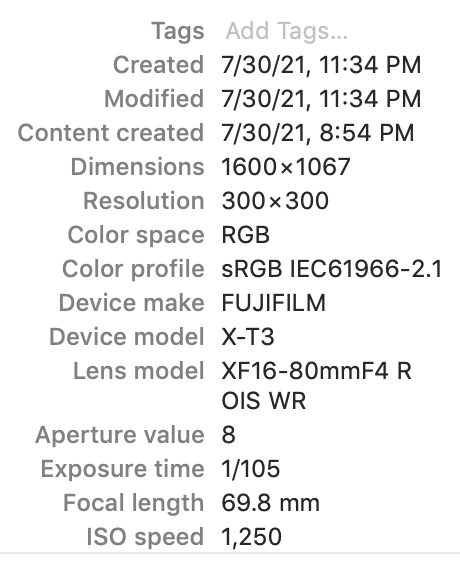
It goes away when the dialog is opened.
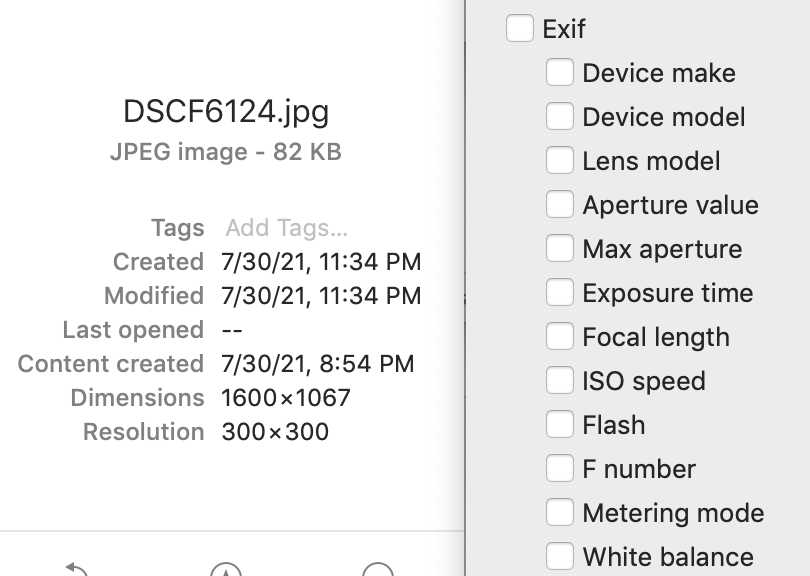
On newer files, when I select EXIF in the dialog all fields are blank. I have specifically enabled camera metadata in the CaptureOne Export dialog.
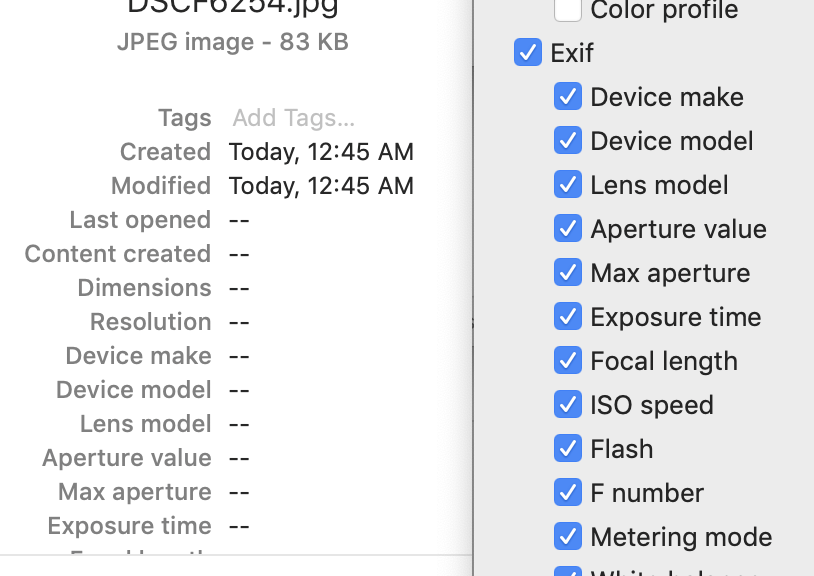
Fields are also blank on the original files imported with CaptureOne.
Like I said, if I open the files in Preview the EXIF data is there. Do I need to update my OS?
0 -
Do I need to update my OS?
Don't know. As for what metadata is shown... I see that even with the latest released version of macOS the displayed fields doesn't necessarily match the metadata fields I've selected. Perhaps that is a Finder bug.
0 -
Do your files all display the same metadata even after installing the latest CaptureOne update?
0 -
Well, Marco Hyman, I guess you were right. I installed a MacOS update, and the issue is resolved. Thank you for your replies.
0
Post is closed for comments.
Comments
5 comments