C1 21 Pro: Copy/paste specific keywords but not all of them?

Hi, all,
I am a long time Lightroom user (since the first beta). Unfortunately, I can not use it for my latest camera, because I stopped supporting Adobe since they've implemented the subscription model.
Currently, I am using the latest version of C1 21 Pro (14.3.0.260) on a MacPro with macOS Mojave 10.14.6.
I have bought CaptureONE some time ago, but I dreaded the steep learning curve, so I procrastinated with building and organizing a new C1 catalog (however, I used C1 to edit and export single photos).
Recently, I spent a ridiculous amount of time (time that I can hardly afford to waste) on watching training videos and building the catalog and the keyword library.
I stumbled upon one fundamental obstacle, which is: how to copy/pick certain keywords from one photo and paste them into another one? Is it even possible to do (I don't want to copy/paste all keywords, only those that I pick)?
Would anyone, please, tell me what is the proper procedure for that?
-

Rob,
If you always have a fixed set of IPTC data fields to fill for all (or most) imports you can create a "Style" for those entries (Useful for Copyright, etc.) and apply the Style during the import process. Once set it remains set in the import settings unless you change it - or change the definition of the "Style".
You also have other options for adding IPTC data fields to one or a selection of images.
Have the "Filters" tool open and be sure that you have the Metadata fields you need visible.
If the content you need already exists in an image somewhere in the current selections (watch out for filters you may have forgotten you have applied) you can simply drag the selection of images over to the already populated field value you need to apply in the filter window. This needs to be done field by field using this method but it does not take long if you are looking to label 1000 images with 2 or three fixed fields.
If you prefer (for example if several more fields are to be copied) just populate the fields in one image in the selected set using the Metadata tool, use the tool's copy (to clipboard) facility, untick the entries for fields that you do not want to include in the copy, and then apply the results to the existing selection of images.
Previous comments about having an awareness of the effect of the "Edit Selected" toggle (or whatever it may be called by the time people read this) are pertinent for the process's efficiency.
0 -

Rob, just because I'm comfortable using exiftool doesn't mean you should use it. There are plenty of other tools out there. Search for "mac exif modification" and look at all the the hits. Perhaps one of the other tools would be more to your liking.
My workflow when needing to modify metadata varies according to the situation. I may...
- (if lucky) modify the metadata within Capture One; or
- copy images to my hard disk. Modify metadata as needed. Import modified images into Capture One; or
- copy images to my hard disk. Import into Capture One. Sync metadata which creates an XMP file. Modify the XMP file as needed. Load metadata which re-reads the metadata and updates Capture One's database; or
- something else.
That third bullet is what I do when I import images into Capture One yesterday and realize I need to change something -- usually the timestamp because I forget to set the camera correctly -- today. It is not the best way to do things.
Metadata changes made inside of Capture One will only be seen in Capture One. Finder and other tools will not see the changes unless you sync metadata to create XMP files and the program you are using outside of Capture One pays attention to sidecar files.
Anyway, that's about all I can tell you without knowing the specific issue you are trying to resolve. Is it keywords? Description? Creator? All of those can be modified inside of Capture One. Not quickly, which I suspect it the crux of your problem. I assign keywords after import. Sometimes I do it image by image, sometimes I select a bunch of images. Depends upon the keyword. I assign Description image by image. It isn't fast, but it gets the job done. I assign Creator, copyright, and related fields using a preset that is automatically applied at import. Do you need to know how to create a metadata preset?
0 -
Hi, SFA, Marco,
you can create a "Style" for those entries (Useful for Copyright, etc.) and apply the Style during the import process.
Yes, I am already using such preset. But the preset only allows me to pick/set IPTC items. My problem, though, is that the import process picks up the EXIF metadata I have set erroneously in my camera some time ago. That data is being transmitted to the C1 catalog. Seemingly, there is no way to change it within C1, if I understand it correctly. BTW, after I deleted that bad metadata from my camera, my import preset works fine. But I still have several thousand old photos with EXIF that needs modification. That's why I am looking for an external tool (Exiftool, other?) to modify that bad EXIF metadata.
use the tool's copy (to clipboard) facility, untick the entries for fields that you do not want to include in the copy, and then apply the results to the existing selection of images.
This method does not work for me at all. For example, I copy keywords from one image, then I select another image and attempt to apply that metadata from clipboard. Nothing happens. Obviously, there must be some additional trick I am not aware of.
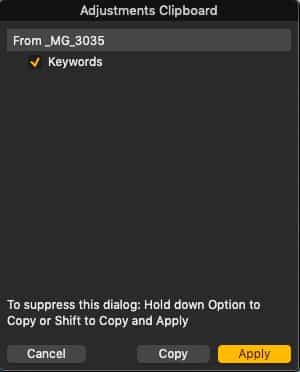
Just to let you know, the 'Edit Selected' setting is always on in my catalog:
 0
0 -
I see. You've got older images that have already been imported into Capture One that contains metadata that you don't want. OK.
Select the images in Capture One. From the menu use Image -> Sync Metadata. That will create XMP files for each image. Quit Capture One.
Use some tool -- you're going to have to do the work to find a tool you understand and are happy using -- to modify the XMP files and remove the metadata you don't want. At worst you'll have to do this image-by-image. At best you'll be able to make the modifications folder-by-folder.
Re-launch Capture One. Select the images again. This time use Image -> Load Metadata. You want the newly loaded metadata to Capture One's view. You also want the preference to prefer XMP metadata over original image metadata.
Your homework is to find a metadata adjustment tool you can live with and feel comfortable using.
0 -
This method does not work for me at all. For example, I copy keywords from one image, then I select another image and attempt to apply that metadata from clipboard. Nothing happens. Obviously, there must be some additional trick I am not aware of.
Heh... this is a Capture One quirk. Apply means sync, not paste. See this video for some tips on how it works: https://www.youtube.com/watch?v=sBjkyBoYcik
0 -
Hi, Marco and others,
OK, I found a simpler EXIF editing tool on the AppStore. It's called 'Photos Exif Editor', from an Indian developer. It can not edit XMP files (contrary to the description on AppStore), although I can use it to edit EXIF metadata embedded in an image (I wonder about the security of this approach).
This is frustrating, because it means that now I have to start the entire process of importing images to the catalog all over, yet again. But at least, I got a workable solution. Apparently, the Exiftool is the only one that can handle XMP, but it is above my pay rate.
So, now I am going to learn how to apply metadata from one image to another – using the link you've supplied.
I am making a very slow progress so far, but at least some progress. Without all the hints and instructions you all gave me, I would be stuck. Thank you. I'll be back in a new thread – unless you have some further comments?
0 -
It can not edit XMP files (contrary to the description on AppStore), although I can use it to edit EXIF metadata embedded in an image (I wonder about the security).
Are you sure? What I mean, is, you may need to open foo.jpg but if there is also a foo.xmp will the program update the jpg or the xmp? Some programs (well, one I know of for GPS tagging) will update an xmp if one exists.
Make a change to a test image with a sidecar file and see which one is actually updated.
0 -
I tried to open XMP files, but I got an error message saying that the file is either damaged or unsupported. Those XMP files were freshly made in C1.
0 -
Yup. Understood. But if you open the image file, make a chance, and save the changes which file is actually updated, the image file or the sidecar file for the image. Some programs will update the sidecar file if it exists even though you open the image file. I don't know if 'Photos Exif Editor' does that. Maybe.
0 -
I'll do a test tomorrow and will let you know...
0 -
Hi Rob D,
you put lots of effort into your metadata, wow! After some tools others were mentioning, I'd like to throw in Graphic Converter, which allows to edit all editable EXIF values a photo can bring with. In theory at least. I'm far too dumb to know all about EXIF and some of these metadata are very much depending on camera or lens manufacturers. I hardly use XMP as external files, to me it clutters my folders and appears to make things more complicated.
I use GC to rename (there's more convenience, intelligence and also settings to save for your next renaming process than the makers of C1 put into their wobbly working "rename" command). You can set various dates, you can batch process the way you like, whatever, it really is kind of a Swiss Army Knife for digital pictures. During the past 16 years I saw a couple of apps come, fail and go (or being abandoned by it's makers), but GC ist still working, I still can use batch procedures I put together more than 10 years ago.
It also supports a rather wide variety of exotic file formats and for that you pay a rather low price, but you can test it extensively before your purchase. I'm not connected to Lemkesoft, but I really do like a good, reliable and sustainable product.
0 -
Rob,
"
use the tool's copy (to clipboard) facility, untick the entries for fields that you do not want to include in the copy, and then apply the results to the existing selection of images.
This method does not work for me at all. For example, I copy keywords from one image, then I select another image and attempt to apply that metadata from the clipboard. Nothing happens. Obviously, there must be some additional trick I am not aware of."
It should work for Metadata as available in the Metadata tool - which is where some parts of the discussion started.
Original file (out of camera) data is considered sacrosanct in the C1 world so if you want to make changes to that you would need to resort to an outside tool as is already being extensively discussed.
Keywords and their potential for complexity, are an entirely separate subject - mostly.
If they are embedded in the original file they will always be rediscovered and using an external application to remove them will likely be necessary.
As for copying from one image to another - copy really only works if the whole set of keywords applies to all images selected. If that is not the case I think you would need to select the KWs in one of the other ways possible in C1. However, there are many different use cases to consider when one engages a community of photographers and I very much doubt that anyone could design a flexible rule set that most would find practical to use. More likely the complexity would simply attract criticism for being impossible to fully understand.
On the other hand and specifically related to Keywords, if you wish to describe your usual requirements I'm sure the esteemed and knowledgeable collective responding to this thread would be able to offer up a number of ideas for you to consider. Probably quite a large number of ideas.
0 -
Hey, Joachim,
you put lots of effort into your metadata, wow!
Yeah, I have no problems with C1 as an image editor. It works for me better than Lightroom. But cataloguing—and especially metadata—oh, dear, this is quite a different story. It is convoluted, unintuitive and in some aspects it just doesn't work for me. That's why I need all the help I can get.
Herr Lemke's Graphic Converter is something I have used way back, with classic Mac OS (before OS X), I think. But I used it only for converting file formats and only for a short period of time. Afterwards, I have bought one or two new versions – only to support the developer, because I had no need for the app.
I had no idea that it was capable of editing EXIF metadata. Thanks for letting me know. I will have to revisit GC.
0 -
Hey, SFA,
specifically related to Keywords, if you wish to describe your usual requirements I'm sure the esteemed and knowledgeable collective responding to this thread would be able to offer up a number of ideas for you to consider.
I have compiled a nice keyword library and it works nicely for me. The only problem I have, as I stated before, is transferring specific keywords from one image to another. I just need to watch again the video that Marco gave me the link to, to get a better grip on the issue.
0 -
I can confirm that Graphic Converter can edit EXIF and IPTC data (among other things, of course). One can choose writing data to image, to XMP file or both. I was able to determine that using the free demo version of the app.
Purchasing decision was a no-brainer. I trust Herr Lemke and I do not have any security fears – unlike in the case of an app I purchased yesterday from AppStore (from an Indian developer). In case you wonder – I am not a racist. 😝
0 -
Hello, guys,
I just wanted to let you all know that this lengthy topic is now coming to its conclusion. Thanks to all of you, I learned some valuable things going along.
Now that I understand that the metadata I was trying to modify was "inherited" from my camera, and after the hints I received here, I know I need to use an external tool to change that metadata.
@Marco Hyman recommended the Exiftool, but I am not comfortable using Terminal.
@Joachim Jundt suggested the venerable Graphic Converter. So I did some experimenting with GC.Although—at first—GC did not answer my needs in a straightforward way, I got in touch with Lemke Software and Thorsten responded with modifying his app specifically to my needs. Isn't that amazing?
Now, my metadata changing workflow is much simpler (and it may become even simpler, thanks to Thorsten).
Anyway, for all of you, guys, who will find yourself in a situation similar to mine (need for changing metadata that was set by the camera), I can recommend Graphic Converter without hesitation. Link to that software has been provided by Joachim – a few posts above this one (thanks, Joachim).
0 -
Hello Rob D,
thanks a lot for your feedback. Now you mention it I recall Thorsten Lemke also modified some bits of it's fabulous "rename"-module of the app after I explained what I missed and why. Or were it the scripts? Possibly both.
But the main reason I purchased another private license (instead of a cheaper "family"-license) was: I compared the troubles I had with his app to the ones I currently have with C1 and I concluded, GC is more value for me and I should support a small company, especially because they appear to have no intentions to increase income by milking the Windows cow as well. So, I will continue to see the colour labels in GC and in Finder.
He seemed quite happy with my short mail just saying "Thank you for your work" :) I also would like to write such a mail to C1. But they don't let me, I simply don't like to lie about the quality of their product.
It has been a while since I used GC more than just occasionally, but in this process of "digitizing old negatives with a Z 7 instead of a scanner" I appreciated the renaming functions in GC, which became improved again and which are definitely more reliable than C1's. As well as the improved GPS functions, putting the GPS coordinates into Z 7's RAWs as if the old Mamiya would have had a GPS receiver.
0
Post is closed for comments.
Comments
47 comments