Tom

-
Are you working in catalogue or session mode ?
To answer your question : yes, you can move your images to the external drive and open the new version 21. C1 will ask you if you want to update your catalogue (session) to v21. Be aware that, once you have done it, it won't be possible to read the new catalogue (session) with v20. Then you must tell C1 where is the new location of your images (Locate...).
0 -
Thank you…I am working in catalog mode…how do I identify the files to move to the version 20 the external drive for version 21?
0 -
Sorry I meant how do I identify the files from version 20 to move to the external hard drive for use with version 21?
0 -
I think the best solution would be to store your RAW image files on the external disk, and to keep your catalogue on your computer main drive. In that case, you just have to copy your catalogue from your old computer to the new one. You should also copy all the files stored in (hidden) Library/Application Support/Capture One, as they are related with your recipes, workspaces, etc....
0 -
Thanks but how would I do that…where is the catalog located and where are the raw files located?
0 -
The catalog is located where you put it when you created it. Don't remember? Then check your Pictures folder. That is a common place to store a catalog. Capture One catalogs end in .cocatalog. It is what apple calls a "bundle" meaning it's not really a file, but a folder full of files that macOS treats like a single file.
Anyway, search for your .cocatalog files. When you find them copy them to wherever you want them to be. As Robert Farhi suggested, keeping the .cocatalog file on your internal hard disk makes for best performance. Your images can live elsewhere. Mine live on an external SSD drive.
0 -
Second part of your question: where are the raw files located. The answer, again, is where you put them. When you import your raw files do you copy them somewhere? To you add the raw file to the catalog? Only you have the answer to those questions. Capture One can help you remember. Right click on an image in the Capture One browser. Select "Show in Finder". A finder window will open showing the location of that specific image. That may help you remember where you put them.
I'll guess that your images are inside the catalog. If so when you move the catalog you'll also move your images.
0 -
I am absolutely frustrated with this program and C1 is of no help. I posted my issues and was grateful for the responses but I just don’t get it. I would be happy to pay someone to help me resolve my catalog issue offline. Can’t even figure out if I have managed or references files. Would appreciate any help…
0 -
Can’t even figure out if I have managed or references files. Would appreciate any help…
Click on the Library tab. Look under the "Folders" section...
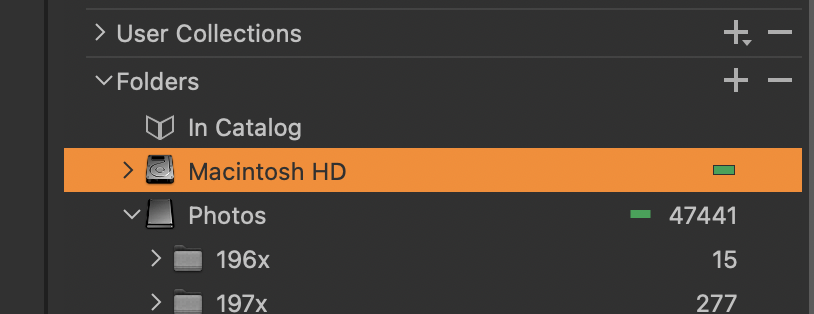
Notice where it says "In Catalog". Notice there is no number on the right hand side. This tells me I have NO managed files. The "Photos" drive contains 47441 referenced files. It actually contains more files than that, but not all of them are in Capture One. The green mark says the drive is connected.
What does yours look like?
0 -
Mine looks nothing like yours.
Tried to attach photo but not sure how.
Lines are as follows:
Catalog collections
>All images 14,058
> Recent imports
>> Then lists dates, time photo count
> Folders
>> In catalog 14,058No listing of hard disk…
0 -
Question…wouldn’t the fact that my catalog file is 661 GB suggest I have a managed files?
0 -
You have 14,058 images inside of your catalog. "In catalog" means "managed by Capture One". If that is not what you want you can move them elsewhere. Do you need help learning how to do that?
0 -
Thanks. Is that an okay strategy? One of my issues is since moving file to an external hard drive they are now listed as offline. Once I fix that I have one other issue to deal with.
0 -
Now I don't understand. Capture One says you have 14,058 images AND 14,058 images are inside your catalog, i.e. managed by Capture One. I don't know how they can be both in your catalog and offline.
Where do you see indication of an image being offline? Pictures may help. To include a picture take a screenshot (cmd-shift-4 and drag a box around the part of the screen you want to capture) then drag the resulting image screenshot into the box where you compose your message or click on the image icon and follow the instructions.
0 -
Thank you for your help. I should explain more. I am dealing with issues on two computers.
The first is the Mac mini I want to replace. That one runs C1 20 with an internal hard drive that has 14,058 images. That is the computer info I gave you. That catalog has proxy and database errors. Although I am able to move through the program but any attempts to move the carols log fail:
Now the new Mac mini. I installed C1 21 and working backwards I restored catalogs one by one from my time machine backups to find one that would download without failing. So I did recover a catalog from April. It is those files from that backup that show offline. I was only able to recover about 13k of my 14k images.
I have been at this all night running verify and repair with no success. I was able to export the list original images but the variant versions failed. Not sure if this will help me restore to the new computer.
So my collective issues are:
Fix offline status on new computer with C1 21.
Figure out the best strategy to restore the approximate 800 files.
To complicate this the old Mac mini is giving me problems. Through all of this capture one stuff the computer locked up and I could not get it to boot. Was on with apple support for a few hours Friday. No success. The went to apple store that evening and the technician got it to start but it will not shut down…I have to power it down. So I feel like I am on borrowed time.
So that is my situation…I will send screen shot of both computers…
0 -
OK. Multiple issues. Let's concentrate on one issue at a time starting with the old computer.
Although I am able to move through the program but any attempts to move the carols log fail:
I assume "carols log" is a typo for catalog. Given that assumption how are you attempting to do the move? Are you dragging the .cocatalog file from its current location to the external disk in Finder or doing something else? When it fails what is the failure message?
0 -
Yes meant catalog. Attempted to drag and drop from internal to external drive. Failed. Ultimately restored a two month old back up from time machine with no failure. The connected external drive to the new computer and opened catalog. Opened converting from v 20 to v 21. Works fine but images listed as offline. That is problem #1.
0 -
Failed how? What what was the error message?
If you restore from a 2 month old backup then everything done in the last 2 months is lost. Either accept that or try to figure out a way to make it better. There are things I'd try if not willing to lose two months worth of images. Might be a waste of time... but I'd still try. Only if that fails would I move on to the "off line" images problem.
0 -
Program still pulls up all images under v 20 although when I try to move the catalog it fails. I exported the original raw files to a OS folder. Am I able to import them into v21 on my other computer?
0 -
I am thankful for the help from the forum but I continue to struggle to find a solution with my problem. Extremely disappointed with capture one support they just refer articles and links to stuff I already read.
At this point I am trying to salvage my images in some form for fear of losing everything.
My question is how do I get my images out of capture one, even if it means I convert to jpg’s. I just want them out with no connection to capture one. Can I retain file names, date and other metadata?please advise it I can do this and if so how?
Also still not sure if I have a managed or referenced catalog. I think that should be easy to determine and have no recollection of making that choice.
Thanks
0 -
My question is how do I get my images out of capture one,
That's what the Export function is for. Want your originals? Select images. From the menu:
File -> Export -> Export Original Files...
Pick a location. Wait.
0
Post is closed for comments.
Comments
21 comments