Processing

Wow so I paid £200 to upgrade my Capture One software and there is no processing /recipe button anymore so I have googled to try to find where it is and have to scroll through a fuzzy Youtube video to find the answer...
Intuitive?
Waste of time? Definitely
-
Permanently deleted user
Wow! So you didn't test the software first, or spend even a little bit of time reading up on version 22's features? (This forum is FULL of posts about the new processing approach.)
Zero sympathy. You screwed up, so take responsibility for your decisions.
0 -
No Keith I'm a busy working professional who's used Capture One for years and don't have time to sift through forum posts or watch Youtube videos on how use the most basic of functions.
FYI I was taking advantage of an expiring upgrade off from Capture One and after using the software for years its exasperating to have to spend time researching find how to press 'process' on your images.But thanks for your two pence worth anyway Keith, enjoy spending your day posting on forums sad sack.
0 -

Paul,
Just in case these useful lines from the releases notes have not come to your attention I thought it worth posting them here. Perhaps now as much for others who may follow and wish to pile in on thise thread that for your own use.
Over several years of using C1 I have almost always found the Release Notes concise and useful. Well worth a couple of minutes reading time.
======================================================================
Improvements and changes
Additional Exporter Options
All tools from the Exporter are now available in the main window of Capture One. They can be added as a premade Export Tool Tab by right-clicking the Tool Tab bar and selecting Add Tool Tab > Export.
The Export Tool Tab is not default and must be added manually.
All Export tools can also be individually added to any Tool Tab or dragged out as floating tools, allowing a fully flexible workspace. The available Export tools are the following:
-
Export Adjustments
-
Export Cross Recipe Tokens (new)
-
Export Format & Size
-
Export Location
-
Export Metadata
-
Export Naming
-
Export Queue (reintroduced)
-
Export Recipes
-
Export Summary
-
Export Watermark
Cross Recipe Tokens
Two Tokens have been added, allowing cross-recipe input. For either of the tokens to work, they need to be filled out in their individual sections in the panel of the Cross Recipe Tokens tool. When added here the tokens can be used in the relevant tool panels: 'Export Naming' or 'Export Location'.
- Subfolder Token allows text or token input. This token can be used in Export Location and enables a shared subfolder between recipes.
-
Job Name Token allows text or token input. This token can be used in Export Naming and enables a shared naming section between recipes.
For a quick connection to the full Release Notes click the link.
0 -
-
Thank you SFA,
I can't see anything that would replicate the previous 'Cog' type button to customise onto the toolbar to simply press to process an image. Am I missing an option for this?
I see you can shortcut to Command D to process which I will do from now on.
The basic recipe I use to process TIFF files and automatically open in Adobe Photoshop 2021 does not save that option. Every time I process I have re-select the option 'Open With' and select Photoshop - how can you save this recipe option?
0 -
The 'Cog' has been replaced by the 'Export Tray' in the toolbar. I do not believe that it is there, by default but you can add it. It is also in the upper left-hand corner, right next to the Import Tray.
0 -
Paul,
The original change that combined the Export and Output Process functions was predicated on the idea that dedicated Recipes with generally consistent output needs (although made "variable" by use of tokens in destination and naming options) would be best provided by persuading people to have a recipe for each output type to save the hassle of having to (accurately) edit certain fields every time one exported or output processed something.
Most people probably have no more than 6 or so core recipe needs that satisfy 95% of their exports or outputs PROVIDED they have the token based destinations and naming to work with.
So based on that in terms of your TIFF to PS requirement one would create a "Tiff for Photoshop" recipe (or maybe more than one if you worked at different resolutions or other settings for specific needs) and then set up the recipe and specify Photoshop as the "Open With" option. Save the recipe and it should stick with Photoshop as the default "Open With" entry.
Now you could just re-save your existing recipe with Photoshop in the Open With the field so long as that recipe was one you ONLY USE for that need. It sounds like it is from what you wrote. But just in case you also use it for other "open with" apps as well, or for output that is not an "Open With" requirement, you might want to consider whether duplicating and slightly modifying the recipe and then saving named for each individual output requirement might be a better option.
For many it may be better, for some it maybe won't be better and others may have such a mixed requirement that only at the time of output can anything workable be set up.
But my intuition when I first saw the change was that it really should be a very useful option so long as people were prepared to take it on as intended. AND so long as a couple of variable fields from the previous Output Process functionality that had been eliminated were reinstated. Fortunately they have been and in an even more flexible way than previously.
I can understand that some of the 14.3 functionality loss was a huge disappointment to some users with long established workflows that also involved their clients but I do wonder whether they might now find that workflows may be open to improvement for the benefit of all.
That may be a somewhat contentious observation so I'll leave it at that!
0 -
Thanks Michael that seems a handy get around for the time being - I'll check it out
0 -
What does your Plugins preferences say? If the apps aren't checked off in preferences they won't show up in the menu. Example:
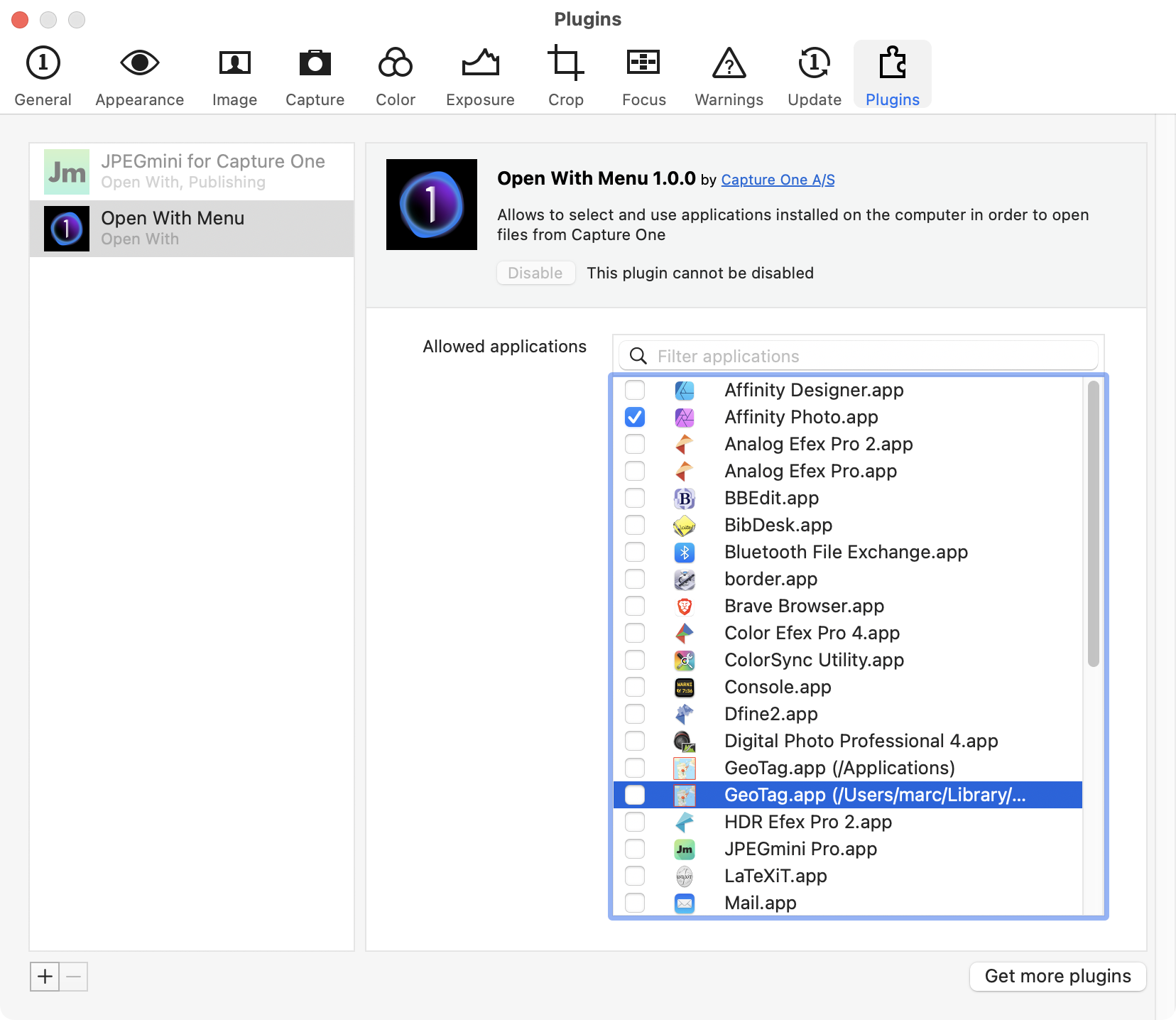
Lots of available apps that I don't want cluttering my open with/edit with menu.
0 -
Ahhh, got it. I see the same thing when using the jpegmini plug-in. Sometime it is not remembered. I've assumed that is due to me sometimes disabling the plugin because of crashes in COPluginHost, an ongoing issue going back to version 12, I believe.
0
Post is closed for comments.
Comments
9 comments