Update with macOS 12.0.1

Hello, I update my MacBook Pro with the OS12.0.1 and plugins don't work anymore. All the plugins disappear and I can't activate them.
Any solution
Best Regards
Claude
-

? What plugins? I am running 12.1 without issues. Can you provide some more details?
1 -
I am running on12.0.1 and yesterday with the previous version, I could "open with", "edit with" with macOS12.0.
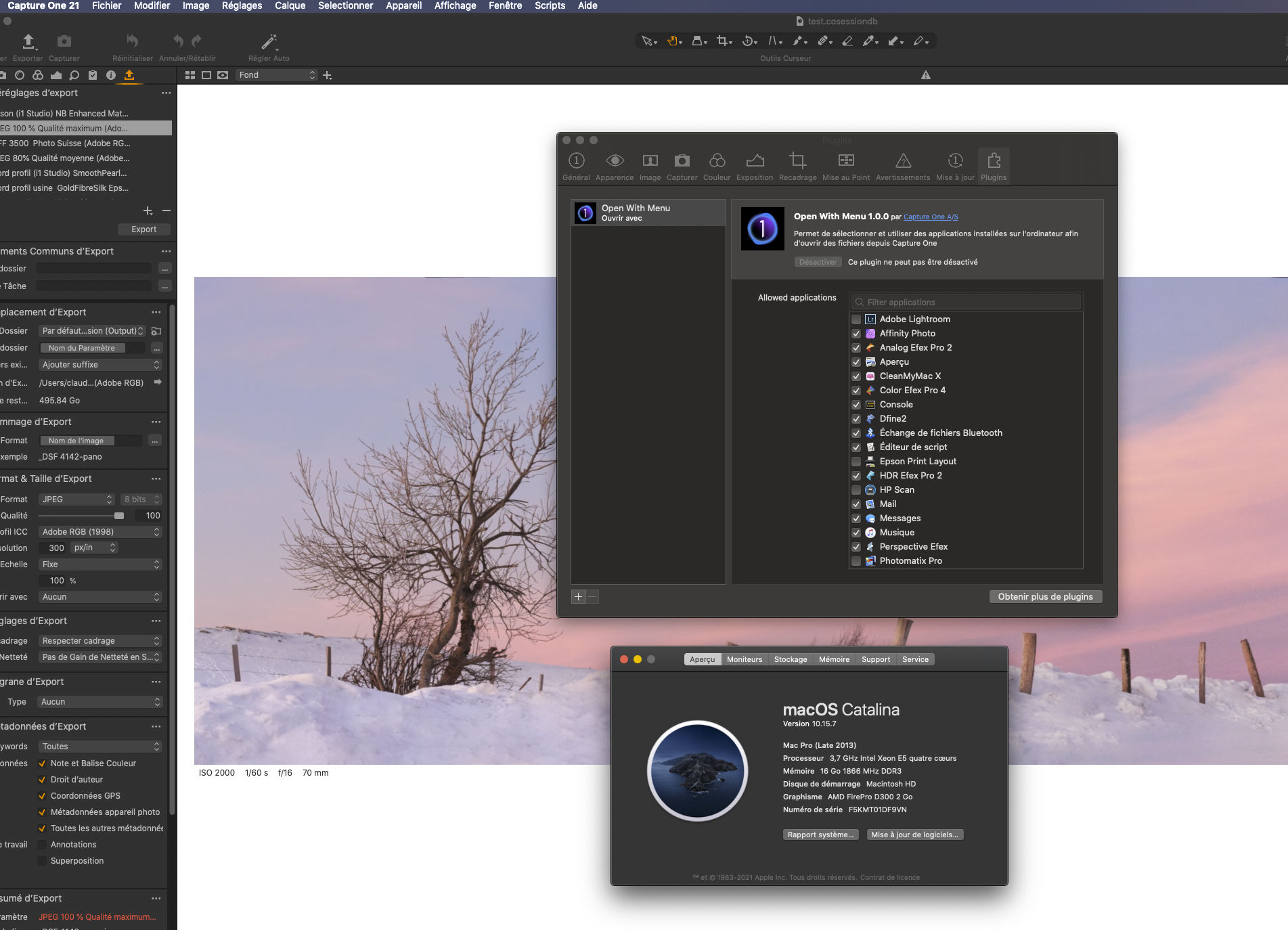
Normally in the window plugins, you can select the applications you would work with, but if you look at my first sender file, In can't select nothing.
 0
0 -
This file is from my Mac Pro 2013 and you can see the applications from the window plugins of C1 14.4.1.
This MacPro is running on macOS Catalina
 0
0 -
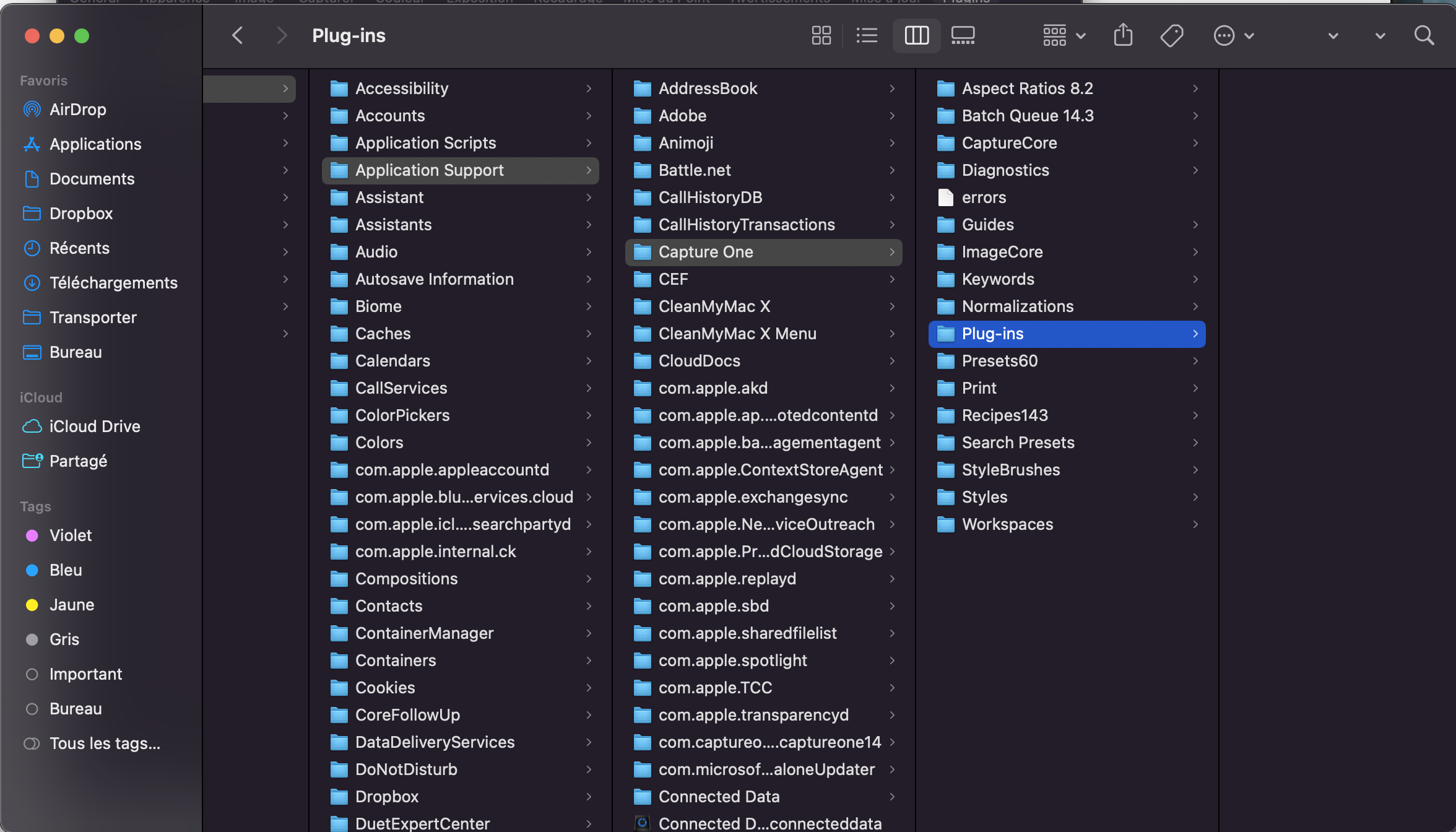
You need to delete the preferences files from the Application Support folder, but back them up first. This repairs any broken links
0 -
Last informations:
I can "open with" or *edit with" my tif file from the output folder (I work on session)
Before I could just open or edit with a right click on the thumbnail.
0 -
Hi James,
before to make a mistake ( sorry about my English), first I have to backup the entire folder Application Support. Then I delete the original one or just the Capture One folder (inside the Application Support) ? And then it's should work again ?
 0
0 -

hey how did this work out for you I'm having the same problem ;(
0 -
Hi,I receive this message from the assistance and it works again with Affinity and Nik Collection :
Oh, I see. R&D found that most of the reported problems with Open With came from Mac users with M1 chips without Rosetta 2 installed. Please check for that."
To install Rosetta 2, open Terminal and type in the following command:sudo /usr/sbin/softwareupdate --install-rosetta
The Terminal will ask you to type in your user password.
Note that the characters you enter will not be displayed for security reasons, so just type in your user password and press Return.
After installing Rosetta 2, try using the Open With plugin.
If you are facing the same issue, control/right–click on the Capture One .app file, select Get Info, check the "Open using Rosetta" option and try using Open With again:Bye and I hope it will work for you ;)
0
Post is closed for comments.
Comments
8 comments