C1 Open Catalog from 2nd Machine - Strange Issue

I’m trying to OPEN (NOT IMPORT – I don’t want to copy all the images) a backup of my image directory and C1 catalog from a Windows Desktop machine (DT), on a Windows Laptop machine (LT) – simply to view all the images within C1 on my laptop. The latest C1 Pro is installed on both machines and the catalogs have been updated. The process:
- On my Desktop Machine (DT) I have a large image directory at C:\Images. It contains many nested sub-folders, one of which holds my C1 Catalog.
- I copy this entire exact structure to an external Lacie Drive at X:\Backups\DT\Images (where X is whatever the external drive mounts to).
- I plug the external Lacie Drive into my Windows 10 Laptop (LT).
- I create a Directory Junction: mklink /J C:\Images X:Backups\DT\Images (because it appears to me that C1 has absolute path names embedded in it’s catalog). Works fine. The laptop then “sees” all the images and catalog on the external drive thru the “lens” of C:\Images.
- I start C1 on the laptop and open the C1 catalog at C:\Images\C1MasterCatalog\mycatalogname (which maps to the external drive at X).
It “works” but with one very strange weirdness: the entire sub-directory structure is unrolled into a single large sub-directory list (i.e., the original nesting is lost)!
- I can visit any sub-directory and all the images, edits, and previews are there – no issues. No sub-directories are lost - just the nesting.
- Very strange.
Any one have any idea what C1 is doing? Or how to tell C1 to respect the nested directory structure? Thanks for any ideas.
-
After looking through the forum more, I'm wondering if my issue and this lost-group-levels issue are the same issue.
0 -

If you right click on one of the image folders (not a User Collection, but the actual folder in the Folders area in C1, you'll get a menu with an option to Show or Hide the folders hierarchy. By default I believe it's set to Hide. If you set that to Show, then it *should* show the entire hierarchy. Otherwise it just shows the image folders as though they appear directly in the C drive. If you haven't tried that, give it a shot and maybe it will solve your issue :)
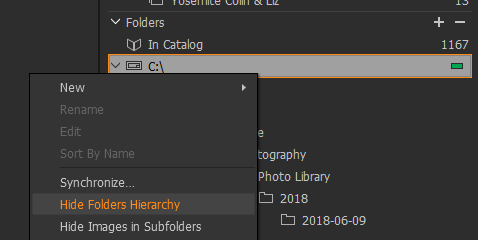 0
0 -
OMG ... that worked! Hadn't noticed that menu item before. Terrific to find such a simple "fix". Thanks very much Adam!
0
Post is closed for comments.
Comments
3 comments