Session based processing - Images are moved to selcets folder - SOS!!!

My image database is organized as a Windows folder tree. I am using Capture One Sessions to convert and to process the images. Clicking on one of the raws in the Windows folder opens Capture One and displays the images available in a preview bar (see below, to the right). Clicking on one of the images opened the image in the C1 processing window. The image stood as a file in the folder from my image database.
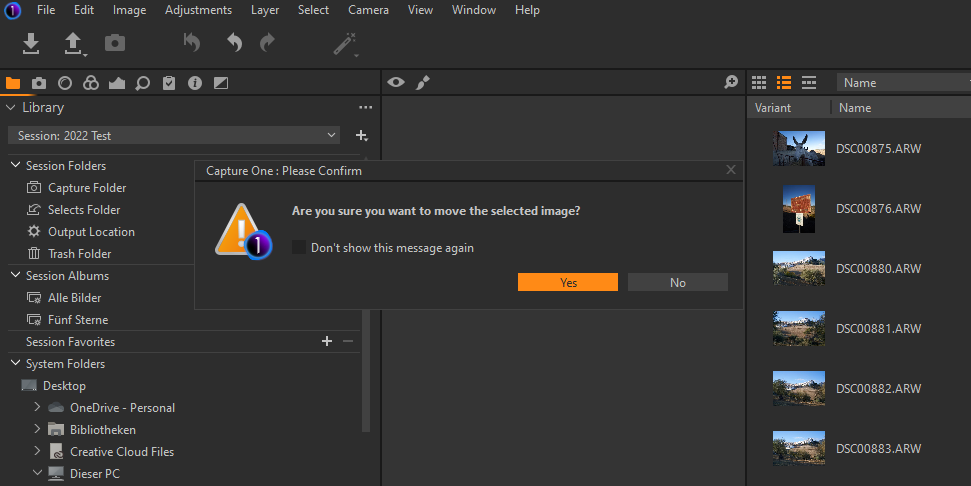
NEW: With updating C1 recently to version 15.1.2.3 this behaviour has changed. C1 requests to move the image to be processed to the selects folder of the session. If you do not confirm that, it will not be opened for editing. So you are forced to confirm.
That means, the images disappear from the database they belong to and will be found in the selection folder of the session (under Windows OneDrive-Personal). That destroys my conventional tree/folder based image archive.
SOS: I need to stop Capture One to move the images to keep them in the original storage location when editing. How to proceed?
Many thanks for your advice
-
For better communication, the "preview bar" is usually called the "image browser", and the "processing window" is called the "preview window".
With updating C1 recently to version 15.1.2.3 this behaviour has changed. C1 requests to move the image to be processed to the selects folder of the session.
Not on my PC. I can change the exposure or do any other edits to an image in the preview window and C1 just leaves the image in the original folder.
So, what exactly do you do, step by step?
0 -
Perhaps you should check your keyboard shortcuts. The default keyboard shortcut to move an image to the Selects folder is Cmd-J on a Mac (presumably Ctrl-J on Windows. See screenshot.
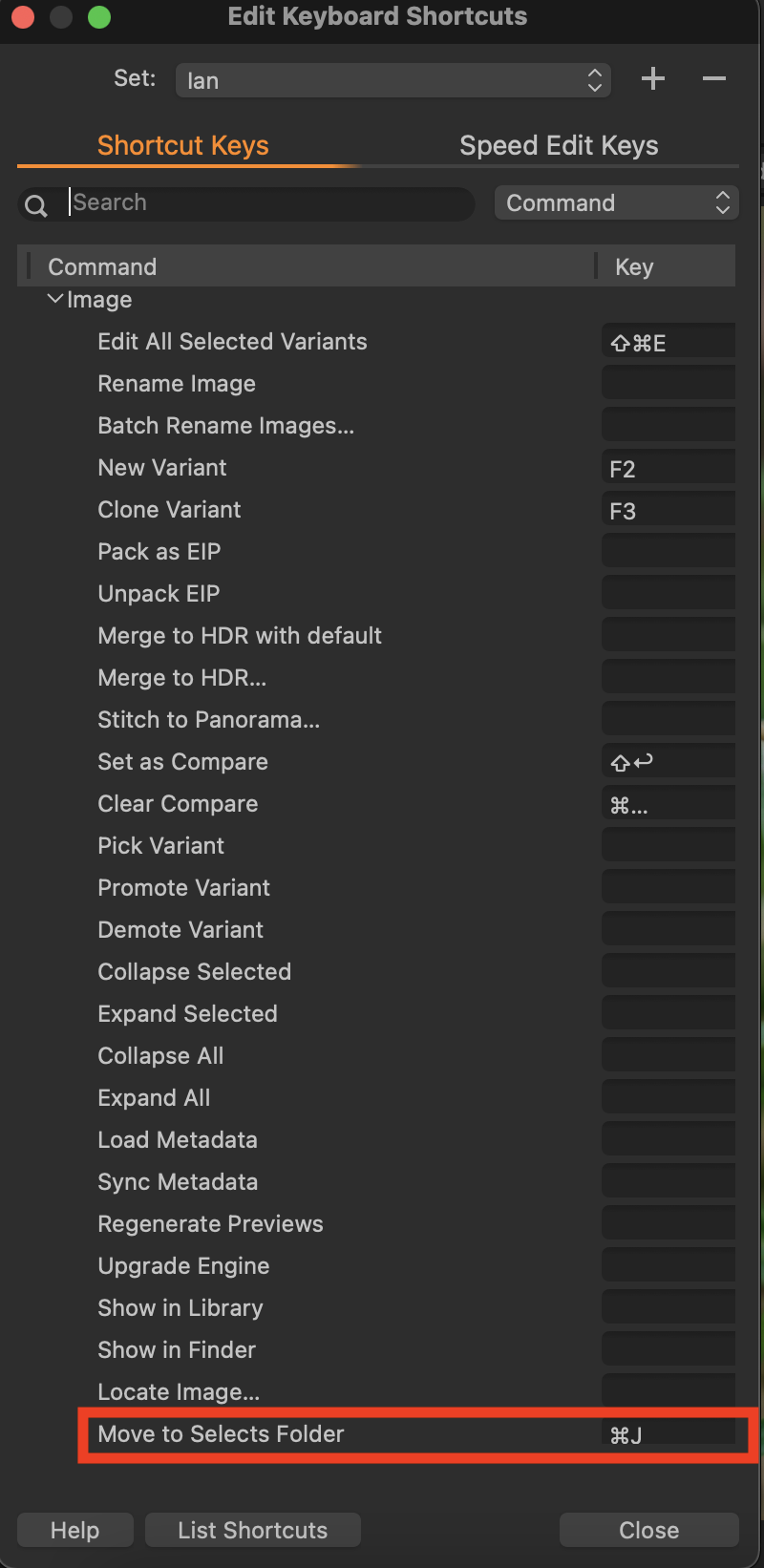
Is it possible that the keyboard shortcut for this action has been set to something else that gets actioned when you try to choose an image to edit? And are you saying that it does this even if you just click on an image in the browser?
Ian
0 -
Thanks for clarifying the naming convention first.
Here the workflow
(1) Save Raw images (Sony ARW type) into a Windows folder of my image database
e.g. C:\photos\2022\2022-01-13 Munich\ ... image1, image2 (Raws)
(2) Creating a Capture One Session (or selecting one of the existing sessions)
Structure:

(3) Opening a Raw from the folder (1) in Capture One by right-clicking on the file and selecting C1 as program to be used for opening.
--> Capture one is opening

showing the preview window in the mid section and the image browser to the right. Now I click on an image in the browser for getting it into the preview window (This worked with former program versions without a dialogue and is different now in version 15.1.2.3).
Capture One request for confirmation now:

"Are you sure you want to move the selected image?" If you confirm, the file will be moved to the session sub-folder "selects":

All images should stay in the tree structure I have defined for managing all of my photos. No photo should be moved into a C1 session folder ("Selects") .
If you do not confirm moving the file into "selects", it will not be opened in the preview window - you can't process it in this case.
This file moving would bring a mess into my photo database. Before, all images remained in the original folder when editing them. Like this, I need to continue and have not found a solution for "switching off" image moving in C1 Version 15.1.2.3.
Hope this is precise enough now, and you will have the solution. Thanks for your support.
0 -
I think you are making it too complicated.
Once you have created your session - your Step (2) - just go to the Library tool in the session, find the folder you want to work with, and select an image. If you will be working on a lot of images from that folder, you could add it as a session favourite.
Ian
0 -
I have found it: in C1 15.1.2.3 there is a left and a right click option for the files shown in the browser. This is new and caused my confusion.
Left clicking is for file moving to "selects". The dialogue box "move selected file" is popping up and requests confirmation.
Right clicking opens the selected image in the preview window. Further you are offered options as "Rename", "New Variant" etc. when right clicking a file in the browser.
0 -
Thanks Ian for your suggestion. I will check that.
I did so: it is practically the same. You suggest starting from Capture One with opening the files. I started from the photo database.
In both ways, you end up with the left and right click option for managing the files.
Left clicking is for file moving to "selects". The dialogue box "move selected file" is popping up and requests confirmation.
Right clicking opens the selected image in the preview window. Further you are offered options as "Rename", "New Variant" etc. when right clicking a file in the browser.
In former versions left-clicking started the file preview.
0 -
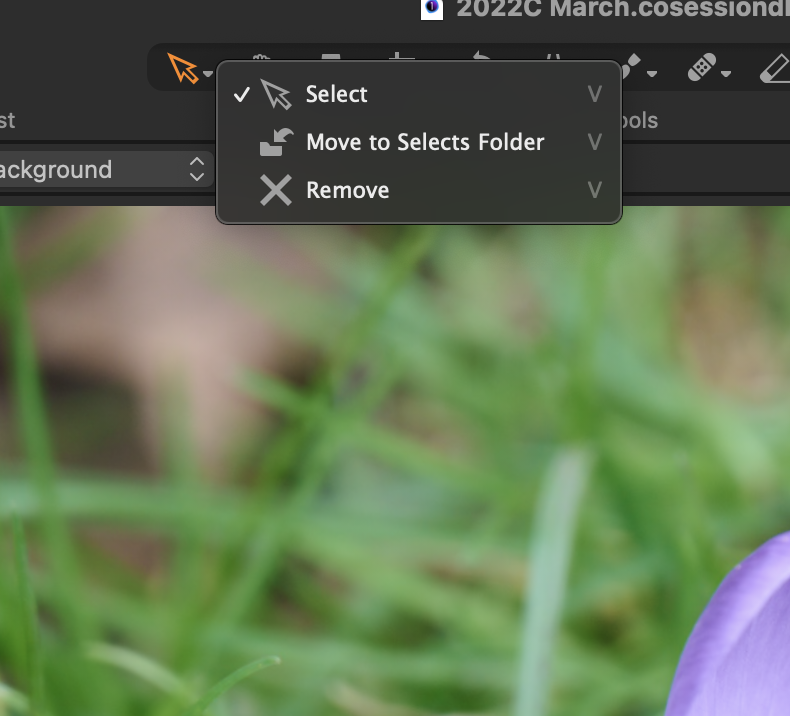 I recognise the right-click options such as renaming, creating a new variant and so on. But left-clicking to move to Selects doesn't seem right. But I've worked out what is going on!
On the toolbar, long press the arrow icon, and make sure that the option to select, as in my screen shot, is checked, NOT the option to move to selects.
Ian
0 -
Very good Ian.
0 -
Thanks a lot, Ian for solving the issue!
0


Post is closed for comments.
Comments
9 comments