Several Variants with same style

Dear folks, (capture one v. 22)
I have a doubt about what I think it would be easy but, stuck I am.
I need to create a clone/variant of an entire folder and apply a style for all these picture.
For example:
1. Edition for 50 pictures coloured.
2. Same 50 picture in black and white.
How do I can proceed?
Thanks
-

Select all of the images for which you need a B&W version.
With the Edit All toggle ON, clone the variants to create new variants.
The new variants should remain selected when the clone activity of complete.
Select your preferred Style to apply to all of the new and still selected variants.
That's the basic outline.
However, if you are not applying an existing style you may need to do some initial preparation to create it.
If you actually need to edit each image individually you would need to de-select the "edit all" once the new variants exist.
If you want a simple conversion and a basics de-saturation would work for you, add a layer to one variant, apply de-saturations and then copy the layer to all of the other variants.
If you want to use the B&W tool the approach might need to be a little different. It depends what you want to achieve.
Always TEST the process against a sample set of images. Whatever works for 2 or 3 will work for tens and hundreds.
0 -
Thanks!
With the Edit All toggle ON, clone the variants to create new variants.
The new variants should remain selected when the clone activity of complete.
Select your preferred Style to apply to all of the new and still selected variants.
That's the basic outline.
Good trick but still some messy steps.
Aftermath, if I want to export only variants on Capture One 22(B/W) or export them in different folders (B/W - Color), problems again.
Even variants can not be move to other folders, at least in sessions projects.
thanks!
0 -
You can select by same variant position. Right click on a Variant 2, and choose that from the menu.
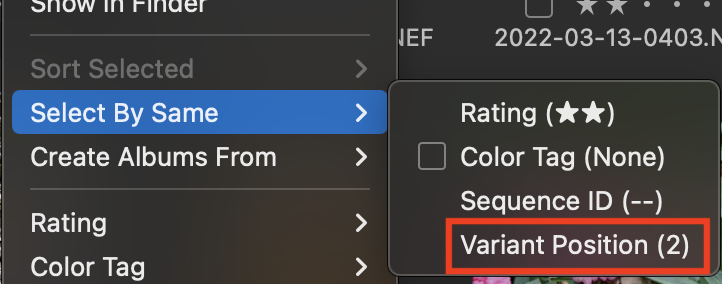
So you could quickly select all the Variant 2s (perhaps they are the B & W edits) that way and process them with an Export recipe that goes to your B&W folder, then select all the Variant 1s in a similar way and process them with an Export recipe that goes to your Colour folder.
Ian
0 -
Paul,
As part of the mass process mentioned earlier I would recommend adding meta data to identify the variants as B&W (and anything else that is relevant for your needs).
Keywording is one obvious choice but you may also find a number of other Metadata fields, especially IPTC correlated fields used as industry standards, that could also be deployed.
They ould then give you defined search and selection criteria for anything else you may wish to do with the variants in the future and allow that data to be included in exported files for final output.
0

Post is closed for comments.
Comments
4 comments